If you’re constantly moving, then replying to WhatsApp messages promptly can be difficult. After all, if you’re driving, picking up kids, shopping, running for your bus, or whatever it is you do, then trying to type a reply to someone can be distracting and annoying. That’s why you should send voice messages on WhatsApp instead. How do you do it? Glad you asked because that’s exactly what we’ll be looking at here.
Read more: What is WhatsApp? The ultimate guide to getting started
QUICK ANSWER
To send a voice message on WhatsApp, press down on the microphone icon next to the text box and speak your message. When the message has been completed, release your finger from the microphone icon, and the voice message will appear in the messaging area as a small audio player. The recipient then has to tap the play button to hear it.
If you want to send a voice message to someone, go to their chat window, and you will see a small microphone next to the text box.
Press down on the microphone, and a timer will start. This is the start of the recording. Do not lift your finger until the message has been finished. Lifting your finger ends the recording and sends it. If you fluff up the recording and want to do a do-over, slide your finger off the record button (instead of lifting it off). Sliding the finger off gives you the option to delete the recording.
When you’ve lifted your finger, the recording will be sent to the other person. You and they will see it as a small audio player in the messaging window. All you and they have to do is tap the white play arrow to hear the message.
The grey microphone icon next to the picture will turn blue when the message has been listened to by the recipient.
Read more: How to delete WhatsApp messages
Yes, you can. The process is identical.
WhatsApp does not publicly specify any particular time limits. However, there must be some limit. Just don’t go crazy, and use the feature only for short messages.
Yes. You can long-press on the audio player, and a menu will appear. Select Delete. You will then be asked Delete for everyone or Delete for only me. Choose the former.
It could be any number of things. Your volume may be down, your device may be in silent mode, you may have earphones plugged in, or the recording itself was bad.
Yes, you can download them, but only as OGG files (although you can easily convert them to MP3 later if you want). On a mobile device, long-press the voice message and select email in the Share menu. The OGG file will then be sent to you as an email attachment.
On the desktop client, click the small arrow to the far right of the audio player, and in the drop-down menu, you will see Download. This again will give you an OGG file.
WhatsApp does not officially provide this feature. However, there are third-party apps available for your phone that claim to be able to do it. Please think first about whether you want to grant access to your private messages to an unknown third party.
WhatsApp holds on to the messages until the recipient opens WhatsApp to listen to the messages. If the recipient doesn’t open WhatsApp and listens to the messages within 30 days, they are automatically deleted from WhatsApp’s servers.
As for listening to them, this is impossible due to end-to-end encryption, which is installed on all WhatsApp communications by default.
Turn off your internet connection on your device. You can then listen to the message without the blue ticks giving you away. However, the blue ticks will be sent when you reconnect to the internet. So you’re only fooling the other person for a few minutes or less.
No. You will receive notifications of voice messages, but you can’t natively listen to them on the watch. However, there are third-party apps available that claim to do it. Again though, the same privacy caveat applies.
by Mitul Patel
3 years ago
How to Send Recorded Voice Messages on WhatsApp & iMessage – From Chat to Video Calls, Not it’s a new trend of teenagers that is sending Recorded Voice Messages over WhatsApp and for iPhone its iMessage App. So, as Technology keeps on growing the communication system in us is also changing day to day. So part of that you might also be looking to send voice message iphone, send a text message.
Today, we here at Latest Tech News will be discussing sending Voice Message in iPhone, WhatsApp. Here I will also be sharing a simple trick to send voice messages in iPhone for free of cost using iMessage App.
Although, you can send a voice message from a third party like Visual VoiceMail, AT&T, and Google Voice; these are the third party Android and iPhone applications that can be useful for sending voice messages to your beloved friends and family members for free of cost.
Firstly, I will explain how to send recorded voice messages on WhatsApp, and then I’ll be telling you a simple trick to send voice messages using iMessage App.
How to Send Recorded Voice Messages on WhatsAppBelow are the necessary steps required to send a voice message:-
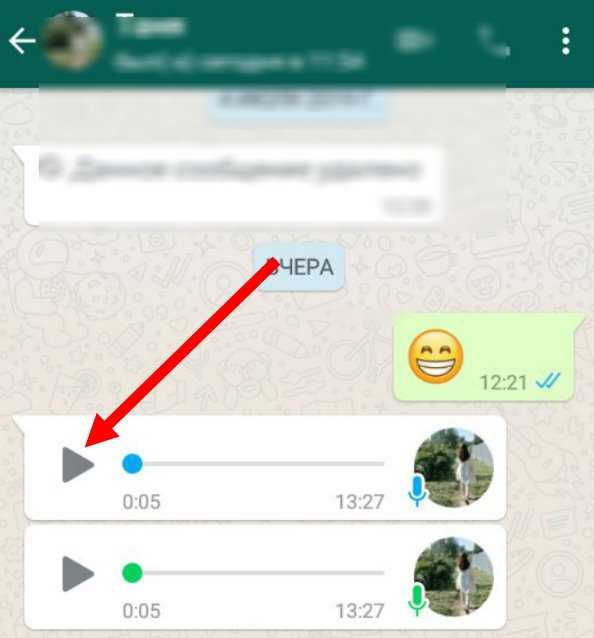
You can also cancel your record and send new one – but make sure – receiver has listened to your recording and then the MIC will turn into blue color.
As we promise that you need not download any third party software from iTunes or Google Play Store
How to Send Voice Message Over iMessage?By now all your hands will be up in the air. Yes!! This trick will trill you, but the only disadvantage with this service is you cannot send iPhone voice message to non-iPhone users.
Here’s how to send iPhone Voice Message – Firstly, you need to open Voice Memo Application (VMA) then start recording your voice by pressing the Big Red Button at the center of this app.
As this trick is to send voice messages to friends and family members, the same method can be used to send to other iPhone users.
We highly recommend you to send voice message over iPhone – This is to ensure that the voice quality is much better than WhatsApp. However, you can only send voice messages to iOS Users only.
Final Words
We hope this post is very much useful if you have any more queries regarding sending voice message over WhatsApp or iPhone then do let us know through a comment.
The ability to send voice messages to WhatsApp is popular with users because it eliminates the need to type text on the keyboard, for example, when your hands are busy or there is too much text. This article explains how to create and send a WhatsApp voice message from a mobile device and from a PC.
Contents:
In order to record a voice message, your device must have a microphone. In smartphones and laptops, it is built-in; for a desktop computer, you will need to purchase it. After the user pronounces the text, WhatsApp generates a file that will be sent to the desired interlocutor. You can listen to the file through headphones or a regular speaker.
Owners of computers and laptops have the opportunity to purchase speakers, headphones and microphones of different sensitivity, which will affect the sound level and the quality of voice recording.
To use the popular WhatsApp feature, you need an internet connection with a speed of at least 64 kbps. All available networks are suitable for mobile devices - GPRS, EDGE, 3G, 4G and Wi-Fi.
If the indicator on the smartphone shows a 2G connection, then the speed for voice transmission will not be enough. In this case, you can only send SMS and make regular calls.
Any smartphone that is currently on sale with WhatsApp installed will be able to record a voice message and send it to the interlocutor.
Instructions for recording:
Just like WhatsApp informs about read and unread text messages with checkmarks, you can find out that a voice message has been listened to by the microphone icon, which will turn blue.
You can record and send a recording without an internet connection. As soon as the smartphone or PC is connected to the network, the message will automatically go to the addressee.
Attention: In some smartphones, voice recording starts 1-2 seconds after pressing the microphone button.
The use of voice files has become so popular that there is a modern etiquette associated with it. So, it is recommended to ask the user before sending whether such communication is convenient for him.
An application created for a PC does not allow you to make voice calls, but there is a function to send voice files. The browser-based WhatsApp Web also provides this feature.
The user is required to check the synchronization between the PC and the mobile device. It is important that at the time of recording, the smartphone is connected to the Internet. The microphone must be enabled on the computer. You can listen to a sent or received message through the speaker or headphones.
To send a message, follow the algorithm:
If you cannot record your voice, the microphone may be the cause. To solve the problem, in the settings of sound devices on the PC, you should activate it. You can also install an amplifier there so that the sound on the recording is clearer.
Sending voice messages is another feature in WhatsApp that makes communication between people more convenient.
Applications
Reading 6 min Views 292 Published by
Recording and sending a voice message has many advantages: for example, you speak much faster than you type. In addition, difficult things are often better expressed in spoken words than written ones. You have many ways to record voice messages - both on your smartphone and on your computer or Mac. We'll explain exactly how this works below.
Contents
In the messenger world, recording a voice message is very easy:
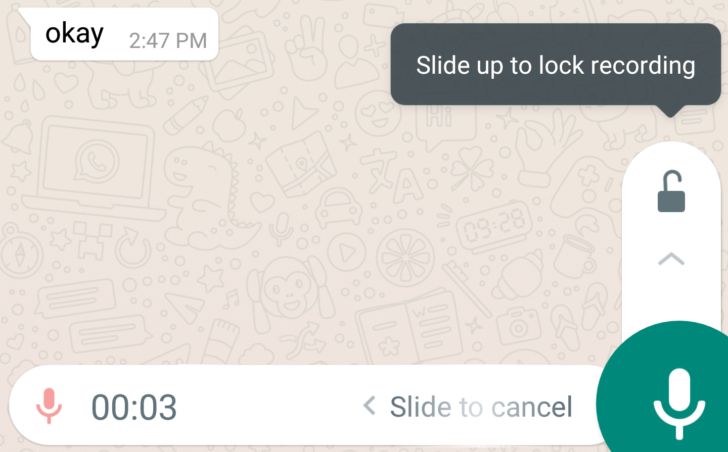
Tip for hands-free voice messaging: Place your finger on the microphone icon, then swipe up. This way the recording continues and you don't have to keep your finger on the display. In addition, your voice message is not sent immediately. If you don't like it, you can delete it.
If you want to record a voice message on a Windows 10 or 11 PC, you will need a microphone. Most laptops have a built-in microcontroller, for example, for desktop computers you will need a USB microphone or headset. After everything is set up, follow these steps:

Note: If the voice recorder is not preinstalled, you can download it for free from the Microsoft Store.
On a Mac, you can create voice messages using the Voice Memos application, similar to the one you use on Windows. Again, you'll need a USB microphone or headset in case you don't have a built-in microphone. And here's how to do it:
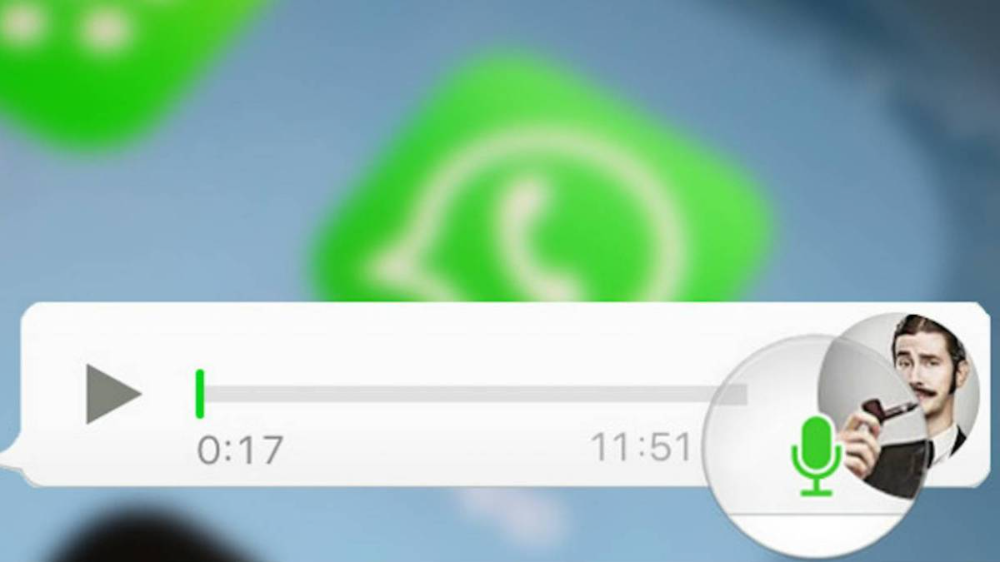
The Voice Memos app is also available in almost identical form on iPhone and iPad. You can usually find them in the Utilities folder. Here's how you use them:
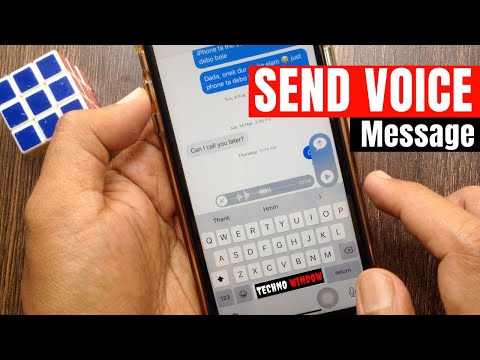 You can send the voice recording, for example, via WhatsApp, email or other applications.
Tip: Various editing tools can be accessed by clicking "Edit Entry" in the three-dot menu. For example, you can trim the recording, swap individual scenes, and adjust the playback speed.
Most Android smartphones and tablets come pre-installed with a voice message recording application. As a rule, she listens to the name "voice recorder", for example, on Samsung Galaxy phones. Also, you can find free voice recorder apps on the Google Play store.
All applications work very similarly. Here is the voice recorder app for Samsung Galaxy S20 as an example:

You can often edit your voice messages a lot. For Galaxy line recorders, the corresponding options can be found in the three-dot menu in the "Edit" section.
These tips will help you improve the quality of your recordings: