Got multiple Instagram accounts?
Maintaining several accounts is a highly recommended tactic. Each different Instagram account can reach and delight a specific target audience!
Once upon a time, IGers had to sign out of one account to access another.
But no longer!
In this article, you’ll learn how to add and switch Instagram accounts in the app.
Here, we’ll cover:
The purple banners will help you find a specific section. Read on!
This article has been checked and updated for 2023.
You can easily manage up to 5 Instagram accounts on one device. This allows you to quickly switch between them without having to log out and log back in.
There’s no specified limit to the accounts you can create, as long as they’re not being used for deceptive, fraudulent, or illegal activities.
Because you can only link 5, more accounts will require either logging out, or using multiple devices where you can link up to 5 on each.
If you manage Instagram business accounts, you can add and switch Instagram accounts on computer.
You can create a new Instagram account while you’re logged into your current account. Note that this can only be done on the Instagram mobile app!
If you’ve already created multiple Instagram accounts, you can simply connect them, so skip to the next section.
Here’s how to create a new Instagram account that will instantly be connected to your current one.
There are 12 steps, but they’re really easy:
1 | Open your current Instagram account.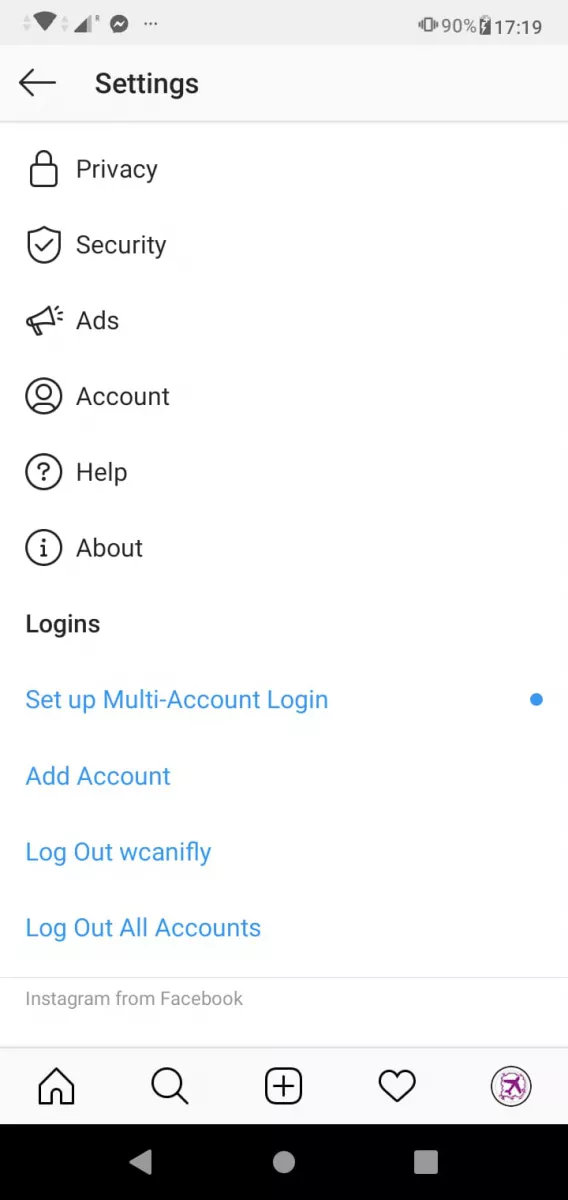
2 | Go to your profile.
3 | Tap the 3 lines at top right.
4 | Tap the gear icon at the bottom for Settings.
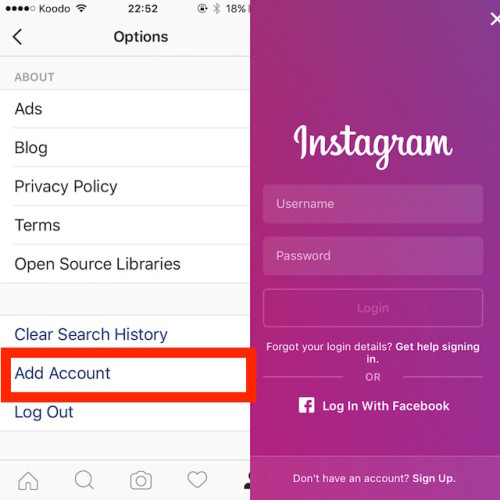
5 | Scroll to the bottom. Tap Add Account.
6 | On the next screen, choose Create New Account.
7 | Next, create a unique username. You can include dots, dashes, or numbers. If the one you want is taken Instagram will suggest alternatives, probably with a few numbers at the end of your choice.
8 | Create a password.
9 | You can choose Complete Sign Up, and your new account will be linked to your current account, phone number, and email.
OR tap Add New Phone or Email to have it linked to a different phone number or email.
10 | You can choose whether to Connect to Facebook to find friends to follow, or Skip.
11 | Same thing with your contacts: Search Your Contacts or Skip.
12 | Next you’ll add an Instagram profile photo for this new account.
You can skip the remaining steps for now. You’ll get another chance to Discover People by connecting to Facebook or your Contacts. Tap Next and you can manage your ad settings, or… start posting!
You’re logged in to your new account, and can switch to your original account at any time.
You can have multiple Instagram accounts on one email. An email address can be associated with up to 5 Instagram accounts in 2023.
It used to be that you couldn’t use the same email or phone for a second Instagram account. Readers who managed to do this found themselves permanently locked out of the second account when they forgot their password.
Now you do NOT have to enter a new email or phone number to create another account, if you create it when logged into another account, as described above. They can share the same email / phone, OR you add a different one under Step 9 above.
If you try to create an account with an email address and get a message that the email is already in use, double check your spelling, punctuation, and numbers. Here’s help if you can’t make it work.
Be sure to choose an email address that only you can access. If you log out and forget your password, you’ll need to access your email to get back into your Instagram account.
More about “one login” near the end of this article.
You can connect up to 5 Instagram accounts to switch between them without having to log out and log back in.
To add existing Instagram accounts:
To switch between accounts you’ve added:
Note that you can add up to 5 accounts on one device. source
From now on, just tap your Instagram profile picture at the bottom of any panel to switch between accounts.
Once you have multiple accounts added, you’ll see your profile photo appear in places throughout the app so you can always tell which one you’re using at the moment. I noticed that my account name appears in the comment field so I’m sure which account I’m using. Nice!
There’s another way to add an account to your existing one.
Tap the three lines in the top corner and then click ‘settings’.
Scroll all the way down. You’ll see an ‘add account’ option.
Tap, and you can create a new account or log into an existing one.
To remove an Instagram accounts you’ve added, you need to go to your profile.
Tap the three lines in the corner and then click settings.
Scroll right to the bottom and select ‘log out’.
It will give you the option to select the account you want to log out of. Select this and you will be logged out.
For more details and troubleshooting tips, read How to Remove an Instagram Account.
There’s another option to removing an account, and that’s deleting it.
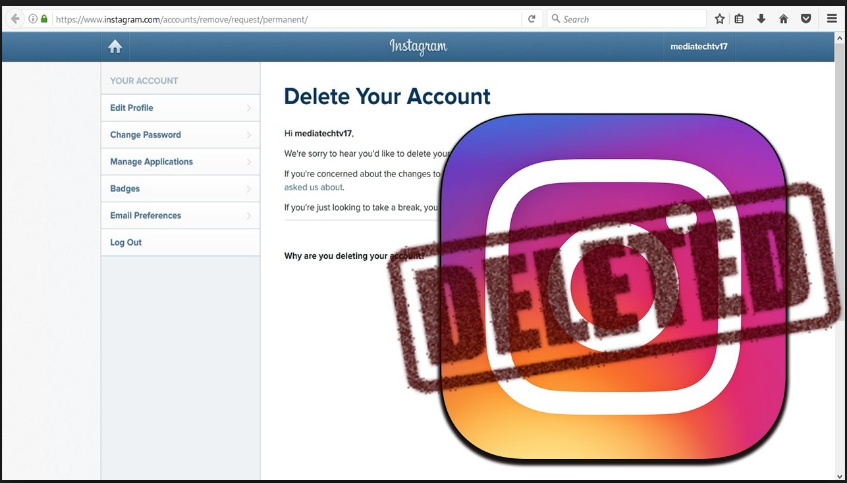
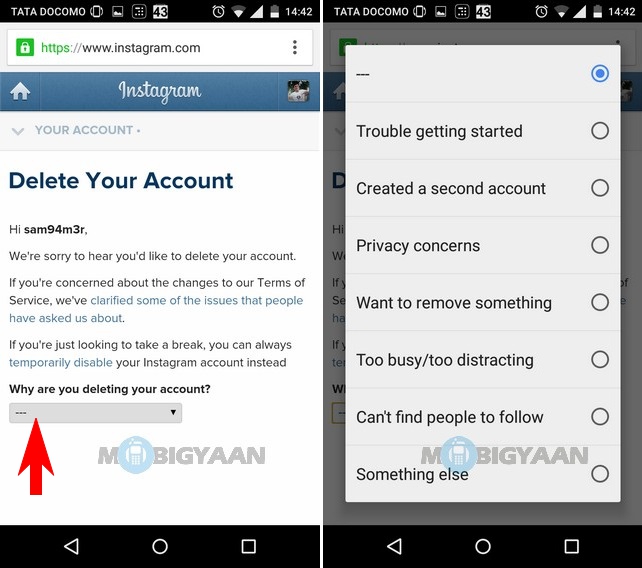
Deleting an Instagram account must be done via a browser. You can’t delete your account from within the Instagram app on your mobile device.
Permanently deleting your Instagram account cannot be undone!
When you delete your account, your profile, photos, videos, comments, likes and followers will be permanently removed in 30 days.
If you’d prefer to take a social media break, you can temporarily disable your account instead.
Because this is a big step, I recommend you read through this article on how to delete an Instagram account. It’ll cover when you should disable instead of delete, precautions before deleting, and more.
When you use an approved scheduling tool like Tailwind or Later, it is important to be logged into the right account on your app for some types of posts.
For example, Instagram Stories and carousel posts still need to be posted manually. So, when you click a notification from the scheduling app to post, you need to be logged into the right Instagram account on the app first.
Check this before you tap on the scheduler app notification!
The IG feature named One Login was deprecated in 2021.
You can no longer create one Instagram login for multiple Instagram accounts. If you’ve previously set up a single login for multiple Instagram accounts, you can continue to use this feature for those accounts.
You can’t add new Instagram accounts to a single login, but you can remove any previously added accounts at any time.
If you remove an account from your single login, you can’t add it back. source
This is no great loss. I always recommended against it, since it permanently linked your accounts. It was tricky to separate them once linked.
But you can use the same email.
Here’s what one reader, Deanna, had to say. Please let us know in a comment if you try this and it no longer works in 2023.
I have a personal Instagram account and created a business account linked to it using my iPhone under the same email/password combo.
I can only access the business account through the personal account on my iPhone. On my Mac, I can log into my personal account, but it does not allow access to my business account.
I would like to be able to log into my business account on my Mac. Is there a way to create separate login information (username and password) for my business account now that it’s already established and linked to my personal account?
Another reader left this option on October 7, 2020. This worked for him, though I can’t vouch for it – and as social media always changes, we can’t rely on this to be available in the future.
According to Linoy:
You should log out from it and then try to reset your password. You’ll get an email to reset it, after you pick a new one a reset the password for this account, you’ll be able to access both accounts – just with username and different passwords, even if it’s under the same email.
Note that your accounts that had previously shared a password will be unlinked – BUT you can relink them with the new password. According to Deanna:
When I went back to my phone, because I had changed my business account password, I was notified that the business page was unable to be accessed. I unlinked the business account from my personal account and then relinked them following the prompts and using the new business account username/password. They linked up just fine.
Hope this helps.
If you’ve added multiple Instagram accounts, you may get push notifications from any account that has them turned on. This depends on when you last logged in and the number of devices that are logged in to an account.
We covered all this:
Here’s a quick summary of some key points.
Missed something? Need the details? Look for the purple banners above.
This is a long-awaited feature that I use daily.
Have you tried Instagram account switching yet?
Once you’ve set up your accounts, be sure to check out how to grow your Instagram followers 11 ways!
Do you manage multiple Instagram accounts? If so, you know that it can be a pain to keep track of them all. Not to mention, if you use the same email address for all of your accounts, you have to constantly log in and out just to switch between them.
But what if I told you there was an Instagram hack that lets you manage multiple accounts with just one email?
It’s true! With a little bit of setup, you can easily add and manage several Instagram accounts from a single email address. Follow this guide to find out everything you need to know about running multiple Instagram accounts—and how to avoid posting to the wrong one.
Yes, you can have multiple Instagram accounts! In fact, you can now add up to five accounts and quickly switch between them without having to log out and log back in.
This feature is included in version 7.15 and above for iOS and Android and will work on any Instagram app using that software.
If you’re working with a later version, or simply want to manage more than five accounts at once, a social media dashboard like Hootsuite allows you to manage even more Instagram accounts and share the management responsibilities with other team members.
You can also have multiple YouTube channels, multiple Facebook pages, and multiple Twitter accounts. Check out the linked resources for more info there.
How to open multiple Instagram accountsYou can create multiple Instagram accounts on your phone right from the Instagram app.
To create a new Instagram account follow these steps:
You’re all set!
Once your accounts are set up, tap Add Account and then Log in to Existing Account.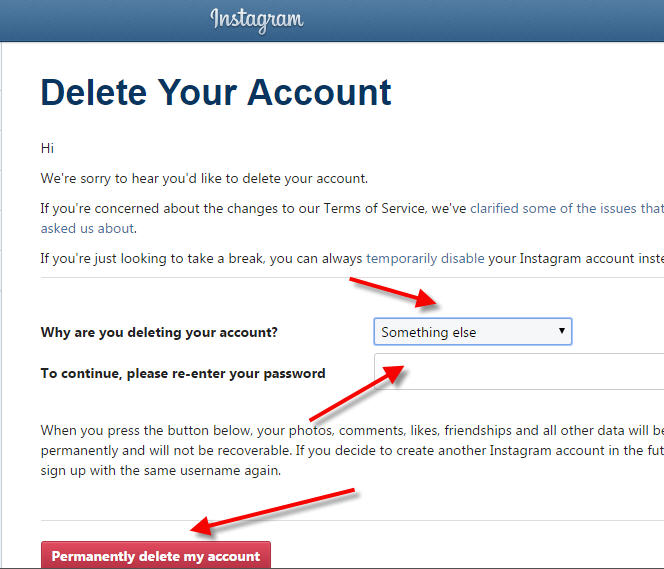 From there you can enter the login information for the account you want to add.
Tap Log In, and your new account will be available through your main Instagram profile page.
Now that you know how to create a new Instagram account, you’re probably wondering how to switch between them.
To switch between multiple Instagram accounts:
Note: You will stay logged in to the last account you used on Instagram. Before posting or engaging with new content, always check to make sure you’re using the right account.
Once you’ve set up more than one Instagram account, you’ll want to manage them all efficiently. Here’s how to do it from your phone.
If you are simply looking to start a branded Instagram account for your side hustle, alongside your personal account, and want to easily switch back and forth between the two, the Instagram app itself might be enough to suit your needs.
With your new Instagram accounts set up, you can now post to any of the accounts you have added to the Instagram app. Simply select the account you want to use from the drop-down menu in your profile, and start posting as usual.
You can always tell which account you’re using by looking at the profile photo. The profile photo can be quite small in some views, so choose distinct photos to make sure you always post to the right account.
Here’s what it looks like in Story view.
Here’s what it looks like when posting to your feed.
Using a social media management platform like Hootsuite, you can easily manage all of your social media accounts (including one or more Instagram accounts) from your computer. Hootsuite also provides access to advanced features like bulk scheduling and detailed analytics.
The first step to using multiple Instagram accounts in Hootsuite is to add them to your dashboard. Here’s how to get them set up using the Hootsuite mobile app.
To view your Instagram accounts at a glance and switch between them easily, add your posts for each account as a stream in the Hootsuite dashboard.
Now you know how to view all your Instagram accounts on Hootsuite, so you can easily switch between them.
You can use Hootsuite to post to any of the Instagram accounts you have added to your Hootsuite dashboard.
Here’s how to get started.
If you choose Post Now, the post will publish directly to your Instagram account. If you choose Auto Schedule, it will post at the most optimized time. Custom Schedule lets you choose the date and time to post.
To switch to a different Instagram account, return to step 1 and choose a different account.
Learn more about publishing to Instagram accounts using Hootsuite here:
By now you’re probably wondering, how do I manage multiple Instagram accounts on my desktop?
If you’re managing multiple business accounts, it’s a good idea to use the Hootsuite dashboard for your posts, rather than managing your accounts directly within the Instagram app.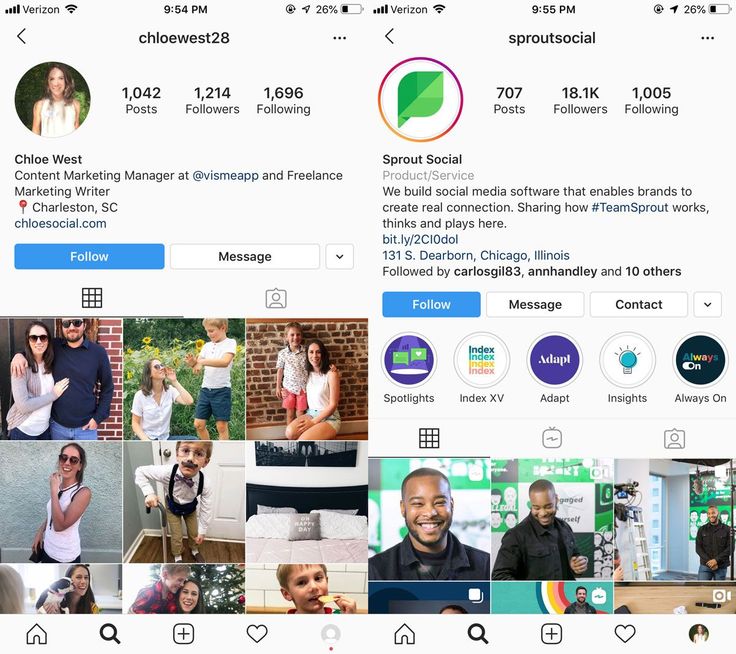
For one thing, the Instagram desktop app is not as proficient as the mobile app. If you want to manage several Instagram accounts on Instagram for desktop, you’ll need to log out and in every time you want to use a different account.
Not to mention, the Instagram app is limited to managing 5 Instagram accounts, including both business and personal accounts. But on Hootsuite, business users can add up to 35 social profiles to their dashboards.
As well, managing multiple business Instagram accounts in Hootsuite also allows you to collaborate with team members and access advanced analytics from the same platform you use to manage and measure your other social accounts.
If you want to learn how to manage multiple business Instagram accounts, you need to make sure each of your Instagram accounts is connected to a Facebook Page.
If you haven’t yet connected your account, you’ll be prompted to do so. You’ll need to enter your Instagram account details. Once you’re logged in, you’re ready to connect to Hootsuite. More info on that below.
If you’re using Meta’s new pages experience, follow these steps to connect your Instagram for business account.

Now you can add your Instagram business accounts to Hootsuite. Simply navigate to your Hootsuite dashboard on desktop, log in, and click Add social account at the top of your Streams view.
Repeat these steps for each Instagram business account you want to add to Hootsuite.
Watch this video for a visual walkthrough.
Log into your Hootsuite dashboard and click on the Composer icon.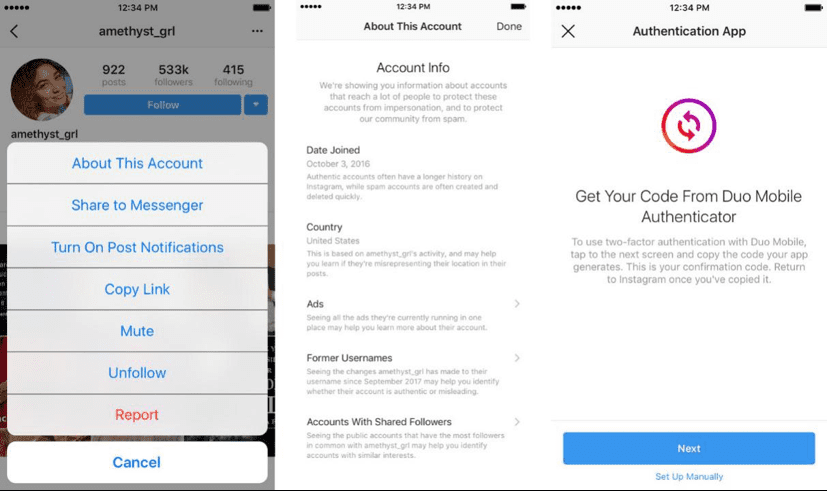 Then, choose Post.
In Composer, choose the Instagram accounts you want to publish to. You can choose multiple accounts, or just one.
Add your copy, images, videos, and any relevant tags to your post.
From there, you can choose to post right now or schedule your post for later. Be sure to use the best times to post when scheduling content in the future.
As we said before, the Instagram desktop version isn’t ideal for managing multiple accounts. If you’re looking for a simple solution for managing Instagram on a desktop, try Facebook’s free dashboard, Creator Studio.
Creator Studio makes it possible to post and schedule content to multiple accounts and access Instagram Insights from desktop and mobile.
To connect to Instagram in Creator Studio, follow these steps:

That’s it!
If your Instagram account is connected to a Facebook Page, the process may look a little different depending on the relationship between your Facebook Page and Instagram account.
If you have push notifications for several Instagram accounts turned on, you will get notifications for all of them on your mobile device.
Each notification will indicate the relevant account name in brackets before the content of the notification.
Tapping a notification will take you directly to the relevant Instagram account, regardless of which account you last used.
If you’re using Instagram and a notification comes in from one of your other accounts, you will see the notification at the top of your screen.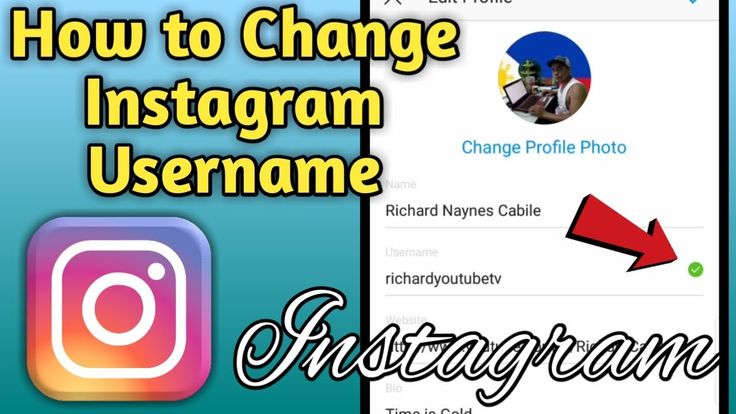
If you’re managing multiple Instagram accounts on one device, it might be overwhelming to have them all sending push notifications. Fortunately, you can adjust the push notifications for each of your Instagram accounts separately.
Here’s how to change your notification settings on Instagram:
At some point, you might want to remove one of your Instagram accounts from the app.
Why? Since you can manage a maximum of five accounts from the Instagram app, you might want to remove an account in order to make room to add a new one.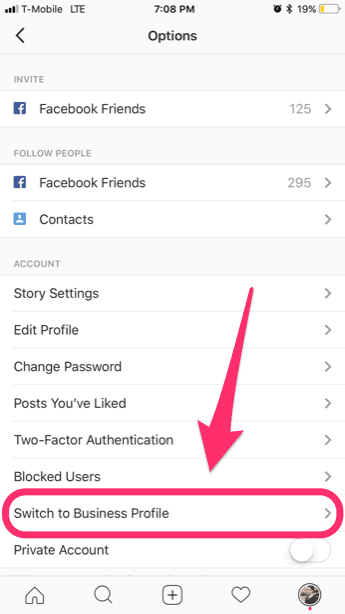
Or, maybe you’re no longer working on a particular account and simply want to make sure you don’t post to it accidentally.
Here’s how to remove an Instagram account on your phone:
When you go back to your profile and tap on your username, you will see the removed account is no longer included in the drop-down.
Repeat these steps for each account you’d like to delete.
Note: Removing your account from the app does not delete your account. If you want to delete your account (forever), follow the steps provided by Instagram.
Easily manage all your Instagram accounts in one place with Hootsuite. Save time by scheduling and publishing content, engaging with your audience, and analyzing your results—all from a single platform. Plus, Hootsuite gives you the ability to collaborate with team members, so you can get more done together.
Ready to give it a try? Try a free trial of Hootsuite Pro today!
Start Your Free Trial Today
Grow on Instagram
Easily create, analyze, and schedule Instagram posts, Stories, and Reels with Hootsuite. Save time and get results.
Free 30-Day Trial
Many social networking platforms do not allow users to change the account name after its initial setup, because this is the main element of account identification.
| Apple in Telegram and YouTube. Subscribe! |
♥ BY TOPIC: Who has the most followers on Instagram - the 40 most popular accounts.
Surprisingly, Instagram allows the user to change their login (nickname) at any time. At the same time, it is also possible to change the display name, and this can be done both in mobile applications for the iPhone or Android, and in the web browser of your computer.
Keep in mind that although you can theoretically change your display name to anything, it doesn't have to be unique, the situation is different with the username (nickname).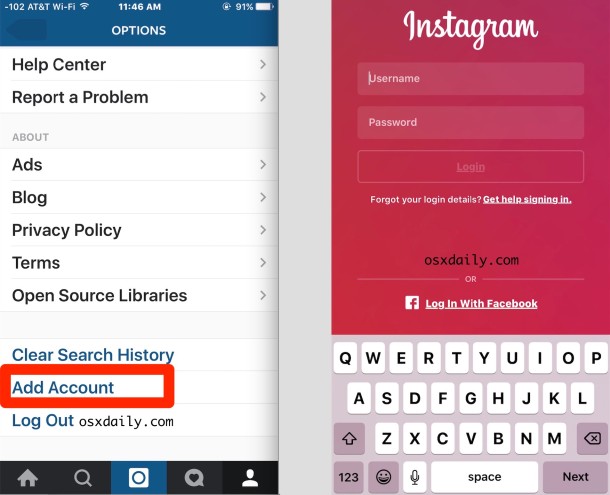
The user's login can no longer be used by anyone else. Instagram will warn you if the desired name is not available. You won't be able to save your changes until you select a unique word.
♥ RELATED: Instagram blue checkmark: how to get verified status on Instagram.
phone 1. Launch the Instagram app.
2. Click your account icon in the lower right corner of the screen to go to your profile page.
3. If the application has multiple accounts configured, tap the account name at the top of the screen and select the account you want to change.
4. Click " Edit Profile ".
5. On the change profile page, tap the box next to your display name or username (nickname) and make your changes. When you're ready to save your results, click " Done ".
♥ RELATED: How to create albums from photos or videos on Instagram.

1. In a web browser, go to the Instagram website.
2. Tap the account icon in the upper right corner of the screen.
3. Click " Edit Profile ".
4. Touch the box next to the user's display name or account and make changes. When you're ready to save your results, click " Send ".
See also:
How useful is the publication?
Click on a star to rate!
Average rating 4.7 / 5. Number of ratings: 15
No ratings yet. Rate first.
The Instagram social network is deservedly one of the most popular platforms where every day people not only look at each other's photos, but also make purchases, read useful information, share news, and also learn something new, reading the published texts under the photo. In order for your profile to attract attention and encourage certain actions (for example, to buy a certain product / service or read the information you publish), it must be correctly filled out and presented to readers. The process of filling in and changing personal information is not at all complicated, and you can read tips on editing it below.
The first thing that catches your eye is the profile header. Not an ordinary header, of course, but an account section that consists of a title, avatar, name, information about yourself and a link to an existing site or profile on another social network. Only after studying the basic information, users proceed to view the published content. To get new subscribers or customers, the information in the header of your profile should provide comprehensive answers to three main questions:
 For example: "My name is Katya, I'm a music teacher."
 How to change information about yourself on Instagram?
Log in to your personal account → Profile → “Edit profile” → Enter the required information → “Done”
Important! All information must be contained in 150 characters - this is the number that is the limit.
Tip! Do not post false information that you do not plan to publish.
If the user does not find the necessary content in your feed, then you will not only lose the reader, but also undermine the level of trust in you and your company, if any.
After successfully updating the block with personal information, it is worth choosing an avatar. An avatar is a profile photo, which, like its information, must correspond to the goals and information that is published in it. What you should pay attention to?
 If the profile picture will show off the company logo, then it should be understandable. For example: for a music teacher, you can select a note icon, and for a snowboard or ski instructor, for example, a picture with mountains or a snowboard and skis.
 Once the avatar photo has been selected, it must be uploaded to the application. How to do it?
Log in to your personal account → Profile → “Edit profile” → “Edit profile photo” → Import photo → “Done”
repeat. By nickname, you can be found on the platform through the search bar. Your unique nickname must meet the following guidelines:
What should be avoided?
Picked up a nickname following the recommendations? But how to change it?
Log in to your personal account → Profile → “Edit profile” → Enter the required nickname → “Done”
In the name line, it is better to use your real name or field of activity. So, users who are interested in your personality will be able to find information about you on the Internet or in other social networks. And also find you through the search bar. You can change the name in the same way:
Log in to your personal account → Profile → “Edit profile” → Change the name in the field provided for this → “Done”
Example!
“Mashulya is a beloved wife and a happy mother of two girls” – no!
“CAKE TO ORDER, Moscow” - yes!
Security is a very important part of maintaining an Instagram profile.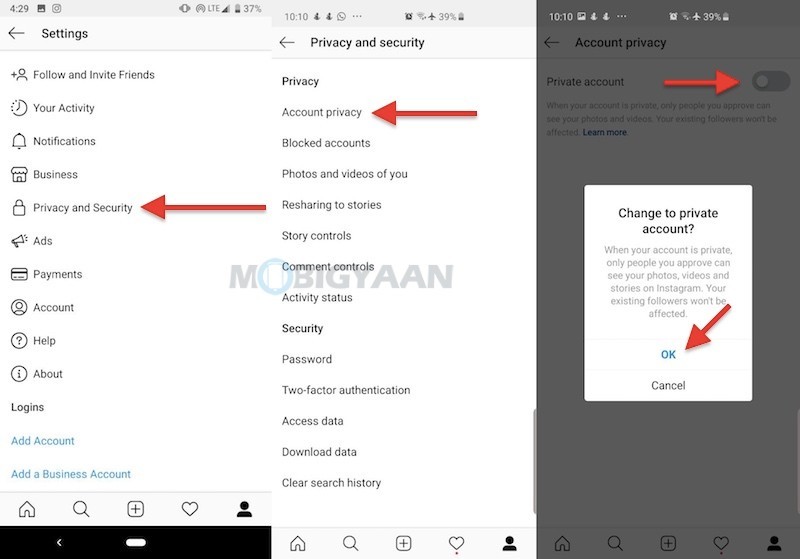 Although the service administration monitors the security of the published content and the profile itself, cases of hacking still happen. And the loss of an account, especially a work one, can deprive you of customers and earnings. Also, complex passwords are often forgotten. Therefore, the main advice when creating or changing a password on Instagram is to use at least 6 characters, including punctuation marks. So you can protect your account from hacking, and subsequently from losing it.
How to change the password on Instagram?
Log in to your personal account → Profile → “Settings” → “Password” → Entering the old and then the new password → “Done”
How to change the password on Instagram if you forgot it?
Open the instagram app → “Forgot your password?” → Enter a nickname in the window that appears → “Send login link” → Check the mail to which the page is linked → Follow the link received to reset your password → Enter a new password → “Done”
Subsequent login using the new password
Tip! Write down the new password in a personal notebook and do not share it with anyone.
And also do not forget to link your account to a valid mailbox and mobile phone that you really use.
This way you can log into your account if it is hacked or you suddenly forget your password.
Bold, italic, strikethrough and other options will always draw users' attention to the necessary information. However, the Instagram platform itself does not allow you to choose the font of your choice. But there is still a way out.
How do I choose a different font?
 Then press the save button.
 Read more about the design of the text on Instagram in our other article.
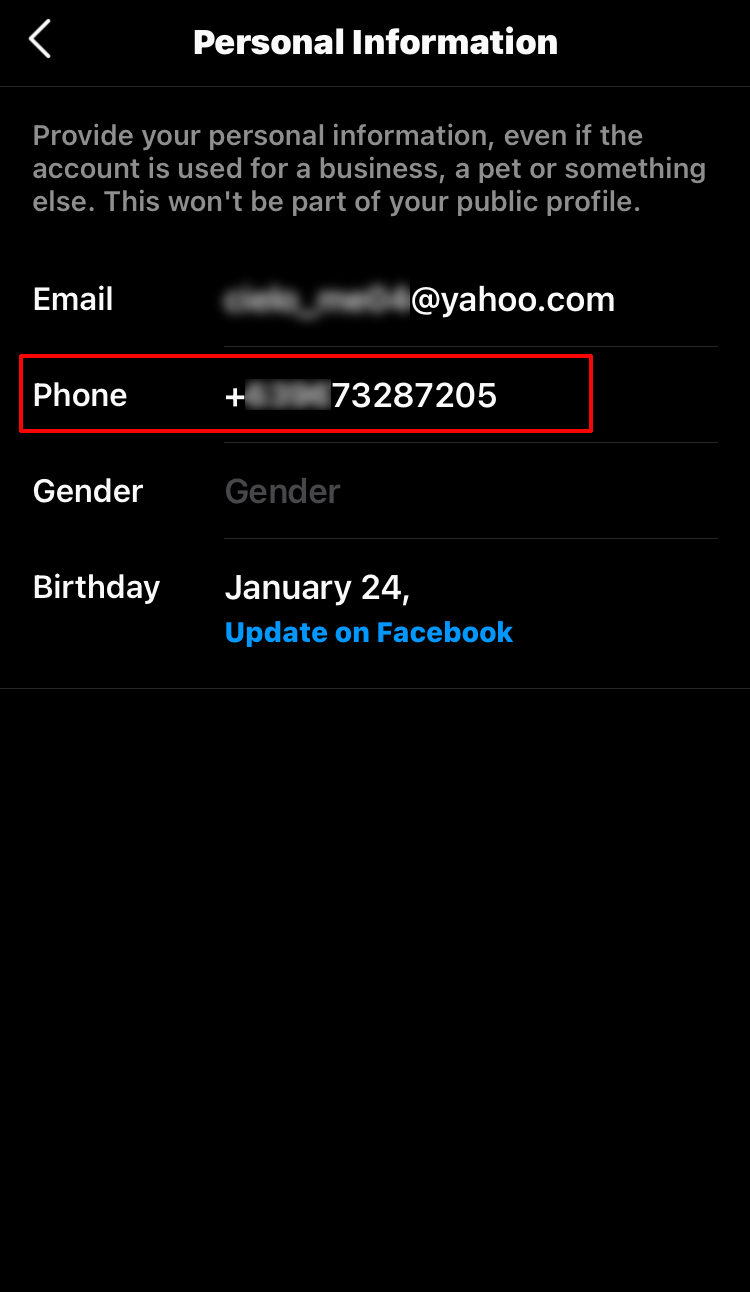
Linking to a mobile phone is very important for an Instagram profile. Thanks to this, you will be able to recover a hacked account. Also, using the mobile number you specified, users will be able to contact you at any time, if necessary. But it often happens that the mobile number changes, so it becomes necessary to change it on Instagram. How to do it?
How to change your Instagram number?
Log in to your personal account → Profile → “Settings” → Change number → Confirm changes.
Many people are used to having multiple Instagram accounts. For example, most people have both a personal account and a work account. But what if you don’t want to constantly enter your username and password to move from one to another? In such cases, the official Instagram application supports the function of registering multiple accounts.