WhatsApp is one of the most popular messaging apps in the world, boasting over 2 billion active users worldwide. With so many conversations and important messages passing through the app every day, it's crucial to have a backup plan in case something goes wrong.
Our team of experts have tested various different backup methods to compile this simple but comprehensive WhatsApp backup guide.
There are 3 different types of backups you can make from your WhatsApp chats:
 1 Back up to iCloud via WhatsApp
If you'd like to be able to view your backed-up WhatsApp messages, you'll need to export them. Using this method, you can select which conversations you want to save, then open the exported file to view your messages in that conversation.
WhatsApp allows you to export chats as Plain Text, however, this does not embed your media like photos in the export. To retain the nice messaging format used in WhatsApp, and your embedded media, you can instead export as HTML or PDF with TouchCopy!
TouchCopy is an invaluable tool which allows you to view your iPhone content and copy whatever you want to your PC or Mac. With TouchCopy, you can access all your WhatsApp chats, export them (along with emojis and attached media), or print them out!
To export your WhatsApp chat history to your computer using TouchCopy:
If you'd like to save certain images, but you don't need to export your WhatsApp chats, you can save only images from your messages to your computer with TouchCopy too!
Find out moreFree TouchCopy Download
In WhatsApp itself, you can export chats as Plain Text files, save those files to your device, or send them via email or message.
You will receive an email with a text file containing the exported chat history. You can open the file using a text editor or import it into another app for further analysis or storage.
If you chose to export media as well, the media will be saved in a zip file alongside your . txt file. The images will not be embedded in the text file. Use TouchCopy instead if you would prefer your export to resemble your WhatsApp chat format and embedded media.
How to export a WhatsApp chat via email on Android:
How to export a WhatsApp chat via email on iPhone:

 Backing up WhatsApp Messages on Android
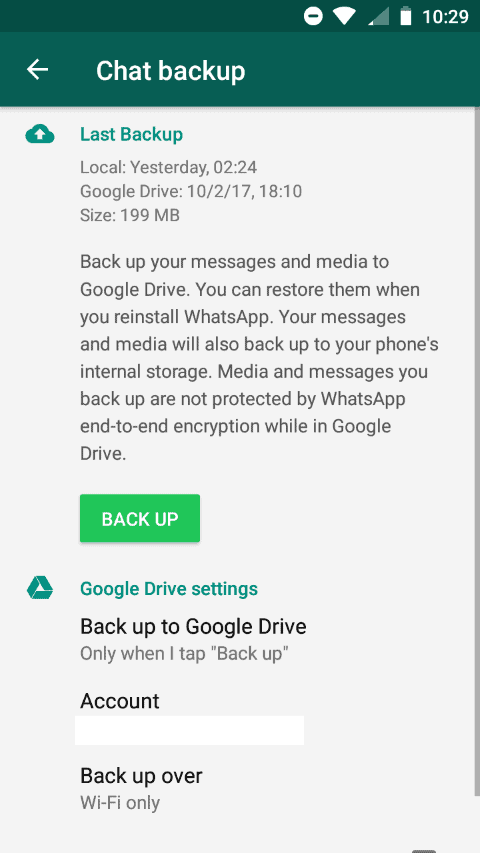
The easiest way to back up and restore WhatsApp on Android is to use Google Drive. This avoids the need to locate, transfer and download your WhatsApp backup via local storage.
When using this method, WhatsApp will back up your chats to Google Drive, however, the backup must first be created on your Android itself - so ensure your Android has sufficient free storage space to store the backup before you proceed (a WhatsApp backup will not count against your storage limit in Google Drive).
To back up your WhatsApp messages to Google Drive:

What's next? Skip to: how to restore WhatsApp chats from Google Drive >
If you'd prefer not to back up your private chats to a cloud service like Google, you can instead save your backup to your device's SD Card.
To back up your WhatsApp messages locally to your SD card:
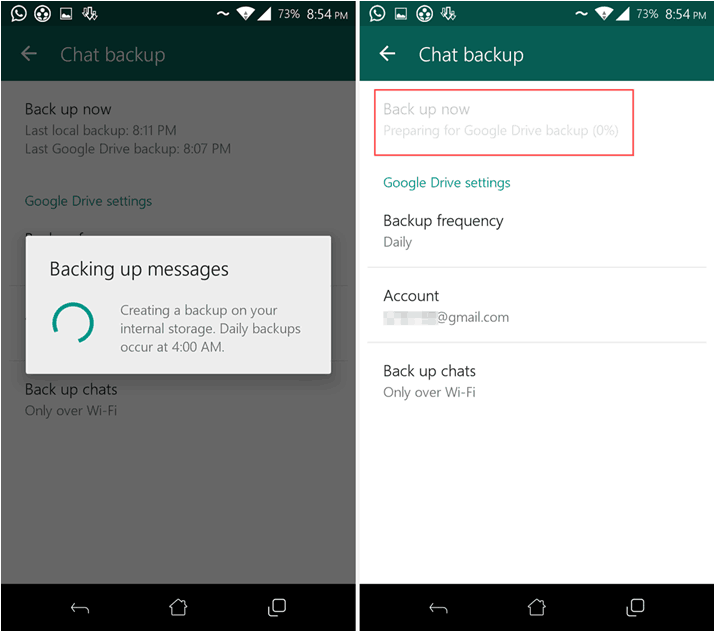
What's next? Skip to: how to restore WhatsApp chats from SD card >
You can back up your iPhone in its entirety to iCloud. However, if you only wish to back up your WhatsApp chats to iCloud, you can do this directly from WhatsApp itself on your iPhone, iPad or iPod Touch.
WhatsApp recommends having at least 2.05 times the size of the WhatsApp backup in free space in both your iCloud account and on your iPhone itself in order to use this feature.
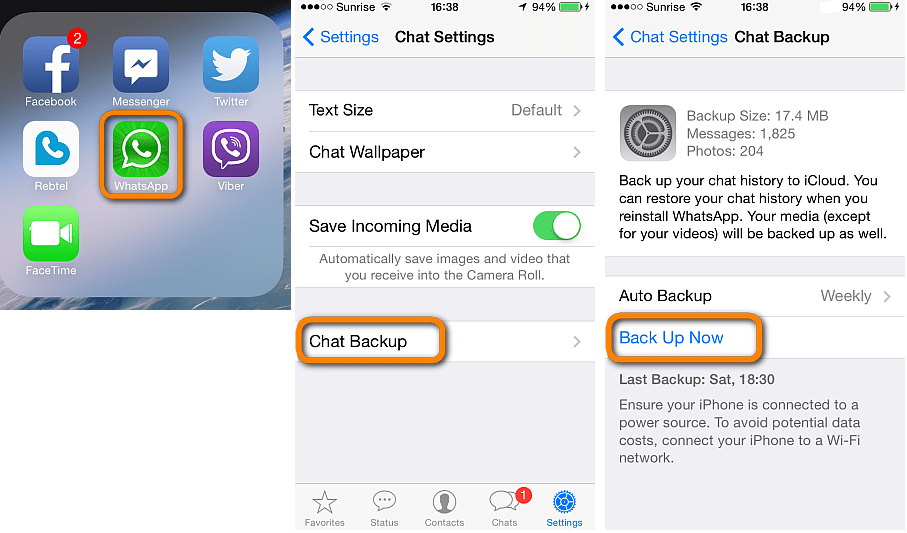
To back up WhatsApp to iCloud, first, open WhatsApp on your iPhone. Then, tap through Settings > Chats > Chat Backup > Backup Now.
On the "Chat Backup" page, you have some key options for your WhatsApp backup:
 Or choose Off to disable automatic backups.
What's next? Skip to: how to restore WhatsApp chats from iCloud >
 2 Back up WhatsApp with iTunes or Finder
Backing up your iPhone with iTunes (or Finder on macOS Catalina or higher) creates a complete backup of your device. This backup includes your WhatsApp chats and media.
This method is great for iPhone users whose iCloud storage is already full, or for those who do not wish to back up private conversations to the cloud.
To back up your WhatsApp messages with iTunes or Finder:
What's next? Skip to: how to restore WhatsApp chats from iTunes/Finder >
Loss or damage of a phone, accidental deletion of important messages, and migrating to a new device are all examples of why you may wish to restore a WhatsApp backup to a device.
Before restoring a backup, you may wish to ensure that your existing backup is up to date. Creating a new backup will ensure that all your most recent chats and messages are saved to the backup.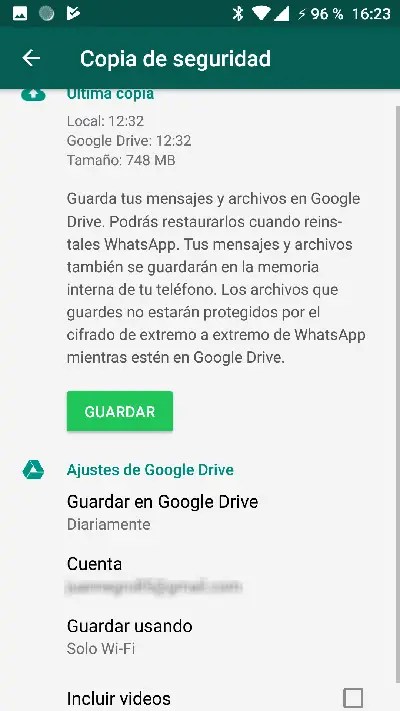 This will prevent losing any data since the last backup was made.
To restore your WhatsApp chat history from a Google Drive backup:
WhatsApp will restore all your chats from the backup, and you can start using the app. WhatsApp will then continue to restore your media from the backup - this may take some time.
 2 Restore from local (Android)
If you backed up WhatsApp to an SD card, you can restore this backup on an Android device.
To restore your WhatsApp chat history from an SD card backup:
You can restore your WhatsApp chats from an iCloud backup to your existing iPhone, or to a new iPhone.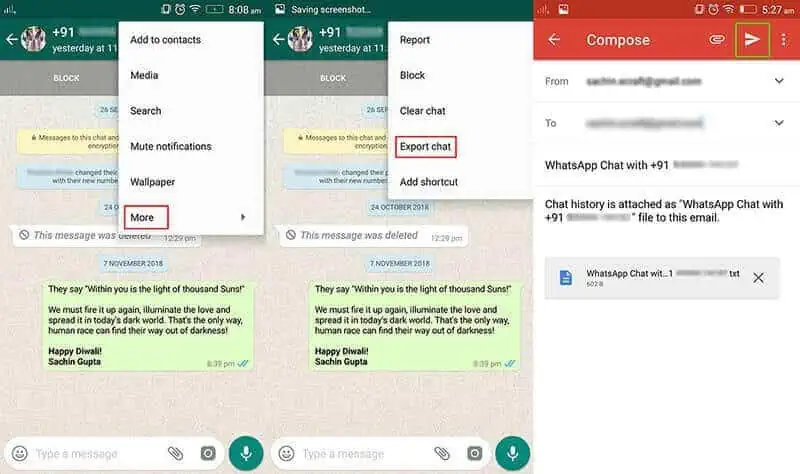
To restore your WhatsApp chat history from an iCloud backup:
Note that the phone number of the iPhone you are restoring to must match the phone number of the device that the backup was made from (backups are linked to a certain phone number and WhatsApp account).
 4 Restore from iTunes or Finder (iPhone)
Although it is not possible to restore only WhatsApp chats from an iTunes/Finder backup of your device, you may wish to perform a full restore of the iTunes/Finder backup.
Restoring a complete backup of your iPhone in this way will replace any content currently on your iPhone. As such, you may lose new content on the device which was acquired since your last backup (this is not an issue if you are restoring to a brand-new iPhone). For this reason, make sure you understand this process before proceeding with a full restore of your iPhone.
That said, let's see how to restore an iPhone from an iTunes/Finder backup:
Check out Apple's page for a full guide on restoring iTunes/Finder backups to an iPhone.
There you have it! The ultimate guide to backing up WhatsApp chats on Android or iPhone.
You should now have all the information you need to choose the best method for you. Based on the pros and cons of each, different methods will be better suited for different purposes.

Publisher:
Wide Angle Software
Read Next: How to Transfer WhatsApp Messages to new Phone >
Home Tech News How to restore WhatsApp chat history on Android: Check tips and tricks
If your WhatsApp chat got deleted or you lost it while changing your device, the good news is that there is a way to retrieve them. Here we show you how to restore WhatsApp chat history on Android.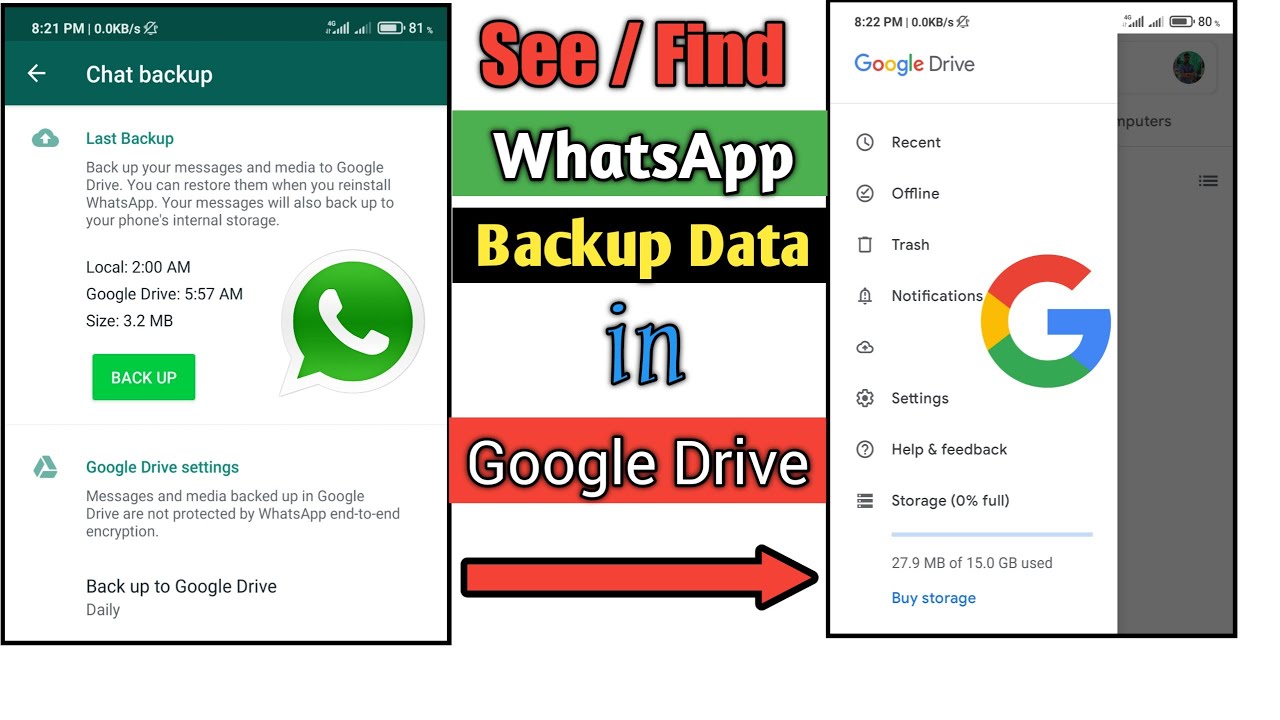 Now, WhatsApp is one of the most widely used applications and users send billions of messages including images, audio, video, GIFs, among others every day to the people on their contact list. You should know that these messages are delivered to users' phones instantly and WhatsApp deletes them promptly from the company's servers.
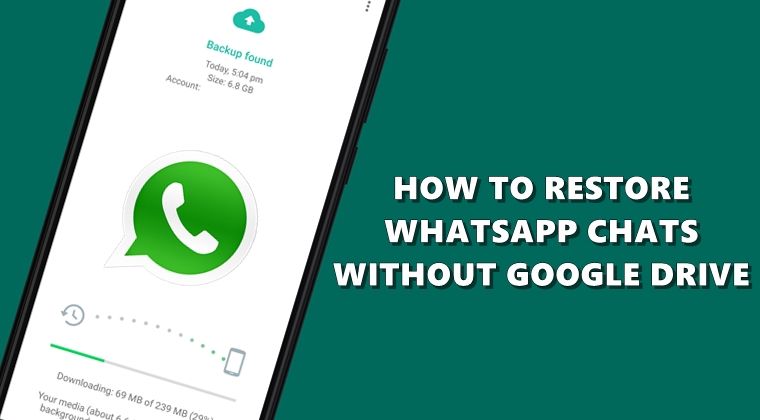
If you have lost your WhatsApp chats and want to restore the history then you can try the following methods. However, in case you want to restore your conversation on a new Android device then you need to ensure that your chats are backed up before restoring them. In order to take the chat backup you need to open WhatsApp, go to more settings, select chat and then chat backup.
Also, choose the Google Account that you want your chats backed up to. You can also create a local backup on your device. Then tap back up. After the backup has been saved, you can remove WhatsApp from your device and install it on your new Android device.
To maintain a copy of your WhatsApp chat history on Google Drive, you can enable the automatic backup feature and select its frequency as daily, weekly, or monthly. In order to successfully restore a Google Drive backup, you need to use the same phone number and Google Account used to create the backup.
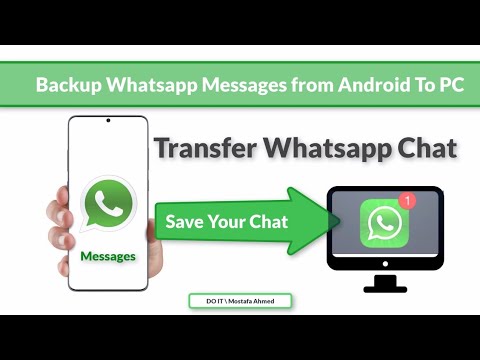
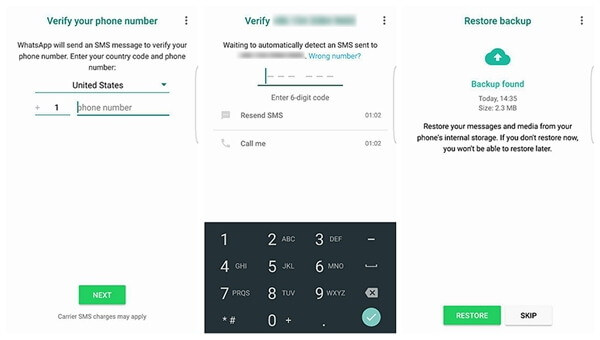
You need to ensure that your new Android device is linked to the Google Account where your backup is saved. Install and open WhatsApp, then verify your number. Tap RESTORE when prompted to restore your chats and media from Google Drive. After the restoration process is complete, tap NEXT. Your chats will be displayed once initialization is complete.
It can be noted that WhatsApp will continue to restore your media files after your chats are restored. If you install WhatsApp without any prior backups from Google Drive, WhatsApp will automatically restore from your local backup file.
How to restore WhatsApp chat history from local backup
If you want to use a local backup, you will need to transfer the files to the phone using a computer, file explorer or SD Card.
Download a file manager app.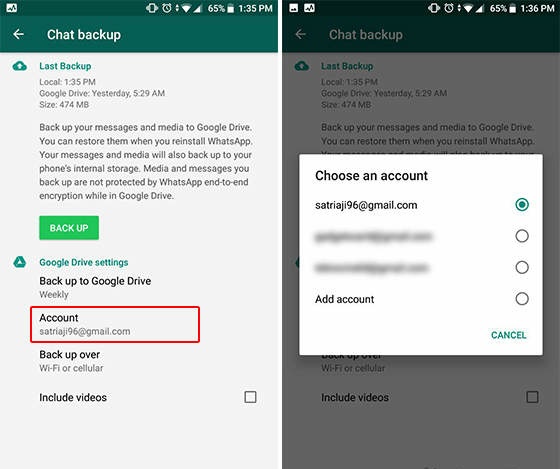 In the file manager app, navigate to your local storage or sdcard > WhatsApp > Databases. If your data is not stored on an SD card, you might see "internal storage" or "main storage" instead. Copy the most recent backup file to the local storage's Databases folder of your new device. Then Install and open WhatsApp, then verify your number. Tap RESTORE when prompted to restore your chats and media from the local backup.
Also, users need to remember that your phone will store up to the last seven days worth of local backup files. Local backups will be automatically created every day at 2:00 AM and saved as a file in your phone. If your data is not stored in the /sdcard/WhatsApp/ folder, you might see "internal storage" or "main storage" folders.
If you want to restore a local backup that is not the most recent one, you will need to do the following:
Download a file manager app. In the file manager app, navigate to your local storage or sdcard > WhatsApp > Databases.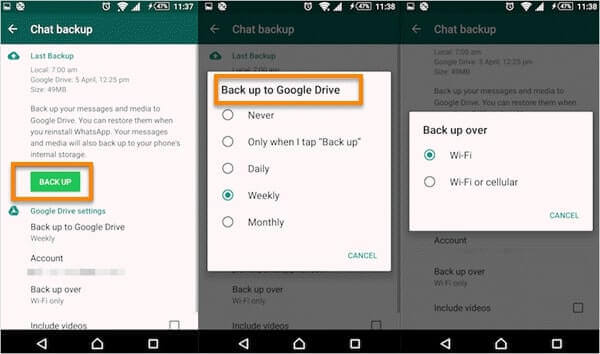 If your data is not stored on the SD card, you might see "internal storage" or "main storage" instead. Rename the backup file you want to restore from msgstore-YYYY-MM-DD.1.db.crypt12 to msgstore.db.crypt12. It is possible that an earlier backup might be on an earlier protocol, such as crypt9 or crypt10. Do not change the number of the crypt extension. Uninstall and reinstall WhatsApp and tap RESTORE when prompted.
Follow HT Tech for the latest tech news and reviews , also keep up with us on Twitter, Facebook, Google News, and Instagram. For our latest videos, subscribe to our YouTube channel.
First Published Date: 02 Jan, 16:49 IST
Tags: whatsapp
NEXT ARTICLE BEGINS
iPhone tips and tricks: Catch stunning light trail pictures with secret camera feature on iPhone 14, iPhone 13
iOS 16 tips: Create stickers with your iPhone photos in simple steps
iOS 16.4 Voice Isolation feature is here! Enable it on your iPhone this way now
Control iPhone 14 Pro AOD with this AMAZING iOS 16.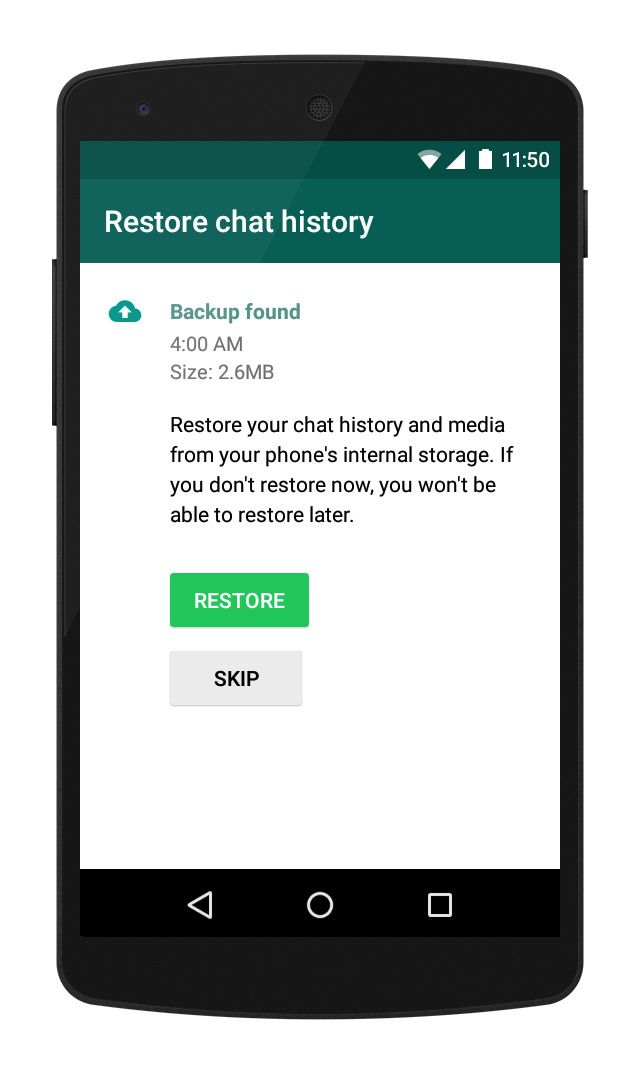 4 feature; know how
iOS 16.4 Web app notifications now available on your iPhone! Enable feature THIS way
Switching from iPhone 12 to iPhone 14: Is it worth upgrading to?
Lapcare LTS-600 Ramp Dual Tower 160W Speakers Review: Powerful performance
Samsung Galaxy A54 5G review: A perfect price fit!
Samsung Galaxy A34 5G review: Justifies the price and looks good too
Realme C55 Review: Packs iPhone-like Dynamic Island, costs much less, but is it worth it?
Samsung Galaxy A54 5G Short Review: Price worthy performance!
iPhone 14 Pro to iPhone 8, check out 10 famous movies shot on Apple iPhones
AI can crack your password in seconds! Do this to save yourself
Top Gaming phones under 25000: Redmi K50i, Realme 10 Pro Plus, Realme GT Neo 3T and more
iPhone tricks: Conceal your identity! Know how to use Apple Hide My Email address feature
Minecraft Legends RELEASED! Gameplay to platforms, know it all here
Sega Sammy in $776 million deal to buy Angry Birds maker Rovio
Minecraft 1.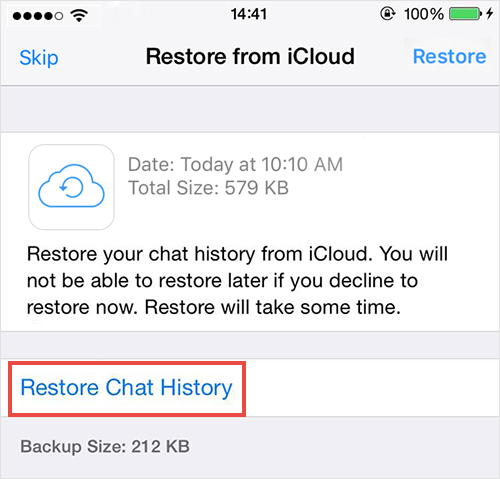 20 major update release: Know Trails and Tales new features, release date and more
Online gaming chats have long been spy risk for US military
What is Discord, the chatting app tied to classified leaks?
how to restore whatsapp backup from google drive? Or is it possible to download whatsapp backup from google drive? We understand that transferring WhatsApp data from one device to another is difficult; which is why users prefer to restore backup from Google Drive. This post will discuss everything about whatsapp backup and how to download whatsapp backup from google drive easily. Keep reading the article!
Google Drive does not currently offer users any options to directly download WhatsApp backup files. This only allows you to view and delete your WhatsApp backup from Google Drive. However, you don't have to worry anymore because there are various third-party apps that can help you download WhatsApp backup from Google Drive. Yes, it is true. We have mentioned some of the easiest ways to restore WhatsApp backup from Google Drive below.
How to download whatsapp backup from google drive? Here are three practical methods you can use to download WhatsApp data to your PC, Android phone and iPhone respectively. Let's discuss these methods one by one.
If you want to download WhatsApp backups from Google Drive, Tenorshare UltData for Android is your best choice. With this application, you can view your Google Drive WhatsApp backup and download it to your computer. Moreover, you can further recover deleted files from WhatsApp on Android, including photos, videos and more. Follow these simple steps and learn how to restore Whatsapp backup from Google Drive on Android.
Install the latest version of UltData for Android on your computer. Launch it and connect your phone to PC. In its interface, select the "Recover Google Drive Data" option from the list.
You will be prompted to sign in to your Google Drive account. So, enter the data and click "Login".
After logging in, you will see two options on the screen. So, click "Recover Whatsapp Data".
You will see all the previously backed up WhatsApp files in the toolbar. Select the ones you want to download from Google Drive and click "Upload".
A prompt message will appear on the screen, so read it and click OK. You will now be asked to verify your WhatsApp account. Enter your phone number and country code and click Verify.
After verification is complete, you will see all your WhatsApp data in the toolbar. The data will include your images, documents, messages, etc. Preview them all and select the files you want to recover.
Click "Restore" and select the location where you want to restore the files.
The application will begin restoring your data. Do not turn off the devices during the entire process. When you're done, click the "OK" button to view the files. You will find the downloaded WhatsApp backup in the folder where you previously selected.
Here is how to restore whatsapp backup from google drive to pc. If you want to move WhatsApp data from Google Drive to Android, check out the second method mentioned below.
If you are an Android device user and are wondering how to restore Whatsapp backup from Google Drive to Android, then this section is for you. Here is the easiest way you can try.
Once WhatsApp is reinstalled on your phone, launch it and enter the same phone number associated with your WhatsApp account. Click "Next". You will receive a verification code on your phone. So enter this 6 digit verification code.
Now give the app access to your photos, media, and files on your device. The updated backup will be detected and you will be prompted to restore your chats and media from Google Drive. Click RESTORE and wait for the restoration process to complete. When it's done, click "Next".
Select WhatsApp chat history files and choose to attach media or no media, then enter the email address to which the downloaded chat will be sent.
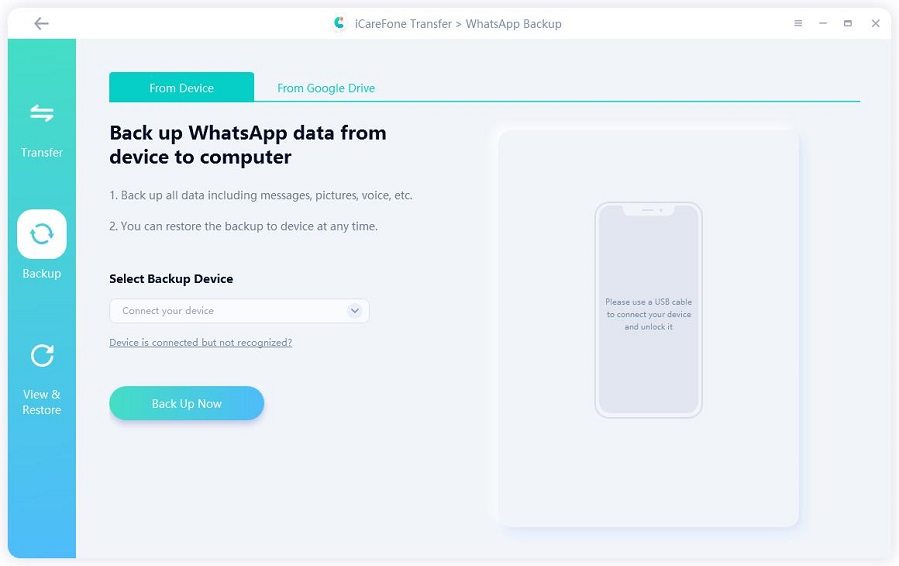
If you switched from Android phone to new iPhone and want to download/restore WhatsApp backup from Google Drive to iPhone, we recommend using iCareFone Transfer. By using this tool, you can easily view, download, restore and transfer WhatsApp backup from Google Drive to iPhone. Follow the steps below to backup WhatsApp data to iPhone.
Select the "Backup" option in the left options panel. After that, click "Download WhatsApp Backup from Google Drive to Computer" and then connect iPhone to PC.
You will be prompted to enter your Google account and Google Drive password in the next step. So, add them and click the "Login" button.
All WhatsApp backup details will be displayed on the screen. Select the files you want to download/restore to your iPhone and click Continue.
The app will ask you to verify your WhatsApp account, so select the Verify option and enter your country code and phone number. When you're done, click Confirm.
After the verification is completed, the program will start generating WhatsApp backup data. Wait while WhatsApp data is copied from Google Drive.
After a successful backup, click View Backup to check the backup files. After reviewing the files, click "Restore to iOS"./p>
After a few seconds, the data will be transferred to the iOS device. You will be prompted to sign in to your WhatsApp account on your iPhone and complete the WhatsApp verification. Don't forget to skip "Restore from iCloud". Wait for data recovery.
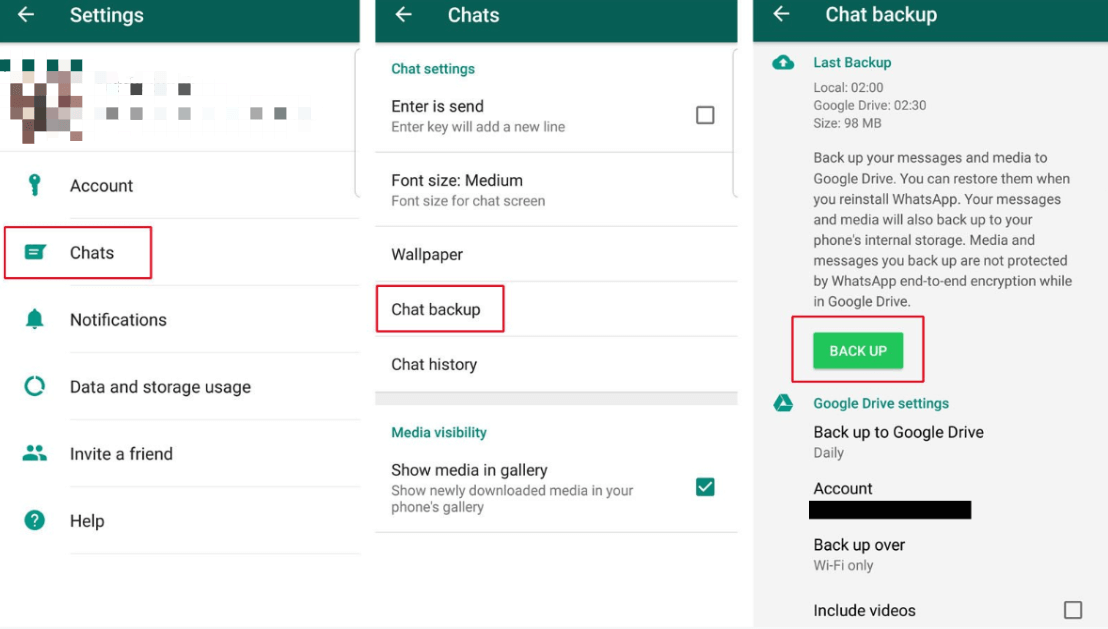
You can open the WhatsApp application. Go to "Settings", select "Chats" and select "Backup Chats". Now click "Google Drive Backup" to backup your WhatsApp data.
Go to Google Drive and under "Storage" click on the number. Now click "Backups". To view the backup files, click Preview.
Go to Google Drive and under "Storage" click the number option. You will see the "Backups" option, so select it. To delete backup files, click "Delete Backup".
We are sure you have learned three different ways to download WhatsApp backup from Google Drive. If you want to restore WhatsApp backup to PC again directly, we recommend using Tenorshare UltData for Android because it is an easy-to-use app that works 100%. If you are planning to download WhatsApp backup from Google Drive to Android/iPhone, then iCareFone Transfer will be your best friend.
In 2023, the easiest way to store data is in the cloud. Many applications have a synchronization function, thanks to which a file with your data is created in the background without the user noticing. WhatsApp is no exception: if you have activated backup, then a backup with your correspondence and files will appear on Google Drive. But there is a problem: if necessary, download a WhatsApp backup to computer and cannot view it. However, this can be done with the help of special utilities: today we will talk about one of them, which will be useful to both Android smartphone owners and iPhone owners.
How to Download Whatsapp Backup to Computer
iToolab RecoverGo is a multi-functional application for your computer with which you can download a WhatsApp backup file from Google Drive and transfer it to a new account. Here's how it works.
Contents
Many do not see the point to restore WhatsApp backup , but if you need it, use a special program. iToolab RecoverGo is a utility with a simple interface that even a child can understand. The program will help you download whatsapp backup from google drive to computer. See how easy it is.
After that iToolab RecoverGo will scan the cloud for a backup and open it. This may take a little longer than you might expect due to the size of the backup. Once downloaded, you can view the files and save them to your PC.
Download iToolab RecoverGo
In addition, this utility is also useful for iPhone owners. The utility can open the WhatsApp backup from iTunes that you keep on your computer.
The developers took care of the users and just in case made a training video on how to use the program. Be sure to check it out if you have any questions.
This works exactly as described above. It is doubly convenient that the program supports different types of data, so you can extract any files from a WhatsApp backup . Here is the data you can download.
In general, be sure to try to get files from a WhatsApp backup : I personally found correspondence and photos six years ago that I considered lost for a long time!
Download iToolab RecoverGo
While backing up chats is a useful thing, it's pretty easy to lose data in 2023. In my opinion, what is even more unpleasant is that correspondence or photographs may end up with third parties for whom this data was clearly not intended. In the end, someone just wants permanently delete WhatsApp so as not to leave traces, or set up a messenger on your phone from scratch.
But what if you accidentally deleted your WhatsApp backup from Google Drive? In fact, you can return it. iToolab RecoverGo will also help you with this: the utility will help recover WhatsApp chats along with photos and all other attachments. Let's see how to do it.
Recovering WhatsApp data is very easy
Restoring data may take a little longer if the backup is large
After scanning, you need to select the data and chats to save
That's it! Restoring correspondence in WhatsApp turned out to be not so difficult - you can do it in just a couple of mouse clicks. Just in case, here is a video instruction for you, which describes in detail the entire algorithm of actions.
As you may have noticed, iToolab RecoverGo can work not only with the usual WhatsApp, which most of us use, but also with WhatsApp Bussiness. Therefore, the utility is useful for both ordinary users and those who use WhatsApp for work.
Download iToolab RecoverGo
iToolab RecoverGo is very easy to use. The application itself weighs a little, so you can download it even with a slow Internet connection, and it won’t take up much space on your hard drive. It is also convenient that with the help of it you can simply create a backup copy of WhatsApp on a computer or transfer it to an external hard drive so as not to lose it.
iToolab RecoverGo can backup WhatsApp on computer
To do this, on the main page, select "Backup and view WhatsApp data" and follow the prompts of the system.