Do you manage multiple Instagram accounts? If so, you know that it can be a pain to keep track of them all. Not to mention, if you use the same email address for all of your accounts, you have to constantly log in and out just to switch between them.
But what if I told you there was an Instagram hack that lets you manage multiple accounts with just one email?
It’s true! With a little bit of setup, you can easily add and manage several Instagram accounts from a single email address. Follow this guide to find out everything you need to know about running multiple Instagram accounts—and how to avoid posting to the wrong one.
Yes, you can have multiple Instagram accounts! In fact, you can now add up to five accounts and quickly switch between them without having to log out and log back in.
This feature is included in version 7.15 and above for iOS and Android and will work on any Instagram app using that software.
If you’re working with a later version, or simply want to manage more than five accounts at once, a social media dashboard like Hootsuite allows you to manage even more Instagram accounts and share the management responsibilities with other team members.
You can also have multiple YouTube channels, multiple Facebook pages, and multiple Twitter accounts. Check out the linked resources for more info there.
How to open multiple Instagram accountsYou can create multiple Instagram accounts on your phone right from the Instagram app.
To create a new Instagram account follow these steps:
You’re all set!
Once your accounts are set up, tap Add Account and then Log in to Existing Account. From there you can enter the login information for the account you want to add.
Tap Log In, and your new account will be available through your main Instagram profile page.
Now that you know how to create a new Instagram account, you’re probably wondering how to switch between them.
To switch between multiple Instagram accounts:
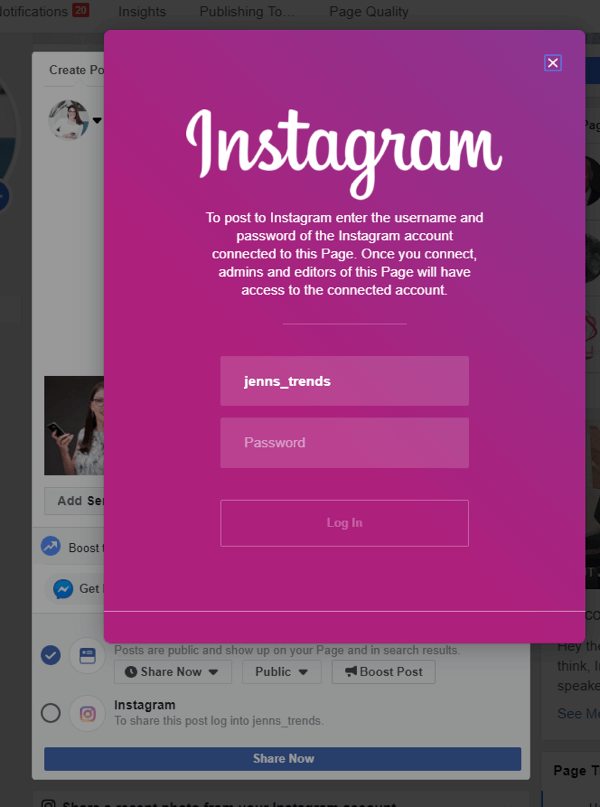 When you’re ready to switch to a different account, tap your username again to select a different account.
Note: You will stay logged in to the last account you used on Instagram. Before posting or engaging with new content, always check to make sure you’re using the right account.
Once you’ve set up more than one Instagram account, you’ll want to manage them all efficiently. Here’s how to do it from your phone.
If you are simply looking to start a branded Instagram account for your side hustle, alongside your personal account, and want to easily switch back and forth between the two, the Instagram app itself might be enough to suit your needs.
With your new Instagram accounts set up, you can now post to any of the accounts you have added to the Instagram app. Simply select the account you want to use from the drop-down menu in your profile, and start posting as usual.
You can always tell which account you’re using by looking at the profile photo. The profile photo can be quite small in some views, so choose distinct photos to make sure you always post to the right account.
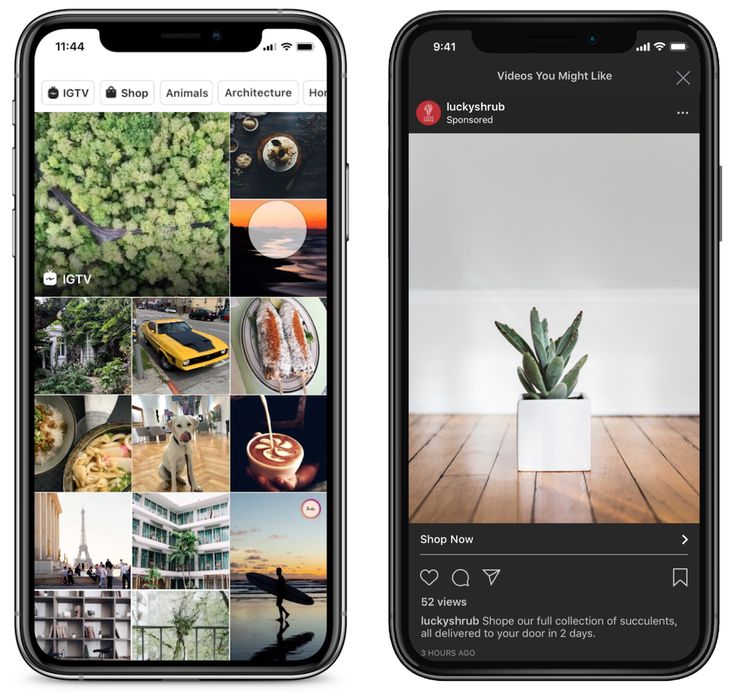
Here’s what it looks like in Story view.
Here’s what it looks like when posting to your feed.
Using a social media management platform like Hootsuite, you can easily manage all of your social media accounts (including one or more Instagram accounts) from your computer. Hootsuite also provides access to advanced features like bulk scheduling and detailed analytics.
The first step to using multiple Instagram accounts in Hootsuite is to add them to your dashboard. Here’s how to get them set up using the Hootsuite mobile app.
To view your Instagram accounts at a glance and switch between them easily, add your posts for each account as a stream in the Hootsuite dashboard.
Now you know how to view all your Instagram accounts on Hootsuite, so you can easily switch between them.
You can use Hootsuite to post to any of the Instagram accounts you have added to your Hootsuite dashboard.
Here’s how to get started.
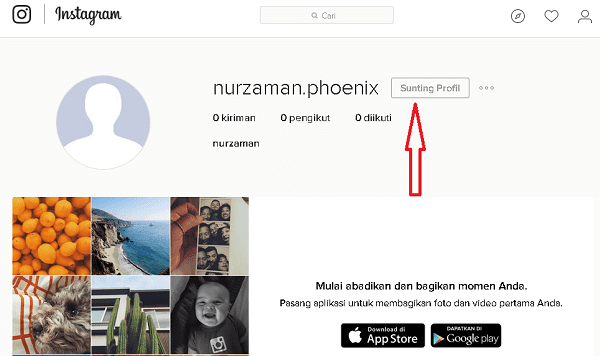
If you choose Post Now, the post will publish directly to your Instagram account. If you choose Auto Schedule, it will post at the most optimized time. Custom Schedule lets you choose the date and time to post.
To switch to a different Instagram account, return to step 1 and choose a different account.
Learn more about publishing to Instagram accounts using Hootsuite here:
By now you’re probably wondering, how do I manage multiple Instagram accounts on my desktop?
If you’re managing multiple business accounts, it’s a good idea to use the Hootsuite dashboard for your posts, rather than managing your accounts directly within the Instagram app.
For one thing, the Instagram desktop app is not as proficient as the mobile app. If you want to manage several Instagram accounts on Instagram for desktop, you’ll need to log out and in every time you want to use a different account.
Not to mention, the Instagram app is limited to managing 5 Instagram accounts, including both business and personal accounts. But on Hootsuite, business users can add up to 35 social profiles to their dashboards.
As well, managing multiple business Instagram accounts in Hootsuite also allows you to collaborate with team members and access advanced analytics from the same platform you use to manage and measure your other social accounts.
If you want to learn how to manage multiple business Instagram accounts, you need to make sure each of your Instagram accounts is connected to a Facebook Page.
If you haven’t yet connected your account, you’ll be prompted to do so. You’ll need to enter your Instagram account details. Once you’re logged in, you’re ready to connect to Hootsuite. More info on that below.
If you’re using Meta’s new pages experience, follow these steps to connect your Instagram for business account.
Now you can add your Instagram business accounts to Hootsuite. Simply navigate to your Hootsuite dashboard on desktop, log in, and click Add social account at the top of your Streams view.
Repeat these steps for each Instagram business account you want to add to Hootsuite.
Watch this video for a visual walkthrough.
Log into your Hootsuite dashboard and click on the Composer icon. Then, choose Post.
In Composer, choose the Instagram accounts you want to publish to. You can choose multiple accounts, or just one.
Add your copy, images, videos, and any relevant tags to your post.
From there, you can choose to post right now or schedule your post for later. Be sure to use the best times to post when scheduling content in the future.
As we said before, the Instagram desktop version isn’t ideal for managing multiple accounts. If you’re looking for a simple solution for managing Instagram on a desktop, try Facebook’s free dashboard, Creator Studio.
Creator Studio makes it possible to post and schedule content to multiple accounts and access Instagram Insights from desktop and mobile.
To connect to Instagram in Creator Studio, follow these steps:

That’s it!
If your Instagram account is connected to a Facebook Page, the process may look a little different depending on the relationship between your Facebook Page and Instagram account.
If you have push notifications for several Instagram accounts turned on, you will get notifications for all of them on your mobile device.
Each notification will indicate the relevant account name in brackets before the content of the notification.
Tapping a notification will take you directly to the relevant Instagram account, regardless of which account you last used.
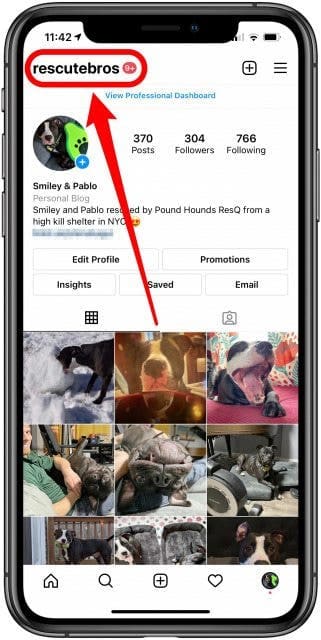
If you’re using Instagram and a notification comes in from one of your other accounts, you will see the notification at the top of your screen.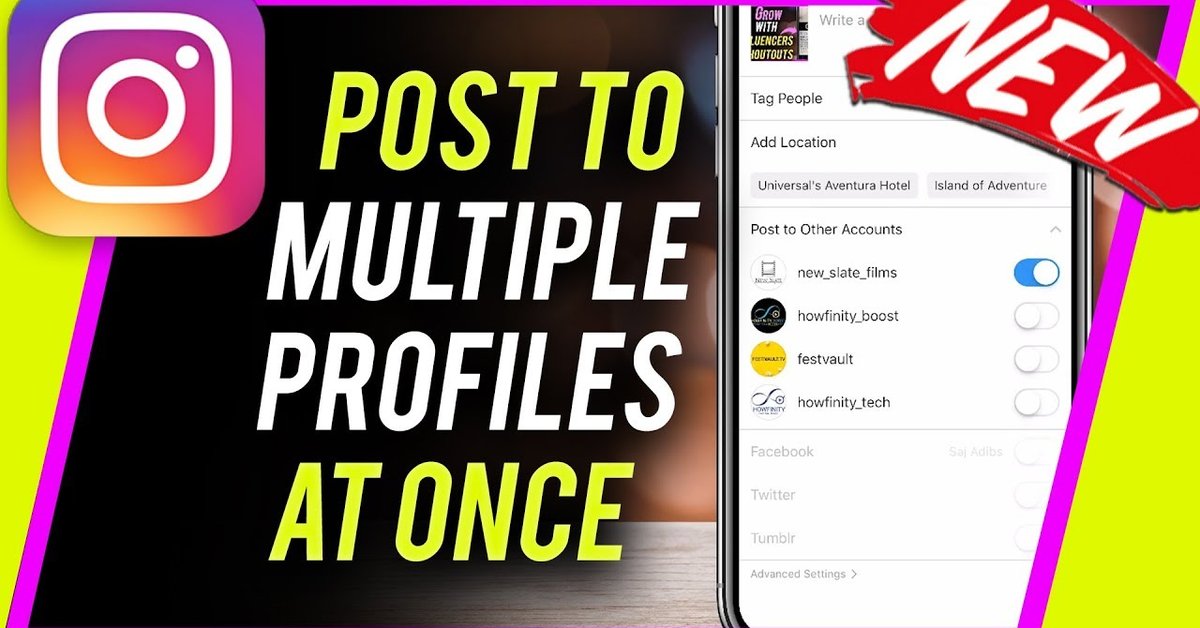
If you’re managing multiple Instagram accounts on one device, it might be overwhelming to have them all sending push notifications. Fortunately, you can adjust the push notifications for each of your Instagram accounts separately.
Here’s how to change your notification settings on Instagram:
At some point, you might want to remove one of your Instagram accounts from the app.
Why? Since you can manage a maximum of five accounts from the Instagram app, you might want to remove an account in order to make room to add a new one.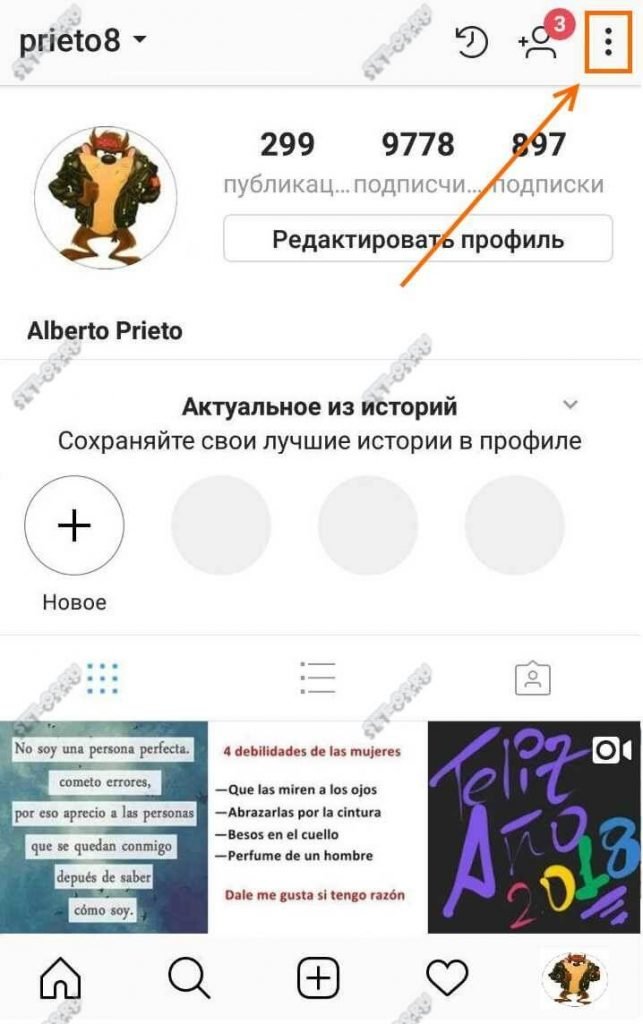
Or, maybe you’re no longer working on a particular account and simply want to make sure you don’t post to it accidentally.
Here’s how to remove an Instagram account on your phone:
When you go back to your profile and tap on your username, you will see the removed account is no longer included in the drop-down.
Repeat these steps for each account you’d like to delete.
Note: Removing your account from the app does not delete your account. If you want to delete your account (forever), follow the steps provided by Instagram.
Easily manage all your Instagram accounts in one place with Hootsuite. Save time by scheduling and publishing content, engaging with your audience, and analyzing your results—all from a single platform. Plus, Hootsuite gives you the ability to collaborate with team members, so you can get more done together.
Ready to give it a try? Try a free trial of Hootsuite Pro today!
Start Your Free Trial Today
Grow on Instagram
Easily create, analyze, and schedule Instagram posts, Stories, and Reels with Hootsuite.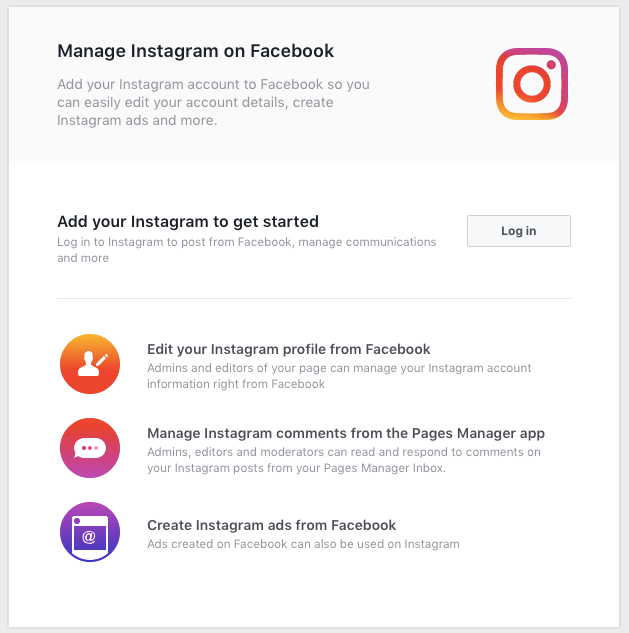 Save time and get results.
Free 30-Day Trial
Instagram is an increasingly popular social media platform focused on photos. You can find family and friends, and let them know what you're up to, where you've been, and what you're interested in. But it's difficult juggling which topics your followers will engage with.
So you've decided to separate your hobbies by creating multiple Instagram accounts. Is that possible? Is it easy to switch between them? And is it the right decision? We answer all of your questions about creating multiple Instagram accounts.
Yes, you can have two or more Instgram accounts!
What's more, it's easy to create multiple accounts on Instagram. That means you can separate your interests, start up a new profile for your business, or post pictures in private that your real-life friends won't see (just your online buddies).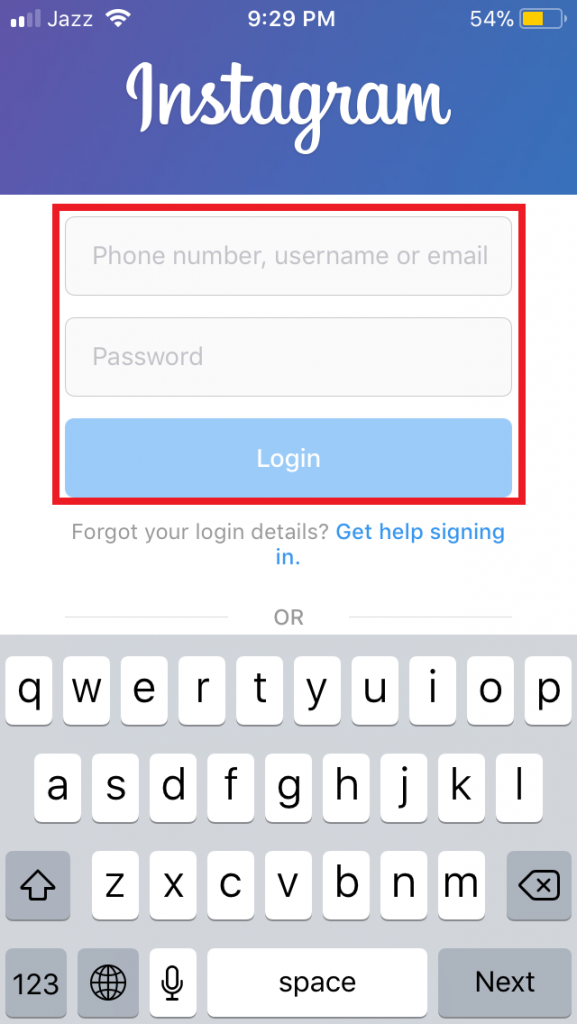
Tip: If you're building different brands, be sure to give each of your Instagram accounts its own unique theme.
Why should you create and manage more than one Instagram account? There are a few benefits of having numerous profiles.
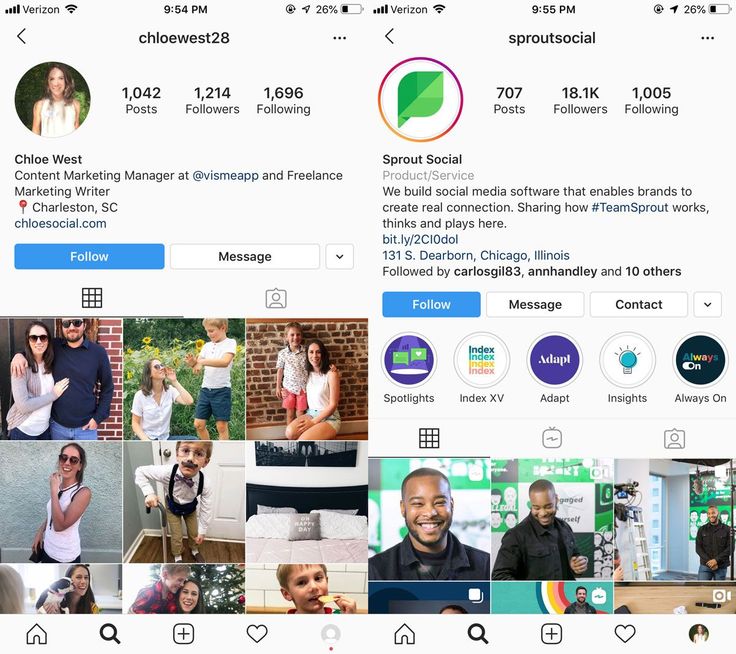 By having numerous accounts, you can have one accessible to anyone and another solely for people you personally know. It's also handy if one is linked to Facebook and/or Twitter but you don't want peers on those networks to automatically see all your posts.
 Are there any drawbacks of having multiple accounts? There are, but they're minor. Namely, you have to switch accounts before posting, which, as we'll cover, isn't as stressful as it sounds.
The other potential problem is if you post to the wrong account. But that's easily remedied: go on the ellipsis at the top right-hand corner of your post and click Delete. You can also Archive the post to hide it from your profile.
Now that we have tackled the why, let's delve into the how.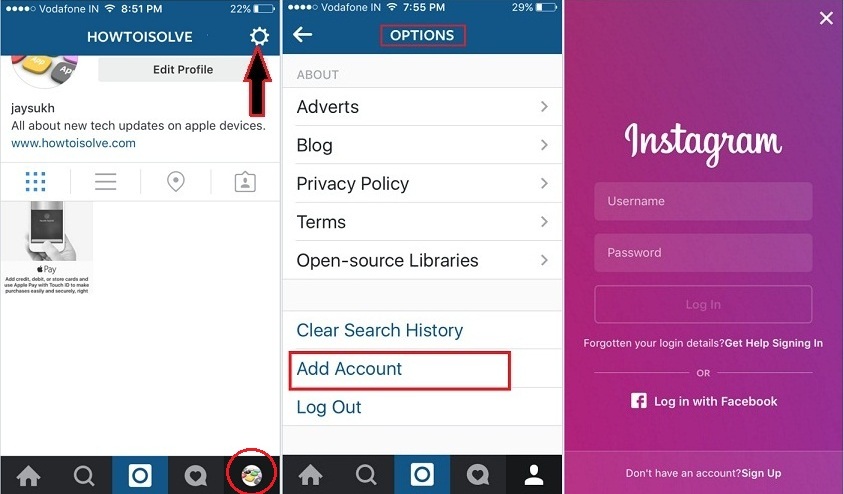
How do you create a new Instagram account? It's very simple: you do it in much the same way you created your first one.
The easiest way is by using a different sign-in method. Instagram gives you the option to sign up using an email address, phone number, or Facebook account. If you can remember which you used to originally create an account, choose one of the other options. Check your Inbox, Facebook Profile, and SMS history to make sure.
You can create another account via your browser, by navigating to the Instagram login page then clicking on Sign Up and following the instructions. But it's easier if you do it using your smartphone.
Open the Instagram app and go to your Profile by clicking on the symbol in the bottom-right of your screen. This will either show your profile picture, Story, or, if you haven't set a featured image, a silhouette. Click on the three horizontal lines at the top right, then Settings then either Add account or navigate to Account > Add new professional account if you're creating a business page.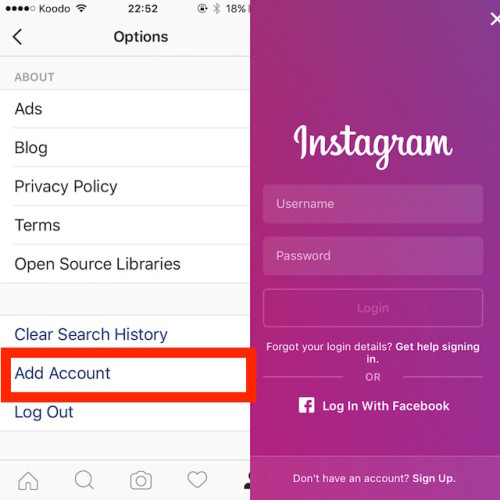
2 Images
A new tab will appear at the bottom of your page. It lists two options: Log In to Existing Account and Create New Account. You'll need to click on the second one, then choose the method you want to use to make a new account: email address or phone number. In the case of the latter, Instagram will send you a confirmation code to make sure it's properly linked.
This is probably what you're worried about—after all, by creating a new profile, you don't want to get locked out of your old one and lose precious photos! But you needn't be concerned. It's incredibly simple.
Through a desktop, you just need to sign in and out of each account as you would other services. If you're using Instagram on your smartphone or tablet, though, it's an intuitive app that remembers if you have multiple profiles.
Go to your profile and click on the down-arrow by your username at the top of your screen.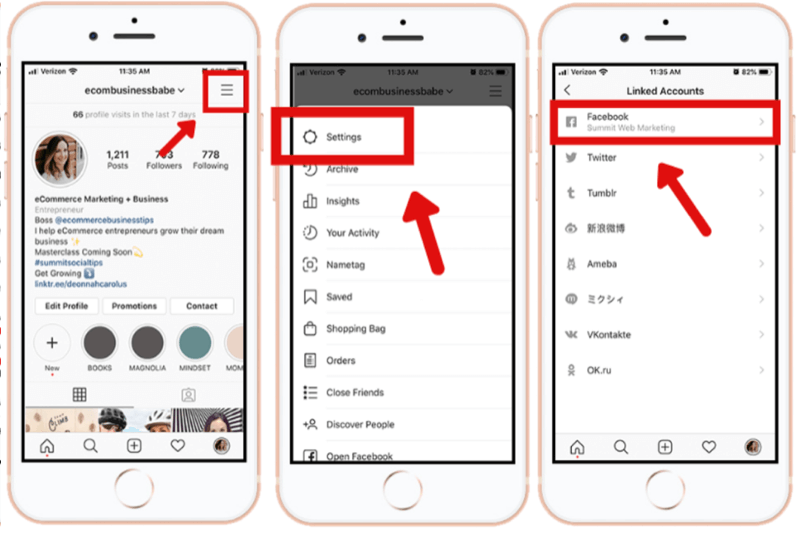 Just click on the account you want to switch to. No, you won't have to log in again (unless you have updated or uninstalled and reinstalled the app).
Once you've effectively let Instagram know you're interested in having numerous accounts, it makes adding a third, fourth, and fifth easier still.
2 Images
Just go to your profile and click on your username, as if you're switching logins. At the bottom, go to + Add Account. This redirects you to the interface asking you to link to Facebook or sign up otherwise. Alternatively, you can go on Settings > Add account > Create New Account as before.
Approach this as you did when you first signed up to Instagram.
You need to add your name, which is the account display name. It will suggest a username based on existing accounts, but you can change this.
The next page will require a password—don't reuse the one connected to your other profile in case that gets leaked. Ideally, you want different passwords for all your online accounts anyway. If that's an issue, you should try using a password manager.
You'll then need to confirm your age.
Instagram is pointless if you don't follow anyone, so connect with friends, family, and similar accounts. Obviously, you need to add a profile photo and short biography, utilizing hashtags. If it's a business account, you should consider adding links to your Instagram posts.
It depends entirely on how many different options you have to sign up.
Instagram encourages you to sign in using an email address, phone number, and Facebook profile. If you don't connect your Facebook to a single Instagram account, that's three separate ways. You can also add more using different email addresses, so if you have one for work and one for your private life, you could use both of these.
Instagram only lets you add five accounts to one device. In theory, you can create more by changing names between profiles; however, you won't be able to easily switch profiles through the single app. Don't forget that you can sign in through a web browser too.
But do you really need more than five? It's up to you, but things can certainly get complicated.
Related: How to Change Your Instagram Name
How do you remove an Instagram account you've added to a device?
Once more, this is done through your Profile. Visit the account you want to unlink, and click on the three horizontal lines. Then go to Settings > Log out.
Some have reported problems unlinking single profiles, so if this happens to you, check for an update in the App Store. If updating does't work, you might have to try deleting the app then reinstalling it.
Just make sure you remember all of your passwords, or you'll need to reset those too.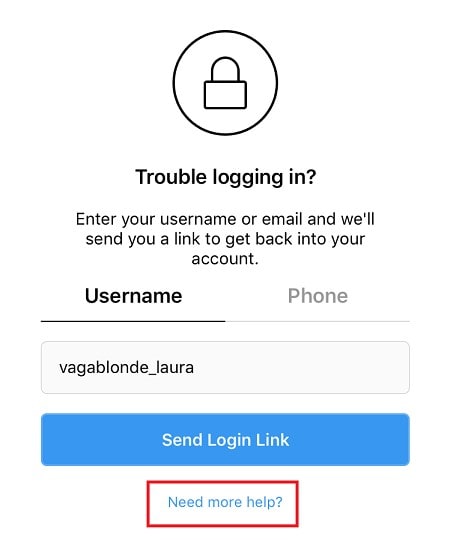
If it still doesn't work for you, go back to Settings then click Help & Report a Problem. Instagram should get back to you with instructions on what to do next.
So what happens if you want to leave the platform altogether or remove your second profile? You have two main options, one less "Scorched Earth" than the other. So you need to know how to deactivate or delete your Instagram account in just a couple of easy steps.
Instagram isn't for everyone. And even if you like Instagram, having multiple accounts may not be for you.
March 26, 2019 Training, Business, Tips and life hacks, Miscellaneous
It is worth noting that there are a great many different courses, training seminars and other trainings for promoting your Instagram account * - for every taste and color, as they say.
Books are also being actively written in which already famous stars with a million followers teach newbies how to succeed on their Instagram* profile. nine0005
Secrets of a popular Instagram* profile from celebrities: Buzova, Borodina, Sokolovsky, Creed..
But all this costs time, money and some effort. The question is, why rush to sign up for another useless webinar, if it is enough to make a little effort and create the base yourself to promote your account. Indeed, if you wish, it is not difficult at all, and various additional web applications will attract subscribers to you and allow you to automate the process of promoting your profile. nine0005
In our article, we will give the most useful recommendations and figure out how to add a second Instagram account* We will also give an overview of an application that will help you manage it, and subsequently promote both profiles, beating competitors.
You should start with the simplest - by creating a new account. This is not so difficult to do, you just need to follow the following procedure:
Let's take a closer look at how to create a profile using e-mail. We advise you to choose working, not fake mail. After all, it is there that a link will be sent to confirm the created account. nine0005
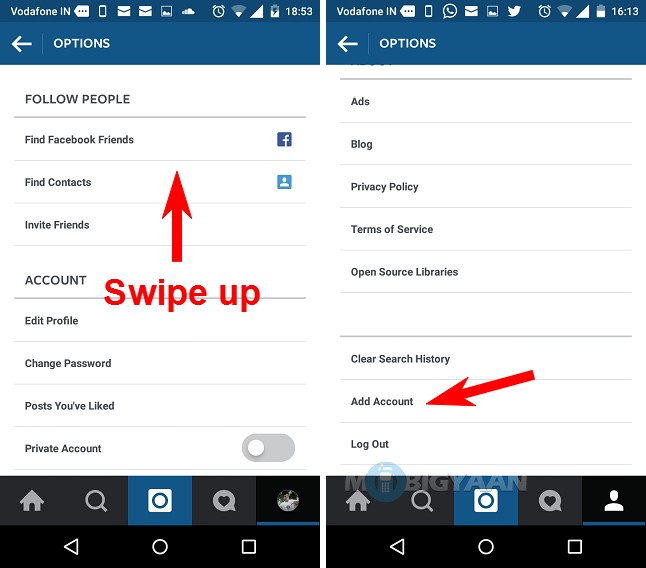
How to manage two Instagram accounts*
To merge two accounts and not re-enter your data each time, just log out of the newly created account and log into the old one.
Compared to Facebook and other similar resources, Instagram* is simple in design and lacks complex functionality. But therein lies its peculiarity and success. Manage and switch between profiles is easy even for a novice user.
What does it take to easily switch between two accounts? Simply follow these guidelines:
Important notifications can also be tracked in two different profiles.
Each event is labeled with the account name and can be easily sorted if needed.
In this way, you can track important and necessary comments from subscribers or other Instagram users*
We use the Zengram service as a promotion and management tool
Zengram can also facilitate the management of two accounts at once. It also creates great opportunities for their promotion. Suitable for those people who want to promote their business accounts in a short time and are not afraid to experiment in the field of marketing and PR.
This web application has a lot of useful features and "chips" that will be useful for young entrepreneurs.
Using them, you will attract a lot of subscribers to both accounts. And you will definitely know that your posts will not go unnoticed.
In addition, Zengram uses a system to recognize bots and abandoned profiles. You will be able to keep only active users who interact with your posts every day.
This web resource also helps to analyze the work done to attract subscribers and promote your accounts. You are sent statistics of subscribers who came to you over the past month in the form of a convenient and understandable graph. nine0005
You can also see their activity on your profile.
We complete the mini-review of the application and go directly to how you can manage two accounts at once using Zengram. It is very convenient and functional.
 We go into it.
 Sometimes Instagram* may require a verification code. These are not the machinations of scammers, but an additional way to protect your account. You will receive a code by mail or phone, which must be entered in order to further work with your profile. nine0005
By entering the code, you can safely start working in Zengram. As you can see, all conditions have been created for the quick implementation of your business ideas. And managing two accounts at once does not require much free time.
Maintaining an Instagram* account: cost
Recommended
It's easy to make money with us! Become our partner, recommend services to your friends, readers and subscribers, get from 20% for each payment!
Learn more
We make your page interesting and encourage subscribers to look at your page or website more often for shopping
Fresh publications regularly
Get our book "Content marketing in social networks: How to get into the head of subscribers and fall in love with your brand.
Subscribe to the newsletter and get a book as a gift!
Who is not on Instagram right now? Almost all friends, acquaintances and acquaintances of acquaintances already have their own profile. Cats, dogs, children also show off in a colorful news feed. And even world-famous stars are in a hurry to gain more followers and immodestly compete among themselves for a million-strong army of fans. By typing the nickname you are interested in in the search bar, in a few seconds you are viewing all the latest news in various photographs and reading their reflections. Instagram has become an accessible means of popularizing every inhabitant of this small country on the Internet. But, this was not enough and many began to ask the question: “How to create a second account on Instagram?”. nine0005
Yes, one more page is a completely justified need for many users of the popular social network. And then we will consider in what cases it is needed, how to start and then log into a second Instagram account and how to link it to other social networks.
Let's start with why this is necessary - another profile. By the way, the maximum Instagram allows you to create up to five accounts per user. And there are even those for whom even this figure is not enough. So, this is necessary in cases where one person has several directions in life. It can be both a hobby and work questions. Let's list them in order.
We have listed the main three types. However, further, even within the same store, several profiles can be created for different directions. Of course, you can not bother and maintain one account, where daily selfies will be posted mixed with interesting thematic stories and the sale of some product. But, such a tape will not have an attractive appearance. In addition, in today's competitive environment, it will be very difficult to achieve the desired goal and attract more subscribers, and even more so the target audience. That is why for each direction, be it a hobby or sales, it is recommended to create a separate additional profile. To guide him in his unique and attractive style. nine0005
Additional accounts are also created for various marketing strategies. For example, you can make a selling landing page of 12 photos for any product or service. Or temporary pages are created for holding marathons and contests, after which they are made into closed groups, and after all events, such profiles are most often deleted.
So, in fact, each user can have several account pages in working use at the same time. However, in order for all of them to be maintained in an attractive form, it is necessary to devote a decent amount of time to filling it with quality content. And here's another reason why you need to create additional profiles - to hire a freelancer, and then he himself fills it with the right content and attracts the target audience to increase sales. And at the same time, your personal page remains completely under your control. nine0005
Now that you know what another profile is for, we can move on to the practical part - creating another tool to attract attention and additional income.
All you need is your mobile phone or computer, a few minutes and your desire to do it.
If we talk about a computer, then here you should:
In a mobile phone, this is somewhat easier. To do this, you need to log into your account and click on the name of your page in the left right corner. In the drop-down box, you will be offered all your accounts. Choose the one you need and go.
Now that you have a new account, you will probably soon need to publish the same post on several social networks at the same time . Instagram has considered this possibility as well. Yes, you can save your time and immediately post to all social networks where you are registered. nine0005
We have already discussed how to log out of an additional profile on a computer a little higher. In the phone, this procedure is somewhat different. To do this, you need to: