“Can someone tell me how to remove blue ticks from WhatsApp so that other people would not know whether I have read their messages or not?”
If you have been using WhatsApp for a while, then you might be familiar with the Read Receipt feature that is depicted by a blue tick. While the feature is pretty useful, a lot of people don’t want other users to know whether they have read their messages. In this case, you can learn how to remove blue ticks in WhatsApp. To help you, I’m going to come up with a detailed tutorial on how to remove blue ticks in WhatsApp on Android and iOS devices.
Before we learn how to remove blue ticks on WhatsApp, it is important to cover some basics. For instance, while using WhatsApp, you could have been single and double grey ticks adjacent to your messages as well. Ideally, blue and grey ticks represent the following things in WhatsApp.
To know more about the status of your message, just long-press it, and go to the info section. This will display the timestamp for the delivery and read receipts.
Important Note:
If you disable the Read Receipt feature (the blue ticks) on WhatsApp, then your contacts would not know whether you have read their messages or not. They will not get single or double grey ticks for the delivery of the message. Though, after turning off the read receipt option, you would not be able to see blue ticks for any other contact as well.
Now when we have covered the basics, we can easily learn how to remove blue ticks on WhatsApp. Since the blue ticks appear due to the Read Receipt option, you can just turn this feature off whenever you want. Here’s how to remove blue ticks from WhatsApp on iPhone.
After turning off the Read Receipt option, your contacts won’t get any blue tick for their messages sent to you. Similarly, even you can’t see any blue tick for your messages on WhatsApp.
Just like iOS devices, you can turn off the Read Receipt feature on Android devices as well.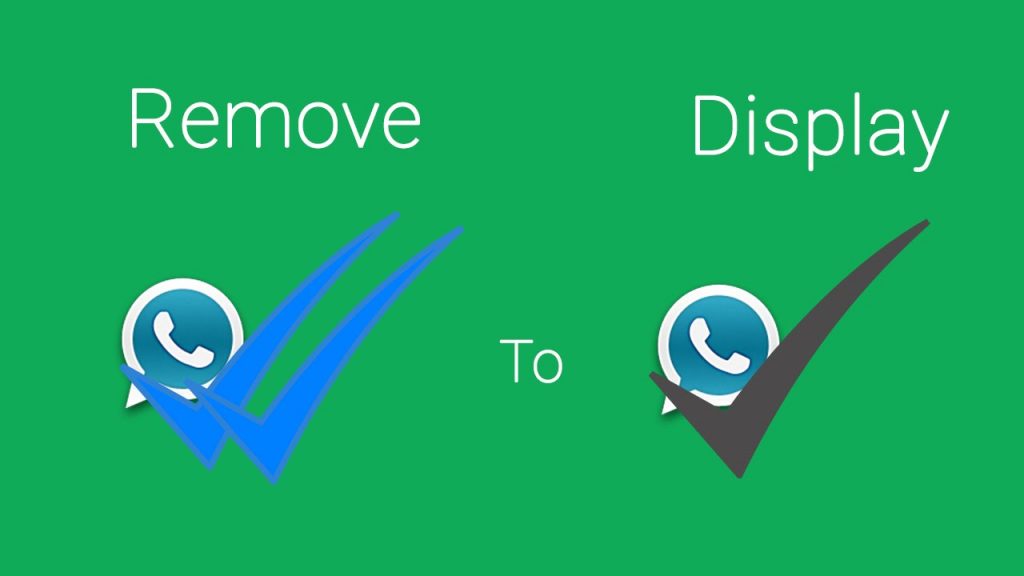 You can turn off/on this feature whenever and as many times as you want so that you can display or remove blue ticks for any message. To learn how to remove blue ticks in WhatsApp on an Android phone, follow this basic drill.
Afterward, your contacts can no longer view a blue tick for the messages that are sent to you. Since you won’t get blue ticks for your messages as well, you can just turn it on by following the same process.
By now, you would be able to learn how to remove blue ticks on WhatsApp on iPhone or Android. Besides that, you can also take the assistance of MobileTrans – WhatsApp Transfer to backup, restore, and transfer your WhatsApp data.
download download
You can follow these simple steps to backup and restore your data with the help of MobileTrans – WhatsApp Transfer.
Step 1: Launch the WhatsApp Backup tool
To begin with, you can just launch MobileTrans on your computer, visit its "Backup&Restore" section, and choose "WhatsApp".
Step 2: Backup your WhatsApp Data
Now, using a working USB or a lightning cable, you can connect your smartphone to the computer and let the application detect it.
Click on the “Start” button and just wait as MobileTrans would save your WhatsApp message. In case you have an Android, then go to WhatsApp Settings > Chats > Chat Backup and backup your data first.
Once the backup is completed on your phone, launch WhatsApp, and choose to restore the recently taken backup from the local storage.
When the backup process is completed, you will be notified, and can safely disconnect your device from the system.
Step 3: Restore WhatsApp Data to any Device
If you want, you can also restore your WhatsApp backup to any device. For this, connect the target phone, launch MobileTrans, and go to its Backup&Restore > Backup section.
Now, from the list of the available backup files, simply select a backup of your choice, and click on the “Start” button.
After this, wait for a few minutes as MobileTrans will restore your chats to the connected device without any hassle.
This brings us to the end of this detailed guide on how to remove blue ticks from WhatsApp on iPhone and Android. Since the process is pretty simple, anyone can learn how to remove blue ticks in WhatsApp by disabling the read receipt feature. Apart from that, if you don’t want to lose your WhatsApp chats, then consider using MobileTrans – WhatsApp Transfer to back up your data on your computer as well.
download download
New Trendings
How to disable blue ticks and hide last seen on WhatsApp | Image credits: Pixabay 
To the dismay of its users, WhatsApp introduced the 'read receipts' (Blue ticks) option in its app to display checkmarks next to each message you send. The feature lets people see precisely when the message is read. It works in a simple way. When the grey checkmarks turn blue that means the receiver has read your message but when the tickmarks remain grey - it just means that the message has only been delivered.
Earlier, WhatsApp users could only see when the message was delivered but since the inception of the read receipts option, they get to know when you are ignoring them by not replying to their messages (you have already read). And that's when the problem arises.
Although it helps you in comprehending when a person -- you are sending texts to -- even after reading your messages is not replying, it brings you in trouble when you are the one not replying to someone else's messages.
Apart from the 'read receipts' option, the 'last seen' notification on WhatsApp, similarly, is one of the features that give you no privacy. It let all your contacts know when you were last online and when their message reached you. With this feature, your contacts get permission to see and check when you were active on the app.
We might love the popular instant messaging platform owned by Facebook for all the features it has to offer, but the blue tick marks and last seen notification is not preferred by everyone.
Luckily, WhatsApp has an option to disable both these features and there are simple ways to avoid letting others know when you are reading their messages or when you were last online on the app. Here's a quick guide to help you keep your privacy on WhatsApp intact.
How to disable blue ticks and hide last seen on WhatsApp
Before getting relieved of the annoying Blue ticks aka read receipts option, you must know that after disabling the read receipts you will no longer be able to see when the receiver read your message, in the same way, they will not be able to see when you read their message.
Likewise, once you disable the last seen option on WhatsApp, you too will not be able to check when your contacts were last online. So, if you have made up your mind then follow these five simple steps to disable blue ticks and hide last seen on WhatsApp.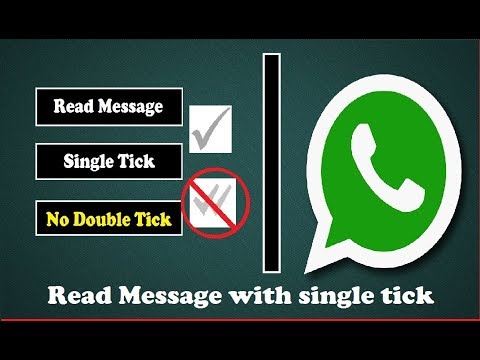
STEP 1
Open WhatsApp
Open the app on your smartphone to disable the option
Image courtesy: Pixabay
STEP 2
Tap on three dots
On the top right corner of the app, you will find three vertical dots.
STEP 3
Head to Settings
Now go to the 'Settings option and tap on the 'Account' then click on 'Privacy'
STEP 4
Disable Read receipts
A list of options will be displayed on the screen (like in the picture given below). Now uncheck the 'read receipts' option which will turn its button from green to grey.
STEP 5
Disable Last seen
Now tap on the last seen option and according to your preference click on any of three options - Everyone, My Contacts or Nobody
For the latest Tech news, camera reviews, laptop games news, and Gadget Reviews on TimesNow
NEXT STORY
Do you use WhatsApp often? If you do not want your interlocutor to see that you have read his message, then read the article and find out how to do it.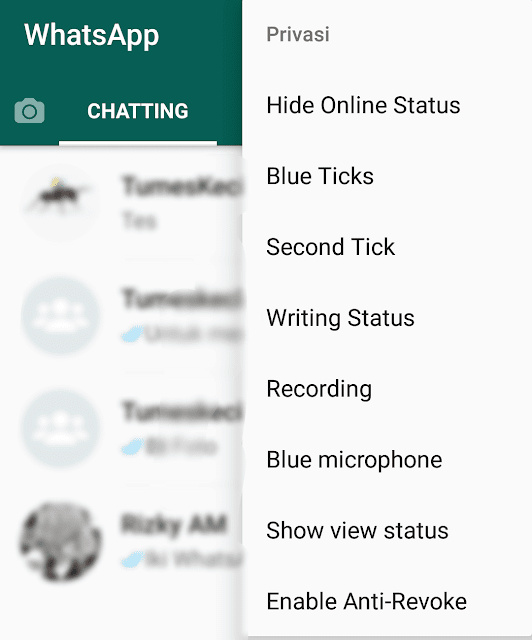
Disable read receipt.
Closing correspondence in the messenger from strangers.
In the messenger, when you read a message, the read checkbox is ticked and your interlocutor sees that you have read his message. There are times when you see an email but don't want to reply yet or don't have time, so you want to prevent the user who wrote to you from receiving a read receipt. It's time to learn how to remove the treasured "viewed" checkbox. For this:
This feature is very easy to turn off, so now you can watch messages without the people who sent you messages knowing about it. Also, you can hide your activity from users, for this:
You can also choose who can see your profile picture in the privacy menu. Click "Profile photo" and select the desired settings.
There is also a little advice for those who use this messenger:
This function will block the messenger in your absence. Accordingly, without your face or fingerprint, another person will not be able to log into your messenger and read your correspondence.
Press lightly on the chat so as not to fully open the message. This feature is available thanks to 3D-Touch, a strong press is a quick chat opening, and a weak one is a preview.
Here are some tips to make your WhatsApp experience even better. Secretly open chats, set privacy settings so that other people cannot read your correspondence.
Call us
+7-978-773-77-77
Share:
Privacy-Best Policy! Assume that your data, location, recent decision, subsequent decision, and current style are not private to companies and other Android app users. In this case, such applications are called non-confidential or simply the most insecure.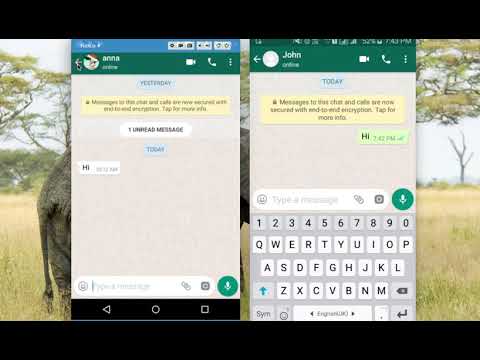
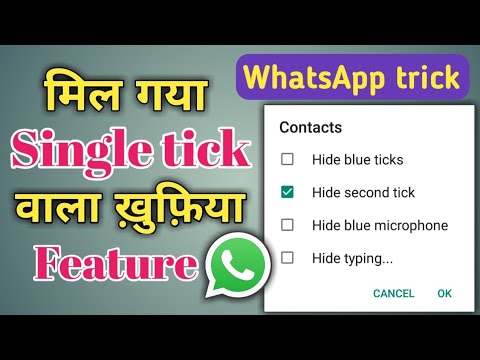
Whatsapp is also one of those privacy free android apps giving you all the best instant messaging features but lacking privacy with some optional stuff like Blue ticks, second tick and typing…status.
If we have a smartphone these days, we are directly exposed to simplistic technologies, but indirectly we are exposed to these disastrous privacy-hindering apps.
It's not like a game that we can play well every time, because we need to keep everything private and enjoy the freedom without anyone interfering or annoying. If you think like I do now, you can make some changes to your phone with WhatsApp Plus.
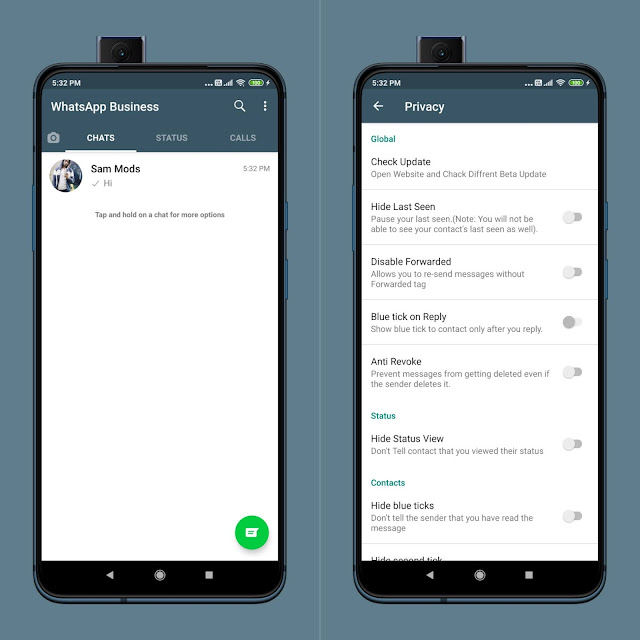
Replace your phone's official WhatsApp with a modified version of WhatsApp known as WhatsApp Plus. This Plus version is a lucrative instant messaging protocol with some amazing elements, one of which is enhanced privacy.
WhatsApp Plus allows you to hide blue checkmarks, double checkmarks, typing…, recording…, last seen and pretty much anything you want to hide from your WhatsApp contacts.
If you finally feel like you've passed on much of your current knowledge to all your WhatsApp contacts, it's time to upgrade your messaging to include all of these privacy-enhancing features.
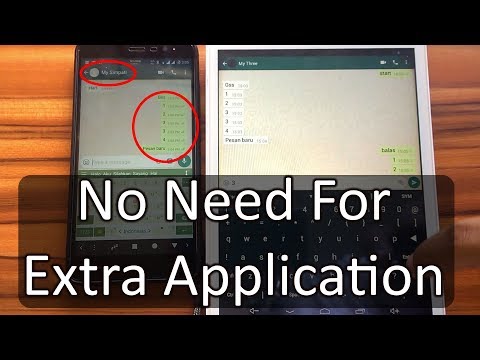
Enabling it won't be anything like rocket science and it will pass soon as you can watch the YouTube video below based on it. In addition, you can also take the help of the text steps we have listed below later.
After streaming the above video, you must be fully familiar with the procedure for enabling unusual privacy features in WhatsApp Plus. Otherwise, you can get help from the text steps listed below to take a step towards your online messaging freedom.

That's all you had to do! Now you can enjoy the rich freedom of online life and instant messaging with a huge number of features available inside. WhatsApp Plus .
Tell us later about your favorite privacy feature introduced in this amazing whatsapp mod and also visit the homepage of this website for more exclusive Plus features and their complete enable guide.