If you’re constantly moving, then replying to WhatsApp messages promptly can be difficult. After all, if you’re driving, picking up kids, shopping, running for your bus, or whatever it is you do, then trying to type a reply to someone can be distracting and annoying. That’s why you should send voice messages on WhatsApp instead. How do you do it? Glad you asked because that’s exactly what we’ll be looking at here.
Read more: What is WhatsApp? The ultimate guide to getting started
QUICK ANSWER
To send a voice message on WhatsApp, press down on the microphone icon next to the text box and speak your message. When the message has been completed, release your finger from the microphone icon, and the voice message will appear in the messaging area as a small audio player. The recipient then has to tap the play button to hear it.
If you want to send a voice message to someone, go to their chat window, and you will see a small microphone next to the text box.
Press down on the microphone, and a timer will start. This is the start of the recording. Do not lift your finger until the message has been finished. Lifting your finger ends the recording and sends it. If you fluff up the recording and want to do a do-over, slide your finger off the record button (instead of lifting it off). Sliding the finger off gives you the option to delete the recording.
When you’ve lifted your finger, the recording will be sent to the other person. You and they will see it as a small audio player in the messaging window. All you and they have to do is tap the white play arrow to hear the message.
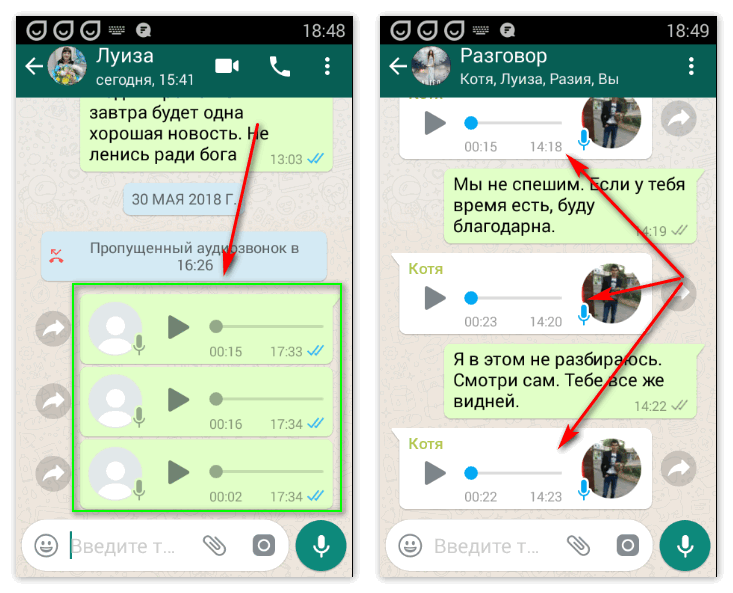
The grey microphone icon next to the picture will turn blue when the message has been listened to by the recipient.
Read more: How to delete WhatsApp messages
Yes, you can. The process is identical.
WhatsApp does not publicly specify any particular time limits. However, there must be some limit.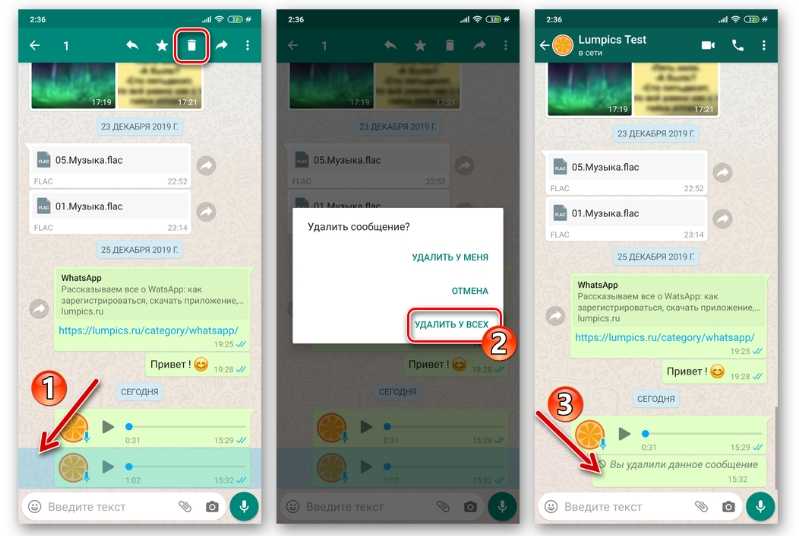 Just don’t go crazy, and use the feature only for short messages.
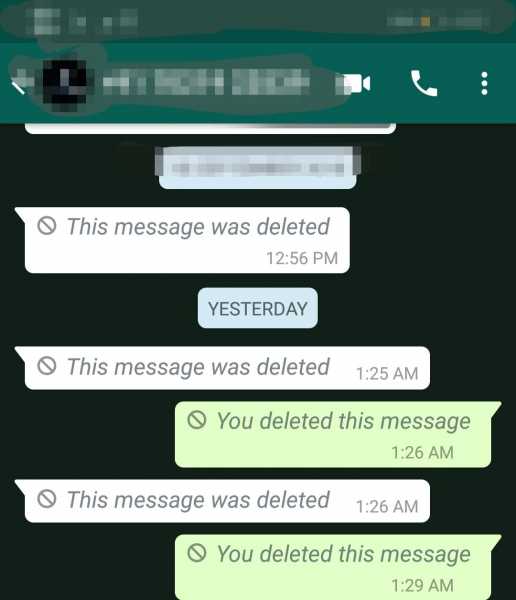
Yes. You can long-press on the audio player, and a menu will appear. Select Delete. You will then be asked Delete for everyone or Delete for only me. Choose the former.
It could be any number of things. Your volume may be down, your device may be in silent mode, you may have earphones plugged in, or the recording itself was bad.
Yes, you can download them, but only as OGG files (although you can easily convert them to MP3 later if you want). On a mobile device, long-press the voice message and select email in the Share menu. The OGG file will then be sent to you as an email attachment.
On the desktop client, click the small arrow to the far right of the audio player, and in the drop-down menu, you will see Download. This again will give you an OGG file.
WhatsApp does not officially provide this feature. However, there are third-party apps available for your phone that claim to be able to do it. Please think first about whether you want to grant access to your private messages to an unknown third party.
WhatsApp holds on to the messages until the recipient opens WhatsApp to listen to the messages. If the recipient doesn’t open WhatsApp and listens to the messages within 30 days, they are automatically deleted from WhatsApp’s servers.
As for listening to them, this is impossible due to end-to-end encryption, which is installed on all WhatsApp communications by default.
Turn off your internet connection on your device. You can then listen to the message without the blue ticks giving you away. However, the blue ticks will be sent when you reconnect to the internet. So you’re only fooling the other person for a few minutes or less.
No. You will receive notifications of voice messages, but you can’t natively listen to them on the watch. However, there are third-party apps available that claim to do it. Again though, the same privacy caveat applies.
WhatsApp has been on a feature-addition spree for a while now. Among the recently introduced features on the popular instant messaging platform are the ability to move messages from iPhones to Pixels, the option to send disappearing messages, and supporting crypto-powered mobile payments — and it seems it's not done yet.
Contents
WhatsApp’s official Twitter account tweeted about the addition of a new feature that millions of users have been demanding for a really long time. Yes, WhatsApp finally lets you preview voice messages before sending them. Here’s how you can use the new preview feature with WhatsApp voice notes to make sure you don't end up sending a voice note that you may later regret.
Easy
5 minutes
Sending WhatsApp voice messages seems quite casual, but many users use this feature for professional purposes as well as personal ones. When you're sending an official note, it can be important to make sure you've got your message right. That's where previewing the voice message before sending helps.
However, this feature can be useful for casual use as well. Whether you're contributing to a friendly group chat or sending a reminder to your mom, making sure your voice note is correct can avoid confusion and help the recipient understand you better.
It can also save you from embarrassment in case weird background noises accidentally got recorded in the voice message.
Before you begin, please ensure that you are using the latest version of WhatsApp Messenger. To do this, all you need to do is open the Google Play Store, search for WhatsApp, and check if you see the option to Update. If not, you should be just fine. Now that all the prerequisites have been met, let's check out how to go about this.
Step 1: Open a WhatsApp contact or a group chat and look for the Microphone icon.
Step 2: Tap the Microphone icon, hold it, and then swipe up toward the lock icon above to initiate hands-free recording mode.
Step 3: Start speaking, and use the red Record button to stop the recording.
Step 4: You can use the Play icon to check your recording, and if satisfied, use the Send button to send it along.
Step 5: If you wish to record again, use the Trash can to delete the recording. Repeat the process to initiate a new recording.
Rahul Srinivas/ DigitalTrendsNow, for those of you not too well-versed with how WhatsApp’s voice notes feature worked until now, here’s a short explainer.
In previous versions of WhatsApp, you had to long-press the microphone button next to the text box to initiate a voice note. The moment you lifted your finger from the mic icon, the message would be automatically sent.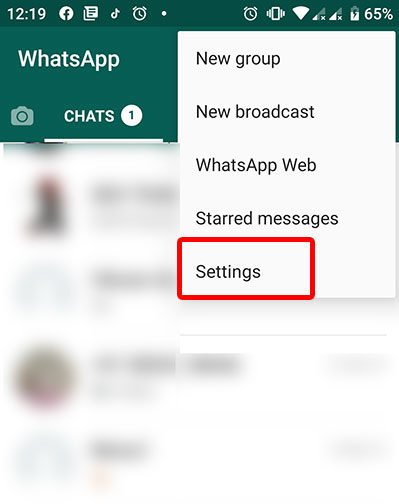
While this was a quick way of sending voice messages, not everyone was comfortable using it because it offered no option to check how good or bad they sounded or even let them check for mistakes before the voice note went through.
To fix this issue, WhatsApp eventually gave users the option to swipe and cancel a recording (while the message is still being recorded, mind you) if they were not too happy with what you said. However, this was still not as good as actually hearing a message before sending.
And this is exactly what WhatsApp has fixed with the recent update. The new feature is now available for both Android and iOS versions of WhatsApp and is now live for users across the world.
How to record a voice message in WhatsApp, listen to the recording and send it to another user? Let's tell! Read our review to find out all the information you need - we will discuss everything related to sending and setting up audio.
Voice messages in WhatsApp - a convenient and efficient way to communicate. You no longer have to type long texts on the keyboard - just dictate the message and click on the appropriate icon - we will tell you how to transfer the file below.
Let's look at Whatsapp voice message indicators! With the received files, you will see the following icons:
When sending messages, you will see the following indicators:
We figured out the definition - let's talk about how to make a voice message in WhatsApp and send it to the chat?
See other articles in this section about Voice messages:
It's time to discuss how to record a voice message in WhatsApp if you want to send an audio file to your interlocutor in a chat.
Want to send a long WhatsApp message? Let's talk about how to increase the recording time!
Done! You were able to figure out how to send a voice message in WhatsApp after recording - just a few clicks are enough for comfortable communication.
Please note that some phone models start recording a second after pressing the microphone button.
Let's talk about how to listen to an audio file?
If the microphone stops working, read how to fix it.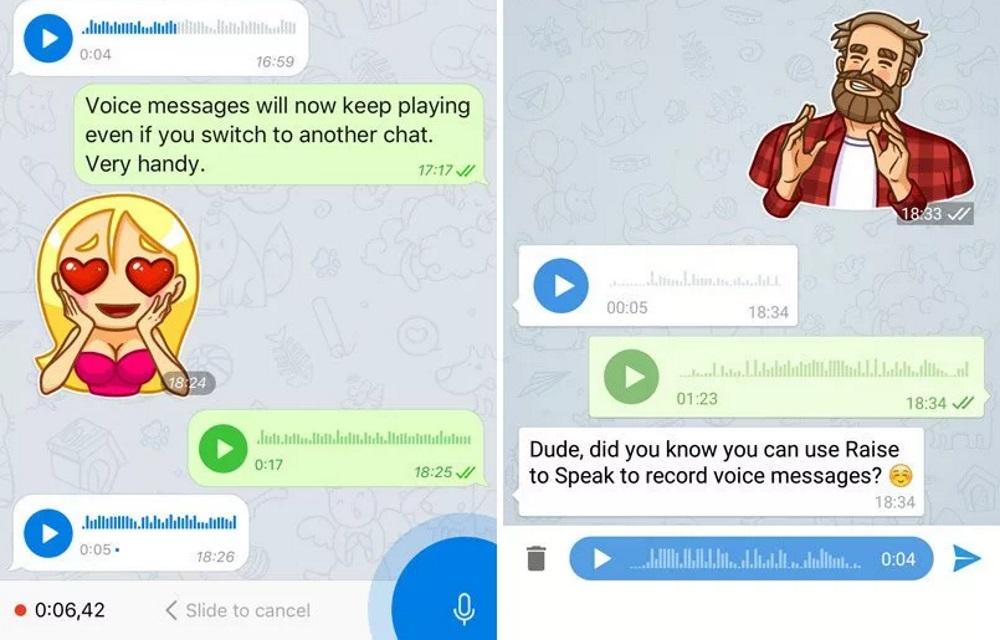
Let's discuss how to read - or rather listen to the received recording. Have you already seen the audio delivery notification? It's time to open it:
You can listen to the file in two ways:
Important! If you listen to audio through a bluetooth headset or connected headphones, the files will be played in the appropriate way.
It's time to discuss how to make voice WhatsApp read in a row! You don’t have to do anything - automatic media loading is provided by the system, you won’t be able to disable or configure it. Autoplay of voice messages in Whatsapp is made for the convenience of user communication.
Let's move on to setting up WhatsApp voice messages - there are several important parameters that you should be aware of.
The maximum length of audio files is not defined - we did not find the limit beyond which the message recording stops. Sometimes users are faced with the fact that the document stops at the ninth second - this is due to technical problems, this defect is fixed in the application updates.
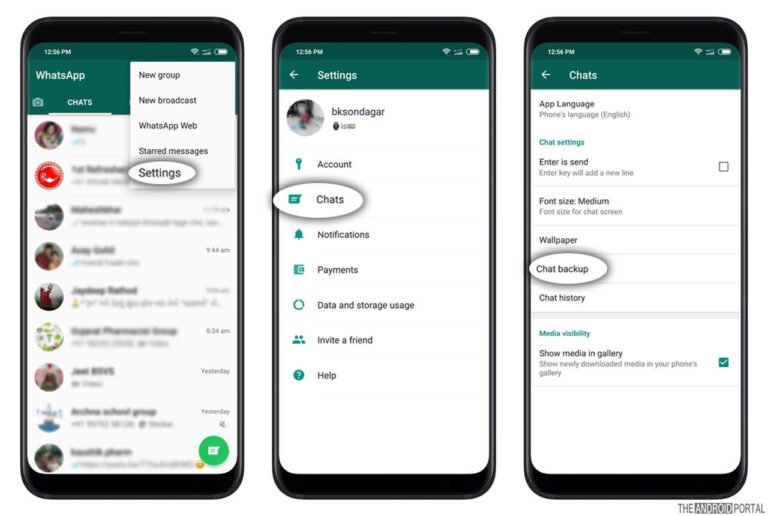
Let's discuss how to set up a WhatsApp voice message for saving:
Done - now all messages will be stored in the cloud storage, you can pull them out at any second.
Many people are concerned about the question of how to cut off a voice message in WhatsApp? Unfortunately, there are no built-in features. You can download a special program from the store on Android or iPhone.
Finally, let's move on to the features of the work that any user may encounter.
Find out what an asterisk means in the program (in chat and in a photo).
Told below what to do if you can not listen to and record audio, you need to check the following:
 Is the proximity sensor covered or is a headset connected that interferes with listening to data.
 If your phone vibrates while listening to a voice message in WhatsApp, you need to do the following:
Most often, the problem of the notification sound when listening to Whatsapp voice messages appears on Android. We talked about solving this difficulty - if our method did not help, make sure that you are using the latest version of the application and update it if necessary.
We told you how to record a voice message in WhatsApp - bookmark our review to remember our useful tips and algorithms for working with the messenger.
Read more: Is it possible to find out the location of a person using WhatsApp?
Everyone should know how to send a voice message on WhatsApp! Everyone will use this option - you can free your hands and dictate a long text that you are too lazy to type.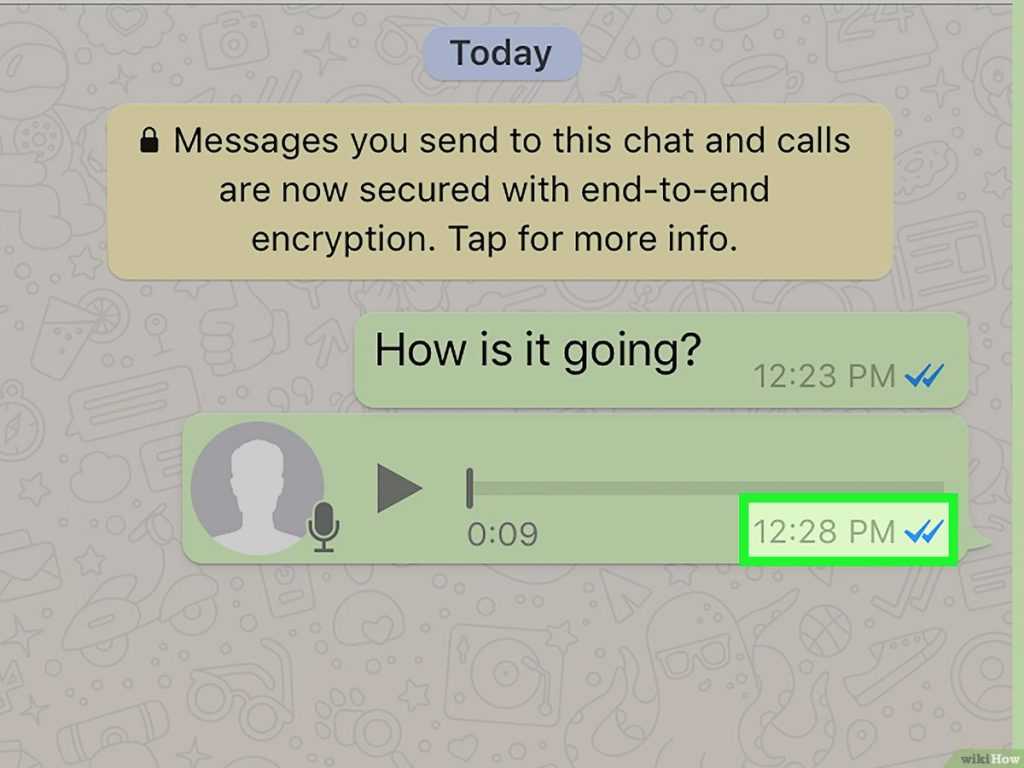 We tell you what to do.
First, let's talk about how to send a voice message via the mobile application in WhatsApp! The instructions can be used on smartphones running Android OS and iPhones, there are no differences.
Let's get down to business? Follow the instructions:
To send a voice message via WhatsApp, you need to hold the icon with your finger!
If you want to record and send a long message and need free hands, another algorithm applies:
 Recording in progress - you can remove your hands from the screen;
 There will be a small timer on the screen throughout the process so you can keep track of how long you've been recording your speech.
Now let's say a few words about how to send a voice message via WhatsApp if you prefer to use a computer! The smartphone was not at hand, but access to the main functions is open. What to do if there is no sound during a video call, we will tell you here.
Advanced users know that you can use the desktop application or the web version on a computer. We will teach you how to send a voice message to WhatsApp on a computer, the instruction is no different.

Watch the timer! This way you will know how many seconds / minutes your message takes.
A really handy feature that is always at hand - you can tell a long story and save time on typing. The option is free, there is no additional charge - only as part of your GB package. Read on - what is the folder in voice notes.
Sometimes, there are cases when a recording starts accidentally and is sent, or you recorded a voice to the wrong contact. What then to do?
Unfortunately, it is not possible to edit the content as in a text message. But there is another way to get rid of the message, to delete it completely from the sender and the recipient.