Home » WhatsApp » Add People to WhatsApp Group Without Saving to Contacts
By: Waseem Patwegar
The Group Chat feature in WhatsApp allows people to share Photos, videos and information with family, friends and others. You will find below the steps to Add People to WhatsApp Group without Saving to Contacts.
When you create a WhatsApp Group, you will be prompted to add members to the Group by selecting people who are already in your Contacts List.
If you try to Add people later on (after creating the Group), WhatsApp will still take you to the Contact List on your phone.
This default method of adding people to WhatsApp Group is not suitable, if the people that you want to add to WhatsApp Group are not available in your Contact List.
In which case, the Group Admins will be required to first add people to their Contact List, before being able to add them to WhatsApp Group.
Luckily, it is possible to add people to WhatsApp Group without saving to Contacts and this can be achieved by sending an invitation link to join WhatsApp Group.
Make sure that you have the Admin Rights to WhatsApp Group and follow the steps below to Add People to WhatsApp Group Without Saving to Contacts.
1. Make sure you are on the Chats tab in WhatsApp and tap on your WhatsApp Group.
2. Once you are in WhatsApp Group, tap on three-dots menu icon and tap on Group info option in the drop-down.
3. On Group Info screen, scroll down and tap on Invite via link option.
4. On the next screen, you will see WhatsApp Group Invite Link and a message reading “Anyone with WhatsApp can follow this link to join this group. Only share it with people you trust”.
Below the message, you will see the options to Copy, Share & Revoke Link – Tap on Share link option.
5. On the share menu that appears, you will see various options to send WhatsApp Group link.
You can send the link using Gmail, SMS, Skype and various other means.
Anyone on WhatsApp will be able to join the Group using the Invite Link and they won’t be added to your Contact List.
The disadvantage of adding people to WhatsApp using Share Link is the possibility of unknown or undesirable people joining your WhatsApp Group.
If this happens, you can follow the steps below to revoke WhatsApp Group Invite Link and replace it with a new WhatsApp Group Invite Link.
1. Open WhatsApp Group > tap on three-dots menu icon and tap on Group info option in the drop-down.
2. On Group Info screen, scroll down and tap on Invite via link option.
3. On the next screen, scroll down and tap on Revoke Link option.
4. On the confirmation pop-up, tap on Revoke Link option.
5. On the next pop-up, tap on OK.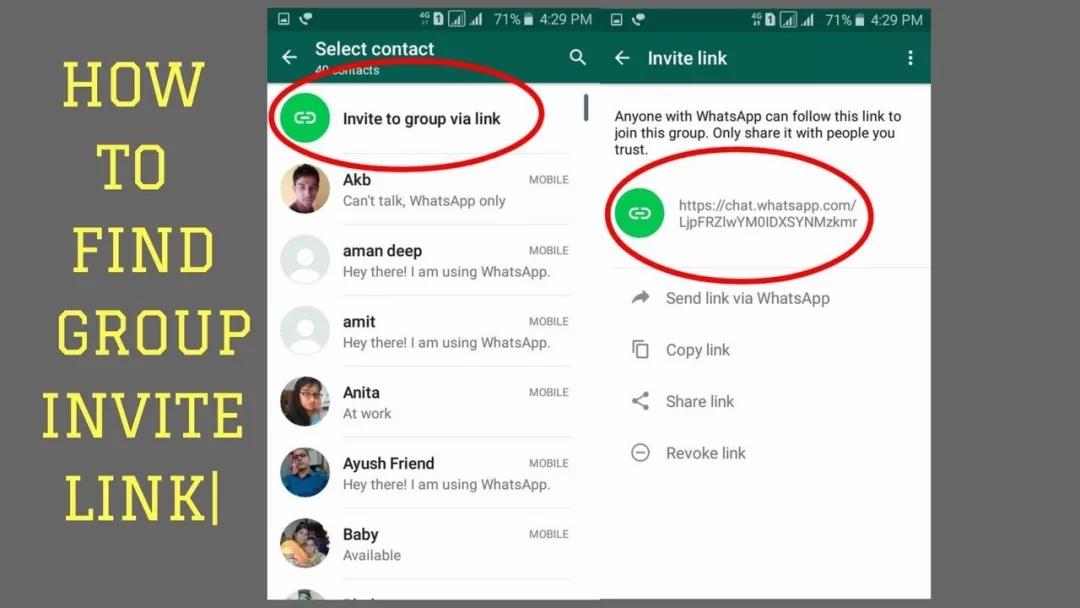
As you can see in above image, WhatsApp has revoked the previous Group Invite Link and replaced it with a new one.
After revoking the link, you will have to manually remove the unknown or undesirable people from your WhatsApp Group.
Whatsapp is one app that is both utilitarian and offers a number of features. The popularity that the app enjoys is because of the diverse features that the app offers for the users. One of them being the Whatsapp group. Creating and adding members to Whatsapp groups requires you to save the add contact. And this has prompted many to wonder How To Add Members In Whatsapp Group Without Adding In Contacts.
Whatsapp Groups are a platform where the users can converse with a number of people at the same time. In fact Whatsapp lets upto 250 members be a part of Whatsapp group. But not many know How To Add Members In Whatsapp Group Without Adding In Contacts. Even if everyone knows how to create a Whatsapp group no one knows How To Add Members In Whatsapp Group Without Adding In Contacts. Thus, increasing the search for How To Add Members In Whatsapp Group Without Adding In Contacts.
If you were also wondering How To Add Members In Whatsapp Group Without Adding In Contacts you have come to the right place as in the section below you have the answer to How To Add Members In Whatsapp Group Without Adding In Contacts.
Before we look at How To Add Members In Whatsapp Group Without Adding In Contacts let us find out how to create a Whatsapp group. Given below are the steps for How To Create Whatsapp Group by saving numbers in the regular method
Open Whatsapp
Tap More indicated by the three vertical dots at the top right corner
Here select New Group
You can also try another method
Wherein you select the Green chat box at the bottom right corner
Once this opens select New Group
After you select New Group
Select the Contacts you want to add to the Group
Now tap on the Green Arrow
This will take you to the section where you christen your Whatsapp group with a name
Name your Whatsapp Group
You can also add Emojis to the name
Now add the group Icon by selecting the Camera icon
You take a picture then and add or select one from Gallery
Select the Green Check Mark
Unfortunately Whatsapp does not have the feature of adding members without adding in contacts.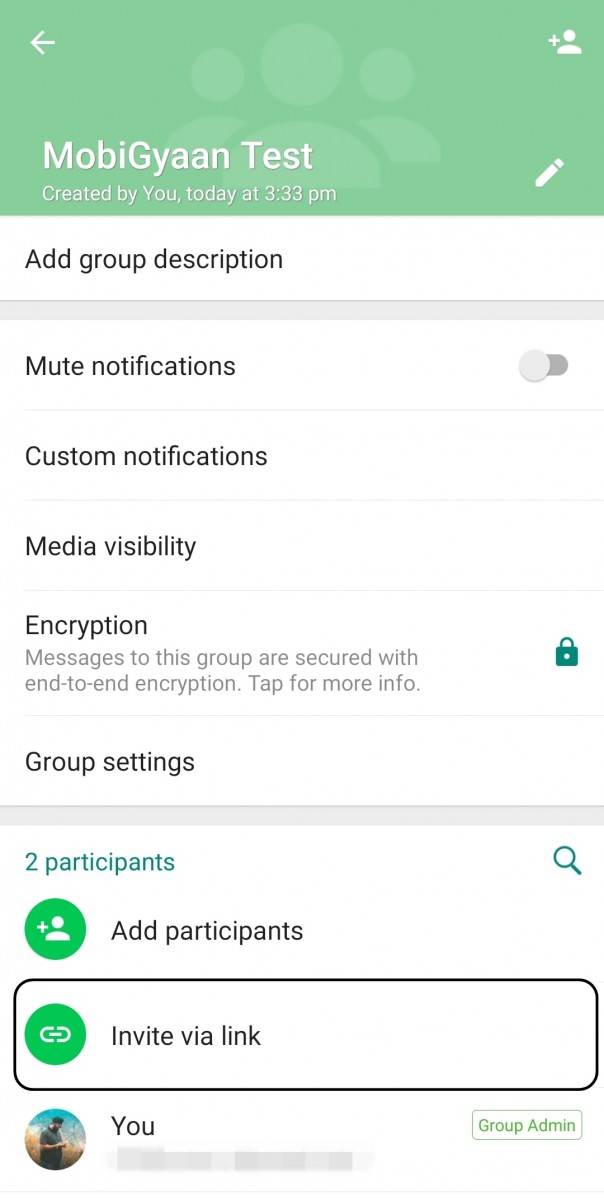 But this does not mean that there is no way for How To Add Members In Whatsapp Group Without Adding In Contacts because you can add members to the group without saving the number. Before we look at How To Add Members In Whatsapp Group Without Adding In Contacts let us find out how to create a Whatsapp group. Here are the steps for How To Add Members In Whatsapp Group Without Adding In Contacts
Open Whatsapp
Now Press and hold the Group to which you want to add more members
Select More indicated by three vertical dots at the top right corner
Here select Group Info
Here select Invite via link.
You can copy the link and send to the contacts whom you want to invite without saving their number via message
Disclaimer: The above information is for general informational purposes only. All information on the Site is provided in good faith, however we make no representation or warranty of any kind, express or implied, regarding the accuracy, adequacy, validity, reliability, availability or completeness of any information on the Site.
1. How To Add Members In Whatsapp Group Without Adding In Contacts?
2. Can I Add Members In Whatsapp Group Without Adding In Contacts?
Yes you can Add Members In Whatsapp Group Without Adding In Contacts via invite link
3. How To Create a Whatsapp Group?
4. How many members can I add in a Whatsapp Group?
You can add upto 250 members in a Whatsapp Group
5. When was Whatsapp launched?
Whatsapp was launched in 2009
6. What are the platforms on which I can use Whatsapp?
Whatsapp can be used on Android and iOS
7. Who is the developer of Whatsapp?
WhatsApp LLC is the developer of Whatsapp
8. Is Whatsapp owned by Facebook?
Yes, Whatsapp is owned by Facebook
March 28LikbezTekhnologii
A couple of minutes - and you will have a convenient place to communicate with friends, family or colleagues.
Share
0 Group chats are convenient for joint conversations when you need to quickly communicate some information to several people at once or discuss it together. The number of users in WhatsApp groups is limited to 256 people. While in such a chat, you will see all the messages that any of the participants will send. In the same way, all your messages can be read by anyone present in the conversation.
You can select members directly at the stage of creating a group and later through its settings. Special links are also used to invite new members. By clicking on them, anyone can join the conversation, so be careful and send an invitation only to those you trust. Everyone who receives your link will be able to forward it to other people, and they will also join. You can revoke the link if you wish. Then it will become invalid and no one else will be able to enter it.
After creating a group, you become its administrator and can add or remove members, as well as create invitation links and cancel them. In addition, it is allowed to appoint any of the users as an administrator, and then he will receive the same rights.
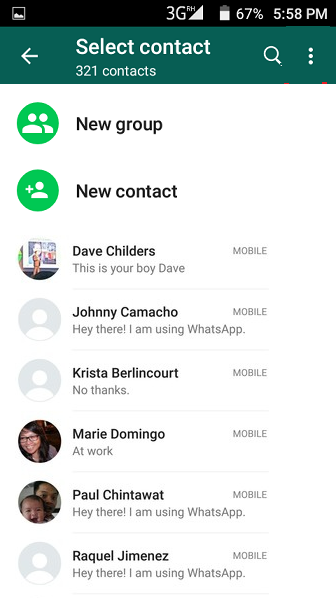
On the Chats tab, tap "New Group" and then mark the members or use the search and click "Next".
Enter the name of the group, set an avatar using a photo from the gallery, emoji or sticker, and also enable disappearing messages if necessary and set their lifetime. After that, tap "Create".
Go to the "Chats" tab and select "New Group" via the menu button.
Mark the people you want to invite, give the chat a name, choose an avatar and confirm the group creation.
Tap the group name, scroll through the options, and open Add Members.
Select people from the list or search through the search, and then click "Add" and confirm the action.
Tap on the name of the group, tap on the "Add" icon, and then mark the people you want and tap the confirm button.
Open the group settings by tapping on the name and click "Share".
Select "Share" again to send the link through the standard menu, or copy it or display it as a QR code. Here, if necessary, you can reset the link so that no one can join using it.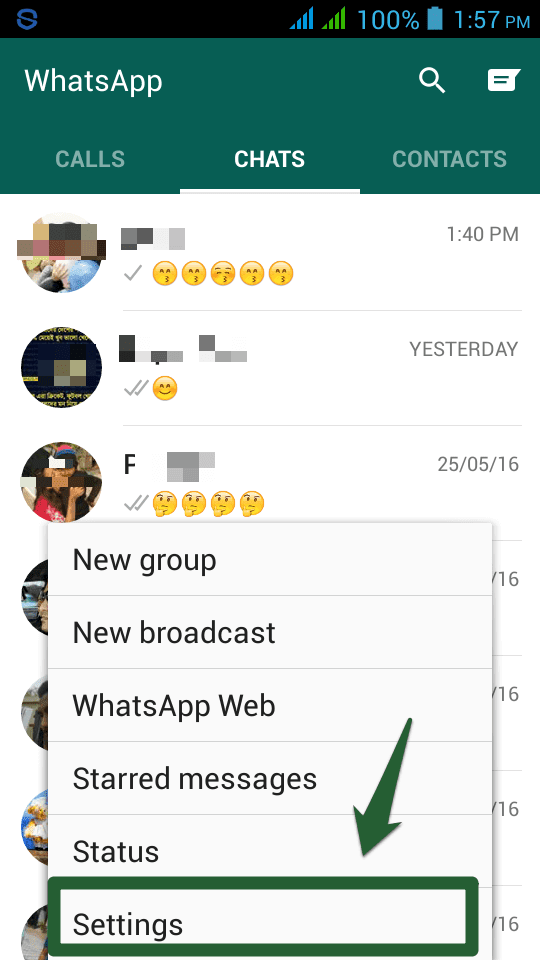
Go to group properties by clicking on the group name and scroll to "Invite by link".
Select one of the options, such as "Share Link" to send via the standard sharing menu. Clicking "Reset Link" will terminate the link and members will no longer be able to join the group using it.
Touch the name of the chat to go to the settings, scroll to the list of participants and select the one you want.
Tap "Make group admin" to give him admin rights. After that, a corresponding note will appear next to the person's name. From the same menu, you can make the admin a regular user, as well as remove from the chat.
Go to the properties of the group by clicking on the name and find the desired person in the list of members.
Tap Make Group Admin to make the user an admin. A badge of the same name will be displayed opposite his name. Using the same menu, you can "demote" the admin to a simple user, and also remove him from the group.
Read also 📤📥
Let's talk about how to create a WhatsApp group and invite members to it? We will look at detailed instructions for Android and iPhone - join, you will not regret it!
We will tell you how to create a WhatsApp group step by step - we will discuss all the questions that may arise in the process! Even if you haven't done group dialogues before, don't worry, we'll teach you the smallest details.
And let's start with algorithms for owners of apple technology! Let's try to create a new WhatsApp group on our own:
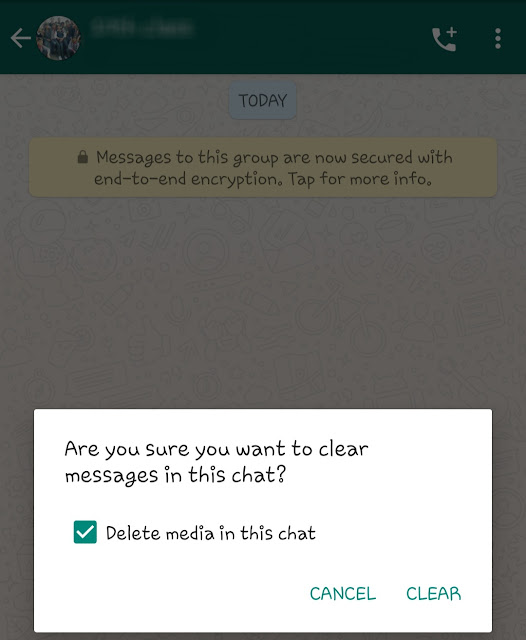 .." icon;
 Congratulations, you were able to create a new WhatsApp group - really easy? Now let's look at the available settings. To go to the settings, just click on the name of the community on the top panel. What can be done?

Below is the "Settings" section, where you can choose:
We learned how to create a WhatsApp group on iPhone - let's try to invite other members there! You have already added people to the Whatsapp group in the first step, but the list can be expanded:
It is important to know how to create a link to a WhatsApp group - it will come in handy if you want to invite people who are not in the contact list:
/cdn.vox-cdn.com/uploads/chorus_asset/file/19886581/Image_from_iOS__25_.png)
Congratulations, you have created a Whatsapp group on your iPhone! We hope you did not doubt your abilities. Now let's talk about another operating system?
We know how to make a WhatsApp group on Android - you will soon find out too! If you have been wanting to launch a themed chat for a long time, now is your time:
We will not expand on the settings - they do not differ from the corresponding settings on the iPhone.