If you haven’t used Facebook in a while, you might have forgotten your password.
However, you might be still logged into the Facebook app.
If that’s the case, there are a couple of things that you can do next.
Firstly, you can either change your Facebook password by selecting the “Forgot password?” link on the login page of Facebook.
Alternatively, you can try your luck to see whether your Facebook password is saved on your device.
If your Facebook password is saved on your device, you won’t have to reset it.
However, many users are unsure of how to see their Facebook password.
Additionally, some people disabled the saving of passwords on their device, so their Facebook login details might not be saved.
Regardless, in this guide, you’ll learn how to see your Facebook password on both iPhone and Android devices whether you’re logged in or not.
To see your Facebook password, you need to check your saved passwords on your device.
You can check your saved passwords on both iPhone and Android devices.
If you’re using an iPhone, you can see your saved passwords by navigating to “Passwords” in your phone’s settings.
Once you’re in the “Passwords” screen, you’ll be able to see all of your saved passwords including Facebook.
For Android, you can see your saved passwords by navigating to the “Password Manager” via your Google account.
The “Password Manager” contains a list of all of your saved passwords, and you might be able to find your Facebook password there.
If you didn’t manage to find it, then you might have disabled the saving of passwords.
If that’s the case, you have no other choice but to reset your Facebook password.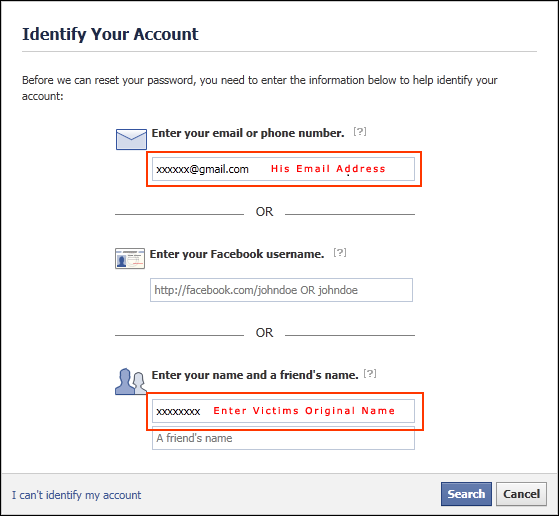
To see your Facebook password on an iPhone, you first need to go to your phone’s settings.
Then, navigate to “Passwords” and you’ll be able to find your Facebook password there.
On an iPhone, you can either ask Siri to find your saved passwords or view them in your settings.
If you’re using Siri, try asking something like, “Hey Siri, what is my Facebook password?”.
Then, you’ll be prompted to use Touch ID to view it.
If you don’t have Siri activated on your iPhone, you can navigate to your saved passwords manually instead.
This can be done by going to your settings > passwords > facebook.com.
Below is a step-by-step guide on how you can do this.
Go to your iPhone Settings.
The first step is to navigate to your phone’s settings.
You can either do so by searching for “Settings” or finding it manually.
To search for your phone’s settings, swipe down from the top of your screen and search for “Settings”.
Then, tap on the Settings icon to go to your settings.
Alternatively, you can find the settings by searching for its icon on your home screen.
Once you’ve found your settings, tap on it to visit it.
Scroll down and tap on “Passwords”.
Once you’re on your phone’s settings, you’ll see multiple options including “Airplane Mode”, “Wi-Fi”, “Bluetooth”, and more.
The option that you want to be looking for is “Passwords” as you’ll be able to view your saved passwords there.
Scroll down until you find the option that says “Passwords”.
The “Passwords” option is located under the “Wallet & Apple Pay” option.
Tap on “Passwords” to view your saved passwords on your device.
Proceed to the last step to learn how to find your Facebook login details.
Tap on “facebook.com” and use Touch ID to view your Facebook login details (username and password).
After you’ve tapped on “Passwords”, you need to enter your passcode or use Touch ID to view them.
If you’ve enabled Touch ID, use your thumb to unlock it.
On the other hand, if you’re using your passcode, enter your six-digit passcode.
After you’ve unlocked your passwords, you’ll see a list of all of your saved passwords.
For example, if you’ve saved your Snapchat password, you’ll be able to find it via the “snapchat.com” option.
The option that you want to be looking for is the “facebook.com” option.
You can either find it by scrolling down to the “F” alphabet or searching for “Facebook” on the search bar.
Once you’ve found the “facebook.com” option, tap on it to view.
After you’ve tapped on it, you’ll be able to see your Facebook username and password on the “Username” and “Password” fields respectively.
To copy the password, tap on the “Password” field and select “Copy”.
You’ve successfully learned how to change your Facebook password on an iPhone!
To see your Facebook password on Android, you need to navigate to your Google Account via your phone’s settings.
Once you’re on your Google Account, tap on “Manage your Google Account” followed by “Password Manager”.
In the Password Manager, you’ll be able to see your saved passwords including Facebook.
Here is a step-by-step guide on how you can do this:

On Android, most of your passwords will be saved on the Password Manager.
Hence, if you want to see your Facebook password, your best bet is to go to your Password Manager via your Google Account.
You’ve successfully learned how to change your Facebook password on Android!
If you’re logged in to Facebook, you won’t be able to see your password directly on the app.
This is because Facebook does not allow it as it compromises your security.
If there was a feature that allows you to view your Facebook password while you’re logged in, then anyone will be able to see your Facebook password.
Then, they will be able to change it through your settings and your account will be compromised.
Hence, if you want to see your Facebook password, you can use the steps mentioned in this guide.
How to Add a Follow Button on Facebook
What Does “Following” Mean on Facebook?
3 Steps to Appear Offline on Facebook Messenger
TagsFacebook
FacebookTwitterLinkedIn
The truth is Facebook does not allow users view their passwords even if they are logged in. Naturally, the decision was made for safety reasons. Imagine you log in to your account on a public computer, for example, in a library, school, or hotel you are staying during your trip, and you forget to log off. Letting the user see his password would also allow it for anyone else who gains access to the user’s device or in case of our mentioned situation happens to sit next to the public computer the accounts creator was using just a couple of minutes ago. Naturally, it is possible the one who notices you did not log off will do it for you, but what if this person appears to be interested in stealing your account? If there was an option to view password after logging in this person could learn your password and then change it through settings. Nonetheless, while you cannot see your Facebook password after logging in, there is another option as you know there are password managers.
How to see my Facebook password
Luckily, password managers are integrated into Google Chrome, Mozilla Firefox, Internet Explorer, Opera, and many other browsers, so if the user forgets his password, he can easily remember it by taking a look at the passwords stored by his browser. It means if you ever allowed your browser to save your Facebook password after logging in, it should be easy to look it up. This might be even handier than you could imagine because in situations when you forget your password, you can still log in to your accounts even if you do not know the password yourself. In other words, there would be no need to reset the password as once you look it up on your browser, you could change it through the account’s settings. All you have to know is how to access the password managers via different browsers:
Google Chrome
Mozilla Firefox
Internet Explorer
Opera

Safari
Using browser password managers can be both a blessing and a curse
No doubt, the best part about the passwords saved through the browser password managers is you do not need to install any additional software, and the needed passwords can be quickly accessed in case of an emergency.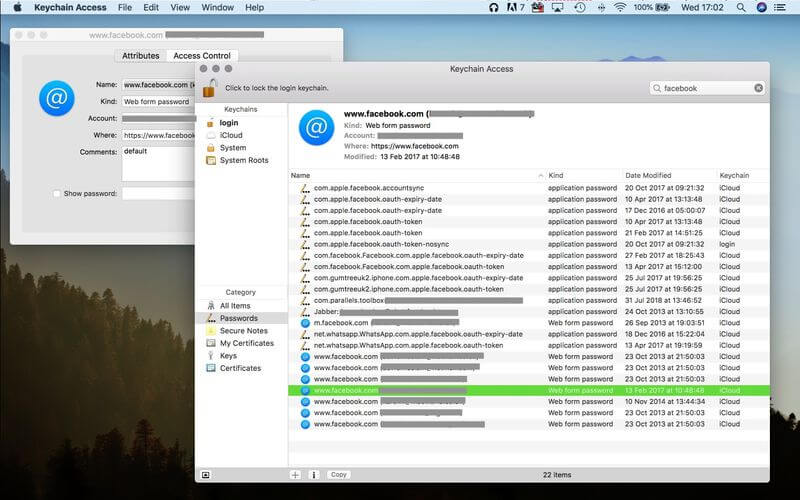 For example, if you are in a panic asking yourself how to see my Facebook password. On the other hand, computer security experts agree saving such sensitive data via browsers might be not as safe as storing them while using dedicated password managers like Cyclonis, which was created for a single purpose of keeping your information safe. With it on your side, you will never need to
Compared to it, your chosen browser might be more vulnerable to malware and hacker attacks. Of course, none of the tools can guarantee complete one hundred percent protection, but a dedicated password manager is more concentrated on your sensitive information’s security. Plus, Cyclonis can help you generate strong random passwords, check the strength of your already created passwords, synchronize changes over all devices if you pick cloud storage, and so on. For more information continue reading here.
When registering on different sites, people often forget about the data they enter. To help them, there is a "Remember password" function on various devices. But if you are logging into your account from a new PC or smartphone, you will have to enter the password yourself.
In this article we will talk about 4 ways to find out your Facebook password on the devices you use.
Contents:
Users use this method first. This is due to the simplicity and speed of obtaining the necessary data. It can only be used if you have used automatic saving of login information.
You can find out if you have saved the necessary keys in the browser in the following way:

This method is only suitable for users of the Android platform.
Procedure:
If the previous methods did not work, then you should quit trying and reset the old password.
Procedure:
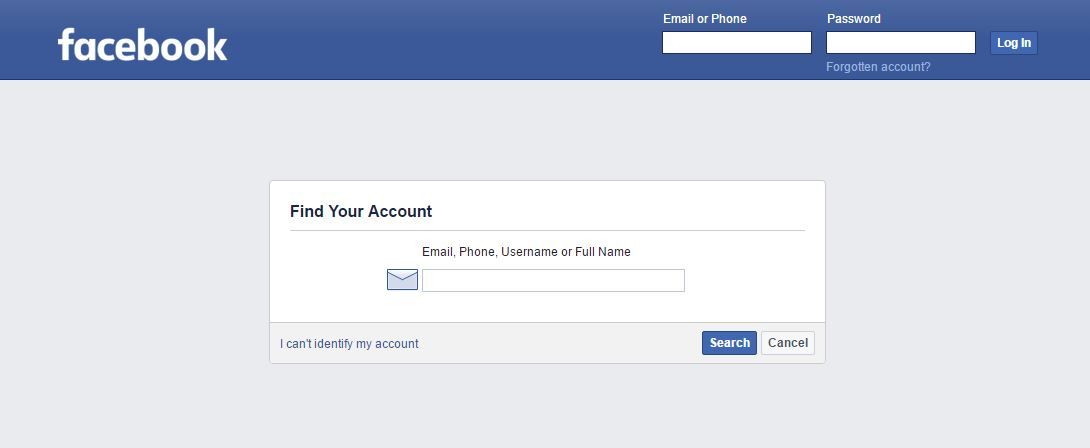
There is a situation when you go to your page, but do not remember the password at all. In this case, it is better to change it to a more memorable option.
If you are using the desktop version, then you need to click on the button ∇, if you are using the mobile version - Ξ.
And then do the following:
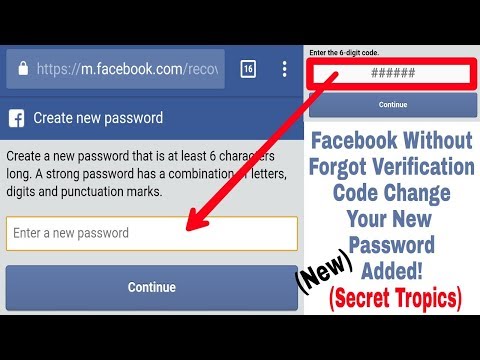
Advice : It's better to save all data. They can not only be memorized, but also written down. It will come in handy at the right time.
Forgetting your Facebook password can be a huge problem, but thankfully, it's nothing to worry about. In fact, to regain ownership of your account, simply verify your identity and request a password reset. But what if you want to know your Facebook password without changing it ?
This is a fairly common question in the messages I receive daily from friends and readers, but unfortunately I must admit that there is no real solution to the problem. You should know that the system by which Facebook saves user passwords is so secure that, according to the administrators themselves, social networks, no one can track them.
With such a structure, the only thing you can do to recover your credentials is to check the passwords saved in browsers on mobile phones, tablets and PCs and keep your fingers crossed that at least one of them has saved the access password to Facebook. . . If you want to make this "extreme" attempt, here are all the instructions you might need. I sincerely hope that you achieve the desired result. Good luck!
Index
 Therefore, below you will find an explanation of how to perform the said operation from mobile phones and tablets, as in Android to iOS .
 Smartphones and tablets Android tap function, call smart lock , which allows you to automatically log into websites and applications. By default, the option is enabled when Google account you are connected to the device. Considering the functionality of Smart Lock, you can use it to find out your Facebook account password without changing it.
So, take your device, unlock it, go to the home screen where all apps are grouped, then tap the configuration icon (the one with gear ) and tap the Google item. Then click voice Smart Lock for 9 passwords0008 .
On the screen that opens, find the section Passwords saved and tap the link Google account .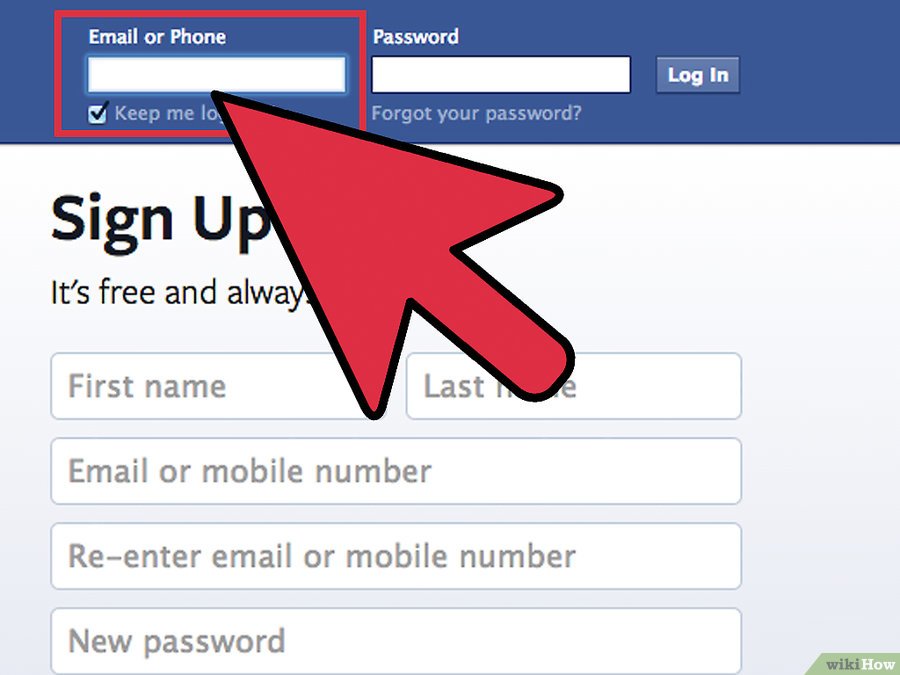 Once this is done, a web page will open and you will be prompted to enter Access Credentials Google Account. Alternatively, you can open a browser on your mobile phone or tablet (or even your PC) and go to a website. passwords.google.com .
Scroll down the displayed page at this point, find section Passwords saved and you will find a list of domains for which login credentials have been saved. Among them may also be facebook.com if you chose Guardar as your password when logging into the social network. In this case, press the button eye which you will find next to us and you can see the corresponding access key. If you cannot find Facebook in the list of saved passwords, you can search for a keyword by clicking on the symbol Loupe .
Even iOS devices have a system connected to iCloud similar to what we saw in the previous lines in Android to save passwords written in Safari and in apps.
To use it for its intended purpose, take your iPhone o iPad, unlock it, go to the main screen and press configuration (the one with gear ). On the screen that will appear at this moment, press the text Password and account , then Passwords websites and apps and unlock access to passwords using Face ID, Touch ID or passcode (depending on the iPhone or iPad model you are using and device settings).
On the screen that will be shown to you at this moment, you will see a complete list of sites and applications for which you have chosen to save the password on the device. So, find the domain facebook.com (if any), click on it and you will see the corresponding password in clear text. If you find it necessary, you can help with the search bar at the top.
Please note that if you are using an iPhone or iPad with a previous version of iOS installed, you will need to access the configuration section click on your voice to view the passwords saved on the device Safari is present on the next screen and in the letter Password attachment to section General .
Later, even in this case, you will find that you have a complete list of all credentials related to sites and applications saved on the mobile phone, and you will be able to see the Facebook credentials (if available) in the same way as they are shown together above.
Now let's move on to the computer part and find out how to recover the password of a famous social network without changing it, using even in this case the access credentials saved in the browser. Below you will find an explanation of how to perform the operation in question using all the most popular browsers: Chrome , Firefox , WHAT TO SAY , edge es Safari .
Among the browsers installed on your PC, is there Chrome ? Well, then, to check if the passwords saved by the program are also enabled by Facebook, launch the browser, click the button with three vertical dots located in the upper right corner of the window and select the configuration item in the menu that appears.
On the screen that opens, click on the entry Password that you will find in the correspondence with section People (up). On the new page that will be shown to you at this point, you can see a list of all the passwords saved in the browser. Then use the search bar located in the top right corner to search for facebook.com and if you find it, click on eyes is present in the domain to see the password to access your profile in clear text.
En Mozilla Firefox The procedure for viewing the passwords stored on your computer is quite simple. First you need to launch the browser, press the button with three horizontal lines located in the upper right corner of the window and select item option in the menu that appears.
In the window that opens, go to section Privacy and security by clicking on the corresponding item on the left, click the button The session starts saved What you find in the correspondence with the news department Logins and passwords and search facebook. com in the panel, located in the window that appears.
When the operation is completed, click on the social network address, on the button Show password and finally on Sip to find out your account password. It was easy, right?
If you want to try to determine your Facebook password without changing it and have used it in the past Microsoft Edge o internet browser To access your social network profile, try the following: go to Control panel Windows calls the last one Start menu look for the term authority in the search bar at the top right corner and click on the item Credential Management that appears in the window.
At the moment, click on the wording Web credentials look for the address https://www. facebook.com in the list of Internet sites that you visited in the correspondence with the editor Internet password and, if yes, first click arrow posted in your correspondence and in article Exposition is next to article Password . Finally, write the password of your Windows account and the password to access your social network account will be displayed in clear text.
Use the browser Opera House And would you like to know how to find out your Facebook account password through it? So, to get started, launch a browser on your PC, then click on your logo (there "O" ) located in the upper left corner of the window and select the menu item that opens. configuration .
In the new tab that will open at this moment, expand the menu advanced on the left, select the item Privacy and security , click the wording Password application to the section Passwords and forms and search facebook.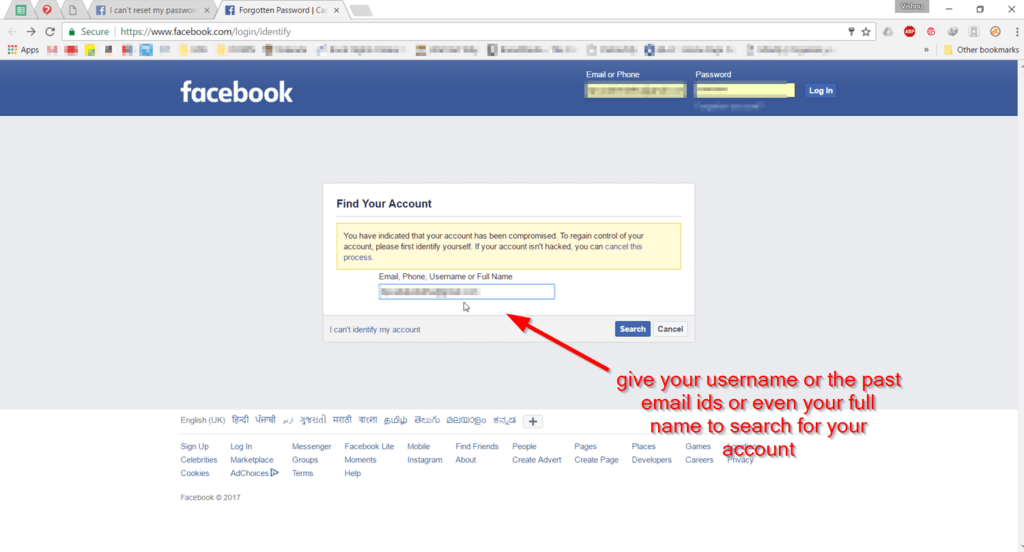 com in the Internet list sites for which you have saved passwords under the heading Passwords saved .
Once you have identified Facebook (if you wish, you can help yourself using the search bar in the top right corner), click on eye will be present in your conversations and the corresponding password will be immediately displayed in clear text.
If you are using a Mac and want to check passwords stored in Safari , hoping to recover it from your Facebook account, first fire up your browser and go to the Safari menu > Preferences which is in the top left corner.
In the window that opens, select the tab Password Write password associated with your Mac account, in the corresponding field that you see, find the address facebook. com and, if available, click on it to view the corresponding password in clear text. This is it!
In addition to what I just listed, you can see the Facebook password, which can be saved in Safari using the app. Keychain Access macOS. You can access it by clicking on the icon (the one with key pair ) in folder Other from Launchpad or from folder Applications > Utilities or again via Stand out o Siri .
When the corresponding screen box appears, enter facebook.com in the search field at the top right, double click the corresponding result in the center, check the box next to the item Show password In the new window that opens, enter password associated with your account in macOS in the corresponding field, and finally you will be able to see your Facebook account password.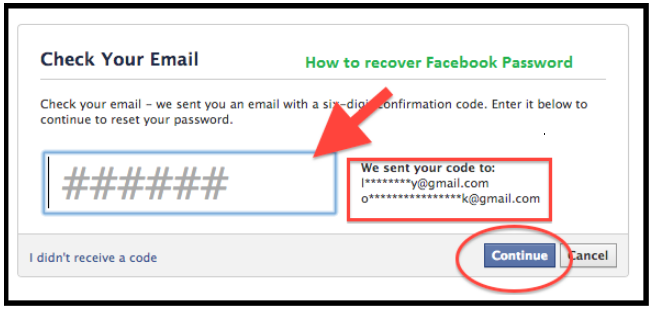
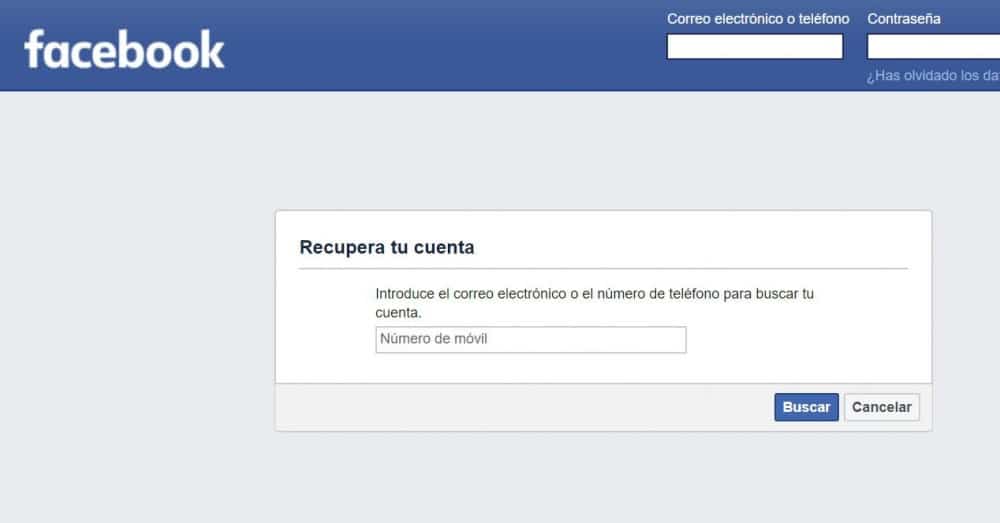
Did you follow the instructions I gave you in the previous lines but couldn't find your Facebook password? I'm really sorry. If so, then the only solution is Reset password to access your social network account by changing it.
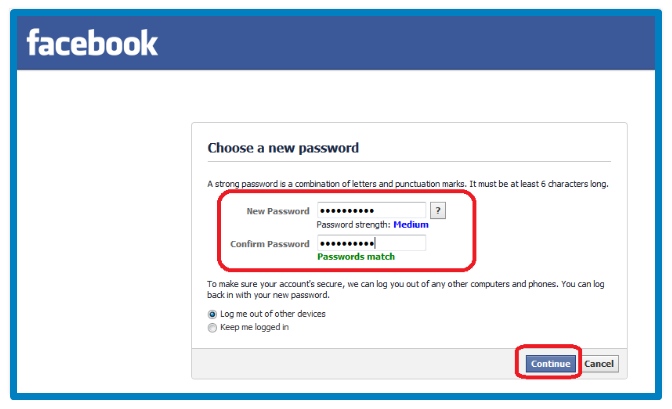
To do this, simply launch the Facebook app for Android or iOS on your mobile device or, acting as a PC, connect to the home page of the social network, select the wording that refers to you no longer remember how to access your account is present on the login screen, enter email address o el phone number associated with your profile, and follow the suggested password reset wizard.
As you can see, the operations performed are quite simple. In any case, if you think you need more information on what to do, read my article specifically on how to reset your Facebook password.