WhatsApp Messenger is one of the most popular applications not just for messaging but for voice calling and video calling. The platform is becoming a one-stop for all needs. Whether you want to send a message to your friends, call them or video chat with them, WhatsApp allows all these features. However, what it does not allow is to record voice calls or video calls. But you need to not worry as there are different workarounds and third-party apps for that. In this article, we are going to show the best possible ways to record WhatsApp voice and video calls on your Android and iOS devices. So, without wasting your time, let’s get started.
Also Read: Update WhatsApp New Version: How to Update WhatsApp to the Latest Version on Andriod, iPhone, Desktop and More
Recording WhatsApp voice calls is fairly easy on Android. There is this application known as Call Recorder: Cube ACR, which allows you to record calls. However, it is important to note that the app does not support all phones. So, suggest you go to their support page first to find out if your phone is compatible with the app. You can click on this link to check out whether your phone supports this app or not. If your phone is in the list, you can follow these steps to record WhatsApp voice calls on your Android smartphone:
Also Read: WhatsApp Pay: How to Add Bank Account, Set UPI PIN, Send Money to Contacts, Find Offers and More
 If it still gives you an error, this means that your phone might not work with the application.
Recording a WhatsApp voice call on the iPhone is a tricky job. There is no particular application that allows you to record WhatsApp voice calls with ease. However, there is a workaround, which requires a Mac and an iPhone. Here’s how you can do it:
 Save the file on the Mac and your WhatsApp voice call will be recorded.
Also Read: WhatsApp Reactions: How to Use WhatsApp Reactions on Android, iOS, and WhatsApp Web
Although there is no official feature to record WhatsApp video calls on your Android smartphone, there is always a workaround. If you want to record a WhatsApp video call, you can simply use the screen recorder application on your Android smartphone. Although there are a plethora of applications available on the Google Play Store that allows you to record WhatsApp video calls. One such app is the AZ screen recorder app. The application allows you to record WhatsApp video calls with audio. Here’s how you can record it:
 It is important to note that you must toggle on ‘Enable audio recording’ before recording the call.
Once the call starts, tap the record button present in the AZ Screen Recorder widget. Once you are done, simply stop the recording and your WhatsApp video call will be saved in the application.
Also Read: Delete WhatsApp Group: How to Delete WhatsApp Group on Phone, Web, and Desktop
With iOS 11, Apple introduced the built-in screen recorder feature, which is quite helpful, to be honest. With this feature, you can also record WhatsApp video calls on your iPhone without much hassle. This also means that you don’t require any third-party apps to record WhatsApp video calls on the iPhone. Here’s how you can this feature:
Yes, WhatsApp calls are safe as they are protected with end-to-end encryption. This simply means that all the photos, videos, messages, documents, and calls are secured and can be only been checked by the sender and receiver.
No, WhatsApp does allow you to automatically record any video or voice calls and neither it comes with any such functions. In order to record the calls automatically, you need to use third-party applications.
There is no way to tell your WhatsApp call is being recorded by other user. The voice recorder applications does not give any warning on call that the call is recorded.
Don’t know how to record a WhatsApp video call? In this article, we will discuss the best ways to do it, including a desktop app, an online screen recorder, tools for Android and iOS, and a built-in feature.
Software | Best for | Download | |
|---|---|---|---|
| Screen Capture | Free online screen recording | ||
| Movavi Screen Recorder | High-quality video and audio recording | Download for Free | Download for Free |
| Built-in WhatsApp video recorder | iPhone and iPad users | Read More | Read More |
| Screen mirroring on iOS | Viewing iOS recordings on a compatible smart TV | Read More | Read More |
| AZ Screen Recorder | Video recording on Android devices | Read More | Read More |
| Screen mirroring on Android | Viewing Android recordings on compatible smart TVs | Read More | Read More |
Show all Hide the table |
Our special pick for the list of WhatsApp call recorders is Screen Capture – an online tool that can capture calls for free.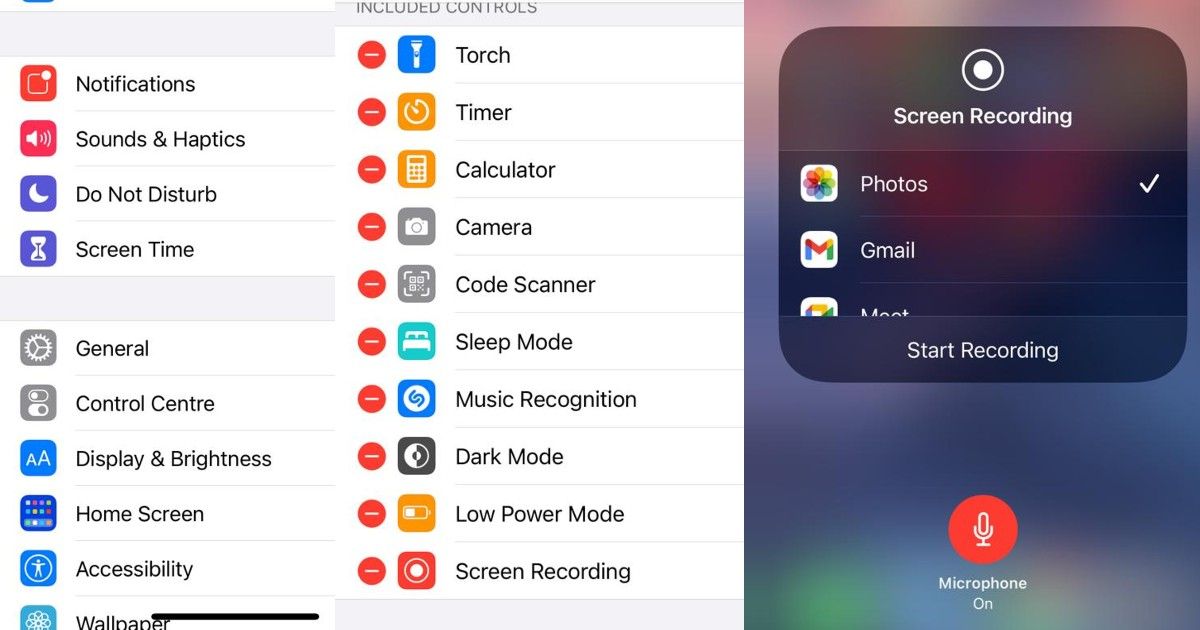 It has a simple interface that is comfortable to work with and all the key functions of recording software, including microphone audio, system audio, screen, and webcam capture. Meanwhile, Screen Capture guarantees a high degree of privacy – other people won't have access to your recording until you share it yourself. Also, it works in Incognito mode, so you can be assured that your browser data is fully protected.
Best for: iPhone and iPad users
OS: iOS
iOS offers its own built-in WhatsApp video recorder. The most significant advantage to this program is that it requires no download or purchase – it is included on all iPhones, iPad Touches, and iPads with iOS 11 or higher. It is easy to use and records WhatsApp video calls directly onto your device, with plenty of one-click export options for social media.
Pros:
Cons:
How to use the built-in WhatsApp video recorder on iOS:
 Next, tap Control Center.
Best for: video recording on Android devices
OS: Android
Reviews: 4.4/5 stars, 1.5M reviews
At this point, Android’s operating system does not offer a built-in screen recorder. However, there are several screen recording programs you can download for Android OS on GooglePlay. AZ Screen Recorder is one of the best of these apps.
AZ Screen Recorder is a free WhatsApp call recorder that captures your screen and audio. It creates 1080p HD videos with 60 FPS. The program offers complete control over the video resolution. AZ Screen Recorder provides an option to use the microphone audio, as well.
In addition, AZ Screen Recorder offers a timer setting that will automatically end the video when you are finished recording.
Pros:
Cons:
How to use AZ Screen Recorder:
Download AZ Screen Recorder from the GooglePlay store.
Get AZ Screen Recorder
Best for: free online screen recording
OS: online
Reviews: 4.7/5 stars, 512 reviews
Screencapture.com is a free online screen recorder that requires no download. It creates HD video with the option to include audio. The program includes options to include video from the webcam, to select the current browser or entire screen as the capture area, and to record audio from the computer system or microphone.
Screencapture.com’s features and ease of use make it an excellent WhatsApp call recorder.
Pros:
Cons:
How to use Screencapture. com:
com:
Visit the Screencapture.com website.
Go to Screencapture.com
Best for: high-quality video and audio recording
OS: Windows, macOS
Reviews: 4.5/5 stars, 49 reviews
Movavi Screen Recorder is a screen capturing program that records ultra-high-quality video and crystal-clear audio. This program allows you to set the screen capture area you wish and features easy-to-use video editing. The recording can be saved in multiple file formats, including MP4, MKV, and MOV.
The Movavi Screen Recorder control panel is extremely easy to use and streamlined to avoid distraction while recording. The free version of this WhatsApp call recorder does include a watermark, and some features, like captioning and certain video features, are only available on the paid versions.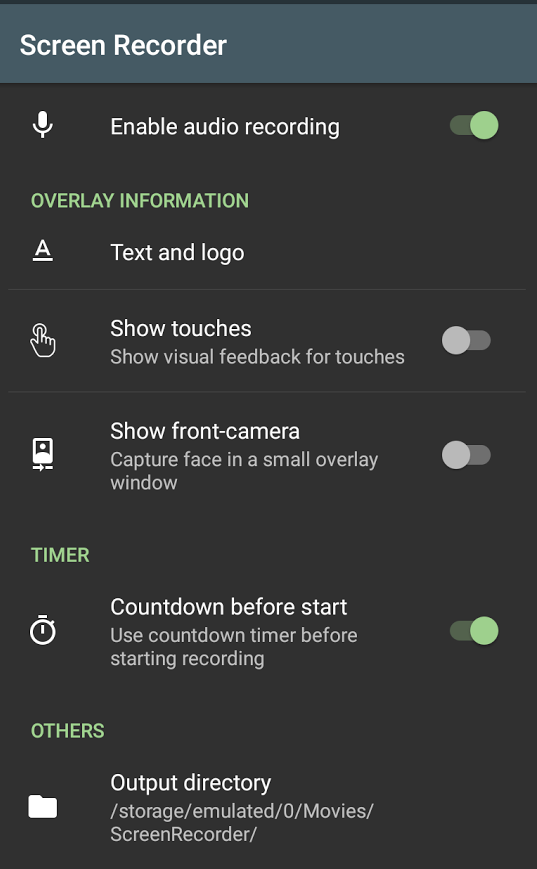
With its user-friendly interface and high-quality recordings, Movavi Screen Recorder is one of the best WhatsApp video call recorder apps.
Pros:
Cons:
How to use Movavi Screen Recorder:
Download for Free
Download for Free
Download
Download
 Wait three seconds for the recording to begin.
Best for: viewing iOS recordings on a compatible smart TV
OS: iOS
In addition to offering built-in screen recording, iOS also offers screen mirroring. This function allows you to project your iPhone, iPad, or iPod Touch screen on an Apple TV or AirPlay 2-compatible smart TV. With this feature, you can watch your screen recordings on your TV after they have been recorded.
Screen mirroring on iOS is easy to use and requires no download or purchase. It requires that your phone and Apple TV or Airplay 2-compatible smart TV are both logged into the same Wi-Fi network.
Pros:
Cons:
How to use screen mirroring on iOS:
 Next, tap Wi-Fi.
Best for: viewing Android recordings on compatible smart TVs
OS: Android
Like iOS, Android offers a screen mirroring function. This function is not available with iOS or Windows products, but most other smart TVs are compatible with Android screen mirroring.
The screen mirroring function is built-in on Android OS 5.0 or later, so there is no need to download an app. The Android device and the smart TV need to be linked to the same Wi-Fi network to mirror.
Pros:
Cons:
How to use screen mirroring on Android:
Before picking software to record WhatsApp calls, you should pay attention to some things to choose the program that suits you best:
OS: it’s important to keep in mind that some apps may not support your preferable platform, so choose a compatible WhatsApp call recorder for your needs.
Features: there are plenty of different programs on the market with diverse features, so should you be an amateur or professional, make sure to pick software that includes the features you need.
Support: accessible customer support will make sure to help you out if any kind of problem arises.
Reviews: check out user reviews for the product you choose. There you can find what experience or problems other people have had with the software.
Conclusion
With the information provided in this article, you can now record WhatsApp video chats on a desktop, iOS device, or Android device. You can do this through an online program, a downloaded app, built-in functions, or screen mirroring for iOS or Android. You can also cast your screen to a compatible smart TV while recording a WhatsApp conversation.
Which program is best for you will depend on the device you want to record on and what form of the program (online, downloaded, built-in) you prefer to use.
Having read this article, you should have no trouble recording a WhatsApp video chat. Choose the WhatsApp video call recorder app that best suits your needs and get chatting!
Yes, you can capture video calls on mobile phones and on computers. If you use the desktop version, it’s easy to grab the call using the online screen recorder. It’s secure, too – no-one will see the recordings except you.
Download Movavi Screen Recorder for Windows
Download Movavi Screen Recorder for Mac
If you use the mobile app, check if you can use the built-in recorder. Almost all modern mobile phones have screen recording settings. To record a desktop WhatsApp chat, use our free online screen recorder.
Go to Screencapture.com
To record WhatsApp audio on a mobile phone, you should use a mobile voice recorder. If you use a desktop version of the program, it’s more convenient to use a free online screen and audio recorder.
WhatsApp messenger is so popular that it is used for both personal and business communication. Often we find ourselves in situations where knowing how to record a WhatsApp conversation can make life much easier. For example, schoolchildren and students often forget to write down their homework assignments. In this case, of course, it helps to call a friend, who at the same time will explain how he solved a difficult problem. Writing down the course of the decision on paper, asking again all the time, is a waste of time. It is easier, faster and more modern to record a conversation on the phone. nine0003
By knowing how to record a WhatsApp video call, you won't miss a single important detail when discussing work issues with a customer or employee. Recording a conversation with your doctor is the best guarantee that you will follow his recommendations exactly. Recording a conversation will greatly facilitate life, even in everyday matters.
There are no call recording tools in the messenger itself. However, there are methods to correct this omission. Let's consider several ways on how to record a conversation in WhatsApp on Android, iOS, a personal computer or laptop. nine0003
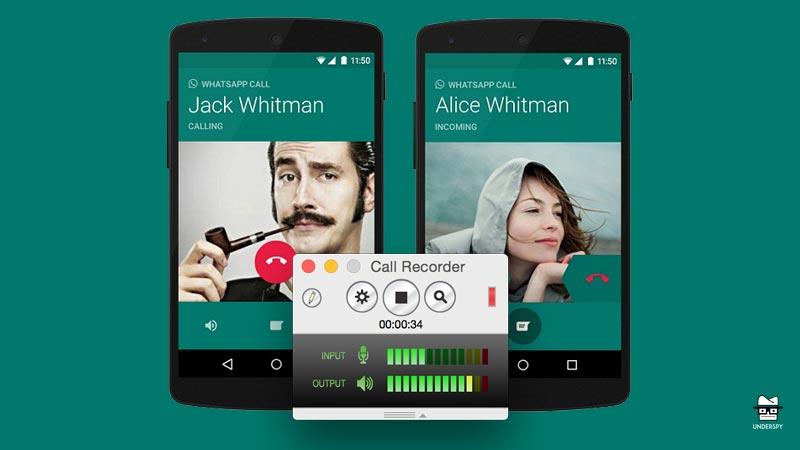
If WhatsApp is installed on your PC or laptop, audio and video calls can be recorded using Movavi Screen Recorder. With it, you can capture any video from your screen or webcam.
Recording algorithm:
If you don't have Movavi Screen Recorder installed on your computer, download the installation file from the official website and run it. Installation is fast, using a standard wizard, you just need to follow the instructions on the screen. After installation, the program icon will appear on the screen. nine0003
Free Download
Free Download
Download
Download
Launch WhatsApp and Movavi Screen Recorder on your computer. On the right side of the application window there is a vertical sidebar with icons. On it you need to select Screen recording . Use a capture frame to outline that part of the messenger window, the video from which you want to record (video chat).
On the horizontal bar at the bottom of the screen, press Microphone and System sound in sequence. The recording of the conversation will be performed correctly only if both of these icons turn green.
On the horizontal bar, click on the icon Start recording . Recording will start after a 3 second delay. At the end of the conversation, press the icon Stop . If you do not need to record any part of the conversation, you can pause the recording process by clicking on the icon Pause . Hot keys in Windows: F9 - Pause, F10 - Stop. If you click Cancel , the video will not be saved at all.
When the recording is finished, the video will become available for editing in the preview window. To cut a fragment, the icon Cut is provided. If a video fragment is not needed, just click on it and click on the icon Delete fragment .
Press the button Export located in the lower right corner of the screen. By default, the video is saved in MP4 format, but it is possible to choose any format convenient for the user. Having decided on the desired format, press the button Save
Pros
Cons
 com.
com. Operation algorithm:
Pros
Cons To avoid it, you need to buy a subscription
Recording WhatsApp calls is only possible on Android devices that have a screen capture feature. These are mainly Samsung Galaxy Note10 / Note10+ and later models.
Write algorithm:
Pros
Cons
If your smartphone does not have a built-in screen capture function, you can enter hands-free mode on one smartphone, and next to put another one with a voice recorder turned on or some kind of sound recording device. True, this method is far from the best. In order for the voice recorder to record the voice messages of your interlocutor, you will have to turn on the speakerphone mode on your smartphone. However, the sound of the interlocutor's voice will still be distorted. If you have only one phone, using the built-in voice recorder, you cannot record the conversation, because the applications conflict over the right to use the microphone. nine0003
Owners of devices running iOS 11 and later (iPhone, iPad, iPod) can use the system's built-in capabilities to record a WhatsApp video call.
Recording algorithm:
 The video is automatically saved in the *Photos app.
 pluses
Minutes
If your smartphone does not have a screen capture feature, you can use a third-party application to record WhatsApp calls. Consider the three most popular special applications.
Android app records regular phone calls and VOiP. The program supports not only WhatsApp, but also most popular instant messengers, for example, Skype, Viber, Telegram. The program can record both all phone calls (by default) and individual ones. It is possible to create a list of subscribers whose calls will not be recorded. The application has its own file manager that allows you to sort calls, remove unnecessary ones, and perform an accelerated search. nine0003
In addition to the free version, there is a premium version with additional features, such as PIN code recording protection options, MP4 call recording, cloud storage management functions.
Pros
Cons
The popular TapeACall application is designed for Android and iOS mobile devices. The application is paid, but there is a free trial version. You can record calls in MP3 format. Recording to cloud storages Dropbox, Evernote, Google Drive is available. Files can be tagged to make searching easier. Using the "Share with a friend" function, recordings can be sent using various instant messengers, in particular, Twitter. nine0003
pluses
The popular app is compatible with Android and iOS. There are paid and free versions. The free version allows you to record a limited number of calls per week. The application is easy to set up so that it automatically records all calls or only some, on demand. It is possible to save files in AIFF and WAV formats.
Pros
Cons
you can use the built-in screen capture function (if available) or any of the applications. But in cases where you need to record video along with audio, but there is no built-in capture function, the best option is Movavi Screen Recorder. nine0003
The question of recording a conversation has three sides: technical, moral and ethical, and legal.
From a technical point of view, you can record everything that the software installed on the device allows you to record.
For ethical reasons, it's best to notify the person you're talking to that a recording is in progress. nine0003
The legal side of the issue is more complicated. The legislation prohibits transferring to third parties or in any way distributing data about the personal life of the interlocutor without his consent, as well as commercial information. That is, if you are discussing the nuances of the technical task with the customer, it makes sense to warn him that you want to record the conversation, and, of course, the received file cannot be transferred to outsiders. The same applies to chats with work colleagues. According to the Civil Code of the Russian Federation, the collection and transfer of information about private life is possible only in the interests of society and the state. However, it is not considered a violation if the citizen himself allowed the disclosure of some part of personal information. Accordingly, if for any reason you want to record a private conversation, you cannot do this without warning. Making secret recordings of personal conversations or transferring them to outsiders is prohibited by law. nine0003
Yes, you can. WhatsApp does not have a recording function or a dedicated recording application, but it can be done using other programs and tools:
The only way to record WhatsApp calls without an app is to use an iPhone because iPhone has a built-in screen recording tool. In addition, you will need to download the whatsapp call recorder app.
The popular WhatsApp messenger has become almost the de facto standard for smartphone users. Moreover, many smartphone owners even almost completely switch to WhatsApp and refuse traditional calls and SMS messages. After all, all this can be done in the messenger. And there you can easily make video calls. But what if you need to record such a video call? Don't worry, it's very simple.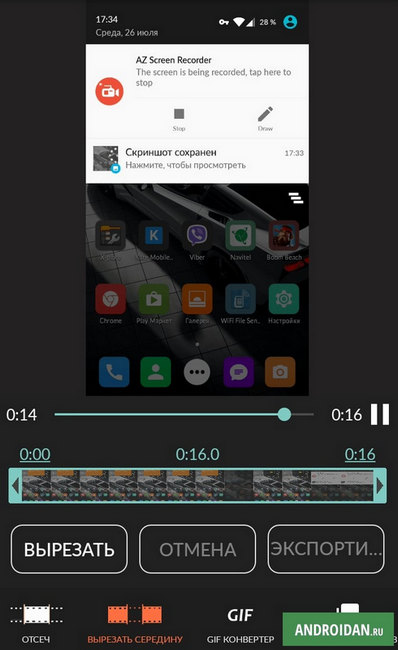 And now we will tell you how to do it. nine0003
Record a WhatsApp video call? There is nothing easier!
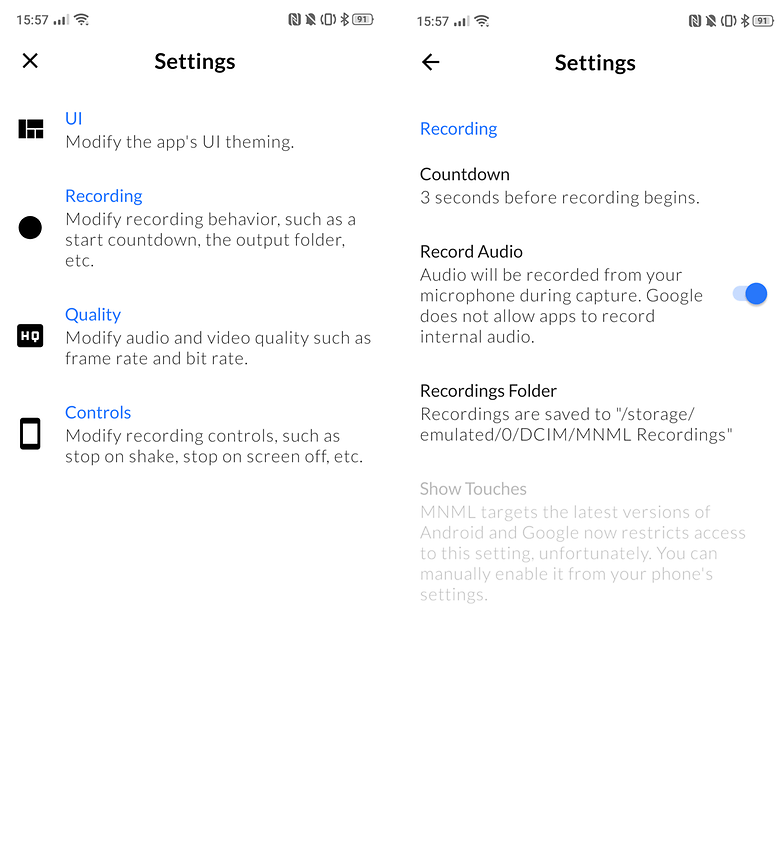
To record a WhatsApp video call on Android, however strange it may seem, the WhatsApp application alone will not be enough. You will need to download a third party program. Although some gadgets have a built-in screen recording utility (in particular, this applies to Huawei smartphones). But for the most part, such an option on a smartphone, as they say, “out of the box” is missing. Therefore, the Mnml Screen Recorder program will come to your aid, which you can download from the Google Play store absolutely free at this link. By the way, we regularly review the most interesting and necessary applications for your gadgets. So subscribe to our Telegram channel so as not to miss anything important. nine0003
After you install the program, all further actions are quite simple. We need to properly configure the program. To do this, open the application and in the upper right corner enter the Mnml Screen Recorder settings. Next, you need to proceed to the "Recording Settings" item. Here we are interested in several things.
The interface of the application is quite simple and clear
First of all, it is sound recording. If suddenly this option is turned off, then your dialogue will not be recorded. More precisely, only the video stream will be recorded. And this is far from what we need. Also here you can see where your videos will be saved and find out that before you start recording, you have 3 seconds before saving the material starts. nine0003
The rest is even easier than before: start recording by pressing the corresponding button. You may see a warning message indicating that the application will record everything that is displayed on the screen. Confirm your action and the recording will start. Now select WhatsApp and call the person you would like to record a conversation with. At the same time, you can start recording even if they called you. True, for this you will have to minimize the messenger and open the Mnml Screen Recorder. nine0003
Read also: How to prevent WhatsApp from automatically saving photos and videos
After the conversation is over, you will have 2 options on how to stop shooting - you can either click on the "Stop" button in the application itself, or or open the notification center, where you will see an icon made in the form of a black square. It also ends the recording. At the same time, you can notice a cross-shaped icon next to it. It, as you probably guessed, deletes the record just made. But don't worry: the program will first ask you if you really want to do this. nine0003
2 options to pause recording. Choose the one that is more convenient for you
Well, of course, you can use Mnml Screen Recorder not only to record video calls, but also to record, for example, the gameplay of games or the location of some difficultly hidden settings element, the location of which you cannot explain in any way to my friend. Quite a necessary program in the "economy".
Download: Mnml Screen Recorder
Longreads for you
What Internet speed is needed for the phone
To use most smartphone features, you need access to the Internet. And the quality of the connection directly depends on how comfortable your experience of interacting with the device will be. It is logical to assume that the higher the speed of the Internet, the better. But there are two nuances. Firstly, not everyone has the opportunity to enjoy the fastest possible connection to the network. Secondly, there are recommendations for different usage scenarios. In this material, we will figure out what the Internet speed of your smartphone should be in a browser, games and while watching a video. nine0003
Read more
The phone is blacklisted by IMEI. What to do
Smartphones imported into the country by gray imports are always a pleasure to buy: inexpensive phones are in great demand, but because of the low price you can get into trouble - it's not for nothing that they say that the miser pays twice. During activation, it may turn out that the smartphone is on the black list and its activation is impossible - how is it? This is the danger of ordering a device from another country - the smartphone may simply be inoperative. But there are certain nuances due to which even a smartphone from the black list of an operator in another country will continue to work in Russia. I propose to figure out what's what once and for all. nine0003
Read more
How to properly clean your transparent smartphone case
Despite the fact that there are many different options for smartphone accessories on the market, many users still purchase transparent silicone cases most often.