If the competition between social media platforms ever felt like a race, then Instagram has shot its way up the scoreboard, offering some serious competition for the top 3 in terms of size and marketing potential.
This is a step-by-step guide for making your own GIF stickers. We are not just giving advice. Our stickers have actually been used by over 120 MILLION users worldwide:
Elementor's Giphy PageLaunched in 2010, Instagram now boasts over one billion monthly active users, second only to YouTube and Facebook (who have owned Instagram since 2012).
Instagram is popular because it’s simple and fun to use. We could also argue that it appeals, more than others, to international users as most of its content is pictorial (as opposed to text on other platforms such as Facebook) and lighter (unlike heavier content such as YouTube videos).
From a purely business perspective, Instagram has become the New World of social media marketing. Not because of the number of users but because of their behavior.
It’s this behavior that has made Instagram a major influencer in its own right.
Over 60% of users log into Instagram daily, most of them to post stories. This makes it the second most engaged social network after Facebook.
You may recall that last week, we explained the significance of Google’s decision to favor mobile versions of websites/pages in search results, making mobile responsive design more important than ever. Needless-to-say, Instagram, predominantly used on mobile and by adults, played a big part in this shift.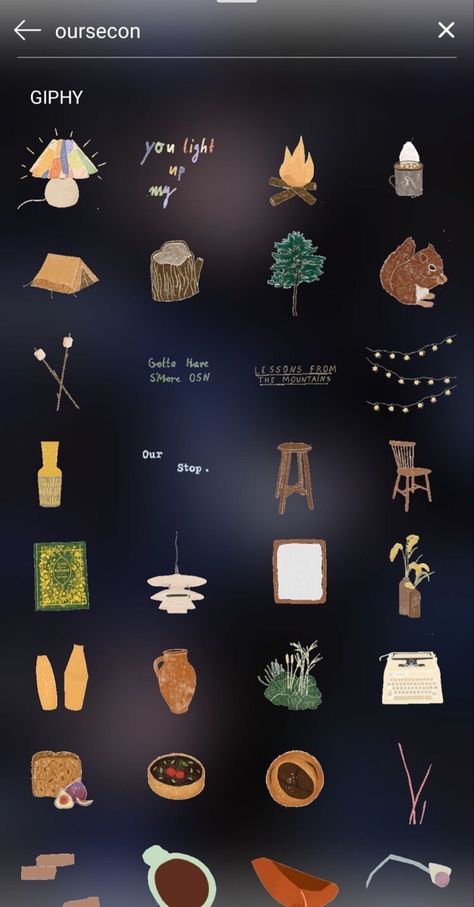
And we’re only starting to get the picture.
Reach seems to not only be easier to obtain on Instagram than on Facebook, once obtained, but it is also more valuable.
80% of users follow at least 1 business or brand, which means that it’s the platform where most users are likely to continue doing so.
Businesses that have realized this and have already begun marketing on Instagram claim that they get up to 37% of their total impressions from Instagram Stories.
You would think that Facebook would have similar marketing potential, when in fact the opposite is true. Instagram boasts 58 times more engagement per follower than Facebook.
There are claims that Facebook is oversaturated with advertising and marketing content, and there could be truth to it. Facebook users seem to have learned to filter out advertising and marketing content.
As consumers, we’ve always needed to be reassured, at the very least, of the quality, dimensions, and current state of a product.
A visual aid has proven to be very convenient for this purpose, and furthermore, it encourages users to take action and buy that item. Kinsta recently pointed out that “about 60% of Instagram users say they’ve discovered new products through the app, while 72% of users say they have purchased a product they saw on the app.”
Most of the businesses we’re discussing are related to things that are visual to include web design, and…, yes, like Elementor as well.
We’ve been running our own experiments with Instagram stories. Of course, we’ve been having a lot of fun in the process, but who said that you couldn’t have fun to get results?
And, boy, did we get results.
Our Instagram account is currently at 18 thousand plus followers and rapidly growing.
Creating stickers like these allowed us to strengthen our brand identity further while expanding our creative assets. In fact, one of our stickers got over 25 million views!
But wouldn’t it be better to share the knowledge of how to similar results? After all, isn’t that what makes a community great?
We want to share how we used GIF stickers on Instagram to generate social impact so that you too can benefit from our knowledge and experience, and by following the same process, perhaps expand your following to similar numbers, if not more!
A Graphics Interchange Format or GIF is a type of digital image that also allows us to create short animations with multiple images.
Imagine the layers being the pages in a book, and flipping through those pages quickly to create an animation, and there’s no limit to the level of animation you can achieve with these GIFs.
Which wild explain why GIFs are mostly used for short animations these days.
When you share a photo or video to your Instagram story, Instagram lets you can add stickers to express yourself in creative ways.
These are little superimposed graphics that add elements of expression to your stories, adding fun, excitement, and character. This makes the stories more interesting and engaging to viewers, which inevitably contributes to the greater reach of your stories, and you know the rest.
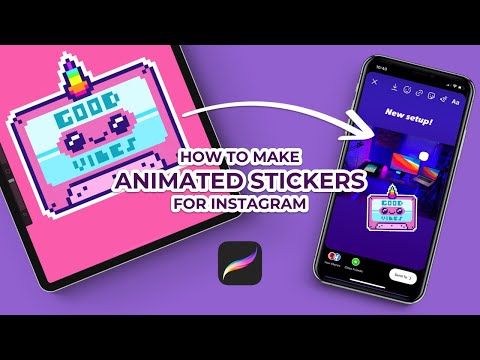
The following is the exact process we use to create the GIF stickers for our stories on our social feeds. Elementor’s Social Media Manager, Lisa Raz, has gotten so good at creating them, she can produce a nifty GIF faster than you can say “animated GIF stickers for Instagram stories”.
Of course, there are numerous ways to create stickers, such as those explained in this wonderful tutorial by Elementor user Lisa Bardot.
But this is how we make ’em!
For this process we will need the following:
Once you’ve uploaded at least 5 GIF’s, you’ll be eligible to apply for a Brand/Artist account on GIPHY. This will allow your GIFs to become available to the public, and your Instagram account. You can read more about Giphy’s requirements for having Brand/Artist accounts here.
Once your Brand/Artist account is approved, make as many GIFs as you want and upload them!
Let’s Get Started With Gif Stickers.
Open up the Procreate app on your iPad (or another suitable device).
Create a new file by tapping on the plus icon (+) in the top menu bar. When creating a new file, you will be prompted to select the size of what will become your GIF.
We’ll be recreating our WordCamp Europe sticker, made up of the Elementor logo, the WCEU logo, and the @ sign.
 This assures the proportions remain the same regardless of any adjustments we make to the textbox.
Essentially, what we have now are four layers, one on top of the other, that will be flipped through like the flipbook, we mentioned.
The final step
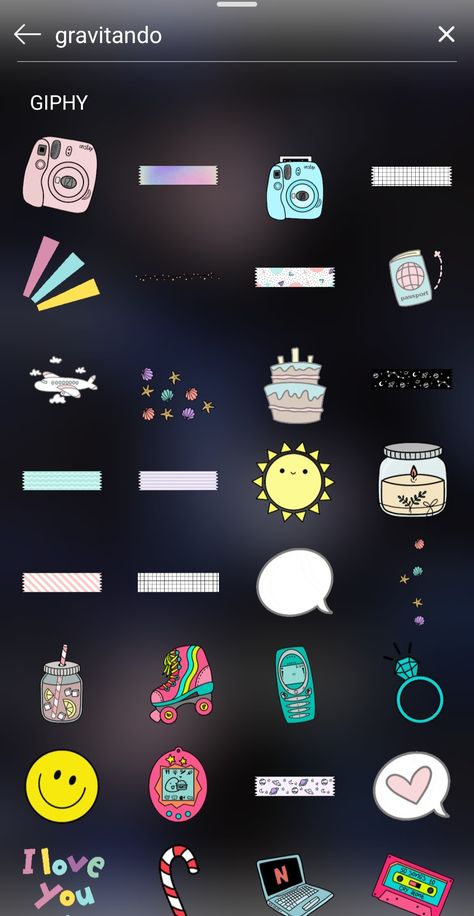
Once we’ve created our GIF, we’ll upload it to Giphy.com, which acts as a host for our online GIF assets.
Giphy reviews each and every GIF to make sure they follow all their guidelines and also look good. Alas, this means that you will not see your GIFs in the stickers search immediately.
However, once Giphy approves our GIF, we’ll be able to find them on Instagram and add them to our stories.
Like we did when we placed them on the images that we were taking at WordCamp.
While you’re at it, feel free to search for Elementor’s stickers on Giphy and use whatever sticker you like!
We’re only too happy to see others using our stickers on their own posts.
Posting stories on Instagram is more like fun than work, and adding animated GIF stickers to make your stories stand out, really is as simple as we’ve shown here.
Use it to generate awareness and expand your reach. Start making the impressions, that will encourage users to follow through your funnels.
We feel that Instagram is the New World of social media marketing. Some of us may have gotten off to a later start than others, but don’t let that discourage you. Instagram’s marketing and creative potential is still a long way from peaking.
Every picture tells a story, so get started and make some great stories of your own.
GIFs on Instagram Stories are seriously trending, but did you know that you can create Instagram Stories GIFs for your brand, too?
Beyond just being a ton of fun, businesses can also use Instagram Stories GIFs to draw attention to important elements in your Instagram Stories, like a call-to-action or the swipe-up button.
But if you create your own branded GIFs for Instagram Stories, you’ll be able to increase brand awareness, encourage people to post from live events, or just make your own stories match your brand.
Here’s how to create Instagram Stories GIFs for your brand in 3 easy steps:
There a lot of creative ways to use Instagram Stories GIFs, and businesses are quickly jumping on this hot new Instagram trend. But…not many brands have made the leap to create their own.
We came up with the idea to create a series of Instagram Stories GIFs to help businesses drive traffic and sales through stories, with fun stickers like “swipe up,” “shop now,” “new post”, etc.
All you have to do is search “Later” when you’re adding a GIF, and you’ll find them all there!
Once we found out how easy it was to create your own Instagram Stories GIFs, not only did we know we had to do it, but we also had to share how we did it!
The good news is, it’s super easy to do, and we’ll show you the exact steps in this post.
#1: Become a Verified Brand on Giphy**
Instagram Stories GIFs are powered by Giphy, so you will need to create a Giphy brand channel and apply to get it verified (FYI, your channel doesn’t necessarily have to be verified to be available via Giphy’s public API).
The good news is that this process is pretty quick, but the bad news is that because of the verification restriction, small businesses may not get approved.
Also, according to Giphy, they don’t allow artists to upload commercial work for brands (including GIFs) to their own profiles, so if you want to create your own Instagram Stories GIFs, really your only option is to apply for review.
That being said, once you’ve been verified, you’re totally allowed to work with Giphy artists to create Instagram GIF stickers for your brand! You just have to upload those GIFs to your own channel.
To create a brand channel, simply open Giphy, click on “Log In” in the top right corner of the homepage, and then select “Join Giphy” on the following page.
At the bottom, you should see a button to “Join as an Artist or Brand.” Click it and then make your selection on the following page.
Next, you’ll be prompted to submit your details, including your contact info and information about your business.
When you’re done, hit “Apply Now” and that’s it! You should see a message on the following page that Giphy has received your application and that they’ll be in contact shortly. You’ll also receive an email from Giphy with the same information.
While you’re waiting to be approved, you can start building out your profile. If you set your account to public, people will be able to search for your brand and see info about you, including your name, website, an about you section, and links to your social profiles.
(You can view the Later Giphy page here as an example).
Brand accounts on Giphy come with an analytics dashboard with all kinds of stats on the GIFs you create, which is really helpful for measuring the impact of your Instagram Stories strategy as well as how popular your GIF stickers are.
It’s kind of shocking just how successful our stickers are so far, and we haven’t even promoted them! In the matter of a week, they’ve already earned over 16 million views from people using them in their posts, proving that making your own Instagram Stories GIFs could actually be a great strategy for your business.
Step #2 Upload Your GIFs to Giphy**
Once you’re approved, it’s time to create and upload your wonderful GIFs to Giphy!
This is where you need to pay attention: in order for your GIFs to appear on Instagram Stories, they must be uploaded as a sticker and not as a regular GIF.
Unlike regular GIFs, GIF stickers are animated GIFs laid on a transparent background or layer (alpha channel). As Giphy puts it, “Think a cut-out or die-cut, but animated.”
You can turn a GIF into a GIF sticker easily by just turning off the background layer of your canvas, and exporting the same way.
Giphy also offers style advice on how to create a great sticker. “A good sticker is simple, eye-catching, and fun. Because [they’re] shared at a fairly small size, it’s important to keep them visually sharp and well defined.”
“Also, since stickers have transparent backgrounds, they can “interact” with things…design stickers that can *peek* around things,” Giphy says.
Something else to keep in mind is how you want your followers (and other users) to use your Instagram Stories GIF stickers. If you have a brand with a following that already tags you in user-generated content or stories on Instagram, those people would probably also love to add a fun branded sticker to their post too!
For example, since a ton of people like to post on Instagram Stories while watching The Bachelorette, ABC created a series of branded GIFs featuring their star, Becca. There’s the branded logo, but there’s also her signature catch phrases and various facial reactions.
Did we mention that all of this is…free? You don’t need a big TV show budget to create a viral moment on Instagram.
When designing GIFs for Instagram Stories, it’s important to think about how users are most likely to use them: in what ways will your GIFs add to or enhance people’s Instagram Stories?
As for technical specs, Giphy states the following about creating GIF stickers:
Upload your stickers as GIF files (APNG files are currently not supported)
Stickers must be exported with at least 20% transparent pixels, no white or opaque color backgrounds.
Size: 500-600px with an even-numbered height and width.
There is no maximum file size, our server will automatically resize the sticker on upload.
RGB color mode is mandatory.
Set to loop Forever upon exporting.
Once you’ve covered these points, you’re ready to upload to Giphy!
Don’t forget to add descriptive tags! This is how your stickers will show up in searches on Instagram Stories. Each sticker should have at least 5-10 relevant tags, and it’s especially important to tag your stickers with your brand to make them easy to find!
In addition to tagging our GIFs with phrases like “link in bio,” we also made sure to tag them with “Later” so our followers can easily find all our GIFs in one place.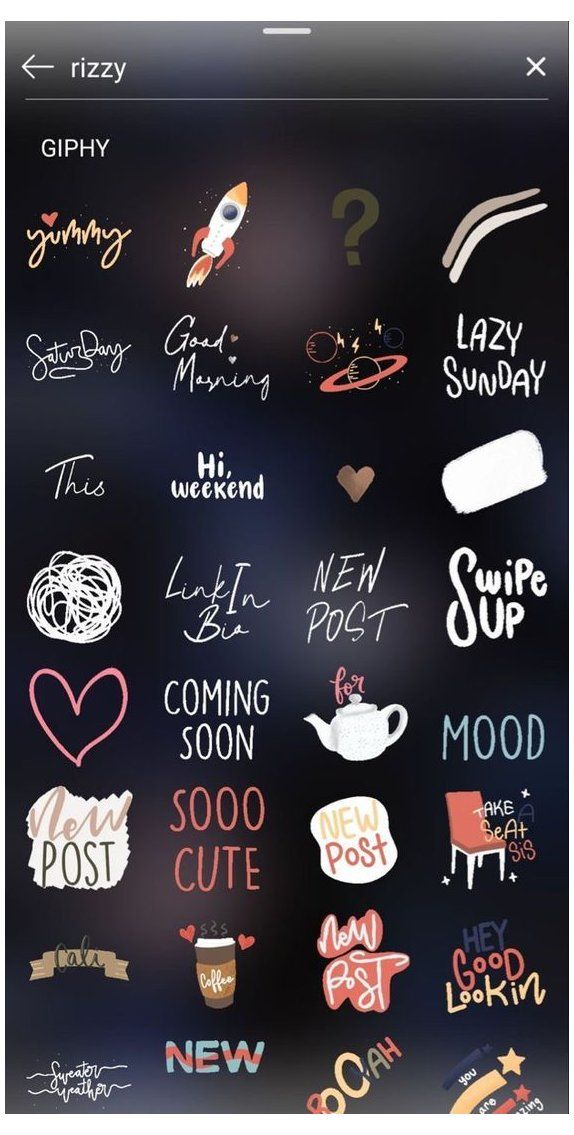
According to Giphy, the most popular searches across their API are love, happy, heart, dance, cat, sad, dog, cry, birthday, kiss, party, lol, and food. You should consider these terms when creating and tagging your stickers to make sure they appear in the results for the most popular searches.
Step #3 Test on Instagram and Spread the Word!**
Once you’ve uploaded your GIF stickers to Giphy, they should be available when someone searches for the tags you use, or from your brand profile on Giphy!
You should also test your new GIF stickers out on Instagram Stories! Simply take a photo or video, tap the Sticker button and open the GIF option.
Next, search for your GIF stickers by typing out one or more of the tags you used. This should pull up one or more of your GIFs.
And voilà, your GIF stickers are all ready to go! If you’re planning a special launch, you might want to upload them in advance, we found that our GIFs took about a week for all of them to show up under the search term “Later” on Instagram.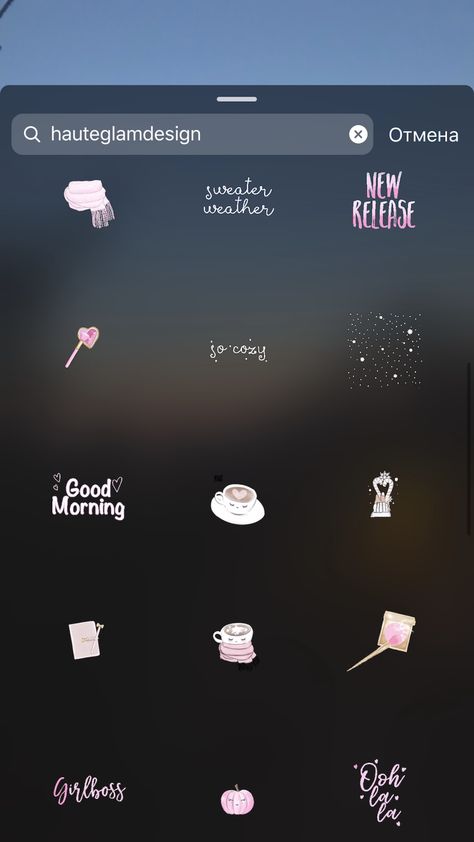
Wondering how you can use custom Instagram Stories GIFs? If you’re hosting a live event, that’s the perfect opportunity to encourage sharing and build brand awareness. Just take a cue from Girlboss, who created their own for their conference, Girlboss Rally:
Also, don’t forget to spread the word about your new stickers! A great strategy is to share a story (or several stories) showing your new GIF stickers in action, and let your viewers know where and how they can use your GIFs in their own stories.
It’s time to take your stories seriously – watch our free Instagram Stories for Business course today!
If you are interested in how to make a gif for instagram Take it easy, you are in the right place. In this post, we will delve into the world of GIFs.
Gifs is the perfect tool to add to your Instagram stories; they are funny, they grab the attention of our followers to make us interact through this content.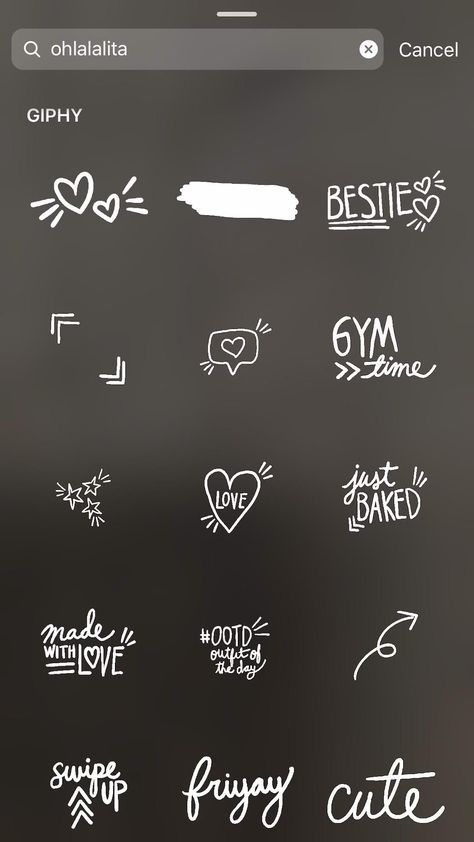
El an essential ingredient when creating GIFs for this social network, it's creativity . These animations have become one of the most used resources when editing our personal stories, so it's not uncommon for you to wonder how to make GIFS for Instagram.
Index
GIFs were to become a competitor to memes, even becoming their alternative to . But few people really know their meaning and how they are performed.
Subscribe to our Youtube channel
Gif is an abbreviation for Graphics Interchange Format. For all of us to understand, this is a set of frames that, when looped, create animation .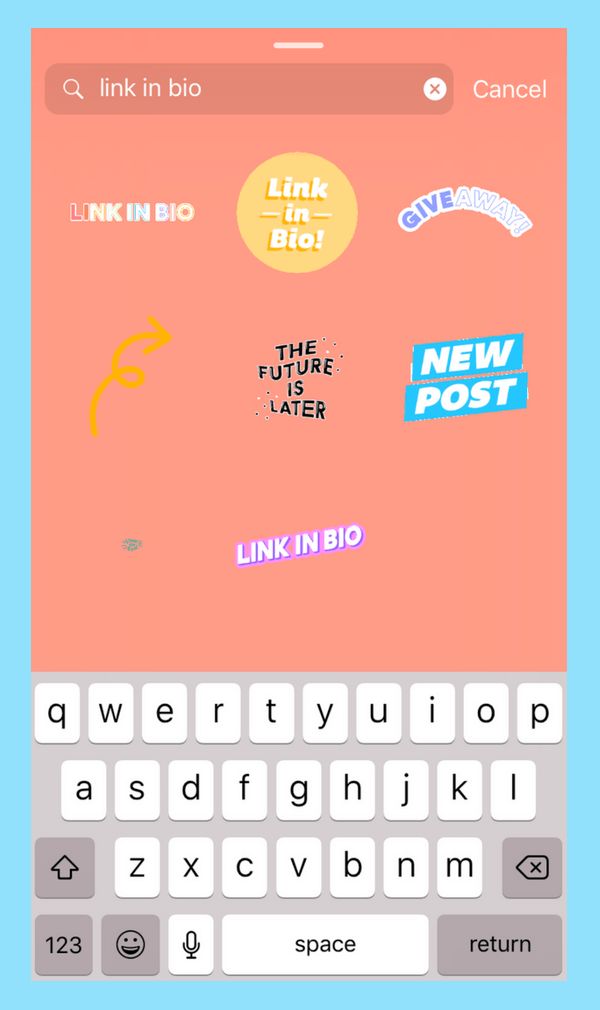 The duration of this little animation is between 5 and 10 seconds. nine0003
Not only is it important to know what a GIF is, you also need to know what are the positives of creating these little animations.
The first positive thing is that is a GIF format, it is easier than video saving formats. . GIFs are made up of images, so they are lighter in weight than videos.
Being lighter brings us to the next advantage, namely that can be added to different platforms . We can use them not only in our social networks, but also in similar publications, on personal web pages, etc.
When working with animated images, help to attract the attention of viewers faster than ordinary images. If a GIF is funny to you, it may get stuck in your memory.
The fact that they are funny gives a feeling of empathy, that is, GIFs can make us laugh , excite and even awaken our creativity and want to create their own.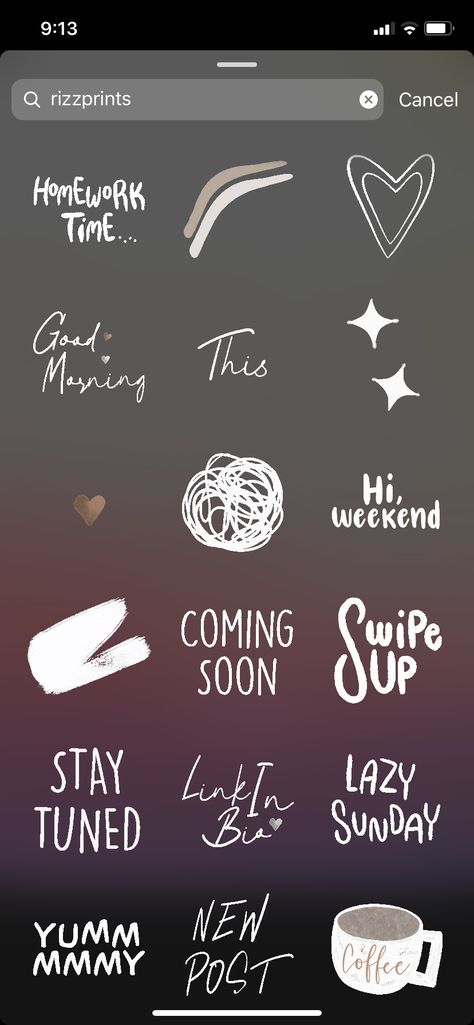 nine0003
Last but not least, GIFs can go viral in minutes . These are files that weigh little, and because of this, their distribution is very simple, both on Instagram and other networks.
There are various apps or web pages that allow us to create our GIF from scratch, but they all share four steps before giving it life.
The first thing to have is uploaded images, images that will form our GIF . If you want it to be videos instead of images, you need to store the URL.
Once you have prepared an image or video, you must upload it to the platform you are going to work with . In the next paragraph, we give you a few to let you know.
After uploading the images, next step select animation playback speed, duration and start point .
And finally, application will show in preview what GIF looks like, if you are not sure, you can change it in settings and after it is done upload.
This is one of most famous social media GIF maker apps. Not only do you have the ability to create your own, but you can also find plenty of GIFs to download. nine0003
One of the downsides is that when is created and downloaded, the GIF appears with the watermark , besides that the downloaded file can be a bit heavy due to the high resolution.
Even though it has this negative point, it is still one of the best for creating GIFs for Instagram, in addition to you have the option to upload them directly on the network.
Very similar to the previous platform, you have the ability to control playback speed, as well as the ability to mix different GIFs . The good thing about GifMaker is that it allows you to add music to your animations, which not all of them allow you to.
Another of the most used apps to create high quality GIFs from scratch with advanced tools.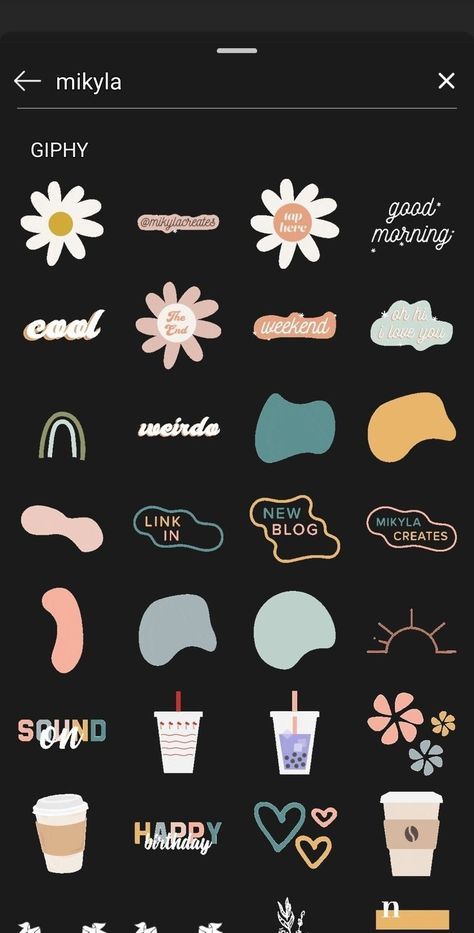 GifGuru allows us to convert our favorite videos or images to GIF in a very easy way .
We can do it from scratch, just record the camera interface or edit them immediately . This application provides speed settings, adds texts or stickers, and various filters.
We're talking about a free website again where you can create GIFs quickly and easily. It is a platform where you don't need to have a user and where you will find quite a few tools that can take some time to work with. nine0006
GIFPAL, recognizes direct upload of creations and upload to social networks without problems.
There are many platforms or applications with which you can create your personal GIFs, in this post we have left you the four most used so far.
If we already have an animation ready, the next way is to upload it to our social network. The Giphy platform we talked about allows you to upload it to Instagram without any problems. nine0006
First of all, we will need to upload it to the specified platform. Then GIF is better if it has a transparent background , since that's the only format that Instagram accepts.
As soon as we upload it to the platform, add keywords so that will be displayed in trends at the time of the search.
And the next step is verify your Giphy account. To do this, you need to do it as artist . Then fill in the requested information and wait for your request to be accepted. nine0003
It is important to remember that you must upload your own content, you cannot copy other animations.
And with all that, you can already find your little animation on Instagram. Remember that you have to be creative and original when creating your own GIF, which we are sure you will conquer.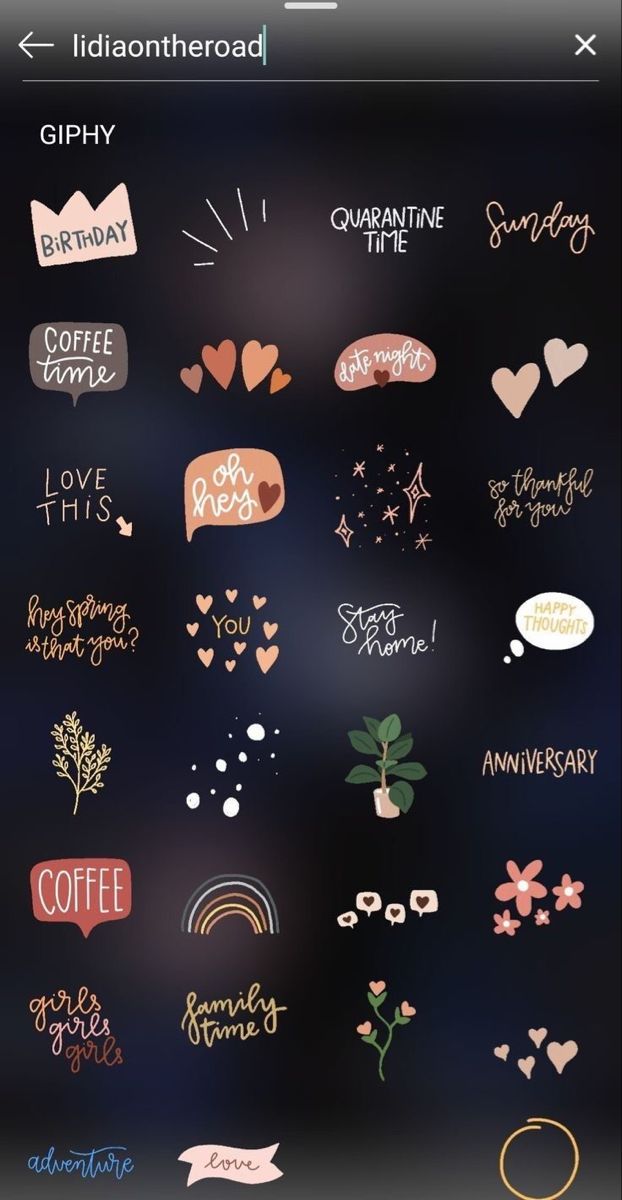
Beautiful gifs on Instagram are an opportunity to add emotions to stories, make content more vivid and varied. For example, for commercial accounts, a GIF is a good way to emphasize and stand out from other users. nine0182
We have products that help automate your social media work
Learn more
and improve accounts with analytics
accounts with deep analytics
Gif for Instagram stories as an additional element
This is the old and familiar way to insert a gif into Instagram stories:
Make a new story.
At the top of the screen, click on the smiley sticker, then "GIF".
Choose any GIF you like and place it in the desired part of stories.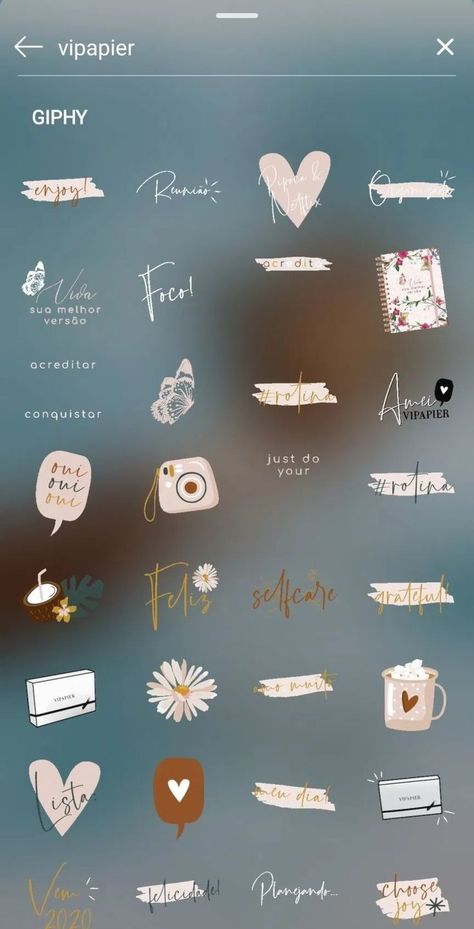
The most popular GIFs are located in the Trending section. You can also search for gifs by keywords in both English and Russian. But the issue on Instagram is sometimes different, , therefore, we recommend that you enter the names of gifs alternately in two languages. For example: first enter “love” into the search, and then “love”, so the probability of finding a suitable GIF increases.
GIFs can be enlarged or reduced in size, as well as flipped by clicking on the animation. If you don't like the gif, you can delete it. To do this, drag it down the screen and move it to the urn icon that appears. Instagram allows you to add any number of gifs to one story. Everything is limited only by common sense and aesthetic vision of the author of stories. nine0182
Gif on Instagram as a standalone stories
Recently, Instagram has added another option to add GIFs as standalone stories.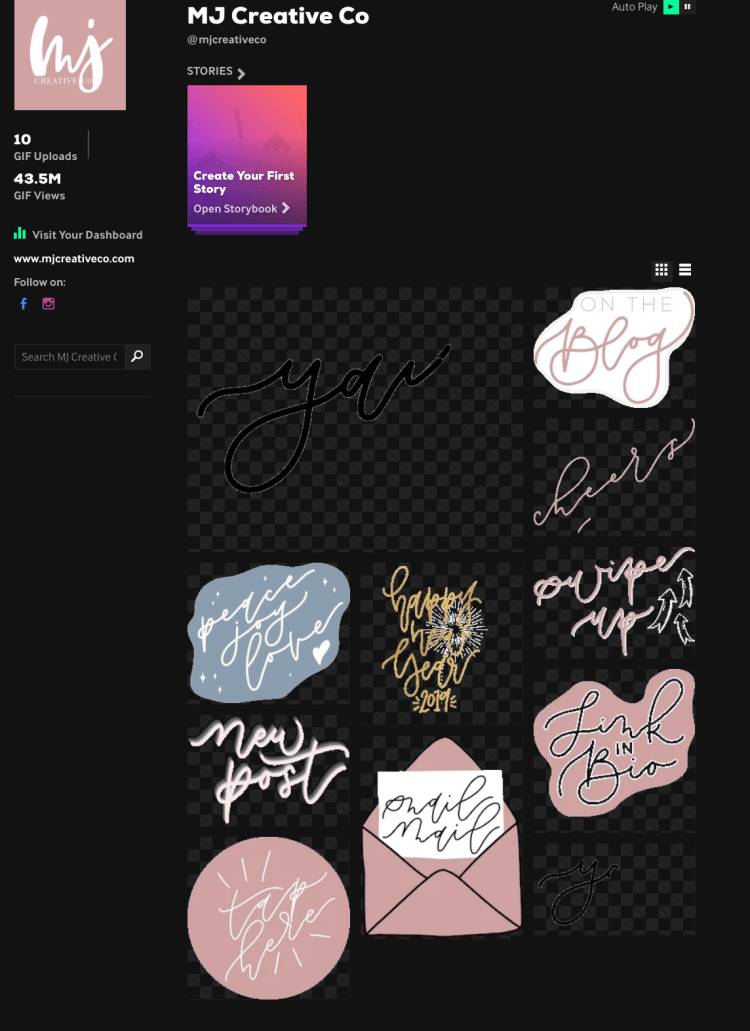 This option is relevant when you want to place only a gif or use it as a background for text.
Go to the stories section and select Create.
Next, find "GIF" and enter the desired gif into the search.
Unfortunately, it cannot be reduced, it completely fills the stories screen. But this version of the gif can be used for a beautiful animated background. To do this, select a neutral background (ideally, so that no transitions are visible, or find a vertical GIF). Add text or other GIFs in the standard way. nine0003
You can place a gif that is not in the standard list, for example, your own brand logo, using the GIPHY service. To do this, install the application on your smartphone.
Select the appropriate gif in the "Explore" section or search for the one you want. Click on the gif you like, then on the paper airplane icon.
If you want to post a GIF directly to stories or Instagram feed, click on the paper airplane, then on the Instagram icon. If as an additional element in stories, then click on the paper airplane and save it through the icon in the upper right corner. nine0003
Next, open Instagram and create a new story. Go to your camera roll and copy the gif. Go back to stories and click "Add sticker". In this option, we recommend looking for gifs with a transparent background, so it will look more aesthetically pleasing and will not stand out from the general content. Also in GIPHY you can create and upload your own GIF, especially for commercial accounts:
Made with GIPHY
Animated stories always attract attention, but the audience reacts to them differently, it all depends on the niche of the account and subscribers. Therefore, always study the statistics of stories in order to predict user behavior and thereby increase coverage.
GIFs must be used appropriately. Place it so that it complements the content, and does not take all the attention to itself. Therefore, we have made a small selection of ideas and beautiful GIFs on Instagram that will tell you how you can skillfully use them in your stories. nine0003
To announce a post, repost it in stories and add a GIF "New post", "Tap/Click here", "Fresh content" or simply place a clicking hand. Thus, you will suggest the necessary action to the subscriber and motivate them to interact with the content. You can simply post some ready-made entries in the form of "Good morning" or, for example, "Friday". So you just convey the mood and communicate with the audience at the same time.
GIFs on Instagram can also bring photos to life by adding sparkle, snow or rain. Or supplement a photo with food or coffee with smoke / steam. This is a small element, but it adds so much charm to the photo, makes it lively and sets the mood. nine0182
Gifs on topics will add a twist to an ordinary photo. For example, with the help of a GIF, you can create an effect of surprise by adding a GIF in the form of a shark to a regular photo from the sea or by placing a dinosaur in the jungle.
To make your stories unusual, choose interesting and beautiful GIFs on Instagram. At the same time, do not forget to observe a sense of proportion - do not add 10 gifs per story and do not use animation in each story. nine0005 Do not forget about readability - animation should emphasize, focus attention, and not interfere with the study of content. For example, if you highlight a word in the text by adding a sparkle gif to it, that's good. If you highlight the entire text with glitter, it becomes unreadable, and the user is most likely to quickly flip through such stories.
Only important news in the monthly newsletter
By clicking on the button, you agree to the processing of personal data. nine0003
What's new in SMM?
Subscribe now and get 9 ways to promote on Instagram for free
Popular articles
≈ 14 min to read statistics and formation of hypotheses.
#instagram 05.04.2019
What is UGC in social networks and why does a brand need it
How UGC in social networks helps to attract new customers and maintain the loyalty of existing ones without spending huge amounts of money.
≈ 11 min to read 11/29/2018
Let's bring everyone to clean water: how to check Instagram account for cheating
A detailed guide on checking a blogger's account for cheating followers and likes, which will help you choose "clean accounts" and not drain your budget.
≈ 7 min to read 11/26/2018
How to add an Instagram account to Dashboard
Instructions on how to link your Instagram account to the LiveDune service and what to do if problems arise.
LiveDune marketing products - 7 days free
Our products help you optimize your social media experience and improve your accounts with the help of deep analytics
Analyze your own and other people's accounts by 50+ metrics in 6 social networks.