Social media companies regard privacy as an annoyance rather than a human right. Users have to take matters into their own hands if they are to retain some degree of privacy. Even with the inclusion of the European Union (EU) General Data Protection Regulation (GDPR), UK GDPR, UK Data Protection Act 2018 (DPA ACT), California Consumer Privacy Act (CCPA), and many others, the user still has to approve, correct, or opt out in writing or online. The options vary based on location, and the US currently has no laws that compare to the GDPR or UK’s DPA ACT.
For residents in the United States, internet privacy control requires more effort than it does for people in EU, including the UK. Regardless, many companies offer privacy control in the US just as they do in the EU, making it easier to manage your privacy information. Deleting/clearing Instagram search history is just one of many steps you have to do yourself.
Instagram search history is a collection of all the searches you perform, whether you search for real names, profile names, topics, or specific subjects, such as Star Wars, Nascar, etc. Instagram search history is not available to view by other users, but the company harvests the information to suggest new people/profiles you can follow. The data may also get used for other purposes (unspecified), but you can control what Instagram stores by deleting your search history manually from an android, iOS, or PC browser.
Like many social networks, the more you use Instagram, the more complete their dossier on you becomes, and it’s legal. Perhaps it’s time to take some of that back, which is also legal in the US and EU regions. You can start by deleting your search history, then move on to other Instagram privacy options. Here’s how to do it.
Clearing your Instagram search history is essential if you don’t want the company to use the information to fine-tune your follow suggestions. This is especially needed when you performed numerous searches over time with many entries that create misguided suggestions or lists you have no interest in. Cluttered data can mislead IT bots or technology, which then delivers mistargeted suggestions. Use the steps below to maintain some privacy by removing your search history.
Both Android and iOS have the same process, locations, and appearance for each step, except that some icons are line art on iOS, and Android has a few more options in the menus. However, the extra menu items are not relevant to this procedure. Here’s how to clear Instagram search history on Android and iOS.
Your search history is now cleared and nothing appears when you open the search bar unless you only deleted specific searches. Your suggested people is also reset.
 )
)Deleting Instagram searches using a browser is similar to the processes used for Android/iPhone, but navigation is a little different. Given the slight change to using Instagram on a computer back around April 2022, here is how you can currently clear all Instagram search history using your browser of choice.
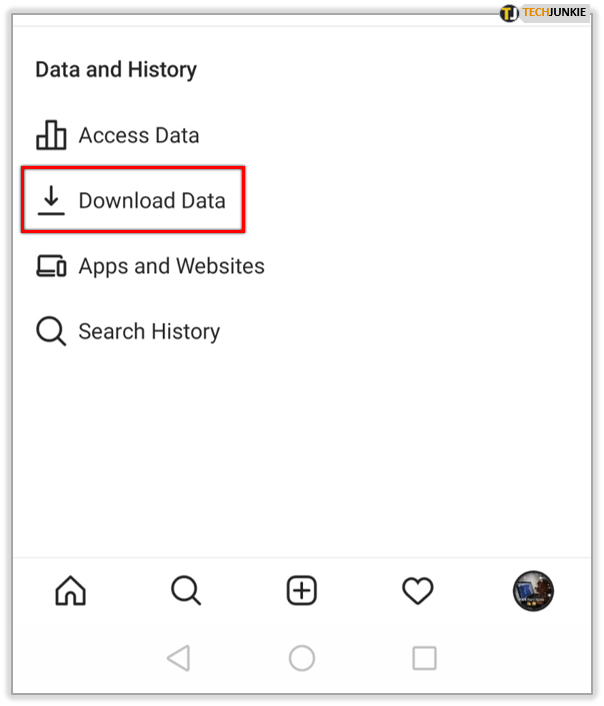
As mentioned, the more you use a social network, the more complete a profile they build on you. If you want to know exactly what Instagram knows about you, you can find out. You can request a data dump from Instagram that will be delivered within 48 hours via a .zip file within an email.
Once the email arrive, it will contain a ZIP archive file. You will need to decompress this somewhere on your computer to be able to read it. You can then open it with a text editor to see just how much data the network has compiled about you.
If you want some time to browse without being disturbed or want to keep your Instagram activity under the radar, you can hide your online status. This is essentially an incognito mode for the social network that keeps your presence hidden while you do what you need to do.
Now you should not show up as online when you’re using the app. You can turn it back on again when you’re ready by repeating the above and toggling Activity Status back to on again.
There is a clue in the name social network. They are designed to be social and encourage sharing and interaction. If you want to keep yourself to yourself or want to stop people following you, you can make your Instagram account private. This keeps your posts private and forces users to request to follow you.

If you’re having issues with people viewing Stories that you don’t want them seeing, you can filter them out. You don’t have to stop following them or stop them following you, there is a setting within Stories that allows you to filter out certain users. Here’s how to do it.
From that moment on, the users you add into that final section will not be able to see your Stories.
You can exercise an element of control over comments too. If you’re suffering from a troll infestation or an individual who says dumb things, you can stop them commenting.
If all else fails and you’re still having issues with individuals on Instagram, you can block them. This is a measure of last resort as it can lead to awkward social interactions with them if you see them in the real world but sometimes there is no other choice.
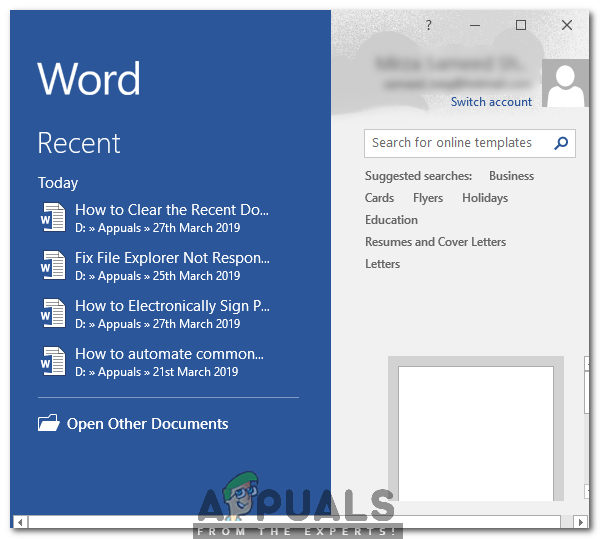
Once blocked, you may have to manually remove any comments they made on your posts but they will no longer be able to comment on future posts.
The vast majority of Instagram users are fine, but every village has its idiot and most of them use Instagram. At least now you know how to handle them!
Clearing your Instagram search history is an easy process, but keeping your personal data away from unwanted eyes isn’t. Using social media can be a fun way to meet and interact with new and interesting people, but it’s nice to know how to block and limit your online presence to some.
I think I speak for many people with Instagram accounts when I say there are few feelings that gut your more than when someone unexpectedly sees your Instagram search history.
My stomach drops and my mind starts to race as I attempt to remember the last few people I snooped on while lurking on the app.
Whether it's someone leaning over your shoulder to watch you look up an Instagram account you were both just talking about or they borrow your phone to quickly search for a profile themselves — those first few Instagram handles that appear in the search bar are basically always embarrassing.
While I don't have the answer as to why we're (probably) all like this, I do have the answer on how you can hide that you are like this. All you have to do is destroy the evidence with a couple clicks.
Here's how to clear your Instagram search history with a few simple steps, on both the app and desktop:
1. Head to your Instagram profileYour main profile area is where you want to head. Credit: Screenshot: Instagram
The first step is to click on your profile icon. Then, tap on the three clustered dashes in the right-hand corner of your Instagram account.
The button is sort of hidden under the Settings menu. Credit: Screenshot: Instagram
You're almost there. Credit: Screenshot: Instagram
When the pop-up menu appears, tap on Settings. Then, find and tap on the Security tab.
3. Clear your Instagram search historyThe one button that solves all your snooping, errr search, problems. Credit: Screenshot: Instagram
You didn't think I'd show my real search history, did you? Credit: Screenshot: Instagram
Ah, the step you've been waiting for to keep your lurking quiet.
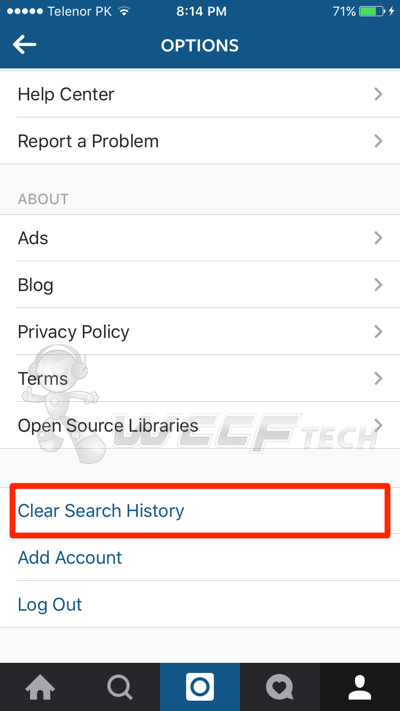
Once you're in the Security section, tap on "Clear Search History" all the way at the bottom.
This brings you to all of your recent searches, at which point you can tap on "Clear All" in the right-hand corner.
It's important to note that clearing your entire search history can seem a bit suspicious.
Thankfully, you also have the option to delete specific parts of your browsing history, aka the most embarrassing searches, individually (your ex, your ex's new partner, your ex's partner's coworkers, etc. ) by tapping on the "x" next to their Instagram handles instead.
If you only want to delete specific handles, tap on the 'x.' Credit: Screenshot: Instagram
You can also do this by simply going into the Search tool on the app to avoid having to go through the aforementioned steps. At the bottom of the search tool, you will see a section called "Recent," where all your searches live. You can hit the "x" next to each search you'd like to obliterate.
But, depending how long your search history is, tapping on the "Clear All" button might be quicker. Especially when you only have a few seconds before someone may spot the evidence of your mortifying search history.
4. Don't forget to clear your search data on the Instagram web browser tooOf course, your Instagram search history is different if you're using the app on a web browser.
To delete it on the desktop version, go to Settings and click on your profile photo in the upper right-hand corner.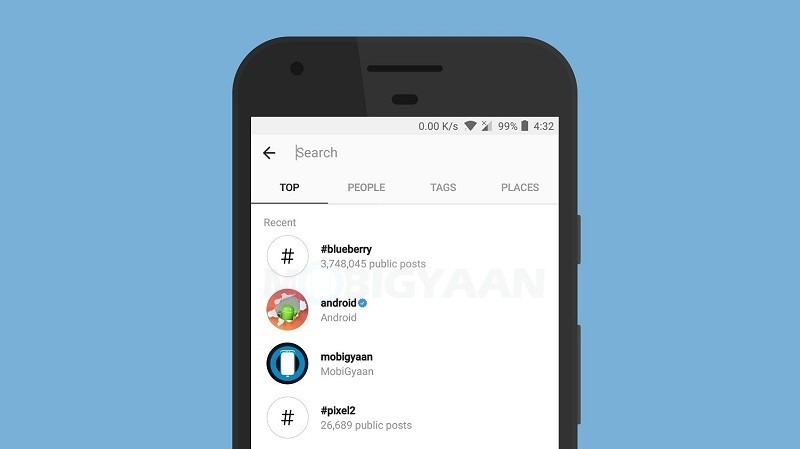
Then, tap on the Settings icon and the "Privacy and Security" tab, over on the left menu. Scroll down and click on Account data and then "View Account Data."
Under the "Account Activity" tab, you'll see "Search History" and the option to "View All." Then, click "Clear Search History" and "Yes, I'm Sure" to delete the list of Instagram handles. (You might also just want to delete your browser history while you're at it.)
While all these steps might sound confusing at first, I promise you (from experience) you'll have them all down and memorized quicker than a friend or family member can say: "Hey, l'm gonna use your phone to look someone up on Instagram."
Breathe a sigh of relief. They won't find a thing.
This story was published in May 2020 and updated in December 2021.
menu
Content
social networks retain everything what you post in your account. The same applies to Instagram search history.
In this article, you will learn how to delete your Instagram search history and how to prevent individual accounts from showing up. After that, you will no longer be able to view the history directly. But on the other hand, you can easily find your favorite subscriptions and hashtags again.
The app saves your search results in the Overview tab to make it easier to find your favorite accounts and content. If you have previously used certain hashtags for posts, these hashtags will immediately pop up again when you search for similar ones.
Clearing your Instagram search history is an important part of your right to privacy. Saving your search history helps improve your experience, but it can compromise personal privacy and security on Instagram.
In addition, due to saving, pages of unwanted users often come across in the recommended ones.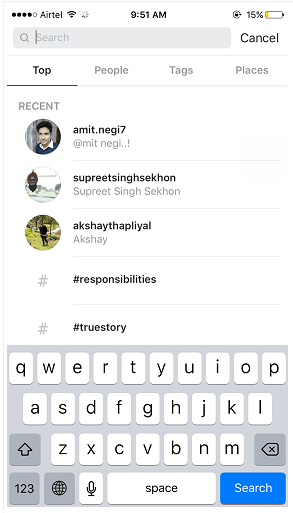 But, in any case, most often this feature makes it easier to follow the activity of a friend, acquaintance or celebrity.
Fortunately, the removal will take less than 5 minutes. This happens through the Instagram app, which is available for iOS, Android, and Windows.
If you have an iPhone, you can also easily delete history right from the Overview panel. In the line you will see your history (a list of accounts or hashtags that you have recently viewed).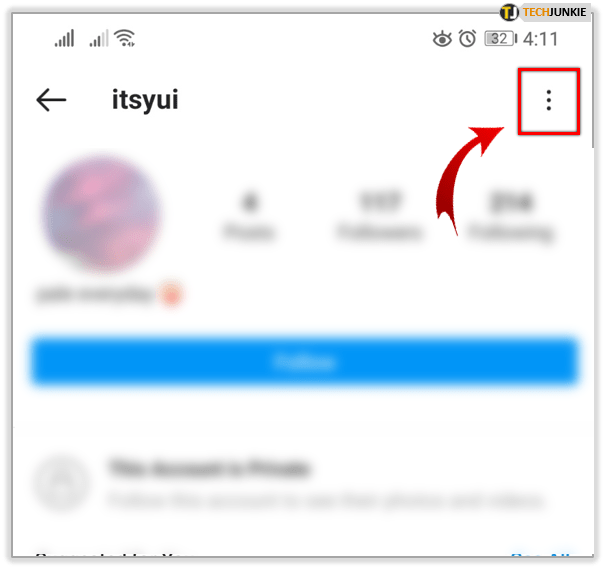
In the upper right corner, click on the "All" button and then "Clear All", also located in the upper right corner. This will instantly erase results for accounts, locations, and hashtags in the Explore tab.
After this action, the feed will change because it is now based on:
Click this tab and it will no longer display the latest results. This is how easy and simple you can erase your search history. Now let's move on to how to hide individual accounts on Instagram.
You may notice that you often meet the same users in the recommended. If you don't like it, there is a way to hide accounts from your Instagram search history. Follow these simple steps:
 Then go to the "Search Bar" located at the top of the screen.
 If you still see your history even after clearing it, stay calm: there are other solutions to this problem.
Once you've erased your Instagram search history, reboot. Sometimes all it takes to fix a technical problem on your phone is to simply restart your smartphone and update Instagram.
Another way to solve this problem is to log out.
Are you an Android user? Then use another solution: try clearing Instagram cache and history.
 This time, click Clear Data or Clear Storage.
 When you clear the cache, only the application's temporary storage is cleared, where temporary images or data from the Internet reside.
But when you clear application data, you basically delete all data like username, password, etc. When this happens, the app returns to the state it was in when it was first installed. Therefore, read in our blog what to do if you forgot your profile password.
The worst thing is if all the solutions didn't work. In this case, another option worth trying is to remove Instagram from your device.
Follow these steps to remove Instagram from Android.
You can also:
But if the removal is not enough to achieve the desired result, at least there are 4 more solutions to help deal with the problem.
Share with friends:
Twin
Share
share
Send
Grade
ADBLOCK
DETECTOR
Social Network Social Network "Instagram". almost every person has the most leading places in smartphones.
At first glance, it seems simple, but it has many of its own nuances, which causes some difficulties.
It happens that one or another Instagram profile or hashtag is not always found, and you have to delete your search history so as not to get confused.
But the question arises: how to do it? This article will explain in as much detail and step by step how to clear the search on Instagram using an application or a browser.
It is quite easy to clear the search on Instagram, the main thing is to remember the course of certain actions.
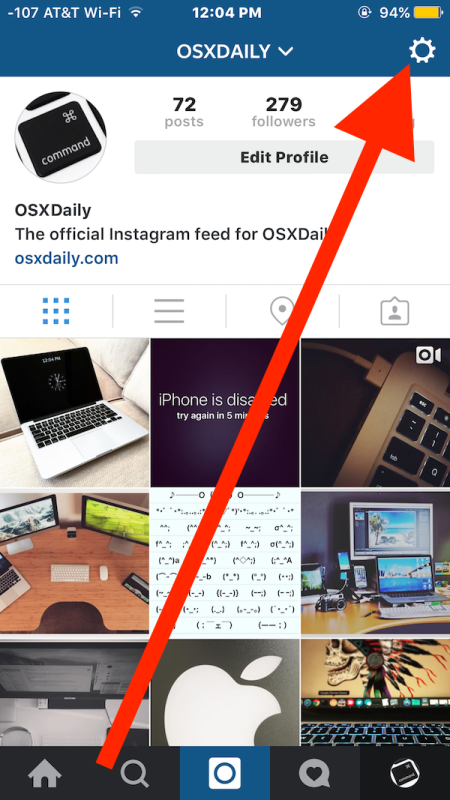
By going to your profile, you will see your main account (photo, number of publications, number of subscriptions and followers). Then you should go to "Settings" (indicated at the top right by three nearby small squares).
And remember that you can change settings and delete search history only in your own profile, you will not be able to access the settings and search history of someone else's account.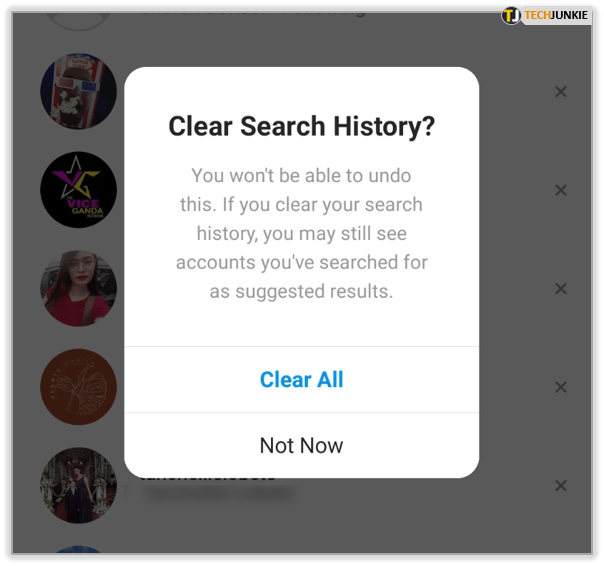
After that, the search history will be cleared automatically. By following these simple steps, you can easily delete your search history in the Instagram app within one minute.
This was a way to delete the search history in the mobile app.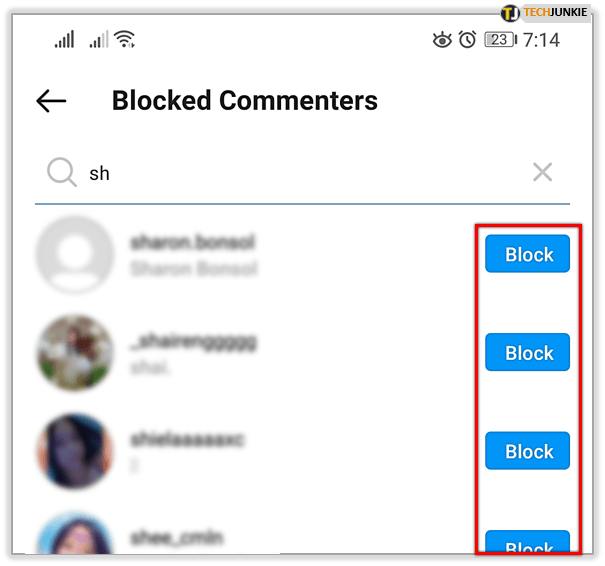 In the event that you do not have the opportunity to download the application, and you urgently need to delete your search history, do not worry, as you can delete your search history by logging into your Instagram account through a browser.
In fact, everything is the same. However, when entering the “Settings”, some questions and difficulties may arise. To avoid them, step-by-step instructions will be shown again.
After going to "Settings", make sure that the versions of the application and the browser are significantly different.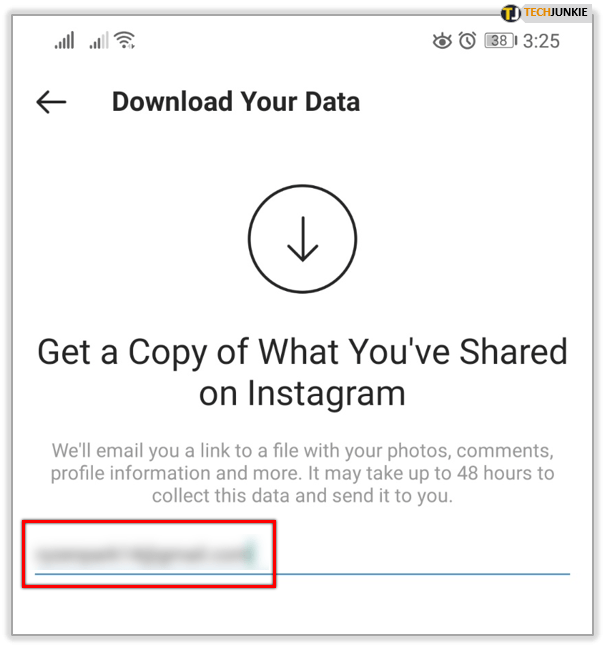 In our case, again, the very first and main section “Account” will be needed. Here you can see a new subsection - "Privacy and Security", we will need it.
Selecting this action, at the top you will see the date of registration on the network, then you again have to scroll a little to the heading "Search History", which is exactly what we are looking for. Next, click on the "Show All" action.
"Show all" in this case means the action "clear search history".
If you go back to the search history after deleting it through the browser, you will see the note "There is no information in your account that matches this category.