Share This Post
Most of us use WhatsApp, storing years and years of our chat history. There can be fun moments or details that you need to refer years later. Many of us use WhatsApp for work and in these remote working times, maintaining the chat history backup is more important than ever. If you ever migrate from an iPhone to an Android device, you may need to transfer your data between them.
Previously, if an iPhone user turned on WhatsApp’s cloud backup feature, the chat archive was stored on Apple iCloud, while Android devices backed up data to Google Drive. This made it nearly impossible to transfer the chats between devices not running the same OS. Luckily, the new update now lets you migrate your data between these two platforms. This capability first launched on Samsung phones running Android 10 and it is now also available on new smartphones that launch with Android 12.
A Type-C to Lightning cable. Yes, that it. If you are using an iPhone 11 or any newer model, there are chances you already have it. If not, Reliance Digital has many options, with some that are priced as low as Rs. 999*. Before you begin the migration process, there are a few things to remember. Make sure you are using a new Android device or an Android 12 phone that’s been restored to the factory settings. Your iPhone and Android device should run on the latest version of WhatsApp.
Connect your Android device to iPhone using a Type-C to Lightning cable.
Open WhatsApp on your Android device. A QR code will pop up on your Android phone’s screen.
Scan the QR code from your iPhone by tapping on Settings > Chats > Move Chats to Android. Keep your phone unlocked during this process. Once the app prepares a backup, tap on Start Transfer.
Your chats, photos, and other media will now start moving to your new Android device.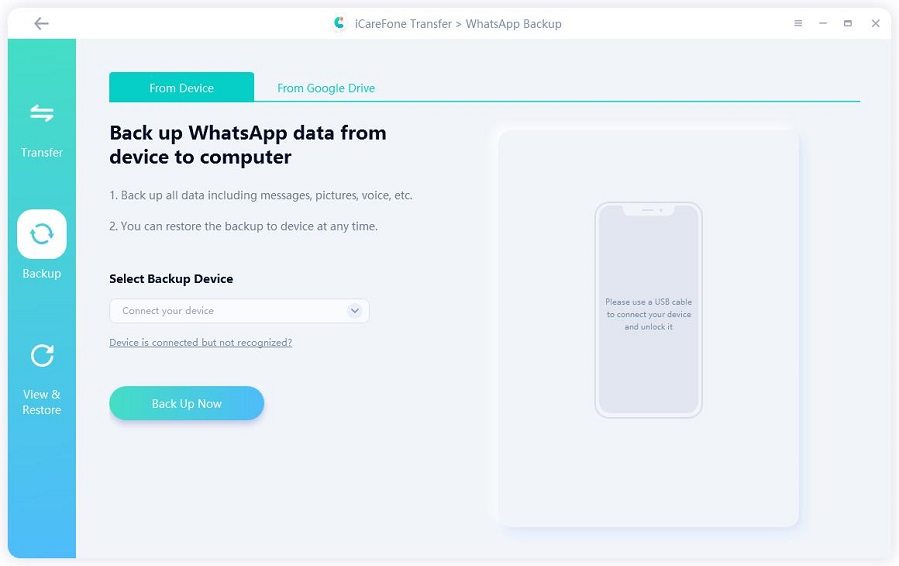 Make sure you don’t use both devices during the transfer process.
Remember, WhatsApp will stop working on your older phone after transferring all the data. However, you can keep using it on both Android and iOS at once with WhatsApp’s Multi-Device Beta feature. It lets you have up to 4 additional secondary devices along with your primary phone running the same WhatsApp account simultaneously.
To activate this feature, follow these steps.
Open WhatsApp Web on your secondary device’s internet browser. Request the webpage in the Desktop Mode.
On your primary device, go to WhatsApp > Settings > Linked Devices.
Tap on the Multi-Device Beta, then tap on Join Beta.
In the Devices section, tap on the Link a Device button.
Point your camera towards your secondary device to scan the QR code.
That’s it. Now, you can use WhatsApp on your both your phones without being connected to the same network. Since the feature is still in beta, the overall user experience isn’t as smooth as the primary device. Chats can sometimes take time to load, and downloading images and files take a bit longer. This should get better with future updates.
Currently, the chat migration feature is only available for Android 12 devices, which is a bummer if you want to use an older Android device. There is no official word from WhatsApp, but we might see this feature coming to older Android versions in the coming months. To know about such features and everything latest about technology, keep following us on www.reliancedigital.in.
how to transfer WhatsApp chat from iOS to AndroidiOS to AndroidTransfer iPhone chat to AndroidWhatsappWhatsApp Multi-Device Beta feature
If you’re currently an iPhone user and have decided to switch to Android, then you probably would want to know how to transfer WhatsApp from iPhone to Android. Although both operating systems do not provide an easy solution for transferring your data between iOS and Android, there are several other sources that you could take help from.
Here are some methods that you could easily implement to transfer WhatsApp messages from iPhone to Android.
Data transfer between different devices can be much easier than you think. MobileTrans - WhatsApp Transfer provides a one-stop solution to help you transfer data between mobile devices and phone and computer. You can try it to move your WhatsApp from iPhone to Android.
MobileTrans - WhatsApp TransferTransfer WhatsApp from iPhone to Android With a few Clicks!
Free Download Free Download
4,085,556 people have downloaded it
4.5/5 Excellent
Here is how you could use MobileTrans to migrate WhatsApp from iPhone to Android:
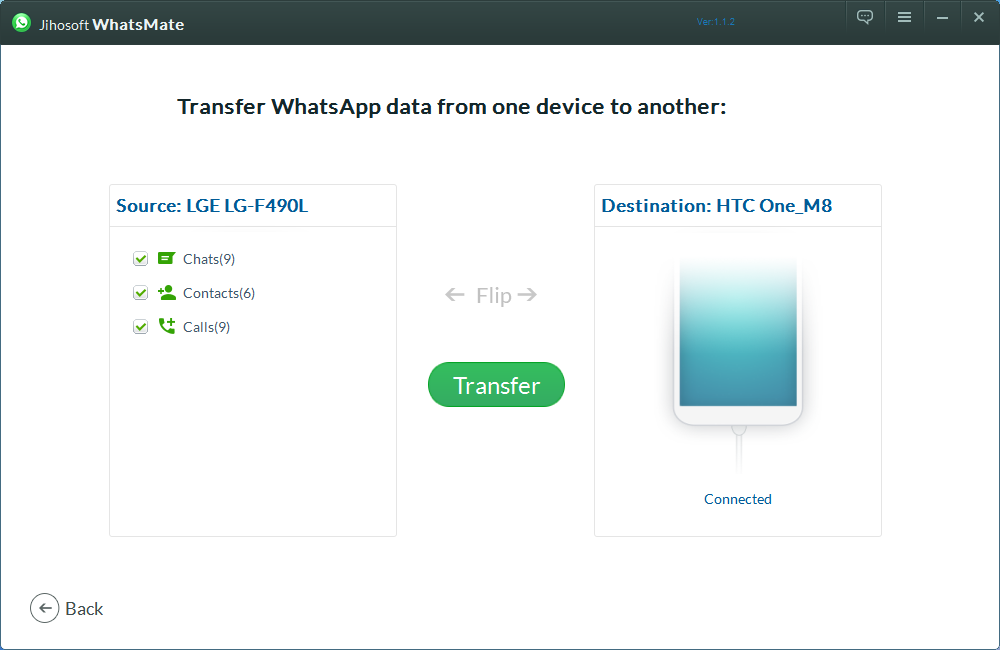
1. Download and install MobileTrans on your computer. Launch MobileTrans and select the "WhatsApp Transfer" module.
2. Connect your devices to the computer. Select “WhatsApp Transfer” and let the program detect your devices. After that, the following window will appear:
3. Click “Start” to proceed. Keep the devices connected until the process completes.
That's it! Quite easy, right? You can also check our video tutorial below to find out more details.
Free DownloadFree Download
safe & secure
Apart from just accomplishing WhatsApp messages backup and restore, MobileTrans also helps you seamlessly transition your contacts, photos, and messages from one phone to another.
You may also be interested in How to Check if You've Been Hacked & What to Do if You Are?
Wondershare Wutsapper is another good choice if you don’t want to use a laptop or computer to transfer WhatsApp data. You can easily access Wutsapper on Google Play and the operation process is also very convenient and direct.
Try it FreeTry it Free
safe & secure
Here are 4 steps to transfer WhatsApp from iOS to Android with Wutsapper.
Step 1. Connect your Android phone and iPhone with a USB OTG adapter. Open Wutsapper and then you need to authorize it to access the iOS device.
Step 2. Click the button - "Start to copy", and the APP will transfer the WhatsApp backup package on your iPhone to your Android phone.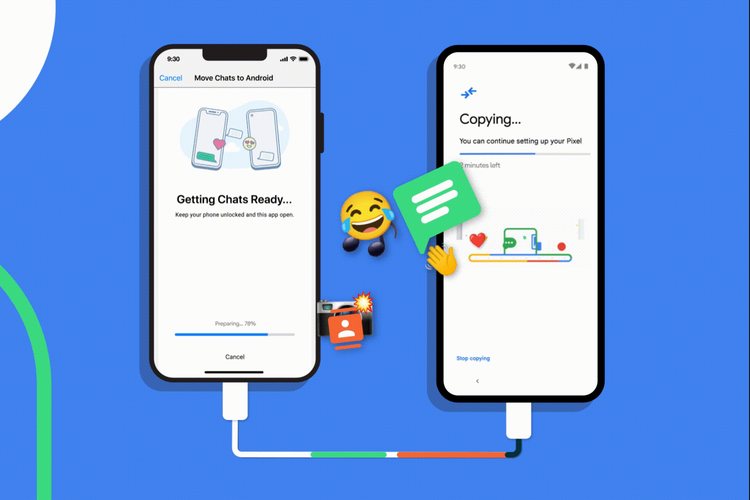
Step 3. Wait for several minutes-Wutsapper will convert the iPhone backup package to Android backup format.
Step 4. Restore WhatsApp backup on your Android with the guide of the tutorial.
Pros:
Cons:
Check our video tutorial below:
If you can back up your WhatsApp chat history to Google Drive on your iPhone, then WhatsApp backup iPhone to Android would be so much easier.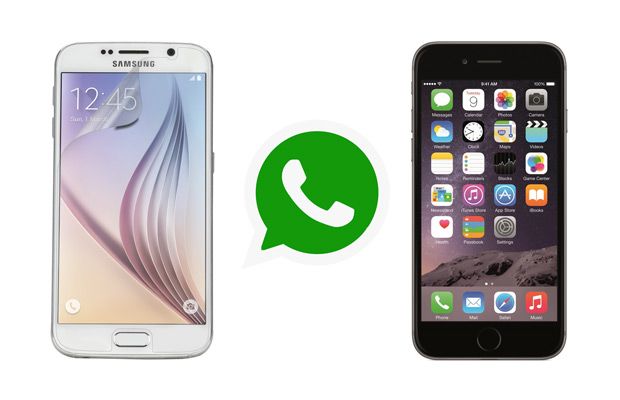 But sadly, this gonna happen as you can only backup WhatsApp chats to iCloud instead.
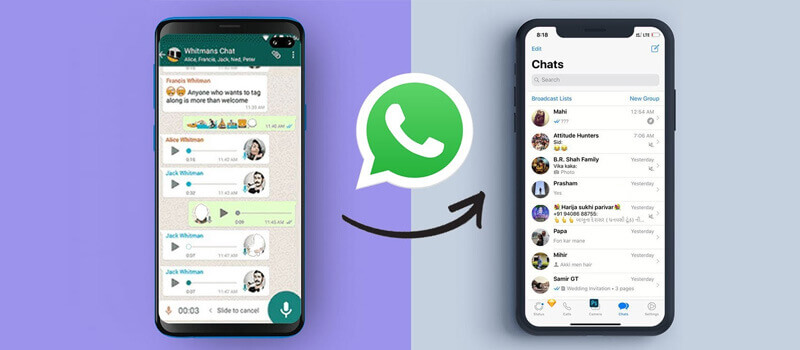
But there is still possible to restore your iPhone WhatsApp backups to Android. You can utilize MobileTrans to finish the job for you.
Free Download Free Download
Pros:
Cons:
If you are switching from Android to Android, The easiest way to move WhatsApp to a new phone is by using Google Drive. If you want to use a local backup, you'll need to transfer the files to the new phone using a computer, file explorer, or SD Card.
Here are the details of how to transfer WhatsApp chat history from iPhone to Android phone with email chat:
1. First of all, go to your device’s "Settings" in WhatsApp from your iPhone, tap on "Chat Settings", then hit "Email chat" from the list.
2. Select the WhatsApp history that you would like to transfer. A window will pop up saying "Attaching Media will generate a larger email message". You just need to click " Without Media" or " Attach Media" based on what you need.
3.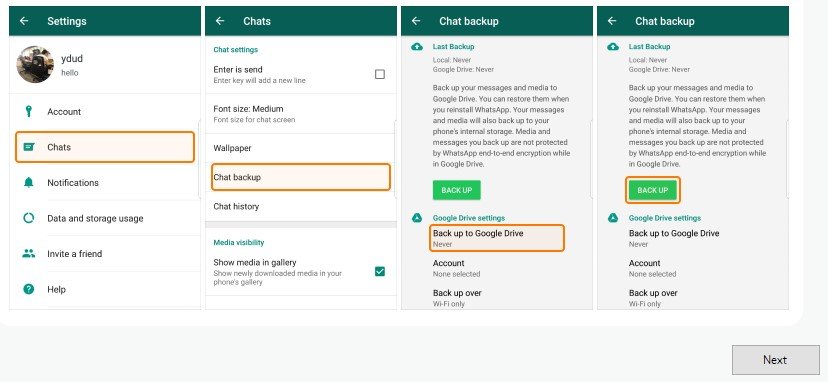 Type in the email address and select "Send".
4. Log in to your email account on your Android phone, you can view your old WhatsApp chats in an email from your new device. But you can't sync WhatsApp data with your WhatsApp application on an Android device.
Pros:
Cons:
WhatsApp's email chat function is very helpful. By moving WhatsApp chats from iPhone or Android phone to email, it allows users to create a copy of the chats. Compared with WhatsApp's backup function, email chat is more flexible.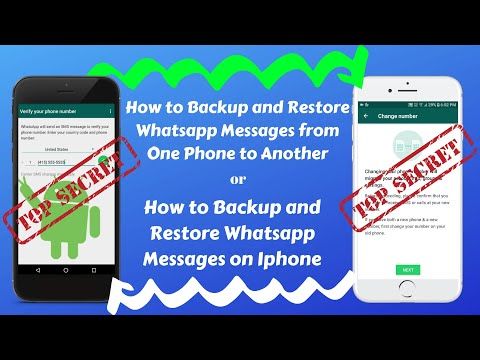
Users can store just the chosen chats, moreover, they can share the chats with others if they print out their chat history.
WazzapMigrator is a data transfer wizard that allows users to transfer WhatsApp messages from an iPhone to an Android device in a convenient manner. It fully supports the Mac/Windows system and ensures a speedy transfer of data.
This is another software that is used to transfer WhatsApp files. It quickly transfers all types of files, including messages, photos, videos, and documents.
Key Features
Here is the detailed guide on how WazzapMigrator is used to transfer WhatsApp contents of an iPhone to an Android device:
1. First, launch iTunes from your iPhone and then connect your iPhone to your computer using a lightning cable.
2. Select "Summary"> uncheck "Encrypt Local Backup"> then select the "Back up now" option on the right to kick-start the backup process for your iOS device.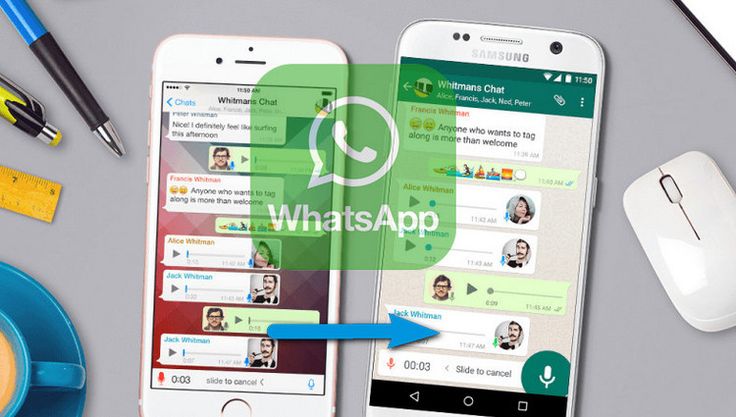
3. Visit the WazzapMigrator Lite website > locate the "iBackup Viewer" Program and download it on your computer.
4. Run the software, select the iOS device > click on the "Raw Files" icon placed on the bottom right side of the menu. On the following screen, tap on "Free View" mode> surf the following file: "AppDomainGroup-group.net.whatsapp.WhatsApp.shared"
5. On the right-hand menu, choose the option "ChatStorage.sqlite" file > select the "Export" button. In the same menu of "ChatStorage.sqlite" > open "Message Folder" > select desired "Media" files. Hit the "Export" option and don't forget to save the same in the "ChatStorage.sqlite" file.
6. Connect your Android device to the computer. Surf Android phone in "File Viewer/Explorer" and set up desktop Windows to view files exported to the computer. Drag media folder and ChatStorage.sqlite file to the "Download" folder of your Android phone.
7. Now install the WazzapMigrator Lite application on your Android device. This will scan and detect ChatStorage.sqlite on the device. After the scanning process, select the "Play" button.
8. Download Google Play Store and reinstall the WhatsApp application.
Complete the process by keying in the contact details used in iPhone too.
Pros:
Cons:
While the application appears to have reviews for past versions, a quick look at the remarks on the website's homepage shows that there are many issues with the program, particularly about compatibility with the latest versions of the Android WhatsApp application.
However, the app appears to operate extensively at an acceptable rate for some devices and variants of WhatsApp.
Previously, it is nearly impossible to transfer WhatsApp data from iOS to Android. But now with the new updates of Android 12, we are happy to tell you that you can transfer your WhatsApp to Android even without using any apps or software. Only Google Pixel phones running on Android 12 are supported right now. But Google says other phone brands would be supported in the near future.
Let's find out how to migrate WhatsApp data:
Pros:
Cons:
Each of the four methods mentioned above, each with its pros and cons, is reliable for transferring WhatsApp data from iPhone to Android. Your first step now is to simply choose the method that is best suited to your particular situation and needs, and give it a try.
Free DownloadFree Download
safe & secure
You may also be interested in: How to Transfer WhatsApp Messages from Android to iPhone 13.
New Trendings
I'm more than sure that many of you did not even know that correspondence in WhatsApp , unlike Telegram, does not sync between iOS and Android. Therefore, when you transfer from one platform to another, all your chats remain on the old smartphone and do not migrate to the new one.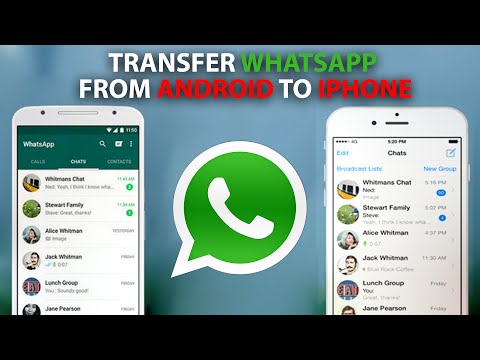 At least in automatic mode. However, you have a way to transfer chats to WhatsApp from iPhone to Android and vice versa. The main thing is to know how to act in such situations, because it is not always logical and intuitive.
It is said that you can't transfer WhatsApp chats from iPhone to Android. But it is not so
The creators of WhatsApp have made a replacement for it. What is it and how to use it
Despite the fact that WhatsApp between iOS and Android does not automatically sync , there are at least four methods to transfer chats from WhatsApp from iPhone to Android. WhatsApp offers three of them, but looking ahead, I’ll say that these methods are really not for people, because they don’t allow you to simply take and transfer all chats at once with comfort. And the fourth allows copy all your WhatsApp conversations and easily send it from iPhone to Android using iCareFone for WhatsApp Transfer.
Content
The first way to transfer WhatsApp from iPhone to Android is to transfer chats by email:
This way you need to transfer each chat separately
How to use WhatsApp on multiple devices, and what are the limitations
The key disadvantage of this method is that each chat will have to be transferred individually, and, whatever one may say, this is still not synchronization. Because all the messages that will be sent to you after sending the archive will no longer be included in it.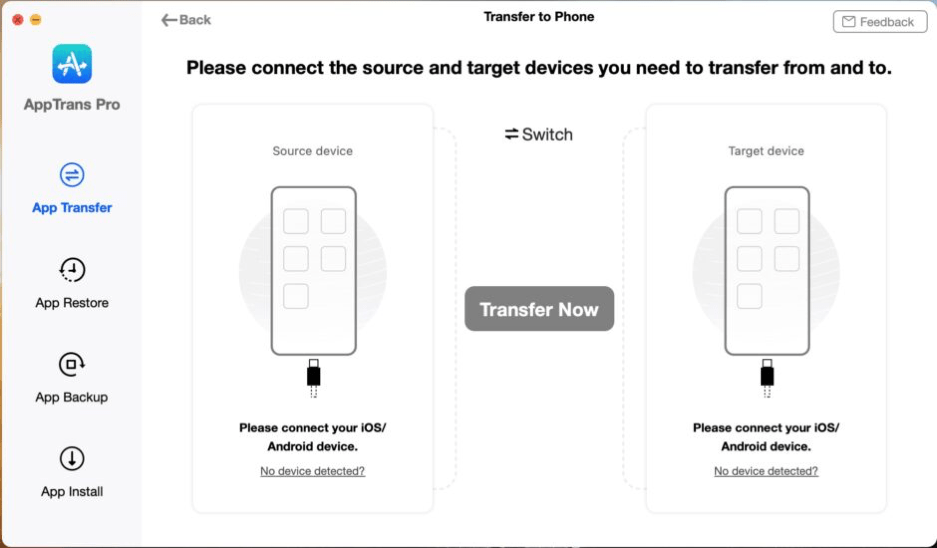
The second way - transfer chats to WhatsApp using a backup:
I hate restoring backups because this method never worked for me
WhatsApp is testing new security features
This method is good for everyone, except that it works through the stump deck. 3 times out of 5 you won't recover anything this way. Especially if on the smartphone to which you want to transfer WhatsApp chats , this messenger was already installed once. Then the device simply will not be able to find a suitable copy and will restore those that already belonged to you.
The third way is to use the computer in the transfer as well. To be honest, I don’t even want to describe it - it’s so complicated and inconvenient for execution:
In short, this is a complete horror. But I will show a really working and convenient way that returned faith in humanity.
My favorite method is to transfer WhatsApp backup from iCloud to Android. But first, a little preparation. It consists in uninstalling WhatsApp from an Android smartphone if it was previously installed. This is a prerequisite, the fulfillment of which guarantees the transfer of a WhatsApp backup from one smartphone to another .
Connect both smartphones to the computer at once and follow the instructions on the screen
For successful data transfer, it is necessary to verify your account with the code from SMS
This is how the data transfer process looks like
When the transfer is completed, you will see this screen - focus on it
Download iCareFone for WhatsApp Transfer
During the copying process, the program may ask you to confirm your phone number, which is linked to WhatsApp account . This is necessary to identify the copy that will need to be transferred to another smartphone. The fact is that in this way you can transfer copies between different smartphones with different accounts.
After completing the backup procedure, download the WhatsApp application on Android from Google Play. This must be done without disconnecting the smartphone from the computer so as not to stop the data transfer procedure. As soon as you download the messenger on a new smartphone, you need to go through authorization with the same number to which the WhatsApp backup from the iPhone is linked.
Restore the backup without disconnecting the phone from the computer
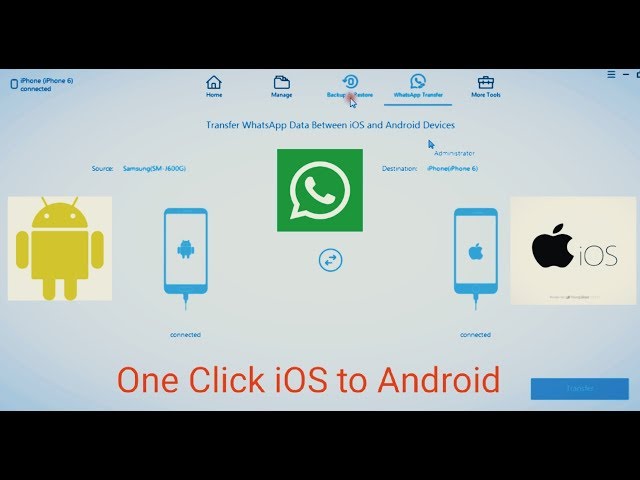
The whole procedure for copying WhatsApp chats from iPhone to Android takes no more than five minutes. Moreover, a minimum of actions is required from you - connect both smartphones to the computer by pressing a couple of buttons and wait. In my case, it took the most time to find the cable, because the included Lightning cable from the iPhone 12 simply did not fit my MacBook Air 2017 due to the USB-C connector.
Let's be honest: installing a third-party software is not something we usually want to do, especially when it comes to such a primitive procedure as transferring chats. But, on the other hand, if this is not done, you run the risk of being left without your correspondence at all or spending a lot of time transferring each chat separately, because the other methods of transferring WhatsApp chats offered by the creators of the messenger are absolutely stupid.
With WhatsApp you can make audio and video calls, send text and voice messages, transfer files and share stories.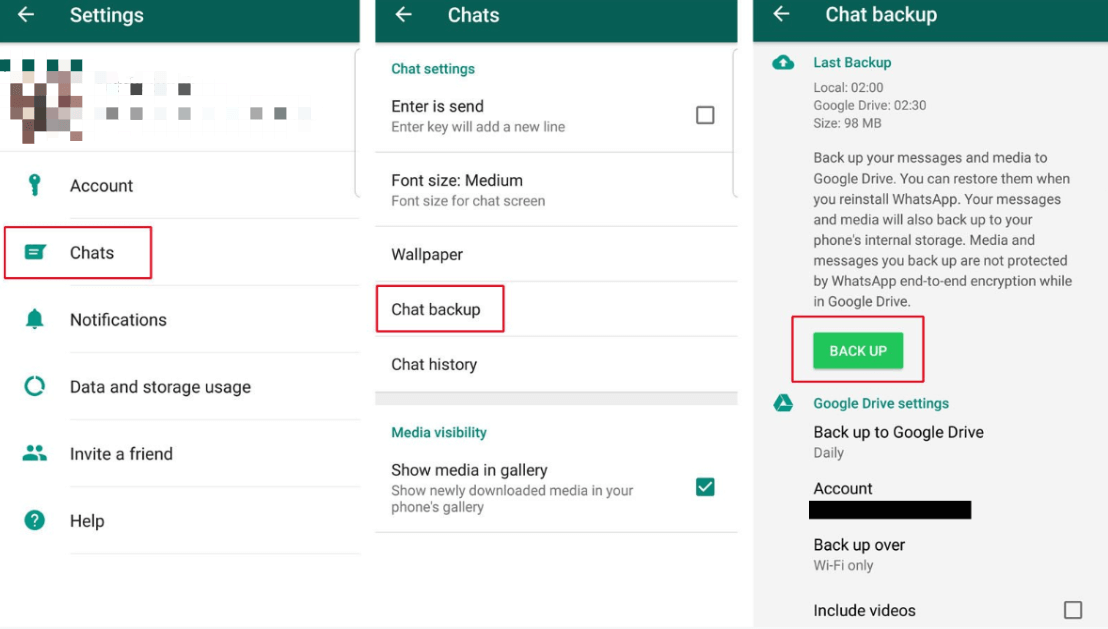 In addition, the application provides end-to-end encryption to ensure the security of correspondence. If you are an iPhone user and decide to use an Android phone, but don't know how to transfer whatsapp from iPhone to Android, follow our instructions. We have tried to outline the most common and simple methods that you can apply to transfer all dialogs from iPhone to Android phone.
There are many ways to achieve this goal, but we will list a few of the simplest. We will also provide you with step-by-step instructions for these methods, please follow them carefully.
As simple as it sounds, you can use the WhatsApp function, with which you only need to send your conversations to another phone via email.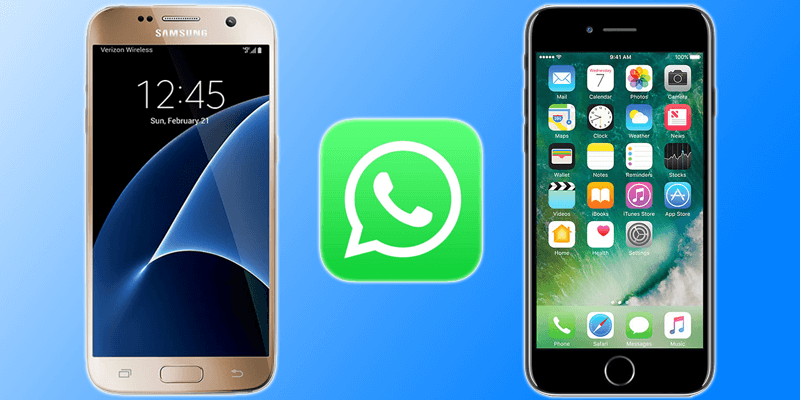 Everything is quite simple - repeat the steps below:
Step 1: Open the WhatsApp app on your iPhone and go to Chats.
Step 2: Next, select the WhatsApp message history you want to transfer. Move it to the left with your finger.
Step 3: Select More. Now select "Chat Export" from the list of options.
Step 4: You will be asked whether to send the correspondence with files or without files, select the option you need. Please note that if you choose to send files and attachments with the chat, the message size will be much larger and therefore the data transfer will take longer.
Step 5: Now select "Mail", type the text of the letter and click "Submit".
Step 6: After that, on your Android phone, go to your mail account, where you will see the dialogs you sent.
The only disadvantage of this method is that although you can transfer all chats from iPhone to Android, you will not be able to sync them to Android.
This method consists of using the WhatsApp backup function to save messages and then restore them on another device, in this case Android.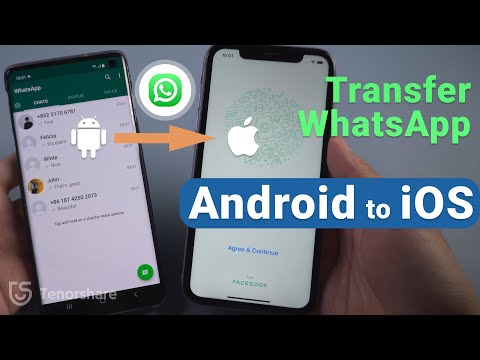 If you are interested in transferring WhatsApp conversations from iPhone to Android, use this method. Below is a step by step guide on how to do this.
Step 1: First of all, you need to back up your WhatsApp messages on your old device (iPhone).
Step 2: Open the WhatsApp application on your iPhone and go to "Settings", a new window will open on the screen.
Step 3: Select "Chats". From the list of suggested options, select "Backup".
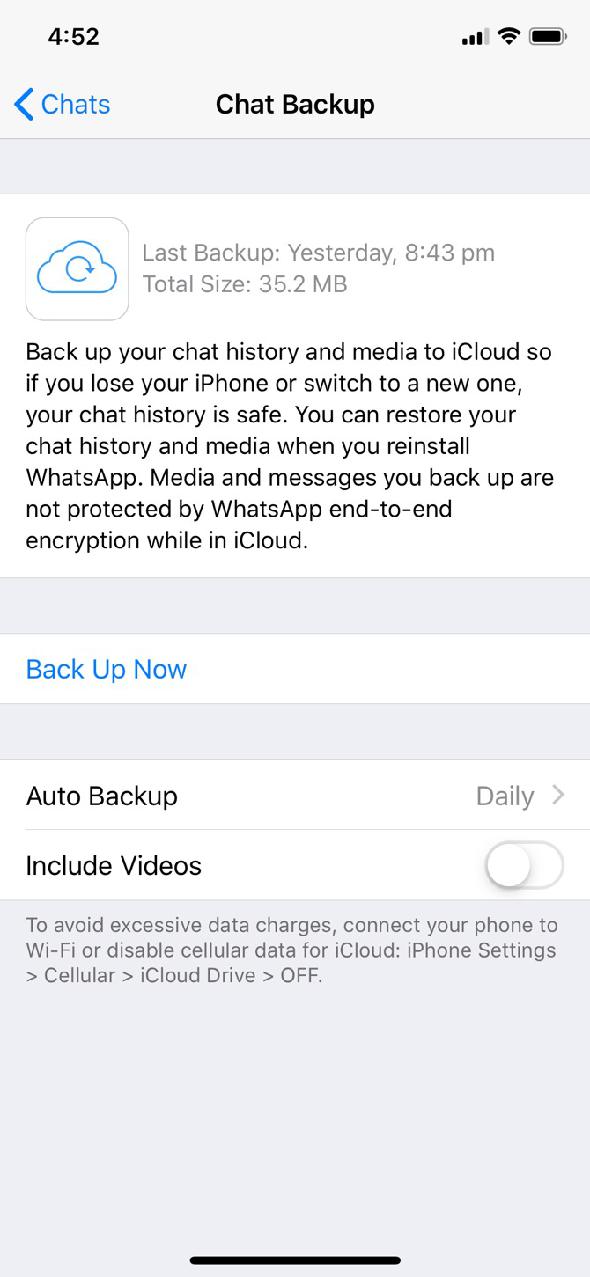
Step 4: Here you will see the recently created backups, and you can also manually start the backup by clicking the "Backup" button.
Step 5: Now uninstall WhatsApp from your iPhone and install it on your Android phone.
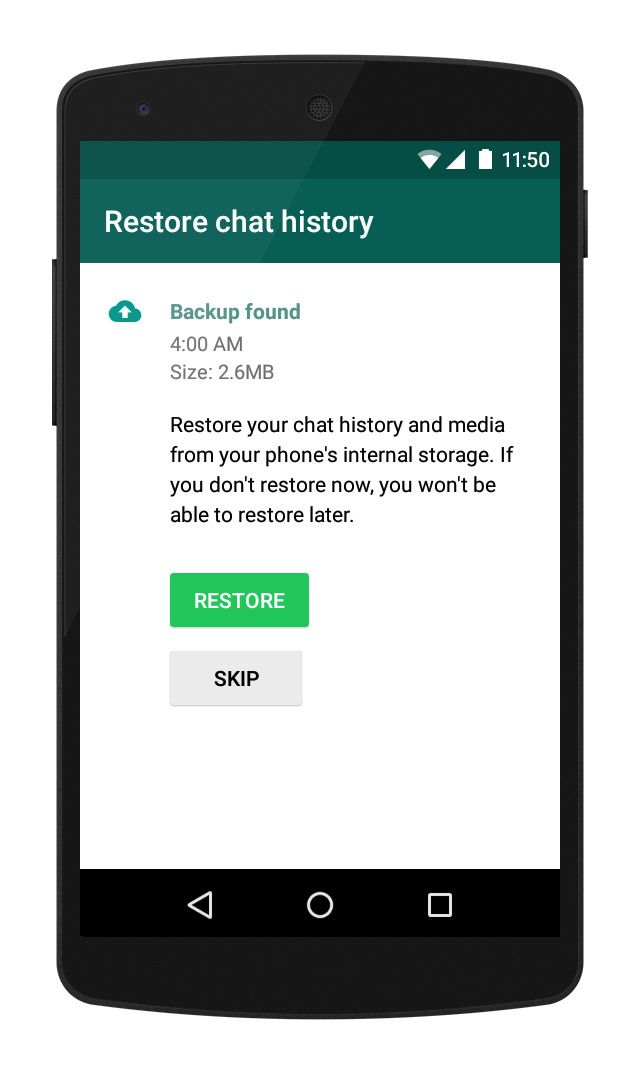
Step 6: After installation, open the application and log in with your phone number, then a message will appear that the backup has been found, click "Restore". WhatsApp conversations will be moved from iPhone to Android.
This method is to use WhatsApp backup files. If you want to transfer WhatsApp conversations from iPhone to Android, use this method. Follow these steps in sequence:
Step 1: Connect your iPhone to your PC, but don't launch iTunes yet.
Step 2: Open a command prompt (START: cmd). Then find a folder named "whatsapp". You will need to use the command line option: "dir" to see the current folder's contents, "dir\a" to see all the contents (including hidden and system files) of the current folder, or "cd [folder]" to change directory (destination folder). Copy the "whatsapp" folder to your system using the "copy [source folder] [destination folder]" command.
Step 3: Now connect your Android phone to PC and copy the backup file to internal storage.
Step 4: Launch the WhatsApp application on your Android phone, after confirming your phone number, you will be prompted - just click "Restore". After the process is completed, all your dialogs will be restored on your Android phone.
Tenorshare iCareFone Transfer is a multi-functional iPhone application that can help iOS users in various problematic situations.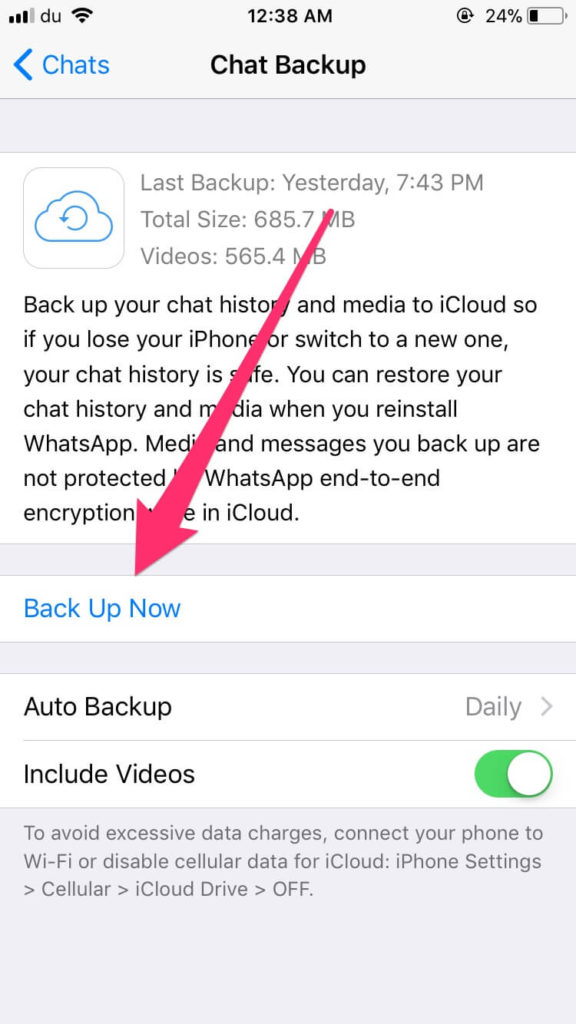 The utility fixes iOS crashes, improves device performance, transfers data between devices, creates backups. Besides Tenorshare iCareFone Transfer being able to fix a lot of iOS problems, you can also use this program to backup your WhatsApp conversations; read below on how to do this.
Download the latest version of iCareFone and install it on your computer. Once launched, connect the two devices to the PC and start the process.
Note: If you are using a Samsung device, you must enable USB debugging, and for this, and for this, you can follow the instructions on the screen.
On the source device, follow the instructions to back up your WhatsApp data. Follow all the steps correctly if you want to save all files. When the process is complete, click on the continue button “Continue.”
Now, you will be asked to verify your device, and for this you need to enter your mobile number. After specifying the details, click on the “Check” option.


.jpg)