WhatsApp users have to verify their number to start using the app. However, not everyone wants to share their private information with hundreds of contacts.
If you want to stay anonymous on WhatsApp, you’re probably wondering whether it’s possible to skip the verification page and register an account without your number. The short answer is no.
A phone number is necessary to use the services of this app. But it doesn’t need to be your number. Read on to learn how to use WhatsApp without revealing your phone number.
So, you want to make a WhatsApp account, but the thought of giving the app your phone number makes you uneasy? Or perhaps you decided to amp up your online privacy and want to remove your information from this popular chatting solution? You might find that this task is more complicated than it should be.
Since it’s impossible to register a WhatsApp account without a phone number, you’ll need to use an alternative or temporary number to complete the process. In addition, WhatsApp doesn’t let you remove or hide your number in an already existing account, so you’ll need to create a new number if you want to remove your old one.
Let’s see a few different ways of creating a WhatsApp account without your real phone number. Not all methods will work for everyone, as some may not be available in all countries. If you have trouble with a solution, move on to the next one until you find the one that does the job.
If your home still has a landline, you won’t lose anything by attempting to use this for the WhatsApp verification process. All you need to do is enter your landline when WhatsApp asks you for your phone number.
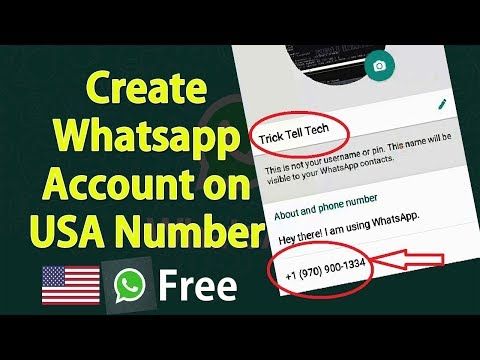
If you don’t have a landline or WhatsApp doesn’t accept your number, the next solution you can try is using an online phone service. There are many apps and services that give you a temporary phone number to send and receive messages and calls. If you already have a favorite, feel free to use that. We’ll use TextNow as an example since it’s one of the most reliable free services in this category. It also has an app.
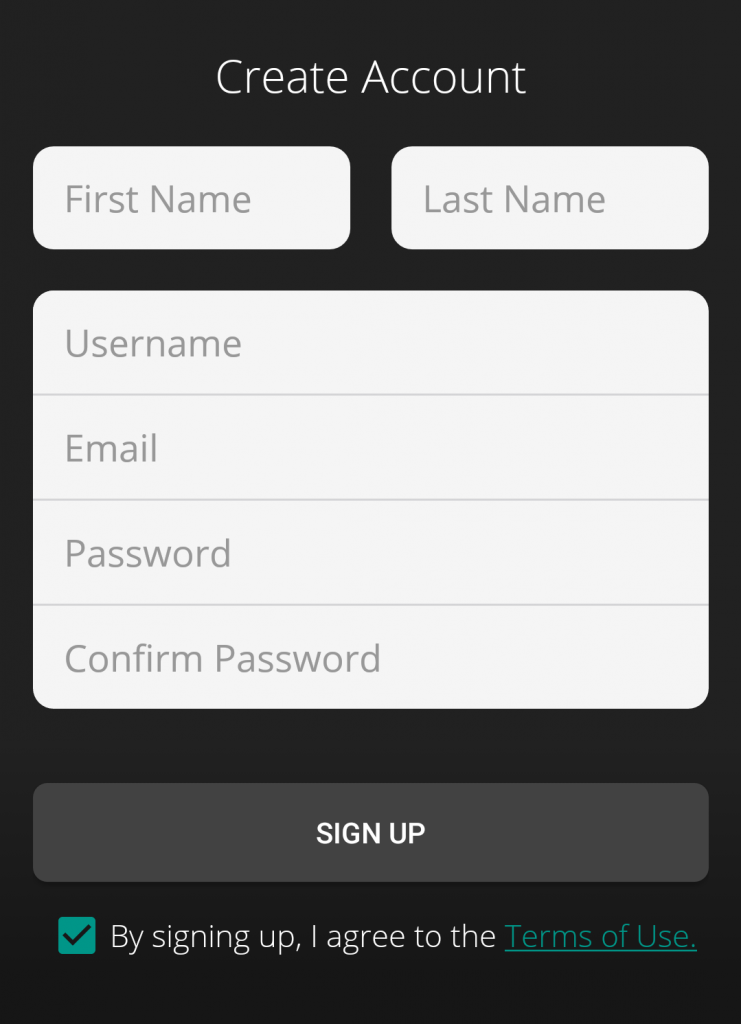
First, you’ll need to download TextNow and create an account. We’ll walk you through the steps below.
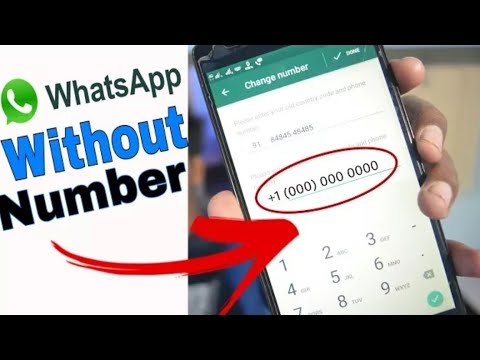
With a virtual number at your disposal, you’re ready to start the WhatsApp verification process.
Note: Not all TextNow numbers may be compatible with WhatsApp. To stay on the safe side, you can test several numbers before selecting one to ensure WhatsApp will accept it. If you have an Android device, you can split your screen to see both apps simultaneously, making the process a little less tedious. Once you find a number that works with WhatsApp, select it in TextNow.
Another free service that can supply you with a virtual number is Google Voice. Available to all Google users in the U.S., this is a popular solution for domestic as well as international calls. It may also come in handy when registering a WhatsApp account. Let’s see how to use Google Voice to get started with WhatsApp without your own phone number.

Next, you’ll use your new Google Voice number to register on WhatsApp.
If none of the above methods worked for you, the final solution is to use an alternative phone number for WhatsApp.
Do you have a secondary phone you rarely use or an old sim card that’s still active? Perfect! You can tie your WhatsApp account to this number.
Naturally, you can also purchase a new prepaid phone number for cheap to use for this purpose. Place the SIM (subscriber identity module) card in a working phone and start the registration process.
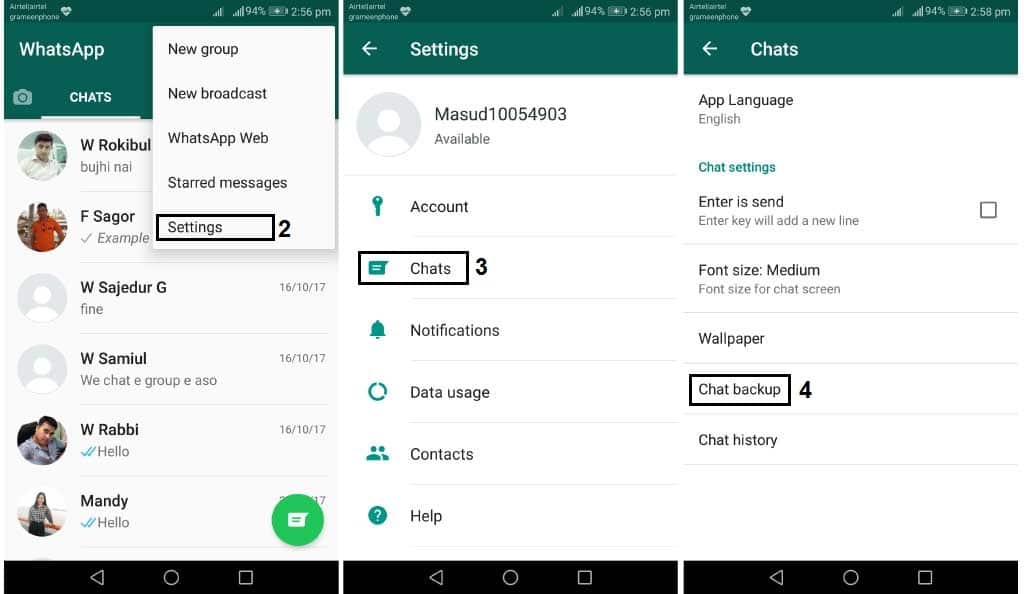
If you already have a WhatsApp account but want to remove your phone number from it, you’ll need another number to replace it. Use one of the methods above to obtain a new working phone number. Then, head to your WhatsApp settings to modify your details.
Whether you want to use WhatsApp on a device without a SIM card or you’re simply concerned about privacy, this guide will help you out. Use one of the abovementioned methods to create an account without your actual number and start using WhatsApp without worries. If none of the virtual numbers work for you, try an old number you no longer use or purchase a prepaid one for this purpose.
Which solution worked for you? Or do you have another service for generating a phone number to recommend? Let us know in the comments section below.
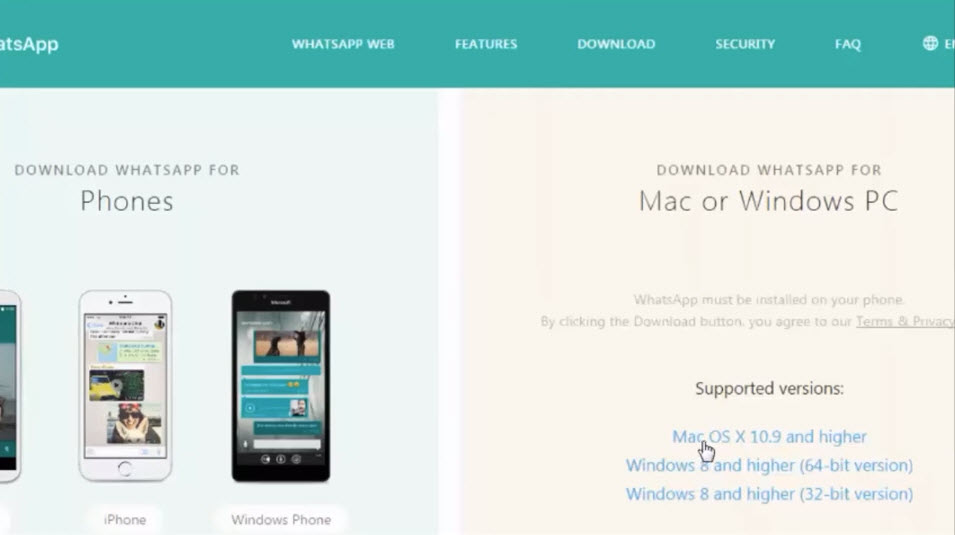
Even if your mobile phone does not have a SIM Card, it can be used to send messages and make voice/video calls using WhatsApp.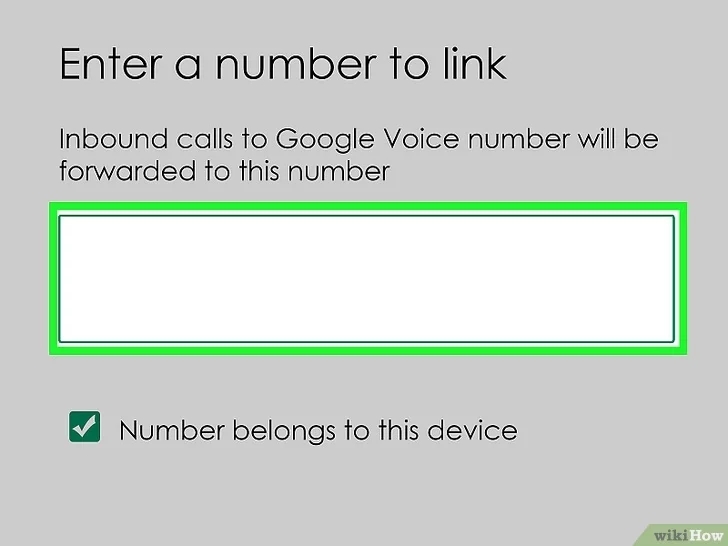 You can find below our tried and tested methods to use WhatsApp without phone number or SIM.
As mentioned above, we have tested different methods to use WhatsApp without phone number or SIM card, so that you too can try out and use any method that is convenient for you.
Before moving to the actual steps to verify WhatsApp without phone number and SIM card. make sure that you download WhatsApp from Google Play Store (Android Phone) or the App Store (Apple devices).
Once WhatsApp is downloaded and available on your mobile device, you can use any of the following methods to verify your WhatsApp Account.
The first method involves downloading a messaging app known as “TextNow” on your mobile device. This messaging app provides you with a free and unique phone number that can be used to verify WhatsApp Account.
1. Download & Install TextNow App
Download the TextNow App on your Android Phone from Google Play Store. If you are using an iPhone or iPad, you can download the app from App Store.
2. Open the TextNow App & Note Down Your Number
Once TextNow is downloaded, open the TextNow App and follow the on-screen instructions to complete the setup process. Once the app is setup note down your TextNow Number.
If TextNow does not show the phone number or you forget to note down the number, tap on 3-line icon located at top-left corner.
On the next screen, you will be able take a look at your TextNow Number.
3. Open WhatsApp and Verify Number
After noting down the TextNow Number, open WhatsApp on your mobile device and follow steps 3.1 to 3.5 below.
3.1. Enter TextNow Number into WhatsApp
Once you open WhatsApp, you will be prompted to agree to its terms of use. Tap on Agree & Continue.
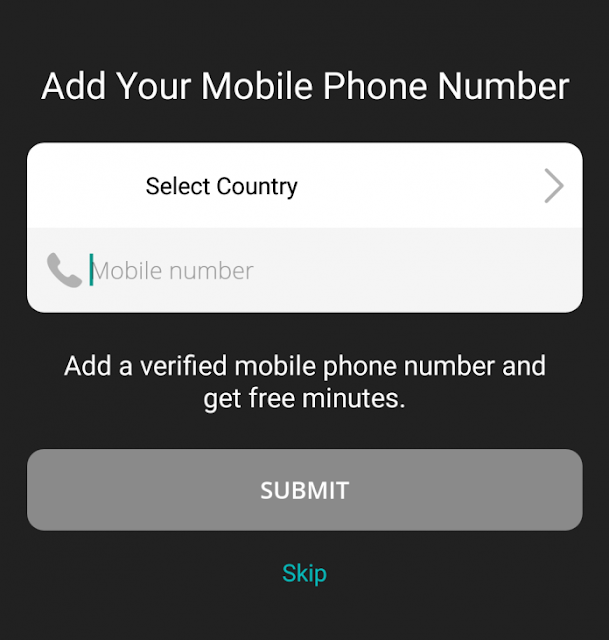
On the next screen, select your Country, enter your TextNow Number and tap on Send or Done.
3.2. Wait for SMS Verification to Fail
After tapping on Done, wait for SMS verification to fail. After SMS verification fails, you will see the option to receive a Call from WhatsApp.
Tap on the Call Me button to receive an automated call from WhatsApp on your TextNow Number.
3.3. Get your WhatsApp Verification Number
Open TextNow App and it should be ready with a Call from WhatsApp. When you answer the call, you will find an automated message from WhatsApp repeating your verification code multiple times.
Listen to the Message and Note down your verification code.
3.4. Enter Verification Code in WhatsApp
On the WhatsApp verification screen, enter the verification code that you received via the automated call and tap on Next.
3.5. Finish Setup
Finish the setup process in WhatsApp after entering your verification code. You have now successfully created a WhatsApp account without a phone number.
If this method did not work for you, you can try using another app called TextPlus or use other methods as provided below in this guide.
The second method will be using your existing home phone/landline number to verify WhatsApp. Just follow the steps below to use WhatsApp without a mobile phone number or SIM card.
1. Open WhatsApp on Your Phone or Tablet
Open WhatsApp on your phone and it should prompt you to enter your phone number to get a verification code from WhatsApp.
2. Enter Your Home Phone/Landline Number
When prompted, select your Country and enter your Home Phone/Landline number.
3. Wait for Verification by SMS to Fail
After about 5 minutes (or earlier) verification by SMS should fail, after which you should see the Call Me option.
Tap on the Call Me option to receive an automated call from WhatsApp on your home phone or landline number.
4. Enter the Verification Code
Once you tap on Call Me, you will receive an automated call from WhatsApp on your home phone/landline number.
The automated voice will repeat your 6-digit verification code numerous times. Note down this verification code and enter this verification code into WhatsApp.
5. Complete the Setup Process
Follow the instructions to complete the setup process, after which you will be able to send text messages and make WhatsApp Voice and Video Calls, without using your mobile phone number or SIM card.
If you are living within United States, you can get your Free Google Voice Phone Number by signing up for Google Voice.
All that is required to Sign up for Google Voice is your Gmail Account and it provides you with a Phone Number that can be used to verify WhatsApp.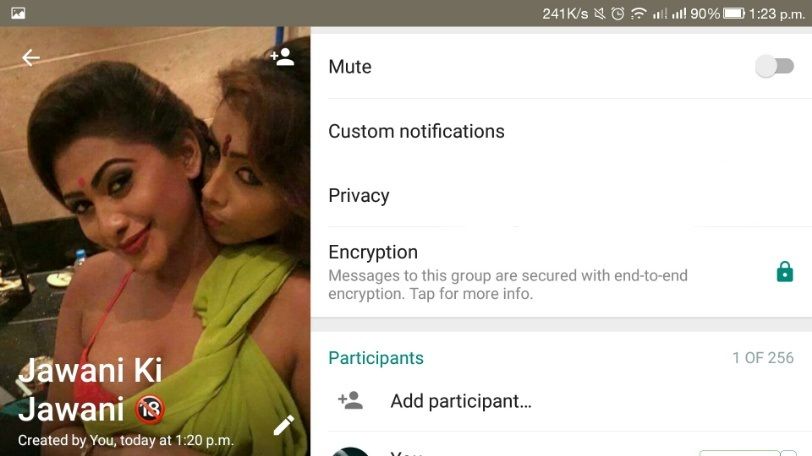
1. Download & Install Google Voice
You can download the Google Voice app from Google Play Store (Android Phone) or from the App Store (if you are using iPhone)
2. Verify Google Voice Number
Once Google Voice is downloaded on your device, open Google Voice and when prompted, enter your actual phone number to verify your Google Voice Account.
3. Open WhatsApp & Enter Google Voice Number
Once you have received a new number from Google Voice, open WhatsApp and when prompted, select your Country and enter your Google Voice number.
4. Wait for Verification by SMS to Fail
After about 5 minutes verification by SMS will fail and you will be presented with an option to Call Me. Tap on the Call Me option to get a call from WhatsApp to your Google Voice number.
5. Enter Verification Code
You will now get an automated call from WhatsApp on your Google Voice number. Note down the verification code as provided by WhatsApp and enter this verification code into WhatsApp.
The web version of WhatsApp (WhatsApp Web) allows you to use WhatsApp on your MacBook or Windows PC, that usually do not have a phone number or SIM Card associated with them.
However, WhatsApp Web still requires you to have a valid WhatsApp account on a mobile device, in order to use WhatsApp on a Laptop or Desktop computer.
Luckily, it is still possible to use WhatsApp on computer without having a WhatsApp account on a mobile device by using an Android Emulator like BlueStacks that allows you to run mobile apps on any computer.
For more information, you can refer to this guide: How to Use WhatsApp On PC Without Mobile Phone.
In general, people are looking for a way to use WhatsApp without phone number for the following reasons.
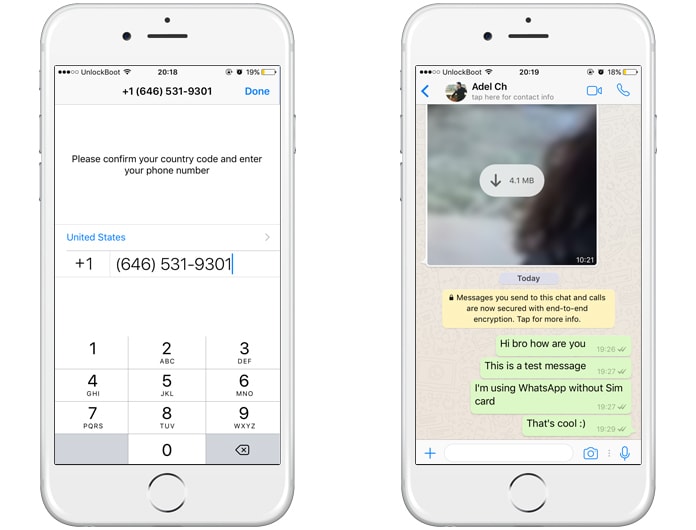
Whatsapp is a widely used texting, voice calling and chatting application used by many users around the world. Whatsapp messenger is a complete messaging application that allows you to send text messages, photos, media files for free. There are versions of WhatsApp for iPhone, BlackBerry, Android, Windows Phone and Nokia, and these phones can save all your contacts and chats! WhatsApp uses the same data transfer scheme over the Internet that you use for email and web browsing.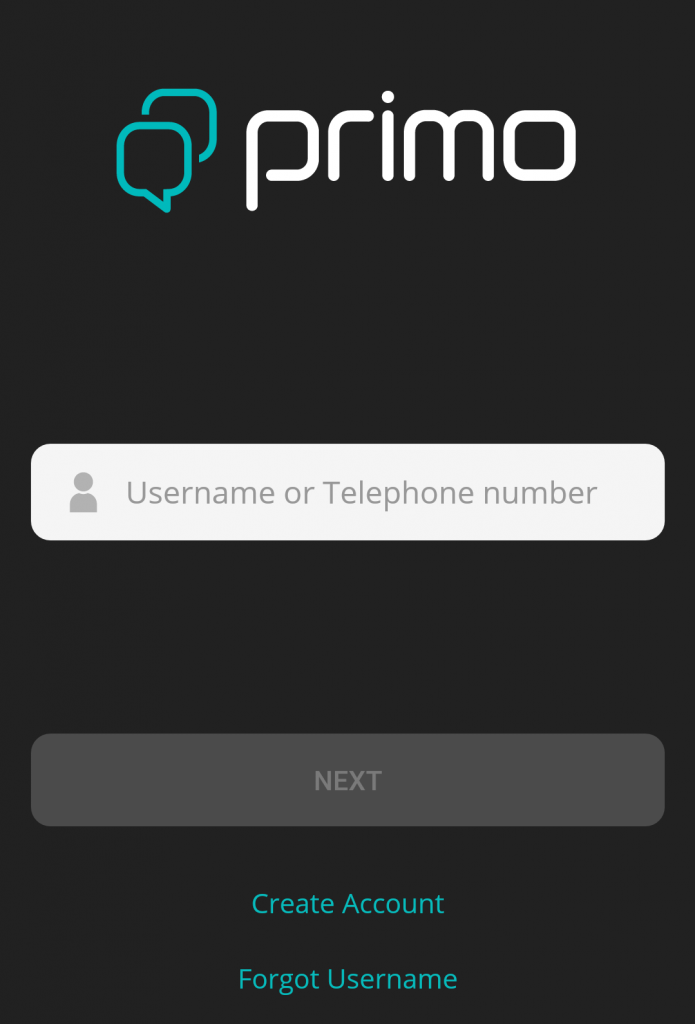 This allows you not to spend money on messages and stay in touch with friends.
Since many users use devices that do not have a SIM card like a mobile phone (for example, a tablet or desktop PC), the problem is that in order to use WhatsApp without a phone number, you need to use one trick. It happens that you cannot use your smartphone due to a breakdown. And although some service centers repair mobile phones in front of the client, troubleshooting may be delayed.
Today we are going to show you how to use WhatsApp without a phone, so you can install and set up WhatsApp on your tablet or other device without a SIM card. Follow the guide to use this hack.
First, download the latest WhatsApp from the mobile app store. We wrote earlier how to install WhatsApp for Symbian. If you are an old user, you can restore WhatsApp chats to Google Drive later. Once the download is complete, install WhatsApp on your smartphone, tablet or PC and then close it. Don't move on to the next step.
Now you will need to enter the mobile phone number to which the application will send an SMS message with a verification code. There are several free virtual number registration services on the Internet for verification in various online services. We note right away that most of them, in our case, will not work. Firstly, some services use the same number for everyone, and secondly, WhatsApp itself checks the validity of the number you enter. It is difficult to say which parameters are estimated by the messenger algorithm, but out of several inputs, it accepted only the one that was obtained using the method described here.
So, in order to successfully check the mobile phone number, you need to install applications called "Virtual SIM". This must be done, as the program will provide you with a virtual mobile phone number, to which WhatsApp will send a verification code. After registering on WhatsApp, you can delete it. As a bonus, after installing Virtual SIM, you will receive 0. 50 euros to your account, which you can use to make calls to any landlines around the world.
Further, everything is very simple. Open the WhatsApp application and as the phone number for verification, enter the number received in Virtual SIM and click continue. Now wait a few seconds and you will receive a verification code in the Virtual SIM app. Next, copy this code to WhatsApp.
After that, you can go to WhatsApp without a phone number.
Annotations
WhatsApp is a popular messaging app for Android and iOS that allows you to send messages and make voice and video calls over the Internet. However, you will need a phone number to register an account. whatsapp new. Therefore, you cannot remain anonymous on WhatsApp, everyone can see your phone number, and it is impossible to hide it. Fortunately, there is a way to create a WhatsApp account without using your real phone number. You can join any group or give your WhatsApp number to anyone without worrying about your number becoming public.
While creating a WhatsApp account is easy, the verification process is an important part. WhatsApp will send you a verification code via SMS to your phone number. You need to enter this code into the app to complete the account setup. However, this restriction can be bypassed by using a Temporary Phone Number. You can create temporary phone numbers using apps like Text Now and Telos. While Text Now is great, it is only available in a few countries like USA, Canada, Kuwait, Singapore, etc. But Telos works in more countries than Text Now.
To create an alternate phone number, you need to install the Telos app (Android/iOS). Even Telos is not available in all countries. If you don't see an app in the Play Store or App Store, it probably doesn't work in your country. In any case, it doesn't matter which device model you install the app on, you just need to create a phone number and get a verification code.
Now launch the Telos app and you need to create an account to use the app. You can use your email address or Facebook account to create an account if you don't want to use a real phone number. You can then grant the app access to make and manage phone calls.
Once you have finished creating your account, you need to select the country you want to get a number from. It doesn't matter which country you choose. Now select the area code of the selected country, where you have selected the United States, you have entered the area code of the United States. Now click on search.
It's time to choose your phone number! Telos will generate a list of numbers to choose from. Choose the option you like, then press " Continue . Telos is a monthly subscription app and you will get a 3 day free trial. In any case, you do not need to continue the membership after you use it to verify your WhatsApp account. You can click on the three-day free track and complete the payment process to generate a phone number. You will need a valid debit card saved in your Google Play Store payment methods.
You will not be charged if you cancel your subscription before the end of the trial period. In any case, you do not need to remain subscribed to use WhatsApp with this number. Once verification is complete, you can terminate your subscription, so this is a completely free option.
Install the WhatsApp app (Android | iOS) on your device. Launch the app and click on Consent and next steps . Now change the country to match the country you selected in the Telos app. Then enter your new alternative WhatsApp number. Click on " next at the bottom when you are done.
You will receive a verification code in the Telos app. But you need to wait for the automatic verification in WhatApp to complete and enter the verification code manually.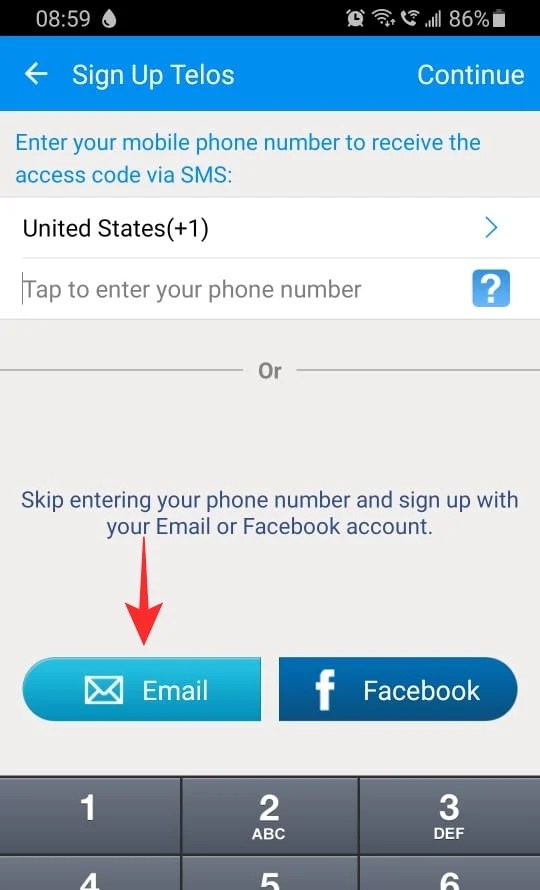 If you receive an error message " This is an invalid number for the US country. In such cases, you can try to unsubscribe and start again.
That's it, you have successfully created a WhatsApp account without using your phone number.
You can now cancel your Telos subscription and WhatsApp will work as normal. You can even make phone calls and video calls from WhatsApp even after unsubscribing. This is because WhatsApp uses the Internet to make calls, not mobile networks.
Strangely, Telos opt-out has quite a few errors. But by logging in with your email id, you can unsubscribe. from here If you use Gmail.
You can add contacts to your phone just like before and Whatsapp will read the contacts data exactly as expected. In any case, in order to send regular SMS from the number you created, you need to keep track of the membership and also grant access to contacts for the Telos app. get to know me The best apps to get a foreign number to activate Whatspp and Telgram.