4 min
This article shows you how to fit the whole picture on Instagram. If you have a full portrait (9:16) image or video or a landscape (16:9) image or video, you can fit the whole picture in your Instagram post by following this tutorial.
Instagram has a maximum aspect ratio of 4:5 on portrait posts (four pixels wide for every five pixels tall). Instagram’s restriction reduces the number of very tall images that take up a lot of vertical space in the feed. Although it’s nice that Instagram keeps users from publishing massive, obtrusive posts, the 4:5 limit makes it difficult to post a whole vertical picture or video that you shot on your phone.
Here's what your tall photos will look like on Instagram without added borders.If you want to fit your whole picture on Instagram but it is taller than the 4:5 aspect ratio, you need to modify your image before posting. Otherwise, Instagram will automatically crop your image to a maximum of 4:5. I recommend the Kapwing resizer as it allows you to add white space on either side to bring your image to the required aspect ratio. In this article, I’ll explain how to fit the whole picture on Instagram in three simple steps:
Start by opening the Kapwing’s Resizer tool on your phone or computer. Upload your image file from camera roll or import it from a URL. Kapwing supports images, videos, and GIFs, so you can use it to resize for any kind of media.
The video resizer tool in KapwingOnce your picture loads into the editor, you’ll be taken into the Kapwing Studio Editor where you'll see a preview of your image in the center of the screen.
In the Output Size section, select the 4:5 option. This allows your photo to take up maximum vertical space in the Instagram feed without getting sized down. There is a resizing option for Instagram, 1:1, but this shrinks your image to fit in the default square shape.
Resize the image to 4:5 using the button in the Output Size listOnce you have selected the size option, Kapwing adds white padding to either side of your image to make it fit the 4:5 aspect ratio. You can change this white background to any color you want so that it stands out in the Instagram feed.
Click the red Export Image button at the top of the screen. After a few moments of processing, Kapwing makes your resized 4:5 picture or video available for download. Whether you're using a desktop computer, iPhone, Android, or tablet you'll be able to instantly download the image to your photo gallery once published.
If you're not signed into a Kapwing account, sign in or sign up using your Google or Facebook account – once you've signed into a Kapwing account, the watermark in the lower right corner will be removed from your final image.
Open the Instagram app and upload your picture. You’ll notice that Instagram crops the picture to square by default, but you can click the expand arrows or pinch the image in the lower left to fit the whole picture on Instagram. When you publish it, Instagram will resize to image width to fit the screen, the white image background will blend in with Instagram’s white background, and your whole picture will appear on Instagram with no cropping.
Note: You can also choose a black background, if you and your followers use Instagram in Dark Mode.
This tutorial shows you a workaround for posting full portrait pictures and videos on Instagram. You can use Kapwing’s Resizer to post multiple images with different sizes on Instagram, add a thin white border around your media, and publish TikTok and Snap videos. I hope that it helps speed up your social media workflow and enables you to post your beautiful and fun candid moments to Instagram.
For more information on how to resize a video for Instagram, check out this video tutorial (we give you the best sizes for each type of video too!):
Check back in at the Kapwing Resources page or our YouTube channel for other content creation tips and tutorials! And remember to tag us @KapwingApp whenever you share your content on social media– we love to see what our creators are passionate about!
Related Articles:
3 min
Instagram crops all vertical posts to a 4:5, which means part of a vertical video or photo is cut off. But, if you add a white background before publishing to Instagram, you can post the full 9:16 portrait without cropping.
Instagram crops all vertical posts to a 4:5. Unless your video is under 30 seconds, it won't work on Reels. That means that it’s impossible to fit a full 9:16 video into a normal Instagram video post. If you take a screenshot, film a video clip on your phone, TikTok, or Snap, or if you want to post a Story to your feed, Instagram makes you crop part of it out unless you resize it first.
A portrait video is cropped to 4x5 aspect ratioTo post a full vertical video or image on Instagram without cropping to 4:5, add a white background to make it into a square. Then, you can post the photo or video without cropping out or changing the size. This technique works for pictures, GIFs, and videos. Here’s a step-by-step tutorial:
Open Kapwing’s resizer and upload the vertical or portrait photo you want to post. Kapwing’s resizer is free to use and online, so you don’t need to download an app. It supports images, GIFs and videos.
Kapwing's Resizer is quick and intuitive, even for beginners.Note: If you want to edit or add filters to your photos, make sure to do this before resizing. That way, the white background won’t be affected by the color changes and adjustments.
Choose the 1:1 option for Instagram (Kapwing also supports 16:9 sizing for YouTube and other formats). You can change the background color and use Kapwing’s zoom and positioning tools to zoom in, crop, or add a border.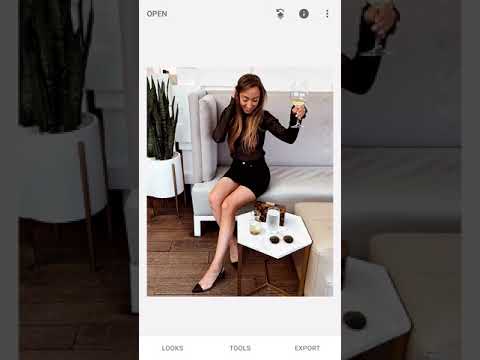 Click “Export Image” once the preview matches what you want your post to look like!
To take up more vertical space in the Instagram feed, you can also choose to resize your post to 4:5 (the “FB/Twitter Portrait” option on Kapwing).
After a few moments, your image or video will be ready for download – you can remove the Kapwing watermark for free by signing into your account. Since your photo/video now has a 1:1 aspect ratio, you can now download and publish it without cropping on Instagram.
If you're not signed into a Kapwing account, sign in or sign up using your Google or Facebook account – once you've signed into a Kapwing account, the watermark in the lower right corner will be removed from your final image.
Steps for saving the image on iPhonesI hope this article helps you share your un-cropped vertical videos and portrait photos with the world! Kapwing’s one-click editor was designed for people with no previous editing expertise, so don’t be afraid to try it out.
For more information on how to resize a video for Instagram, check out this video tutorial:
For more ideas, tutorials, and features, check back in at the Kapwing Resources page or our YouTube channel! And remember to tag us @KapwingApp whenever you share your content on social media– we love to see what our creators are passionate about!
Related Articles:
Contents:
Instagram is a social network that focuses on visual content. Apart from online stores, the lion's share of business accounts on this service belongs to bloggers and photographers. This activity involves the creation of high-quality and attractive content. But the site forces users to play by their own rules and fit into the framework. Let's talk about how to post a photo in full size on Instagram.
Users of social networks often notice that the quality of photos drops when uploaded to the Internet. Why is this happening? Is it really a conspiracy of the owners of communication services to worsen the quality of life of people? In fact, this is of course not the case. And in 2019, everything is much better in this regard - for posts, the maximum resolution is 1080 by 1920, and for stories 600 by 1067, which is often quite enough for most modern mobile devices. Modern users, moreover, can post images in any orientation, unlike the early days of the social network.
Of course, I can write that this is done in order to save space on the site's servers.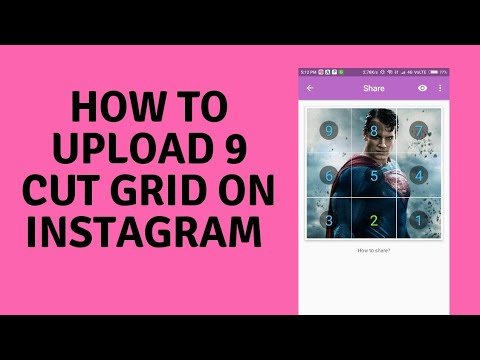 Think for yourself, if there are no restrictions, people will also upload 4k photos, which weigh quite a lot. But these are just my conjectures, there is no official information confirming this idea. Although, of course, lower quality = lighter weight = faster loading. This is the first reason. Let's move on to the second.
What is the feature of Insta? in publication format. They are displayed correctly and uniformly on devices of any year of manufacture and with any operating system. And this is achieved precisely by limiting the uploaded photos.
Formats, restrictions, resolution, yes, yes, yes. But you can somehow upload a large photo, it’s impossible that people don’t come up with some tricks for this. In fact, this section is here to warn you. There are many articles on the Internet about how to supposedly add an image without losing quality, without cropping it. They mention applications, and the same ones that promise to help you in this situation.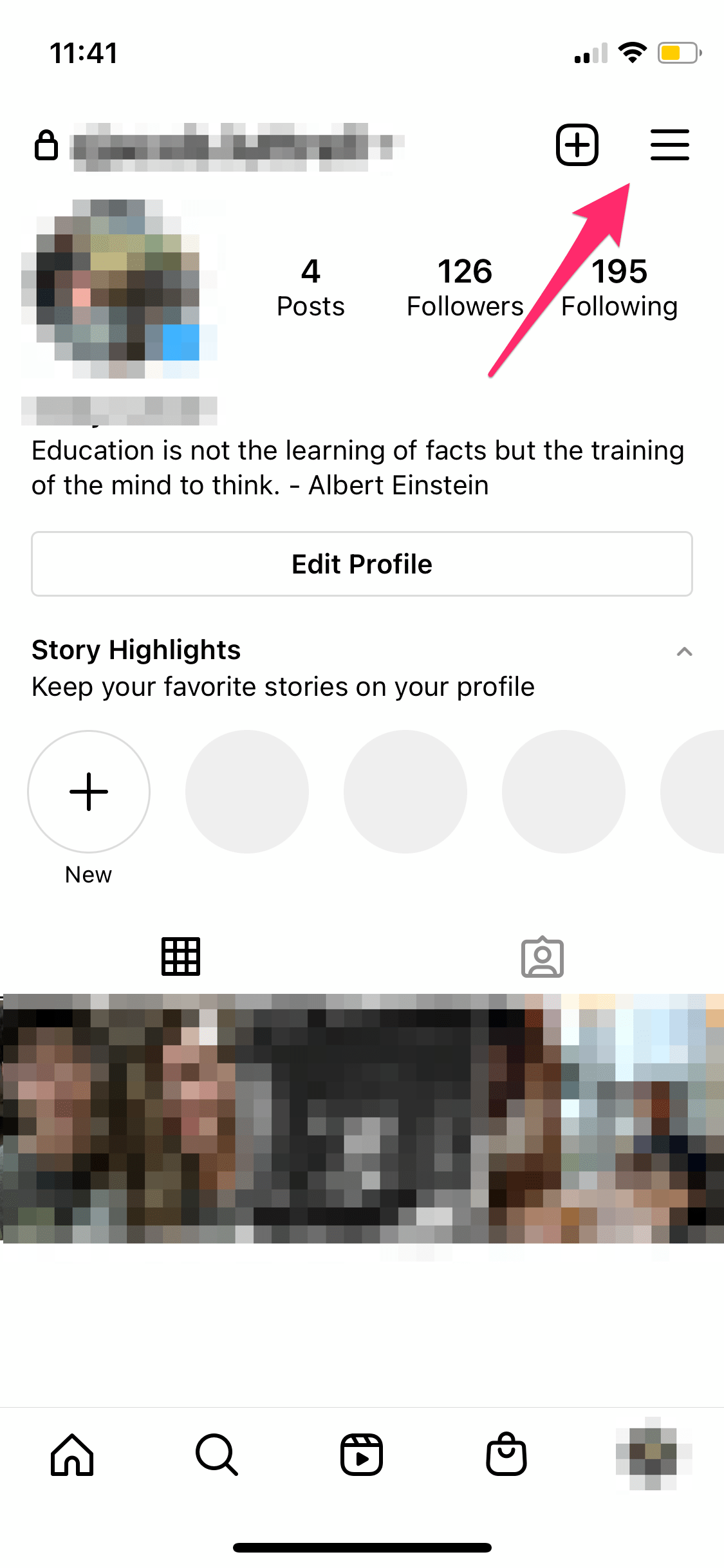 But I don’t really understand why people write about these tools over and over again, because no matter how we process the image, or make a panorama, in the end everything will rest within the framework of the social network itself.
For example, the NoCrop application, which is often recommended in such articles, only helps to fit the photo to the required extension. Of course, when uploading an image processed in this application, its quality will not drop. But since it has fallen to this, it cannot be said that the photo will be uploaded in full size. But, again, why download third-party software for this if the service does it on its own? Therefore, alas, 1080 by 1920 is our limit.
As we have already understood, it is unrealistic to fully preserve the quality. But do you need something more than FullHD? Of course, 4k technology is already being introduced into phones, but there are only a few such devices, and it will take some time before a full transition to a new generation of screens. Therefore, under “How to upload a photo without losing quality on Instagram?” I mean, first of all, maintaining the original orientation, and not adapting to the standard square format.
Go to instructions:
So, as we understand, there is no way to get around the restrictions of the social network. But what if you post the image as it is? Let's discuss a few ideas that might come in handy.
 It looks quite interesting and unusual - often people do not use horizontal lines, but whole pictures of tiles. But about them in the next paragraph.
 If you look at the situation soberly, then the answer to the question “How to post a photo in full size on Instagram?” one is nothing. There are, of course, many articles on the Internet on this topic. But most of them cite applications that only fit photos to the format of a social network. That is, Insta does not crop anything, because everything has already been compressed to a photoset.
#1. Why does Instagram cut photos?
The resolution limitation allows you not to stretch the image loading time. And it ensures the uniformity of publications, which allows them to be correctly displayed in the feed of users, regardless of what device they use.
#2. Hello! I tried to upload a small photo, it is stretched to a size of 1080 on the larger side. How to make sure that the original size of the photo does not change? For example, I have a photo of 600x700, how can I leave it the same?
Add a white border to it, adjusting the photo in this way to the standard size of Insta.
#3. How to upload a photo in the correct orientation?
Now there are no problems with orientation. You just need to click on the icon with two arrows in the lower left corner of the photo when creating a publication.
Do you still have questions? Write them in the comments! Also watch videos on the topic.
[Total: 1 Average: 5/5]
Did you like the material? Share with your friends!
Posting a photo on Instagram in full size without prior preparation is difficult. The social network diligently crops the edges of the picture, other people's and not only arms and legs, heads and parts of the landscape. Previously, it was necessary to avoid difficult situations with the help of separate software, but now several local solutions have appeared that allow you to publish entries with almost no additional processing in graphic editors.
There are many reasons why Instagram crops a photo. Saving space on servers, the desire to fully adapt content to vertical screens of mobile technology (the key goal is to put users on an equal footing when scrolling pages is the same on the iPhone, and on Samsung, Xiaomi or Huawei), maintaining proportions for non-standard shots with a strange ratio sides.
Together, these factors make us look for ways to get around the restrictions so that Instagram does not cut off the excess.
You can add a full photo in the following ways:
It has long been possible to take a picture and immediately upload it to Instagram without a white background, previously used to get into standard proportions.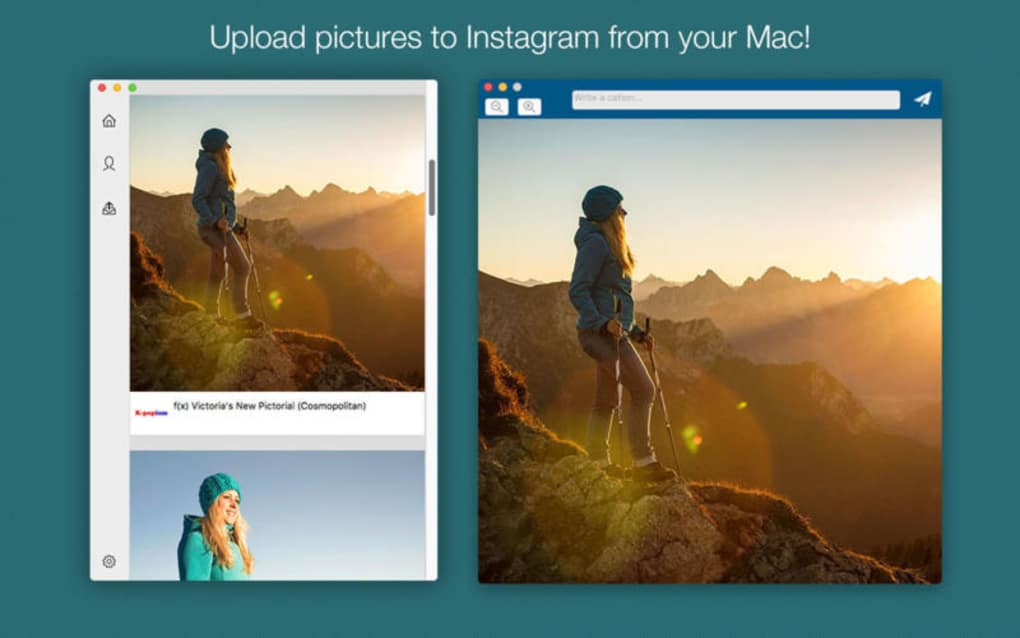 An automatically arranged transparent margin will now appear around the edges. It is better to immediately follow the proportions of 16 d9and choose a resolution of 1067x600 pixels.
A full-length photo on Instagram is now added without much experimentation. Finally, a separate button appeared in the interface that allows you to stretch out a vertical shot and add everything in full size, but with frames on the sides.
Uploading a rectangular photo to Instagram, stretched horizontally and designed as a panorama, can be done experimentally using separate software. SwieablePanorama and InSwipe help you cut the image into pieces and load the pieces into a grid of 3 or 6 frames that are easy to scroll from left to right. The combination looks unusual and even advantageous against the background of the usual publications in the news feed.
Adjusting the original image to the proportions of a social network is a task, although annoying, not at all difficult - it is easy to find a bunch of software on the network that simplifies the task at times:
even the graphic editors pre-installed in Windows or MacOS operating systems will help to achieve a full display of the image on the pages of the social network (Microsoft's Paint allows you to resize in pixels or percentages). If Photoshop or Lightroom was at hand, then there will be no problems either.
It is important to remember only about proportions - 16 to 9, and about a resolution of no more than 1067x600 pixels for posts that fall into the feed, and up to 1920x1080 for Stories.
An alternative to Paint, Photoshop and Lightroom is a tried and true tool that has been on the web for a long time - Canva. To upload a photo so that Instagram does not cut anything superfluous (and at the same time change some details, such as captions, filters, or even frames), Canva helps with the help of special templates pre-selected for different social networks.
In the realities of Instagram there are special sets for publications, Stories, covers for the eternal "Stories", avatars and even grids.
As soon as you enter a suitable option in the search, the system will immediately select the missing details and help you move on to experiments, and also tell you what things you should not forget about, and what else is easy to impress the public with. Special recommendations help you get inspired in minutes.
A whole collection of graphic editors - NoCrop, Square, Whitagram - can automatically adjust the proportions to the size of the Instagram news feed. The listed assistants adapt the content to both classic publications and Stories, and at the same time they will help with a superficial change in individual details. They will add text and effects, non-standard geometric shapes and visual elements that can emphasize the theme of the picture.
Posting a photo on the Instagram social network without cropping details around the edges will help both special software and manual adjustment of the resolution of photos or images downloaded from the network.