Disclosure: This content is reader-supported, which means if you click on some of our links that we may earn a commission.
WhatsApp wasn’t just designed for messaging your friends and family. It turns out it’s also a great conference calling tool, too. We dive deeper into everything you need to know to get started below.
Hosting conference calls is a great way to get your team on the same page no matter where in the world they are. Though the lines of what you officially call a conference call have been a bit blurred as the workplace changes and there are more communication methods, one thing is still clear: conference calls are a crucial part of communicating with your team members. And they can also be valuable for client interactions.
Picture this: Your team needs to meet soon to iron out a few wrinkles on your latest project. It’s one of your most significant projects yet, and you want a convenient way to call all of your team members at once. But some of them are either on the go or working from home at the time of the call.
Thankfully, they’ve each downloaded WhatsApp on their phone, so they’ll be ready to jump on a call whenever and wherever. Best of all, it doesn’t cost anything to get everyone connected and interacting. With WhatsApp, that can be your reality once you’ve learned how to use it for conference calls.
We’ve used WhatsApp to run group conference calls when we only need to meet with eight people. It’s convenient and can be a great option if you have a strong internet connection. It also helps that WhatsApp works on any type of smartphone since the hardware each of our team members uses always differs.
Here are some quick tips to try on for size if you’re using WhatsApp as your conference calling tool. Keep in mind that you can only use it for conference calls that include eight people or less. The upside is that it’s free to use and easy to set up.
To make a conference call through WhatsApp successfully, you’ll want to ensure everyone on your team has downloaded and configured the app first. That way, they aren’t fumbling around when it’s time to conduct the call.
Downloading the app is as easy as finding it online through a quick Google search for using it on a computer. For smartphones and tablets, simply go to your phone’s app store and search “WhatsApp,” then download the free app to your device. Or you can visit whatsapp.com/download to download the app for Android, iPhone, or Windows.
It’s nice to know that WhatsApp isn’t only for use on smartphones. You can also have easy access to it from your desktop or laptop whenever you need to use it to make your calls.
There are several ways to add or import your phone’s contacts to WhatsApp. In many cases, when you first download the app, it will ask for your permission to sync your contacts with WhatsApp automatically.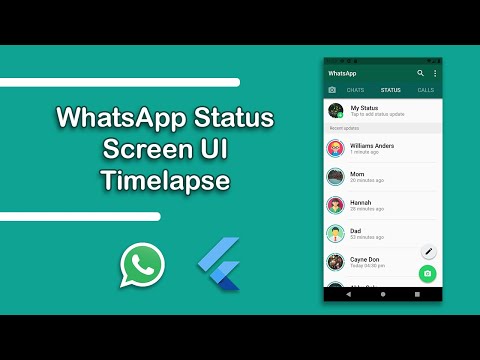 If you don’t want to do that (or forgot to), here are the steps to add contacts to WhatsApp on Androids and iPhones.
On an Android device, follow these steps to add one contact at a time:
To sync all Android contacts to WhatsApp:
On an iPhone, follow these steps to add one contact at a time:

To sync all iPhone contacts to WhatsApp:
Once you’ve configured your WhatsApp settings and uploaded your contacts, you can start testing its group video and voice features.
Here’s how to conduct a voice conference call through WhatsApp:
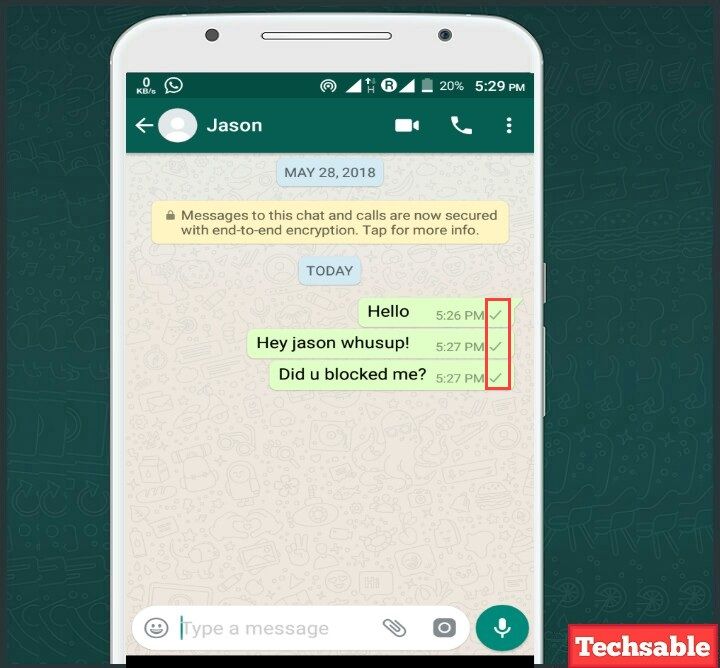
It’s important to remember that if you decide to host a voice call, you won’t be able to switch to a video call if needed. To do that, you’ll have to hang up the call and then start a new group video call.
Knowing small things like these, especially if you plan on making WhatsApp the primary way your team communicates, can help save you group call management headaches in the long run. It can also help you run group calls more efficiently.
Here’s how to conduct a video conference call through WhatsApp’s chat tab:

The main difference between conducting a video conference and a voice conference call is the button you push to start the call.
Keep in mind that there’s more than one way to start a group video call. You can do it through the Calls tab or an already existing group chat. Here are a few tips to ensure your video conference call go as smoothly as possible:

Once you’ve gotten familiar with WhatsApp and its calling features, it’s time to schedule your next conference call. The easiest way to do this is by sending a group message with the conference call time and date.
However, you can also send a quick email if that works better for you. The beauty of conference calls with WhatsApp is that you don’t have to deal with distributing long login links, dial-in numbers, or access codes.
The quality of your conference calls hangs on two main factors: How well you prepare beforehand and the quality of your conference calling tools. Here are some tips and tricks to help you step up your conference calling game long-term, whether you use WhatsApp for your calls or not.
Hands down, one of the best ways to successfully manage your conference calls, especially the bigger they get, is to approach them with a game plan.
This means you want to have a plan or schedule for every conference call you host. Here are a few bullet points that can help point you in the right direction. Try these on for size to see what helps you run better calls.

Though it might sound counterintuitive at first, presetting a time limit for your conference call can actually help you achieve more during the call. With a clear ending in mind, you’ll be able to set the pace for a conference call that’s productive and moves your team forward.
Setting a time limit and letting everyone that’s part of the conference call know beforehand can also help them plan their day. Knowing how much time they’ll need to set aside for your conference call can help them be more present and better prepared.
This is true regardless of whether you’re working with a video, phone, or hybrid conference call. It’s also helpful to know if the software you’re using has a conference or group call limit. That way, you aren’t caught by surprise mid-meeting.
WhatsApp is a reliable tool for communicating with a small group of people. However, it becomes pretty apparent pretty quickly that WhatsApp wasn’t primarily designed for conference calls.
But that isn’t an issue when you look through your other options. There are plenty of more robust conference calling options specifically designed to help you host top-notch conference calls regardless of how long your calls are or the size of your team.
We’ve put together a guide that dives into the best conference calling services available. However, here’s a quick time-saving recap of the best options worth considering:
Here’s a quick look at our top three favorites:
RingCentral is a leader in all things business communications. So it’s no wonder it also tends to dominate in the conference call space, too. Unlike WhatsApp, RingCentral offers calling tools designed to cater to hosting and managing conference calls. It can also be affordable if you go with one of its starter plans.
Zoom is great if you’re leaning toward making video conference calls more than anything else. It’s easy to use, accessible to just about anyone with an internet connection, and comes with lots of useful features, even on its free plan. All in all, Zoom is a great video conferencing option for businesses both big and small.
FreeConferenceCall is a possible option for you if you’re looking for a free conference call service that takes you beyond what an app like WhatsApp can do without having to pay any ongoing fees. FreeConferenceCall is used by all kinds of businesses of all sizes, and it’s a viable free option worth considering.
WhatsApp is a great conference calling option you probably hadn’t thought of before. Now that you know how useful it can be in helping you bring your team together, you can easily make it part of your workflow going forward.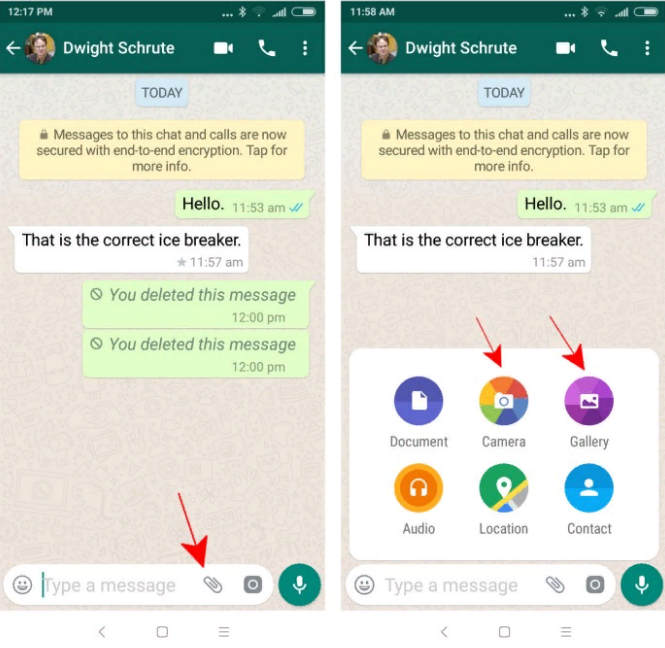 Still, it’s essential to keep in mind that it does come with an eight-person limit whether you’re making a video call or group voice call.
Now, the fun doesn’t stop there. We eggsperts pride ourselves in bringing you some of the most in-depth guides on everything business. After you’ve read and bookmarked this guide, below are a couple more we think you’ll find useful.
Are you looking to learn more about product management? We’ve compiled a list of the best courses you can take to learn the ins and outs of managing every aspect of your product.
And finally, when you’re managing payroll for your growing business, you need all the help you can get. That’s why we created a guide to the best payroll software you can onboard to help automate the process and make sure your company is compliant with payroll regulations. We have a favorite, and we aren’t afraid to tell you all about it. Make sure you check out the guide to learn everything you need to know to get started.
 co.uk
co.uk Login Register
8°C
Link copied
Invalid email
We use your sign-up to provide content in ways you've consented to and to improve our understanding of you. This may include adverts from us and 3rd parties based on our understanding. You can unsubscribe at any time. More info
WhatsApp the world’s most popular messaging app now supports group and video calls online.
The Facebook-owned app lets you connect to multiple callers worldwide for free via an internet connection.
Users can call several friends on either WiFi or on your data connection, or you can make a video call using Wi-Fi.
This feature is available on both Android and iOS and express.co.uk explains how to do it below.
Users can now make video calls to your contacts using your WiFi or data on WhatsApp.
To do this, open up the WhatsApp and click on a conversation.
Users will see a video camera icon at the top right of the conversation window.
JUST IN: Google reveals if you are more likely to be targeted by hackers
WhatsApp conference call: How to make a group call and video call on WhatsApp EXPLAINED (Image: GETTY)
Tap on that and you will automatically connect to a video call with that contact.
You can adjust volume, switch from front to back camera and mute the video during the call.
Again, this is a similar process to video calling.
WhatsApp lets you connect to multiple callers worldwide for free. (Image: GETTY)
To start a group call, fire up a conversation on your WhatsApp and click the phone icon in the top right of the screen.
Once your contact has picked up the phone, you can then click on the + icon on the screen and select multiple contacts to connect to a group call.
Click on who you want to add and wait for them to accept the call.
You can also do this with group video calls.
WhatsApp: Map shows countries where WhatsApp is blocked (Image: Express)
You can now make video calls to your contacts using your WiFi or data on WhatsApp. (Image: GETTY)
To do this, start a video call.
Once your contact has accepted the call, click on the + icon again and add another contact.
The screen will then be split with the separate video feeds.
Video calling can drain your data package, so if you are tight on data, make sure you are connected to a WiFi connection to get the full benefit of conference video calls.
Tuesday, 6th December 2022
See today's front and back pages, download the newspaper, order back issues and use the historic Daily Express newspaper archive.
IPSO Regulated Copyright ©2022 Express Newspapers. "Daily Express" is a registered trademark. All rights reserved.
Continuation of the story from
Media news2
Stories
Stories
Anna Polyakova
Editor (RB)
Anna Polyakova
WhatsApp allows you to hold small video conferences for up to four people. This service compares favorably with FaceTime by its availability on both iOS and Android, and from Zoom by the presence of end-to-end encryption. How to set up a group call on WhatsApp.
Anna Polyakova
 To add a person to a call, click on their name.
 WhatsApp is now releasing an update that will allow you to initiate calls directly from group chats of up to four people. Right in the conversation, buttons will appear to start a video or audio call without intermediate steps. WhatsApp says that this feature is not yet available to all users.
Source.
Photo: The Verge
Found a typo? Select the text and press Ctrl + Enter
December 06, 2022
devrel hack
December 07, 2022
The first medical accelerator of Samara State Medical University
December 12, 2022
X-MAS HACK 2022
All possibilities
News
Starting a business
News
Stories
News
Android mobile phones have many applications that users have been using for a long time. Through it you can make voice and video calls at no additional cost. by simply using mobile data speed or another alternative, a Wi-Fi connection.
Article subject:
What are Wi-Fi calls and what are they for?
Fixed telephony has been offering three-way calling for a long time, and Android phones also allow it, all without the need for an app. Making a three-way call from apps is a task that is fairly easy today. , everything is always in a few steps, add in two contacts.
Index
Call for three - this is an opportunity to talk to two people, except for us who are present at the call. , all at the same time and without having to hang up. While it is possible to do this without apps, sometimes not all carriers offer this option.
Group calls (more than two) serve, for example, to communicate more flexibly about all this with two important people, whether from family, friends or a work group. For this it is important to know which applications support it and how to do it.
Subscribe to our Youtube channel
The procedure for calling three people on different devices is very similar. , be it Xiaomi, Motorola or another brand. Sometimes it may not be necessary to use a third party application, but it is important to note that this is important if the option is not shown.
Article subject:
How to make a WhatsApp video call safely and quickly
Three-way call process on Android phone It looks like this:
 what the terminal will show you
One of the best applications for calling for three is Skype. , a tool with which you can call two contacts separately from yourself. It is one of the easiest to use, the voice quality is very good and has improved over time.
It is used by many, including many companies, for direct contact with employees and their customers, it is ideal for making a call and accepting an invitation. It's best to be able to add two contacts or even multiple (supports up to 50), multi-user support makes it the best.
To make a three-way Skype call, follow these steps in the app:

Skype
Developer: Skype
Price: It's free
One of the important applications when making a three-way call A quick and easy way is WhatsApp, a tool acquired by Facebook in 2014. The voice quality is decent, it takes a few seconds to connect, and it's recommended to use a Wi-Fi connection for a fast connection without interference.
Whatsapp, just like Skype, is one that people use due to its ease of creation and free, it will only cost mobile data or Wi-Fi. To do this, you need to add the users saved in the agenda. , choosing two specific people.
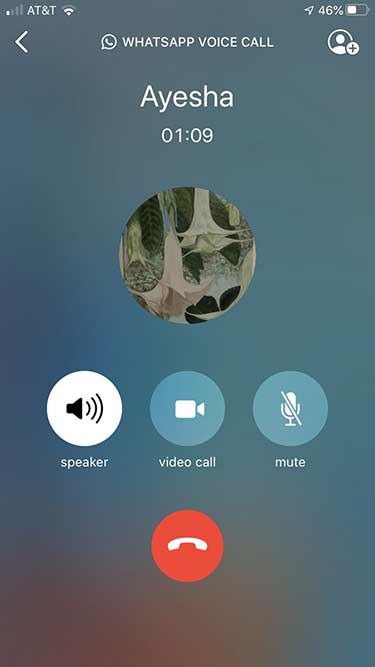
To make a three-way WhatsApp call, do the following:
Whatsapp Messenger
Developer: WhatsApp LLC
Price: It's free
Making a voice call in Telegram is possible thanks to new voice chats. are combined into groups, for this you need to create a group. If you have already created one, calling three in the app is one of the fastest tasks, just launch one and add two contacts.
Article subject:
How to make video calls from Telegram
This is a fast feature, it uses very little data, and the sound quality is one of the best, in addition, the application is increasingly used, and for two other people it may be normal./cdn.vox-cdn.com/uploads/chorus_asset/file/19886581/Image_from_iOS__25_.png) Telegram is like a swiss army knife offering more features in apps like WhatsApp, Signal and other messaging apps.
Telegram is like a swiss army knife offering more features in apps like WhatsApp, Signal and other messaging apps.
To call three in Telegram, you need to do the following:
Telegram
Developer: Telegram FZ-OOO
Price: It's free
This was one of the apps that rose like foam in a few months due to the new policy imposed by WhatsApp on its users. The app is gaining momentum, ranking second in downloads, all behind Telegram, which has grown by over 100 million new users.
Signal offers group voice and video calls, both of which are interesting if we want to use it at any time for an intentional conversation. To use voice voice means you don't use the camera in the app, it's a platform option so you'll have to deactivate it after launch.
The Signal app is completely free, so it will use data or Wi-Fi for calls, it is advisable to use the latter for greater stability. If you are walking down the street and you need it at this very moment, you will not have another than choose a standard mobile data connection.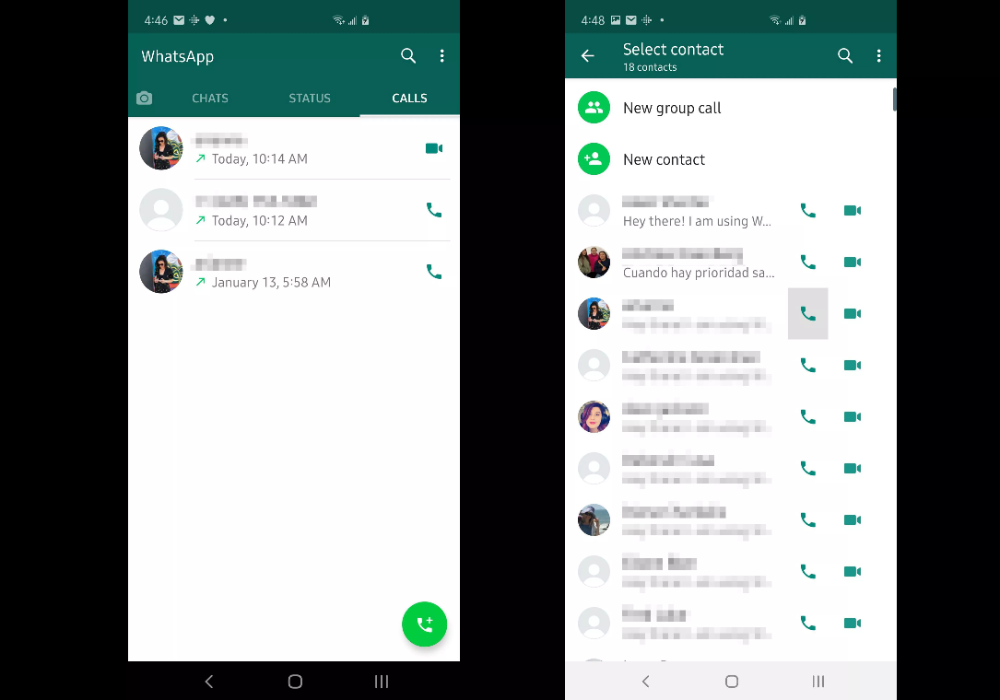
To make a three-way call on Signal, you need to follow these steps:
Signal - private messages
Developer: Signal Fund
Price: It's free
Facebook Messenger is another application that offers group voice calls. is a tool that is integrated with Facebook and is also a separate download. It's best to be able to download it from the Play Store since we have everything at hand to call from multiple people.
The application, like others, allows you to create a voice chat with several people, the limit is higher than other applications, but does not exceed Telegram voice chat.