Page Contents
You are surfing on the internet and suddenly face an interesting picture or text and desire to share it with your friends or keep it for yourself. So you easily copy, paste, and share it with other people. However, it seems that there is not such an option on Instagram. That is, many people ask about the clipboard on Instagram. Actually, the Instagram algorithm is so sensitive about copy matters, and if you share copied content frequently, it may action block you.
Instagram is a wonderful platform! It lets you share content and grow Instagram followers organically in the whole world borderless, without considering their nationality or culture. This has made it one of the topmost favorite social media and an excellent place for making money from your photos. However, it limits many actions of the users, but we know how to take a shortcut.
Here, I will tell you how to find the clipboard on Instagram and then reveal a hack for you. So, stay tuned!
Many people searching for a clipboard on Instagram wish to copy Instagram comments, captions, and DMs to expand their posts and generate followers.
A clipboard is a tool or temporary memory that keeps your copied items to paste somewhere else. Using a clipboard, you can share a photo or text without downloading and uploading it. Therefore, regardless of the type of app or website, you only need to select the content and R-click or tap on “Copy,” then tap on somewhere else and paste it. Also, with the shortcuts of Ctrl+C (copy) and Ctrl+V(paste), you can easily copy and paste contents from your PC. However, this is not possible on Instagram, and if you want to copy something, you need to download and then post it. That is many people think there is no clipboard on Instagram, but it has.
Also Read: Instagram Stock Photos: How to Directly Publish Them?
If you are looking for an Instagram clipboard; I must tell you that there are two spots that you can find it:
Now, to check and see your clipboard on Instagram and copy-paste the content as your feed, let’s try both ways.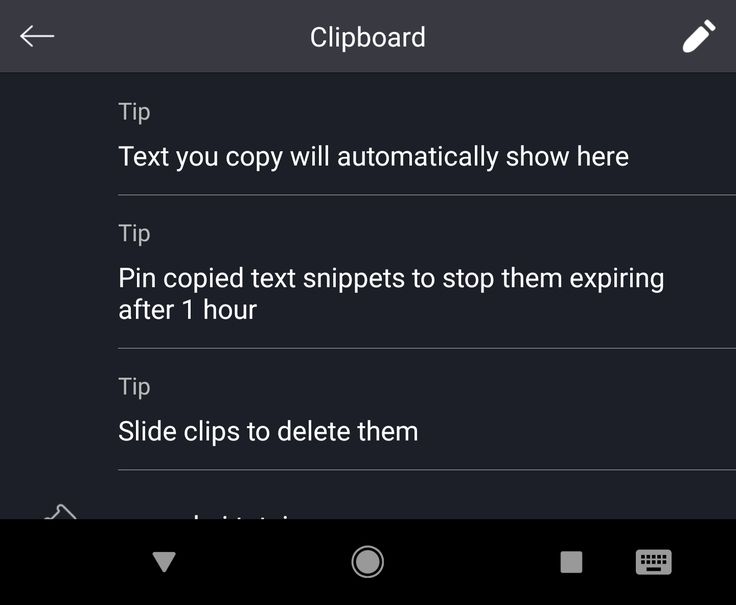
If you consider how to copy-paste on Instagram on iPhone or Android, take a look at both methods I have prepared for you. Remember that the clipboard on Instagram on Android and iPhone are the same.
Clipboard on InstagramLet’s check what we can do if we want to find the Instagram clipboard and paste a photo or text in our posts.

This is the way you can discover the secret clipboard on Instagram.
Now, to reach your clipboard on the Instagram story sharing page, go through the following instruction:
The above is how you can see your clipboard on Instagram. Though copy-pasting takes too much time and for an Instagram marketer, time is money!
I will show you how to download and save the photos and even captions and DMs on Instagram quickly.
So, stay with me to reveal a free hack for you.
Many people look for a clipboard on Instagram to copy-paste content. However, using the best repost app ever, you can directly repost any content you like.
AiSchedul is an all-in-one Instagram management service that lets you schedule, repost and download Instagram reels.
Luckily, you can download this app on your mobile and desktop, so you ditch your smartphone’s tiny screen and run your account from your PC.
The only action you need to take is to:
1. Sign up for free and login to your account.
2. Click or tap on “Manage Account.”
3. Select “POSTS & SCHEDULING”
AiSchedul4. Then, click on the “Repost” button.
5. You can choose if you want to repost a “Feed” or “Story.”
6. For sharing stories you can insert the account’s username.
Repost StoryIf you want to repost a feed, insert the hashtag, location, or username of the account you desire to share its content.
6. You will see all the stories or feeds prioritized by date. So pick the one you want to share.
7. As you see in the picture, it’ll transfer all the details of the original post. You can edit them as you wish.
8. Now, select the “Post Now” or “Post in future” and schedule the time.
AiSchedul Repost ToolActually, this is the best way you can repost a video on Instagram story.
By the way, you can add up to 80 Instagram accounts to your dashboard!
It is great to be able to copy-paste and use Clipboard on Instagram. However, marketers do not have much time to waste. That is, I suggest you use a reliable Instagram management tool like AiSchedul that lets you repost all types of content you crave to share.
Instagram is a platform where you share stories and images. The more amazing posts you share, the more views you can generate. Sometimes, you don't have any content ready, but you can make the most of other fantastic internet content to keep up with your post consistency. For this purpose, you can copy text or image from another platform and paste them via Clipboard on Instagram.
It's a board shaped place on your Instagram application. This board will save all those media or text files that you have copied from somewhere else. The clipboard is a database of your recently copied files from other internet resources like Facebook, Twitter, and others.
How to Use Clipboard on Instagram
Using a clipboard on Instagram is quite simple. You need to click and hold the text area for one second, and a clipboard will appear. It will showcase your available copied files and images. You can pick either an image or text from these available file databases when planning to post a story on Instagram. However, when you create a new post, you can only paste a copied text from somewhere else; you can't paste an image in your Instagram post.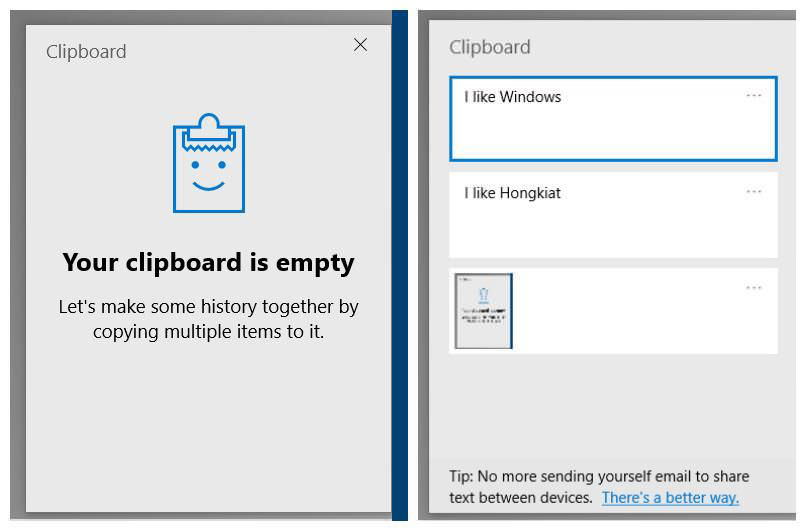
Do you want to get access to a clipboard? It's possible to have this access through two methods.
You can access an Instagram clipboard when you make a new post. Here is what you need to do.
How to Find a Clipboard on Instagram? Another way to access a clipboard is to go to the Story sharing page. This option lets you copy and paste both text and media files. Here is what you need to do.
When you want to paste copied material on the iPhone, you will follow the methods mentioned above.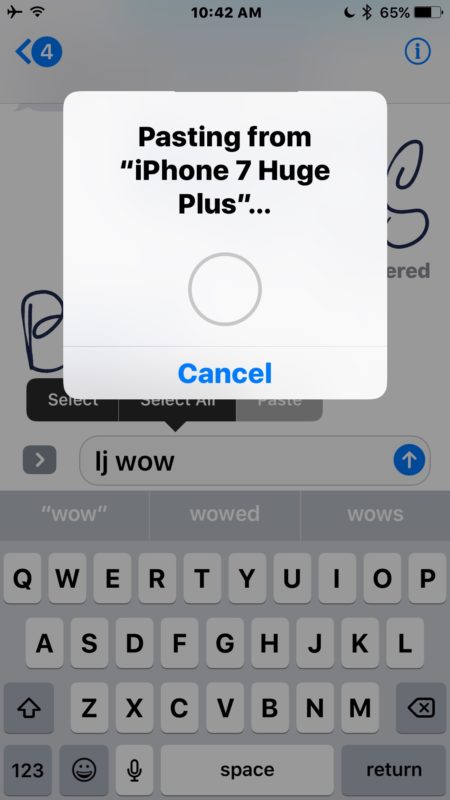 Both will let you access the Clipboard on the iPhone. For accessing Clipboard on an iPhone, you need to click and hold a text field for a second, and you can see a copied file that you can paste into the text box.
You should know that, unlike android phones where you can copy any text or media files, you won't save so many copy files on your iPhone. You can access only one recent reproduced material from any platform. It's a bit of volatile memory in iPhone as the minute you copy another text from somewhere, it would overwrite existing copied content.
Both will let you access the Clipboard on the iPhone. For accessing Clipboard on an iPhone, you need to click and hold a text field for a second, and you can see a copied file that you can paste into the text box.
You should know that, unlike android phones where you can copy any text or media files, you won't save so many copy files on your iPhone. You can access only one recent reproduced material from any platform. It's a bit of volatile memory in iPhone as the minute you copy another text from somewhere, it would overwrite existing copied content.
You can access clipboards on Instagram when you either create a post or a new story. There is no direct menu option to get access to all the files that you have copied. Story and post sharing pages are two places where you can easily find clipboards on Instagram.
If you want to find a clipboard on your device to copy/paste some material, it will only be accessible through the story or post sharing page.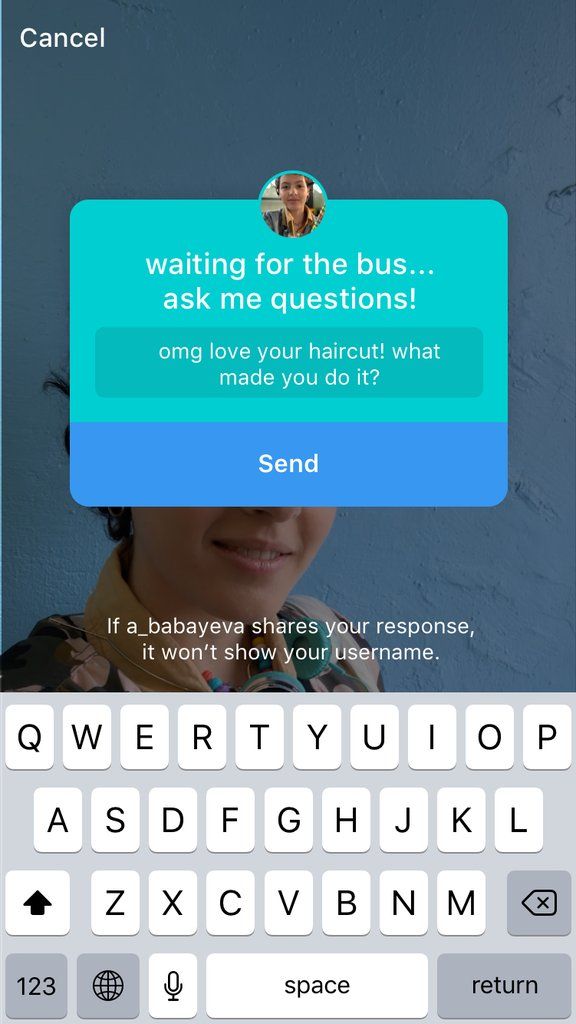 There is no physical location where you can check all the items you have copied so far. I hope you have got a complete grasp of the concept of what is Clipboard on Instagram. Follow this guide and find Clipboard on your smartphone and start sharing some remarkable stories and images on your Instagram.
And, if you are interested to buy Instagram followers UK you can visit Followers Cart UK.
There is no physical location where you can check all the items you have copied so far. I hope you have got a complete grasp of the concept of what is Clipboard on Instagram. Follow this guide and find Clipboard on your smartphone and start sharing some remarkable stories and images on your Instagram.
And, if you are interested to buy Instagram followers UK you can visit Followers Cart UK.
As an Amazon Associate I earn from qualifying purchases.
Useful
05 Jun
When visiting the social network Instagram, users often have difficulty with the simplest things. There is no option to save your page address here. Therefore, you need to find all sorts of workarounds. And where the link on Instagram to someone else's profile is saved - also not everyone can find it on their own.
You need to copy the link to the Instagram account in order to:
These things can be done through specialized services. For example, such as gramotool.ru. However, you can also send a previously saved link manually by adding the address of the desired page to the clipboard.
After that, the link can be sent anywhere. To do the same from a computer, go to the user's page and save the text from the address bar to the clipboard.
To refer to someone else's account in private messages, you need to go to Direct. Then you should write the username in the field for entering the message, starting with the “@” symbol. To go to the desired page, the recipient of your message will only need to tap on the generated hyperlink.
How to copy a link on Instagram to your own account from a mobile phone:
 instagram.com/ link right after the slash;
 Save a link to your own profile via your computer in the same way. The main difference from the previous instruction is that you can take the link directly from the address bar. How to copy a link to your Instagram profile from your phone:
You can also log in from another account or ask a friend to copy the address of your page in the manner described above, and then send you the result in private messages.
Instagram makes it easy to get a link for an image, post or story. How to copy a link to a post on Instagram for Android:

Alternatively, use the share button. After clicking on it, a series of addresses for sending a post will appear. Among them will be a private messaging service, Instagram Direct.
To save text from comments or posts on the desktop version of Instagram, you can:
How to do the same through a browser on an iPhone or other mobile phone:
How to do the same on iPhone and Android using Webstagram:
When copying, the service immediately removes the transfer to another line. Therefore, before publishing the text saved to yourself, you need to break it into paragraphs. An empty space can be filled with funny or beautifully arranged emoticons.
March 23, 2017
Author: Maksim
Smartphones and tablets have become full-fledged working tools - users exchange files, view documentation on gadget screens, send emails.
In this case, it often becomes necessary to copy text elements from one file to another. In Android phones and other devices, the clipboard is responsible for this function. Where is it located and how to clean it
Contents
 2 Clipper
 Clipboard - part of the RAM of a smartphone or tablet where blocks of copied text information are stored. Thanks to him, the user can cut out parts of the text from messages, documents or the search bar of the browser, and paste them into other documents, emails or notes. At the same time, there is no physical buffer file in the Android system.
The clipboard helps, if necessary, to quickly send contact details, hard-to-remember details with a large number of numbers and other information.
To copy a piece of text to the clipboard, press and hold your finger on any word. After a second, the system will highlight the word with a blue or greenish tint, and two delimiters will appear on the borders. Then follow the instructions:
In some applications (for example, the mail client from Mail.Ru), when copying text, instead of a pop-up menu with the "Copy" and "Paste" items, a panel with the corresponding icons opens at the top of the screen.
Android versions 4.4 and above allow you to save more than one text block to the buffer, with the possibility of later viewing. To view and copy elements from the clipboard, just hold down the text input field with your finger and select the "Clipboard" item.
Items stored on the clipboard are loading the RAM of the smartphone or tablet. The device needs to be cleaned periodically. There are three ways to free buffer space.
If direct access to the clipboard is available on your device, follow the instructions:
If you can't find the shopping cart button, hold down one of the buffer text blocks. After a second, red crosses will appear on each element. To clear the buffer, click on the crosses next to the elements you want to delete.
The method requires root access to enter the root folder of the Android system. The file responsible for the RAM is stored there. To clear clipboard:
Clear application data and stop it
Download and install the Kingo Android Root app from the Play Store to get root rights. Rooting a device with this program requires a connection to a PC and takes 5-7 minutes.
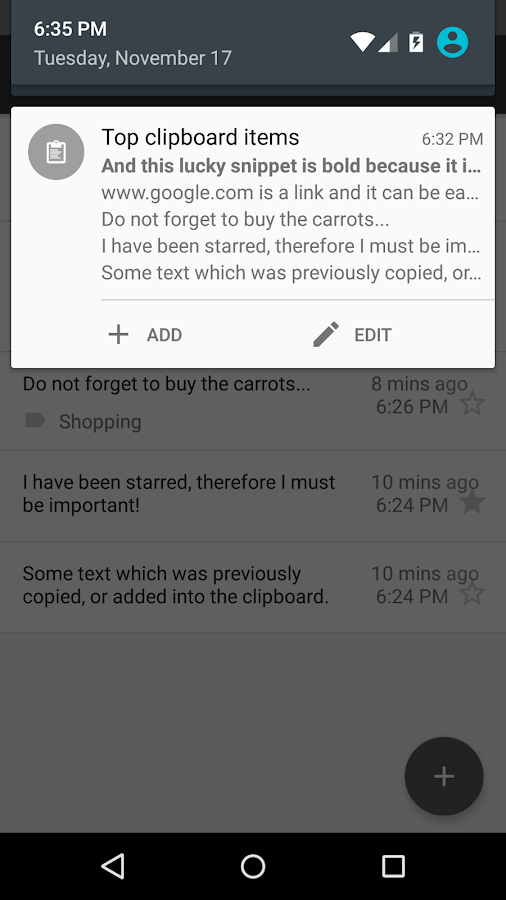
For devices that do not have direct clipboard access, use the free Clipper app. After installation, the application icon is displayed in the notification shade for quick access to the copied items. The free version of the program allows you to store up to 20 text fragments, while frequently used blocks can be pinned above the rest. Clipboard components can be grouped in tabs - for example, links to social media profiles, details, etc.
To delete all text blocks from the buffer, click on the trash can icon at the top right of the screen, then confirm the action. To delete blocks one by one, hold down one of the entries with your finger, then check off the other unnecessary ones and click on the trash icon.
If the clipboard doesn't work and the Copy/Paste buttons don't appear, clear the RAM with root permissions as described above.
If the first method does not help, do a full reset of your smartphone, the so-called hard reset. To do this, open the device's settings menu, select "Backup and reset", and then the item "Erase data" or "Reset settings".

.jpg?width=626&name=3%20(1).jpg)