Alexandra | May 11, 2021
Splitting a photo can make your Instagram feed look more unique, very quickly.
And it doesn’t have to be complicated. It can be as simple as splitting a photo in 2 pieces. Your grid will look more aesthetic instantly.
You can use Preview app to split images. It’s super easy and fast to do. And you have a lot of different grid options.
I’m going to show you:
Let’s start!
Preview has an Image Splitter tool within the app.
Here is how to split a photo with Preview:
Your picture will be split into pieces.
Each individual post will appear into your Preview grid.
Click here to use it
You can auto-post to Instagram, or you can post manually.
To post manually:
Done.
Tip: Post individual images in the right order. Start posting from the bottom right corner of your screen and move your way left, and up.
Here are 3 useful features in Preview.
If your posts are not in the right order, you can move them.
You have 2 options:
 Prepare the captions for your posts.
Want to write a caption?
Press on “Find Captions” if you want caption ideas.
Press on “Find Hashtags” to find hashtags.
Caption tip: Want your followers to know that the post is part of a bigger picture? Annotate the image. For example, if you split your big picture into 3 images, you can write “1/3” or “1 out of 3” in the caption of the first image you share.
Want to post later?
Press on “Schedule Post”.
You can choose to:
Now that you know how to use the Instagram Grid Splitter, let’s look at creative Instagram grid ideas.
Let’s look at 5 grid ideas.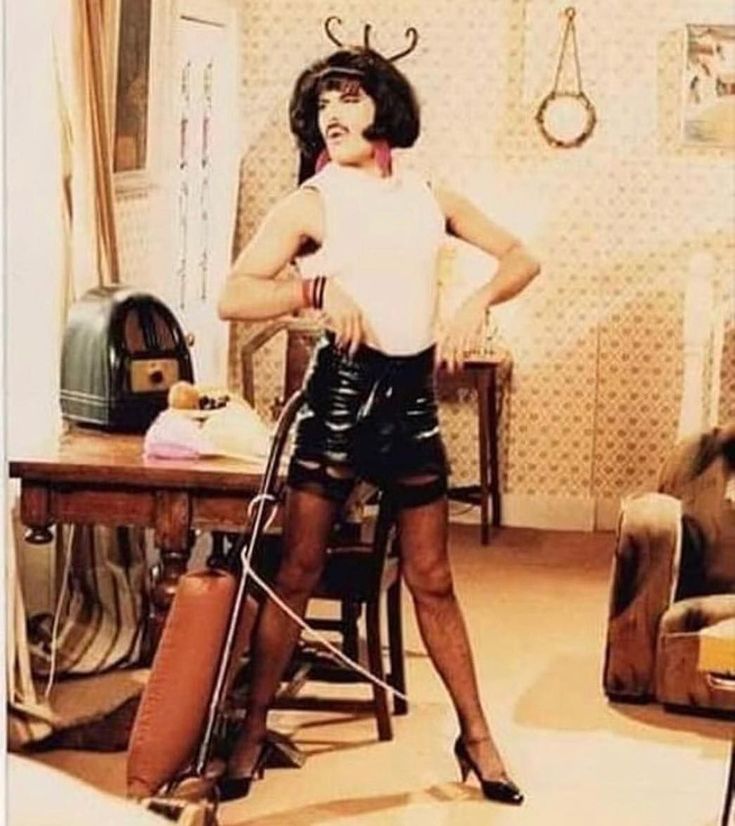
Split a photo in 9 parts, to create a square.
Ideal to create a suspense, photo reveal, product reveal, new campaign launch, or the launch a new Instagram page.
Want to split photos vertically? You can split the photo in 2 or 3 posts.
Recommended for a simple and unique feed.
Split a photo into 3 pictures in a row (horizontal). You can also choose to split in 2 pictures in a row.
Mix different grids to create your own unique feed. For example, I used 3 different grid splits for the feed below: “Square“, “1 column” and “2 Columns“
And now, my personal favorite way to use the image splitter tool: to create a Puzzle Feed.
Use the last two grid options in Preview to split your image into 12 or 15 smaller posts.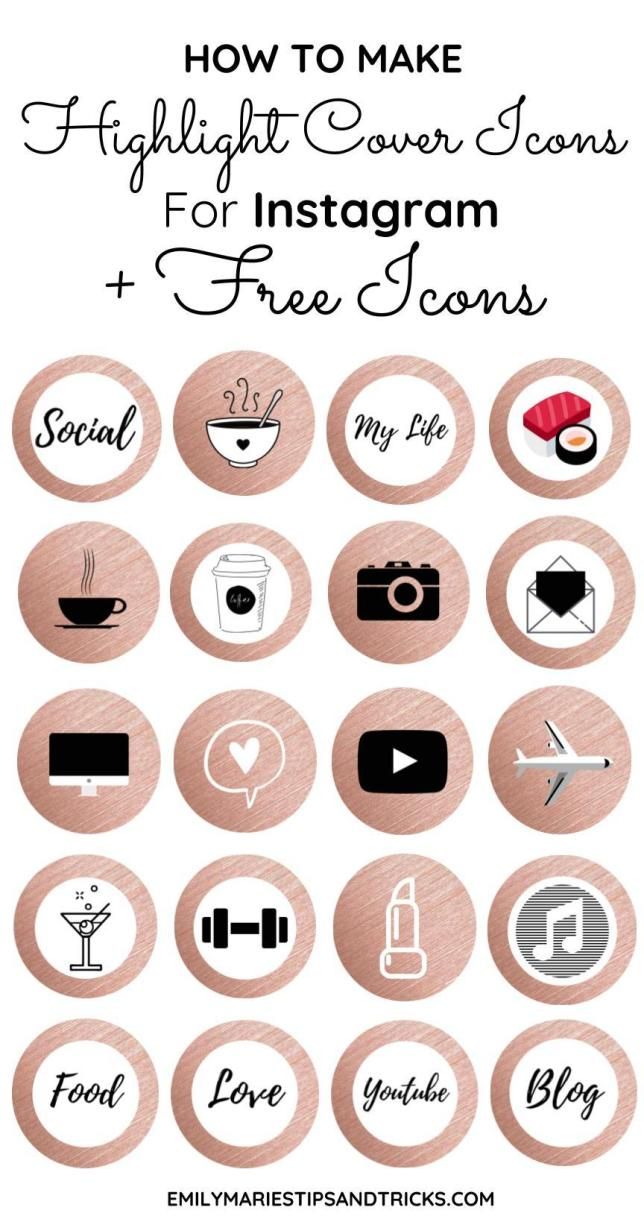
Why 12 or 15 posts? Because it’s the perfect number of posts to create a full screen seamless feed effect.
In seconds, Preview will split your images into smaller posts.
Here are Puzzle Feed ideas with 5 rows:
Tip: Make your big image the perfect size. This way each individual image will be high quality.
There are more image splitting options in Preview.
So have fun splitting your photos to create your own unique feed!
Let me know if you have any questions about this feature!
More tips:
Click here to use it
PhotoSplit is the most popular app to split your photos to the grid and post them directly to Instagram.
PhotoSplit lets you slice any photo into a 1x2, 1x3, 2x3, 3x3 & 4x3 grid while keeping it in high resolution. It then quickly lets you post the split images to Instagram to show it as one big photo on your profile. Elevate your Instagram game by giving your profile a professional look.
In PhotoSplit, you can zoom in, move, or even rotate your photo to instantly see how it will look like on your Instagram profile.
Why PhotoSplit?
• Choose from a variety of grid options: 1x2, 1x3, 2x3, 3x3 & 4x3
• Move, Zoom or Rotate to get the perfect fit.
• Keeps images in high resolution. Does not reduce quality after splitting. Will not blur the image.
• Share images directly to Instagram without having to save first.
• If you like, save split images to photo library and post from within the Instagram app.
• Send any photo to PhotoSplit app from the iPhone Photo Gallery and other apps directly through Share widget.
• No login, No subscriptions, No ads.
• Over 23,000 5-Star Ratings
• Trusted by over 400,000 Instagram lovers
Version 1.9.8
- New Theme
- Bug fixes and Enhancements
27.3K Ratings
If you’re going to be using Instagram extensively and care enough to use this to enhance your page, just pay the pro fee.
It’s less than $4 USD, which is around the average price of a coffee.
There are claims that using this app to split images reduces the quality of the resulting split images. I have not noticed any drop in image resolution. For the intended purpose (of posting on Instagram and viewing images on smaller screens) this is fine. Don’t use this app to split your professional photography for gallery prints...
Simple, easy to use app.
Thank you for your kind words. We are always working to make the app better.
The app only lets you post two photos and save two photos. After that you have to pay. That’s not two WHOLE photos either. That’s one photo cut up into squares and each square is one photo. So if you use the layout with nine squares you basically waste your time posting less than half of the photo before you realise you have to delete the posts and download another app.
You Can Only Split 2 Photos before a message letting you know to Go Pro at $7.99 in order to gain lifetime use pops up & ends your project. I’m using it for a Non-Profit Companies Social Media account that I volunteer to assist, so was still just testing to see if this App is a good way to create more interest. However, I didn’t even get to post my 2nd Freebie Split photo, since I went back to do some edits before Splitting the updated image then was told, no more Free Photo Splits for me, Lol. Well Ok, the App works decently well & I would have given 4 stars if being at all upfront about needing to $Go Pro for the ability to post more than two pics.
The developer, Tech Positive, indicated that the app’s privacy practices may include handling of data as described below. For more information, see the developer’s privacy policy.
The following data may be collected but it is not linked to your identity:
Privacy practices may vary, for example, based on the features you use or your age. Learn More
October 27, 2017 Web Services
Turning your Instagram* into a work of art is easy.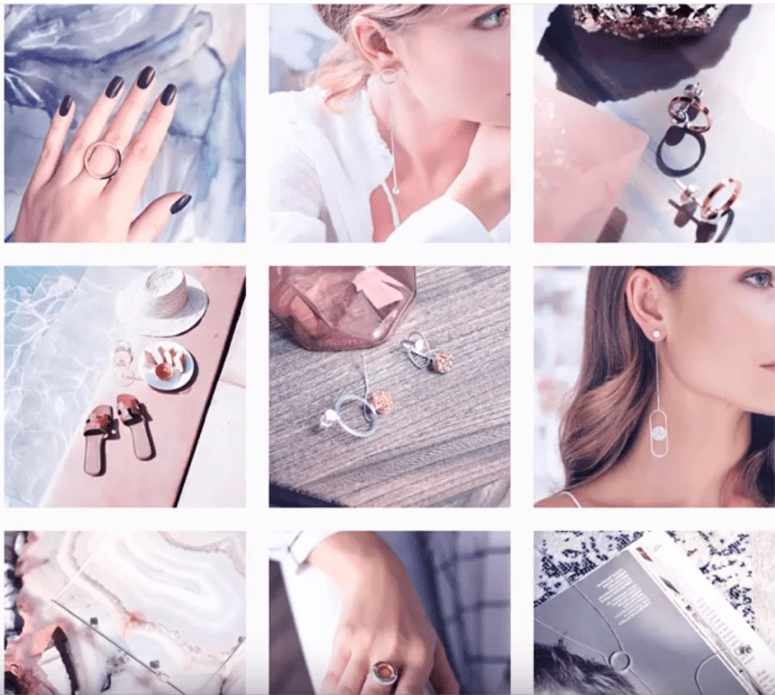 It is enough to evenly cut the photo you have taken.
Look at what @micahnotfound or @c.syresmith are doing with their accounts. You can do the same.
You can cut a photo into equal parts in any graphics editor such as Photoshop or GIMP. Just open the photo in the editor, divide it into equal square parts and save each part as a separate file. nine0003
From the View menu, choose Show→Grid. Go to the Edit menu and open Preferences → Guides, Grid and Slices.
You can divide the image into parts depending on the panorama you want to create. Just enter the desired value in the "Internal division by" field.
Now that your image is divided into parts, select and copy the desired fragments into separate files.
Go to the View menu and enable the Show Grid and Snap to Grid options. Then click on "Image", select "Adjust Grid" and split the image into parts. nine0003
Select parts of the image one by one, copy and save to separate files using "File" → "Create" → "From Clipboard". Use the hotkeys Ctrl + C and Shift + Ctrl + V to speed up the process.
Divide a photo into equal parts using web services such as Griddrawingtool.com and Imgonline.com. It's faster and easier.
When the image is cut, you can start uploading. Just remember to upload the bottom right piece of the photo first and the top left piece last. nine0003
There are many mobile apps that create and upload mosaics to Instagram*. With them, you do not have to bother working in graphic editors.
Grid-it
This application can cut apart photos you have taken or images in your gallery. True, you will have to upload fragments to Instagram * one at a time.
Download
Price: Free
Grids
Another application for splitting photos into parts. You won't need to save each snip individually as the app has the built-in ability to send snippets directly to Instagram*. You can choose colors and gradients for the tiles to add variety to your mosaic.
Download
Price: Free
9square
Very simple app to crop photos and upload to Instagram*. You can choose from 3×1, 3×2, 3×3, 3×4, or 3×5 grid sizes.
Download
Price: Free
9Cut
Similar to 9square, absolutely identical in functionality.
Application not found
*Meta Platforms Inc. activity. and its social networks Facebook and Instagram are prohibited in the territory of the Russian Federation.
Contents:
 1 For Android
 Now many people are seriously engaged in the promotion of their accounts in social networks. However, no amount of money invested in promotion will be able to provide the desired progress if the content of the page leaves much to be desired. A very big influence in all social networks, and especially on Instagram, is the design. The appearance of the profile grid may be different. People came up with a lot of interesting things. In this article, we will talk about what features there are and how to split a photo into parts for an Instagram account. nine0003
You may need to split a photo into several parts in several cases. Of course, in the article we will only talk about how to use this to draw up a profile. But in order to be objective, consider a few situations.
There are several ways to split photos for Instagram.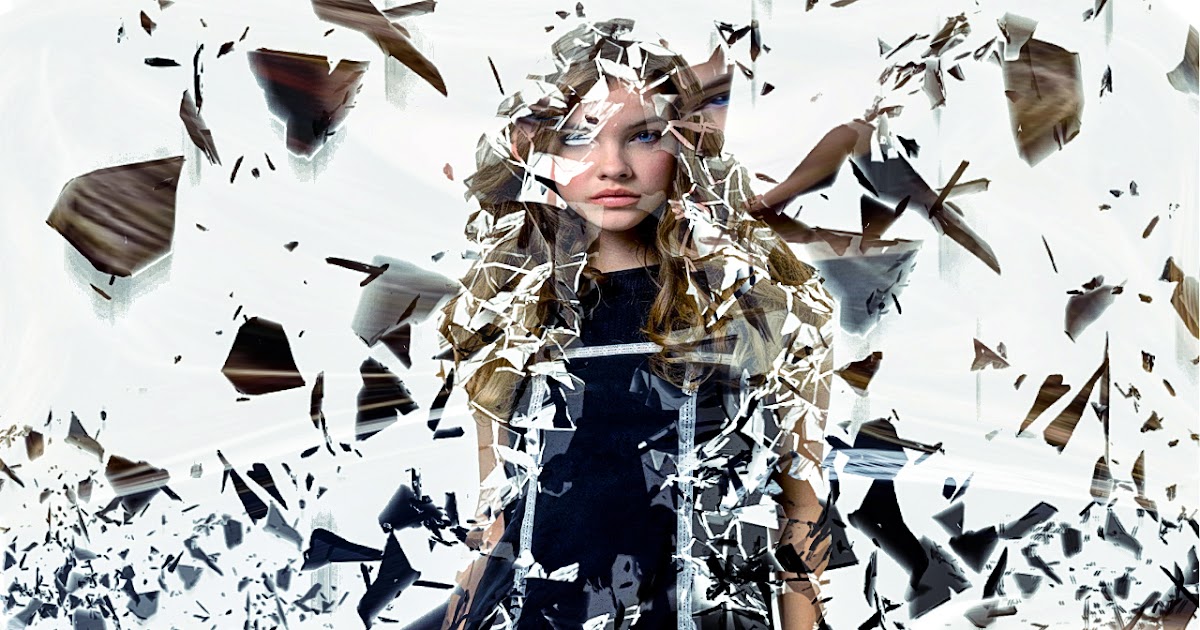 First, let's look at what applications can help us. It is much more convenient to do this from your phone, because it is the easiest way to download posts from a mobile device. I can offer you the following selection:
It is not always convenient to split an image through an application or software. Online work is easier - you do not need to download and install anything, waste time and memory in the device. The following sites can help us do what we have in mind:
 Everything here is not as convenient as in specialized services and applications. But there are no restrictions either - any processing, the ability to split one image into at least as many parts, to make people in the image more beautiful or, conversely, uglier - you can do everything. nine0096
 In any case, such a complex composition makes an impression.
 There are several ways to cut a photo for Instagram into 9 parts: applications, services or software on a PC. Which of these is more convenient? Large compositions are easiest to make in full-fledged Photoshop. But to design a landing page, you can simply download one of the applications mentioned in this article. nine0003
#1. How to post publications so that the collage does not “move out”?
Maintaining a profile in this way is not very easy at all. To keep the picture, you can upload 3 posts at once, for example. Or pause between posts and put up with the fact that sometimes the account will not be so beautiful.
#2. Is it worth putting so much effort into the appearance of the grid on the page?
This is often not required. Of course, a single picture, divided by 9records will attract attention. But just a single color scheme and the concept of photos will make the acc high-quality and stylish.
#3. What is important when creating a grid-puzzle or a grid-collage?
The fact that you have chosen a puzzle as an account concept does not mean that all other rules do not apply to you. It is necessary to ensure that the posts continue to be combined with each other.