It’s common for people to have multiple Instagram accounts. However, you might decide to take a break from the social networking site or permanently remove the extra accounts. Fortunately, this is a relatively straightforward process.
In this article, you’ll learn how to remove a second Instagram account using your phone or computer.
Here’s how to remove a second Instagram account using your mobile phone:
Note that the above action doesn’t permanently delete your Instagram account. In fact, if you change your mind about the Instagram-connected experiences in the future, you can always add the account again.
If you want to remove your second Instagram account using a computer, follow these steps.

The steps above merely show how to delete an Instagram account from the accounts center. This is particularly useful if you’re just taking a break from the site or want a better way to manage your Instagram experience.
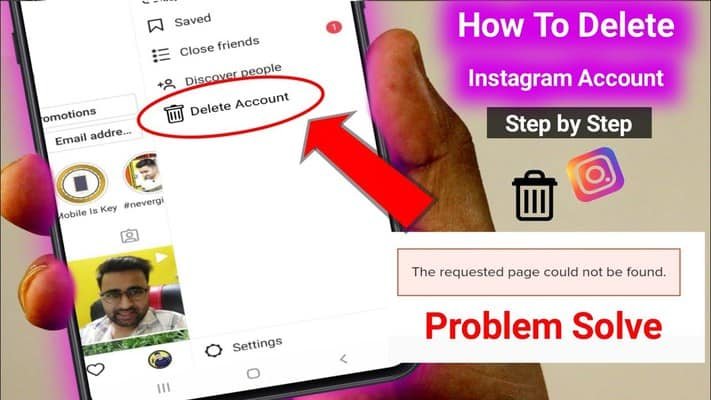
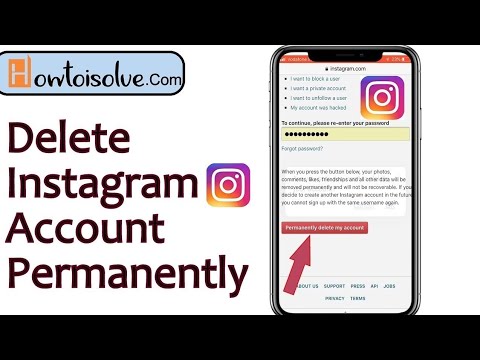
To permanently delete your second Instagram account using the Instagram app on your phone, follow these steps:
 ”
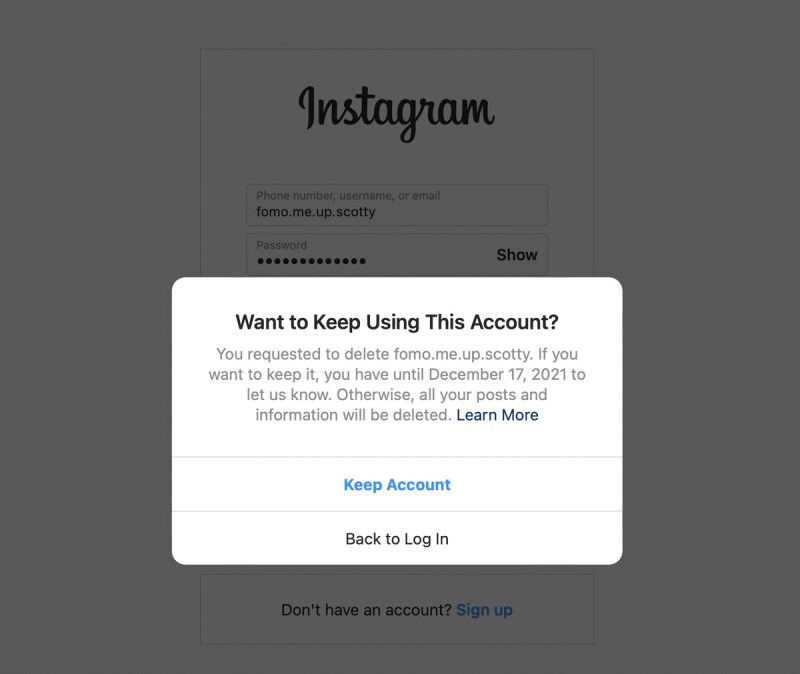
”Note that it will take 30 days for the account deletion to take effect. However, you can’t retrieve the account during that period.
If you really want to recover the account, you might be compelled to create a new account with the same username and email. Unfortunately, if someone else has already grabbed the username, you’ll have to choose a different one.
Here’s how to delete your second Instagram from your PC:

Permanently removing an Instagram account is a risky action. Hence, it may be best to consider temporarily disabling it.

Now you have successfully disabled your account from the comfort of your own phone. To activate your account, simply log back in using your credentials.
When you delete your Instagram account permanently, you lose access to all of your data on the platform. Before proceeding with the account removal, therefore, you may need to download your data from the site.
Here’s how to go about it:
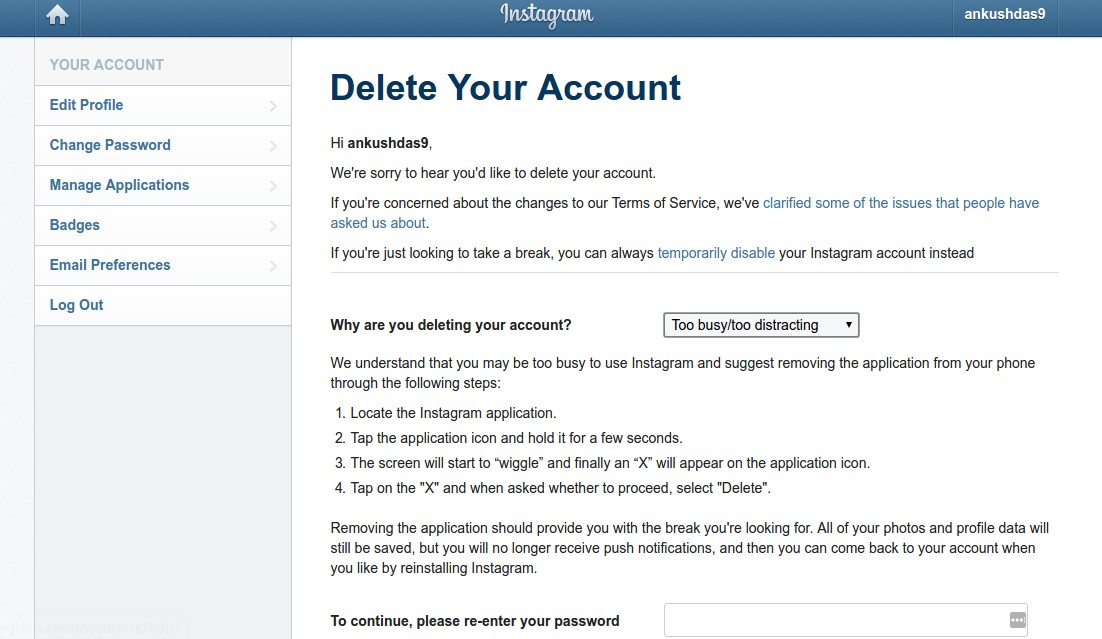 ”
”Typically, it takes up to 30 days for the account to be deleted. In some cases, the process might take up to 90 days if Instagram needs to retain some information regarding policy violations and legal matters.
Removing a second Instagram account doesn’t have to be a hassle, especially with the steps illustrated above. Just make sure you fully understand the implications of any action before taking the final step.
Have you ever owned more than one Instagram account? Did you ever try to remove the second account? Let us know in the comments section below.

Whether it's for work, to document hobbies, or show off the life of your adorable pupper, it's not uncommon to run multiple Instagram accounts.
However, you might find yourself needing to remove one of these accounts from your Instagram because maybe your Instagram-famous dog died and you want to close that chapter, or you just need a little break from your personal Instagram.
Fortunately, it's easy to remove extraneous Instagram accounts. Here are six steps to remove an Instagram account using your iPhone or Android.
 99 at Best Buy)
1. Open the Instagram app on your iPhone or Android. Tap your profile picture in the bottom-right corner.
The interface layouts are analogous on iPhone and Android. Emma Witman/Business Insider2. Tap the down arrow next to your Instagram username at the top of the screen.
Tapping the arrow will pull up all of your Instagram accounts. Removing an account is the same as simply logging out in these steps. If you want to wipe the account from Instagram completely, that is a different process. Emma Witman/Business Insider
 3. Select the account that you want to remove from the drop-down list.
You'll need to be logged into the account you want to log out of. You can also log out of multiple accounts at a time. Emma Witman/Business Insider4. Tap the three lines in the top-right corner.
5. Tap "Settings," or the gear icon, from the menu.
6. Tap the blue "Log Out" text at the bottom of the screen. Click the blue "Log Out" button in the pop-up window to confirm your choice. In this window you can also log out of multiple accounts at the same time by tapping the circle to the right of the account name — a blue check mark should appear in the circle if you've selected the account.
After clicking "Log Out" the first time, you'll be prompted to confirm, in case you change your mind or are logged into the wrong account. Emma Witman/Business Insider
 The account will no longer show up alongside your other Instagram accounts.
Emma Witman
Emma Witman is an Asheville, NC-based freelance journalist with a keen interest in writing about hardware, PC gaming, politics, and personal finance.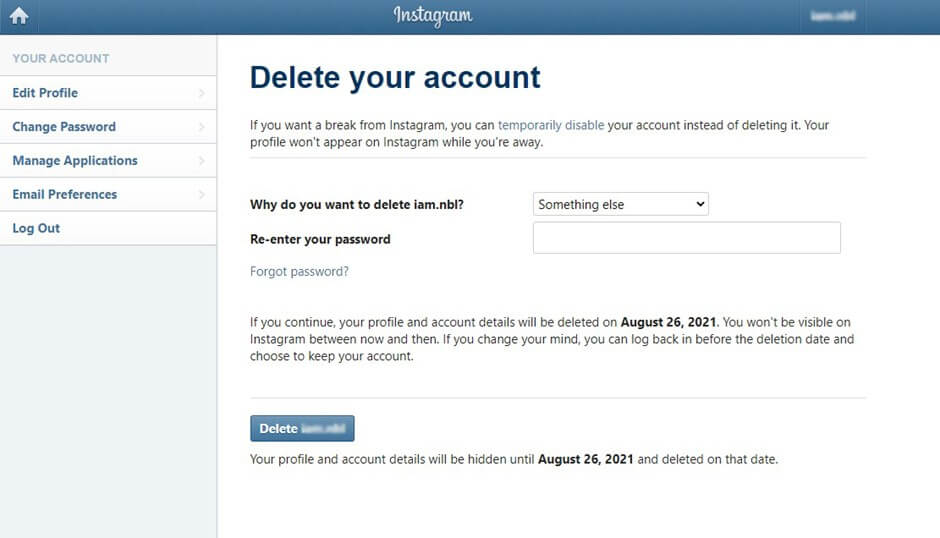 She is a former crime reporter for a daily newspaper, and has also written extensively about bartending for Insider. She may or may not judge your drink order when behind the bar. Follow her on Twitter at @emwity.
Read moreRead less
Insider Inc. receives a commission when you buy through our links.
Home » Detailed instructions for instagram
Social network Instagram has long allowed its users to manage multiple accounts in one application. This is quite convenient, for example, for the simultaneous conduct of commercial activities and the usual posting of photos and stories. nine0003
But nothing lasts forever, so sometimes you get bored with an additional profile. And then only one question is spinning in my head: how to delete a second Instagram account? Is there such a possibility in the application on a smartphone or for a PC on the site? Don't worry and read the text below. He will tell you what to do and how to do it.
If you decide that the second profile is superfluous and want to get rid of it, please note that the instructions will be different for a personal computer and a mobile device. Choose the most suitable for you and go for it. nine0003
Consider the algorithm of actions for each method separately.
Let's start with how to remove an unnecessary account using your smartphone. However, to begin with, it is worth noting that there is no such function in the mobile application. Therefore, everything will have to be searched in the browser.
To delete an additional account, you will need to follow these steps:
 This will take you to the main page.
 After step 10 your account will be permanently deleted.
Note. All comments and posts in the feed are also erased. You can save them in the settings in the "Privacy" - "Download data" section. Saved files are easy to open and view on your phone. nine0003
If only a personal computer is at hand, it does not matter.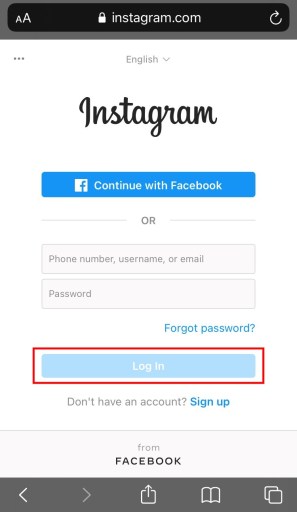 You can also get rid of an additional account from it. This requires:
Important. Don't mix up accounts. Be sure to log in to the one you want to delete. Also, before confirming the operation, double-check which one is logged in.
nine0003
In addition to permanently blocking a page on a social network, there are a couple of alternative options. Namely:
In the first case, the account will be blocked for 30 days and will become "invisible" to all network users. To do this, you need:
Note.
If you still want to restore access, then just log in to the blocked profile.
The second method implies a restriction of access for all non-subscribers. If this is what you need, then:
You can untie this profile from the application and then it will no longer "annoy" your eyes. To do this:
You can get rid of additional pages in no time. To do this, repeat the guide in this article step by step and then there will be no difficulties in the process. nine0003
Did you like the article? Share with friends:
The set of functions of the mobile application of the social network Instagram allows you to enter several profiles at once. It is possible to quickly and easily switch between them without using a login and password. If necessary, you can delete a second Instagram account on one phone.
Content
To use multiple accounts from one smartphone, you need to create them in advance and update the application to the latest version. However, they can be linked to different numbers and email addresses.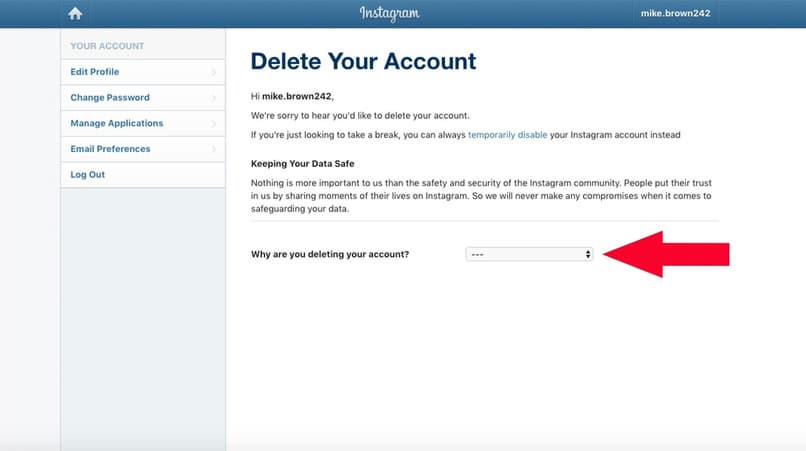 nine0003
Then you need to enter the second profile:
Users who use an older version of the client for any reason will not be able to use two active profiles at the same time. They do not have the ability to add and remove an account on Instagram.
Switching between profiles is located in the top control panel, in the application. From the browser version it is impossible to work simultaneously with two profiles.
This feature is available in the Instagram app for Windows 10.
To switch between multiple Instagram accounts, you need:
This switching method will be available until the user gets rid of the second account.
Using 2 accounts and instantly switching between them is convenient. But often an additional page becomes unnecessary, and the owner does not know how to delete an extra Instagram account without losing the main one. nine0171 This can be done in 2 ways: remove from the list of added ones and completely get rid of them.
When deactivating the second page, you need to make sure that the correct nickname is specified. That is, on the deletion confirmation page, a warning will appear: “Are you sure you want to deactivate the account” and the name. By deleting a page, the user permanently loses access to it.
It is impossible to restore such a profile, as well as return previously published photos and videos.
After logging out of the main account and before authorization, a page with a list of all profiles appears in the new one. With it, you can exclude an unnecessary account.
Procedure execution algorithm:
After - the tab with open pages will be unavailable. The maximum number of profiles that can be managed from one account is 5. Also, a function was introduced on Instagram: “Same access for all accounts”.

Deleting the 2nd Instagram account forever is more difficult than just removing it from the list. For this you need:
Additional profiles can be managed from a PC. But this feature is not available on the Instagram website; to activate it, you will need to install a free program from the Microsoft Store on your computer.