Sometimes, one Instagram account is not enough. Whether you’re starting a business, managing a feed for your job, or just want a place specifically reserved for showcasing your photography, it’s easier than ever to manage multiple Instagram accounts at once.
Back in the day, you had to log completely out of one Instagram account before you could sign in to another. But nowadays, Instagram allows you to switch back and forth between accounts without logging out. Here’s everything you need to know about juggling several Instagrams.
According to Instagram’s Help Center, you can have up to five different Instagram accounts, which you can switch between without logging out. (This is not to say that you can’t have more than five, but after you reach that limit, you’ll have to log out and log back in to access additional profiles.)
It’s also important to note that this option is only available for iPhones and Androids with the 7. 15 update (available in the App Store and the Google Play Store). So if you are unable to add additional accounts, you may need to update your Instagram app.
No. At this time, every Instagram account must have an individual email address. You can’t create multiple Instagram accounts with the same email address.
However, that doesn’t mean you have to create a new email address for every new account you make. If you create a second Instagram account via the app, you can sign up with your phone number instead of your email address.
Now that we’ve covered the basics, it’s time to dive into all the different ways to create and manage several accounts on Instagram. In the following section, you’ll find all the instructions you need to create new profiles, along with the answers to some of the top questions about having multiple accounts.
Before share how to manage multiple accounts, let’s start with the basics: creating an Instagram account. Whether it’s your first account or your third, the same rules apply.
There are two ways you can create an Instagram account: from the app on your iPhone and from the website on your computer. Below are instructions for creating an Instagram account on your iPhone:
If you want to create an Instagram account from your desktop, follow these instructions:
Using either of these options will create a brand new Instagram account for you to use.
When you add a new account to your app following the instructions in the previous section, the account will automatically be added in your app. That way, you can easily switch back and forth between them.
However, if you need to add a second account that you created elsewhere or at an earlier time, here’s how you can do that:
Note that after you add a new account to your Instagram app, you will receive notifications from all of the profiles you’ve added unless you manually turn off your notifications. So if you don’t want your phone to blow up all day with messages and likes, it might be a good idea to put your secondary account on silent.
Here’s how to switch between multiple Instagram accounts using the app:
And that’s it! After you’ve added your new account to the app, you can switch back and forth whenever you want.
Not all Instagrams were meant to last forever. So if you find yourself needing to remove an Instagram account from your app, there are just a few simple steps you need to follow.
Here’s how to remove a secondary account from your Instagram app:

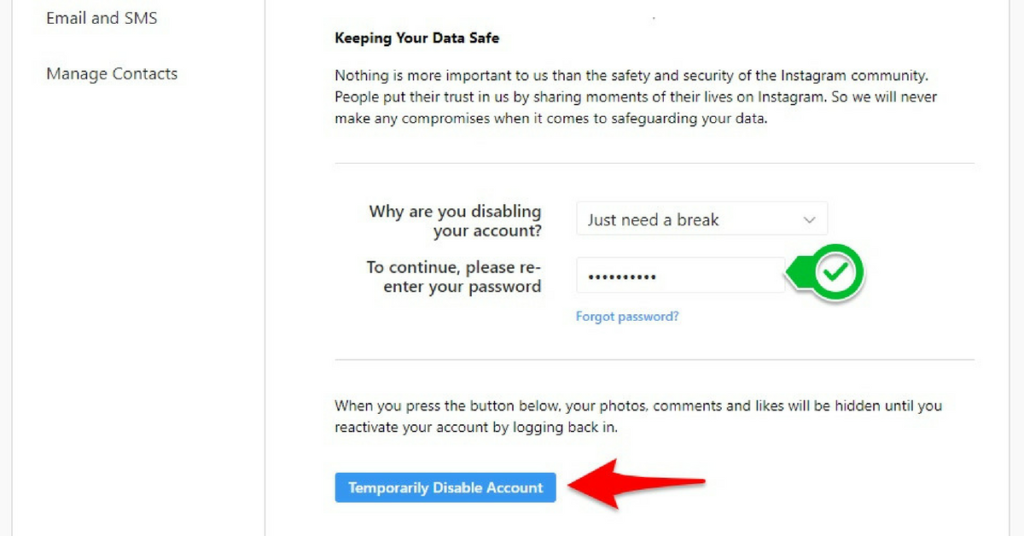
While following these steps will remove the account from your Instagram app, it will not disable or delete the account.
Even though you can jump back and forth between up to five Instagram accounts at a time, you cannot merge those accounts.
At this time, there is no way to merge followers and content from multiple accounts into a single account. The closest you can get is following the same people on both accounts and reposting the same photos.
In this modern-day world of social media and internet personalities, more people than ever are managing multiple social media accounts at once. Whether you’re doing this for work or to show off your many cool hobbies, we hope this guide makes having multiple Instagram accounts a breeze. And for more Instagram tips, check out our guide to adding multiple photos to Instagram Stories and posts. Cheers!
Writer and editor, driven by curiosity and black coffee.
Do you manage multiple Instagram accounts? If so, you know that it can be a pain to keep track of them all. Not to mention, if you use the same email address for all of your accounts, you have to constantly log in and out just to switch between them.
But what if I told you there was an Instagram hack that lets you manage multiple accounts with just one email?
It’s true! With a little bit of setup, you can easily add and manage several Instagram accounts from a single email address. Follow this guide to find out everything you need to know about running multiple Instagram accounts—and how to avoid posting to the wrong one.
Yes, you can have multiple Instagram accounts! In fact, you can now add up to five accounts and quickly switch between them without having to log out and log back in.
This feature is included in version 7.15 and above for iOS and Android and will work on any Instagram app using that software.
If you’re working with a later version, or simply want to manage more than five accounts at once, a social media dashboard like Hootsuite allows you to manage even more Instagram accounts and share the management responsibilities with other team members.
You can also have multiple YouTube channels, multiple Facebook pages, and multiple Twitter accounts. Check out the linked resources for more info there.
How to open multiple Instagram accountsYou can create multiple Instagram accounts on your phone right from the Instagram app.
To create a new Instagram account follow these steps:

You’re all set!
Once your accounts are set up, tap Add Account and then Log in to Existing Account. From there you can enter the login information for the account you want to add.
Tap Log In, and your new account will be available through your main Instagram profile page.
Now that you know how to create a new Instagram account, you’re probably wondering how to switch between them.
To switch between multiple Instagram accounts:

Note: You will stay logged in to the last account you used on Instagram. Before posting or engaging with new content, always check to make sure you’re using the right account.
Once you’ve set up more than one Instagram account, you’ll want to manage them all efficiently. Here’s how to do it from your phone.
If you are simply looking to start a branded Instagram account for your side hustle, alongside your personal account, and want to easily switch back and forth between the two, the Instagram app itself might be enough to suit your needs.
With your new Instagram accounts set up, you can now post to any of the accounts you have added to the Instagram app. Simply select the account you want to use from the drop-down menu in your profile, and start posting as usual.
You can always tell which account you’re using by looking at the profile photo. The profile photo can be quite small in some views, so choose distinct photos to make sure you always post to the right account.
Here’s what it looks like in Story view.
Here’s what it looks like when posting to your feed.
Using a social media management platform like Hootsuite, you can easily manage all of your social media accounts (including one or more Instagram accounts) from your computer. Hootsuite also provides access to advanced features like bulk scheduling and detailed analytics.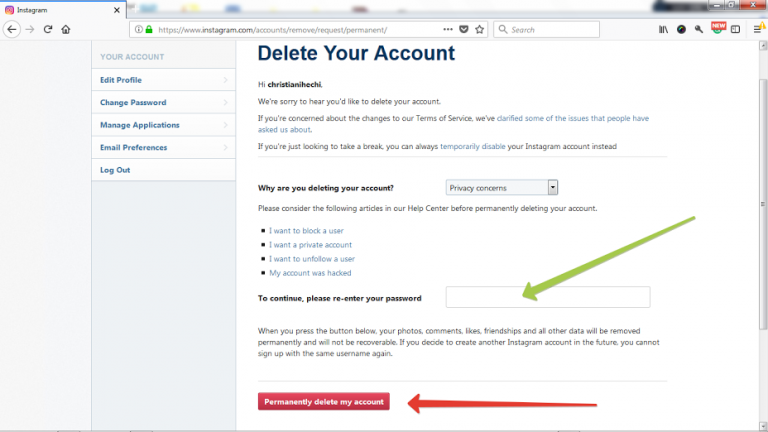
The first step to using multiple Instagram accounts in Hootsuite is to add them to your dashboard. Here’s how to get them set up using the Hootsuite mobile app.
To view your Instagram accounts at a glance and switch between them easily, add your posts for each account as a stream in the Hootsuite dashboard.
Now you know how to view all your Instagram accounts on Hootsuite, so you can easily switch between them.
You can use Hootsuite to post to any of the Instagram accounts you have added to your Hootsuite dashboard.
Here’s how to get started.
If you choose Post Now, the post will publish directly to your Instagram account. If you choose Auto Schedule, it will post at the most optimized time. Custom Schedule lets you choose the date and time to post.
To switch to a different Instagram account, return to step 1 and choose a different account.
Learn more about publishing to Instagram accounts using Hootsuite here:
By now you’re probably wondering, how do I manage multiple Instagram accounts on my desktop?
If you’re managing multiple business accounts, it’s a good idea to use the Hootsuite dashboard for your posts, rather than managing your accounts directly within the Instagram app.
For one thing, the Instagram desktop app is not as proficient as the mobile app. If you want to manage several Instagram accounts on Instagram for desktop, you’ll need to log out and in every time you want to use a different account.
Not to mention, the Instagram app is limited to managing 5 Instagram accounts, including both business and personal accounts. But on Hootsuite, business users can add up to 35 social profiles to their dashboards.
As well, managing multiple business Instagram accounts in Hootsuite also allows you to collaborate with team members and access advanced analytics from the same platform you use to manage and measure your other social accounts.
If you want to learn how to manage multiple business Instagram accounts, you need to make sure each of your Instagram accounts is connected to a Facebook Page.
If you haven’t yet connected your account, you’ll be prompted to do so. You’ll need to enter your Instagram account details. Once you’re logged in, you’re ready to connect to Hootsuite. More info on that below.
If you’re using Meta’s new pages experience, follow these steps to connect your Instagram for business account.
Now you can add your Instagram business accounts to Hootsuite. Simply navigate to your Hootsuite dashboard on desktop, log in, and click Add social account at the top of your Streams view.
Repeat these steps for each Instagram business account you want to add to Hootsuite.
Watch this video for a visual walkthrough.
Log into your Hootsuite dashboard and click on the Composer icon.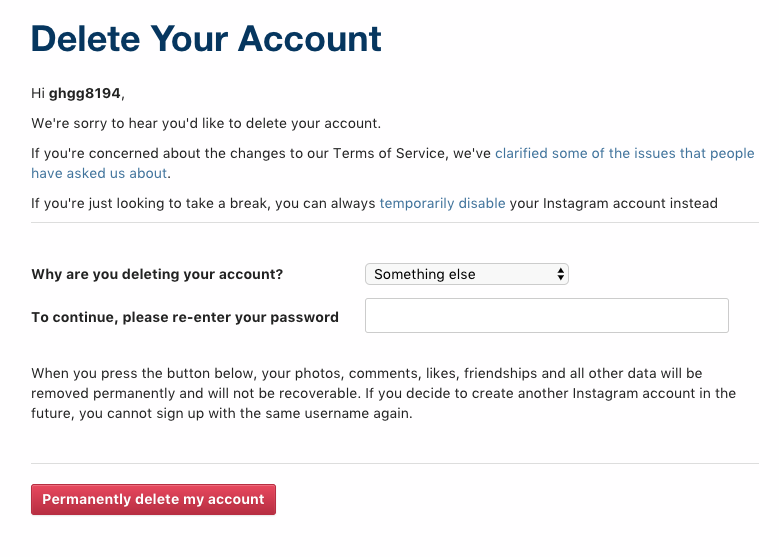 Then, choose Post.
In Composer, choose the Instagram accounts you want to publish to. You can choose multiple accounts, or just one.
Add your copy, images, videos, and any relevant tags to your post.
From there, you can choose to post right now or schedule your post for later. Be sure to use the best times to post when scheduling content in the future.
As we said before, the Instagram desktop version isn’t ideal for managing multiple accounts. If you’re looking for a simple solution for managing Instagram on a desktop, try Facebook’s free dashboard, Creator Studio.
Creator Studio makes it possible to post and schedule content to multiple accounts and access Instagram Insights from desktop and mobile.
To connect to Instagram in Creator Studio, follow these steps:
That’s it!
If your Instagram account is connected to a Facebook Page, the process may look a little different depending on the relationship between your Facebook Page and Instagram account.
If you have push notifications for several Instagram accounts turned on, you will get notifications for all of them on your mobile device.
Each notification will indicate the relevant account name in brackets before the content of the notification.
Tapping a notification will take you directly to the relevant Instagram account, regardless of which account you last used.
If you’re using Instagram and a notification comes in from one of your other accounts, you will see the notification at the top of your screen.
If you’re managing multiple Instagram accounts on one device, it might be overwhelming to have them all sending push notifications. Fortunately, you can adjust the push notifications for each of your Instagram accounts separately.
Here’s how to change your notification settings on Instagram:
At some point, you might want to remove one of your Instagram accounts from the app.
Why? Since you can manage a maximum of five accounts from the Instagram app, you might want to remove an account in order to make room to add a new one.
Or, maybe you’re no longer working on a particular account and simply want to make sure you don’t post to it accidentally.
Here’s how to remove an Instagram account on your phone:

When you go back to your profile and tap on your username, you will see the removed account is no longer included in the drop-down.
Repeat these steps for each account you’d like to delete.
Note: Removing your account from the app does not delete your account. If you want to delete your account (forever), follow the steps provided by Instagram.
Easily manage all your Instagram accounts in one place with Hootsuite. Save time by scheduling and publishing content, engaging with your audience, and analyzing your results—all from a single platform. Plus, Hootsuite gives you the ability to collaborate with team members, so you can get more done together.
Ready to give it a try? Try a free trial of Hootsuite Pro today!
Start Your Free Trial Today
Easily create, analyze, and schedule Instagram posts, Stories, and Reels with Hootsuite. Save time and get results.
Free 30-Day Trial
Creating a second account on Instagram is much easier than on other social networks. The administration of the service allows you to do this, because. a large number of users use the project not only to publish photos and videos, but also for business, and it is convenient and logical for them to promote their products and services not on a personal page, but on a work profile.
Table of contents
You can create and add a second account to Instagram through the application for your phone or computer. The web version of the service does not have this feature.
Instructions for app on phone or tablet:
There is another way to register a second account. You need to open a profile, click on the username above the image and select "Add account" in the drop-down list. Here you can go to another page.
Expert opinion
Lika Toropova
I spend a lot of time on social networks, my favorite is Instagram
It is convenient to switch between accounts by pressing and holding the button to go to the profile.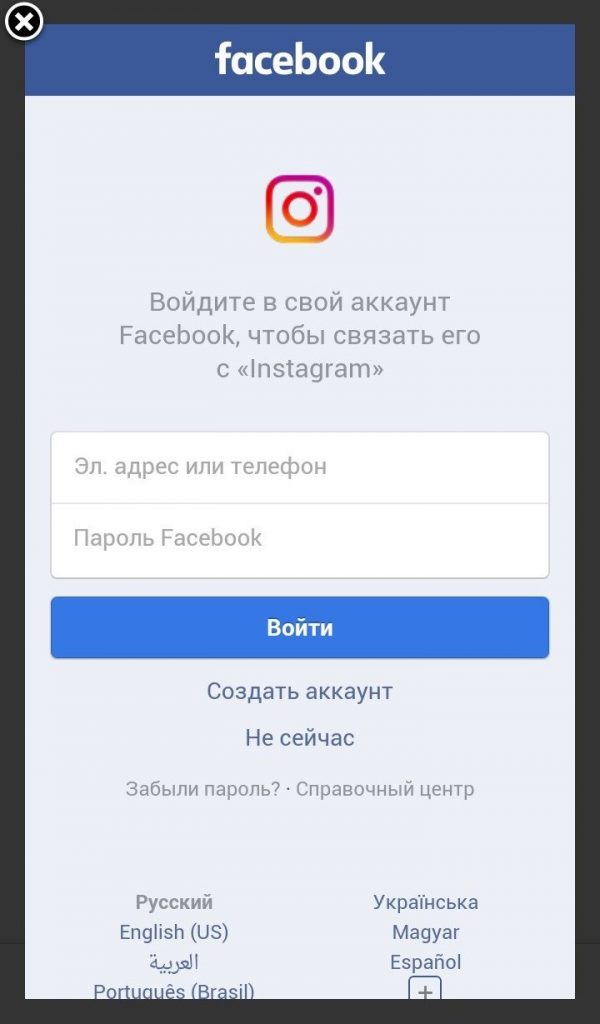 A drop-down menu will appear in which the user can select the desired page or add a new one.
To create a second account through a computer, you need:
Logging into different accounts from one phone is very convenient. In the PC application, you need to open a profile, click on the button with a nickname in the upper part of the window and click on the desired profile in the drop-down list. From the same menu, you can add a new page.
It is allowed to set a different privacy status for each Instagram profile. So, for example, a personal page is made closed to hide your photos and videos from prying eyes.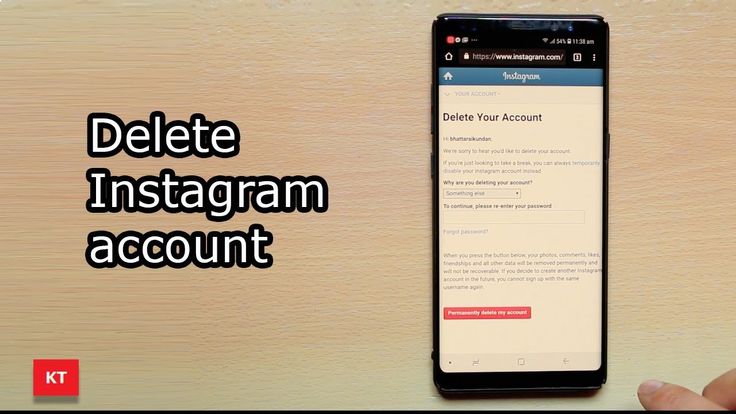 At the same time, it is recommended to leave the work account open so that customers can access it.
To make the necessary changes in the mobile application:
On the PC app, the steps look different:
In the web version of the social network, the privacy status of accounts also changes, but for this you will need to log in to each of them one by one.

If a user has several Instagram profiles, he can use the login and password of one to enter the rest. Having opened the page, the owner will automatically load others in order to conveniently switch between them.
Function available in the mobile application, procedure:
Not available in the web version of the social network and in the PC application.
If you no longer need several pages, you can log out of the second account, and if you wish, delete it.
To leave only one profile, you must first disable the shared login for them:

Now a separate authorization is performed for each profile. Next, you need to log out of the account being deleted so that only the necessary page remains on the phone.
Procedure:
The user will see that the second account is gone, and only the desired page remains.
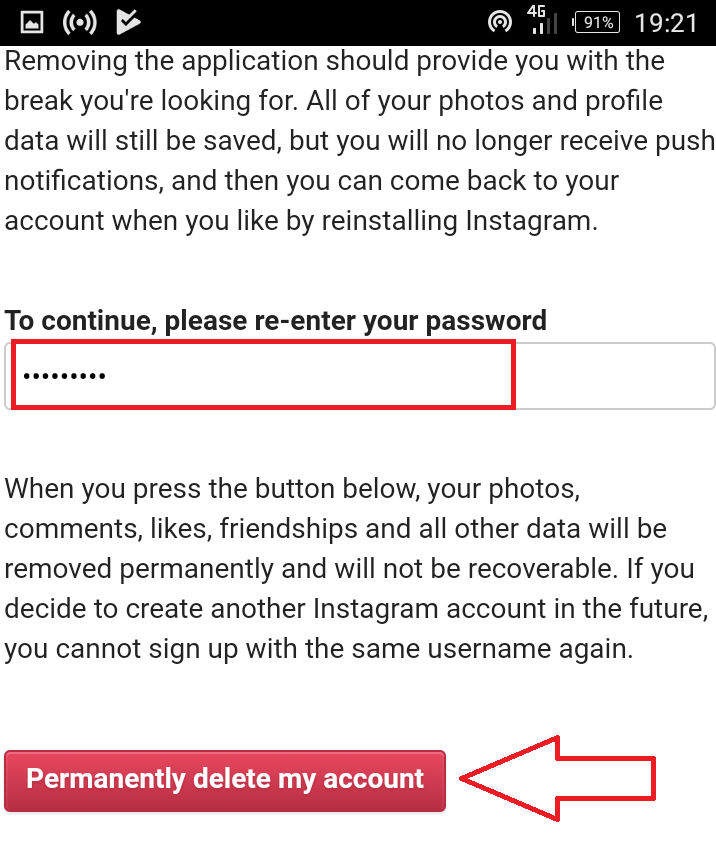
You can delete a second Instagram account through a browser on a PC. Instruction:

Expert opinion
Lika Toropova
I spend a lot of time on social networks, my favorite is Instagram
messages, photos and videos will not be possible. That is why you should carefully consider your actions.
Usually there are no difficulties with creating and using multiple pages on Instagram, but sometimes users still face difficulties. As a rule, they are solved simply.
If you can't log in to the second page, this means that the credentials you entered are incorrect. You need to remember your username and password, and if you can't do this, proceed to recovery.
Sometimes users experience that they cannot create a second page. This means that the e-mail or phone number to which the profile is already registered is being used.
You need to change your nickname email or mobile number.
Instagram allows users to create a second account for work or other purposes. You can add it in the application, and then make a general entrance for the pages in order to open all profiles at once when entering the program and quickly and comfortably switch between them.
How do I remove one of multiple linked Instagram accounts that are signed in with the same credentials?
Open your profile and click on the "Settings" icon in the upper right corner.
 …
… Completely delete the second account
Secure work with Instagram
logs into the account, preferably from the same device and from the same 3G-4G SIM card. If you maintain many different accounts, then there should also be a lot of different devices for these accounts, below in the photo is my small set of working phones and SIM cards for them.
On pure Android
Go to the application menu or desktop if there is no menu in the launcher and drag the Instagram icon to the trash. To confirm the deletion, select "OK" in the pop-up window. May 7, 2020
How to register and log into a second Instagram account
How to add multiple Instagram accounts on iPhone:
Hello! You can have multiple accounts. One phone number can have up to five accounts, just right.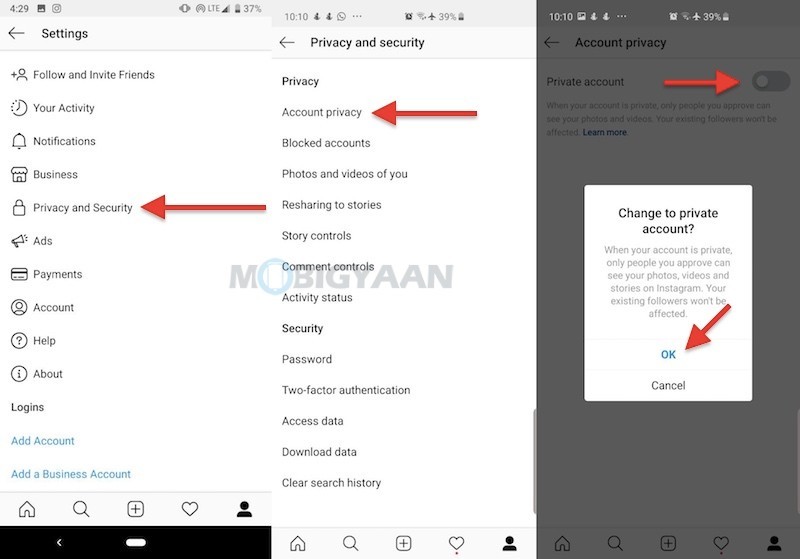 A phone number is required for everyone - this is a condition for security and account recovery in the future.
How can I add multiple Instagram accounts and switch between them?
To delete an account, follow these steps: