"How to save WhatsApp photos on Android? I have got some important photos on my WhatsApp and I wish to store WhatsApp images in the gallery."
If you are regularly using the app, then you might have got a lot of important photos stored as well. To make sure that you don’t lose them, consider saving them to a secure location.
Ideally, you can save WhatsApp photos to the device’s local storage or Gmail on Android. In this guide on how to save WhatsApp photos on Android, I will cover both of these scenarios in detail.
Sometimes, users find it hard to browse or access the photos that they have downloaded from WhatsApp. Ideally, all the photos that are downloaded from WhatsApp are saved on your device. You can go to your Android Gallery and access these photos under the “WhatsApp Images” folder. Here’s how you can learn how to save WhatsApp photos to gallery.
1. Firstly, launch WhatsApp on your Android and go to the conversation thread where your photo is present. Just tap on the download icon to save this photo on your device.
2. You can find all the downloaded photos on your device’s Gallery. Just go to the Gallery app and look for the “WhatsApp Images” folder. Sometimes, the folder is present in the “Other” section on Gallery as well.
If you want, you can just copy pictures from the "WhatsApp Images" folder and paste them anywhere else.
More to Read:
If you own an Android device, then you can explore all kinds of ways to save photos from WhatsApp to the gallery on Android, videos, and other attachments. To help you save time, I have discussed two of the simplest solutions here.
As you know, all Android devices are linked to a Gmail account by default.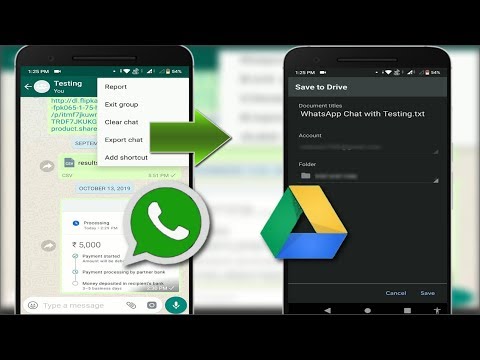 Therefore, if you want, you can take the assistance of the linked Gmail account to save your WhatsApp data as well.
In this way, you can maintain a dedicated backup of your WhatsApp chats and can later even restore them to the same or another device. To learn how to save WhatsApp images on Android via Gmail, follow these steps:
1. Simply unlock your Android, launch WhatsApp on it, and go to its Settings by tapping on the hamburger icon on the top.
2. Browse to its Settings > Chats > Chat Backup and tap on the option to backup data on Google Drive from here. Just make sure that your WhatsApp is linked to an active Google account.
Additionally, you can also visit the auto backup feature here and set the frequency for an automatic backup like daily, weekly, or monthly. You can even choose if you wish to include videos in the backup or not (your photos will automatically be included in the backup).
3. To get back this content, just reinstall WhatsApp on your device and make sure it is connected to the same Google account. Use the same phone number while setting up your WhatsApp and the app will automatically detect an existing backup. You can just tap on the “Restore” button to get it back.
If you are looking for a one-click solution to save your WhatsApp data directly to your computer, then consider MobileTrans - WhatsApp Transfer.
This user-friendly solution is a part of the MobileTrans and supports every leading Android device out there. Using it, you can save all the WhatsApp exchanged media, chats, voice notes, etc. directly to your computer.
You can even transfer WhatsApp messages from your android to another android. To learn how to save WhatsApp photos on Android directly to your system, follow these steps:
Here is a video tutorial for you. You can also get more videos on Wondershare Video Community.
Free DownloadFree Download
safe & secure
1. To start with, connect your Android device to your computer and launch the application by clicking on the “Backup&Restore” option from MobileTrans' home page.
2. Once the application would launch, go to the “WhatsApp” feature from its sidebar and click it.
3. This will automatically initiate the backup process as the application would save WhatsApp photos (and other files) to your system. Kindly be patient while the backup is completed and make sure that the device stays connected to the system.
4. When the backup process is 100% completed, the application will let you know. If you want, you can view the backup data from here as well.
As you know, by default, WhatsApp saves all the photos shared by our contacts. This can consume a lot of space on your device and make it cluttered as well. If you want to stop WhatsApp from automatically saving photos on your device, then simply make the following adjustments.
There you go! After reading this guide, you would certainly be able to save WhatsApp photos from Android to your Google account or the local storage. If you want, you can also disable the auto-download feature on WhatsApp to save space on your phone. To back up and restore your WhatsApp data like a pro, you can simply use a professional tool like MobileTrans - WhatsApp Transfer. Go ahead and give these suggestions a try and share this guide with others to teach them how to save WhatsApp photos on Android in an instant.
Free DownloadFree Download
safe & secure
New Trendings
Before WhatsApp, you may have needed to jump through multiple hoops to transfer photos, sometimes even having to pay. With WhatsApp, all you need is an internet connection. But how do you save the photos you get through WhatsApp?
In this article, we share with you some of the best ways that you can save photos from WhatsApp.
You can manually export photos from WhatsApp to your gallery or any other location on the device. This can be done very easily using the Google Photos app. If you don’t have the Google Photos app, you can use any other file explorer app.
Follow these simple steps to do it:
You can also save the WhatsApp photos manually to other devices by emailing them to yourself. Here’s how to do it:
You can also automatically save photos from the gallery. Here’s how to turn on the function:
Here, you can choose to automatically use Wi-Fi or cellular data to download the photos. The downloaded images will be in a folder named “WhatsApp Images” on your device and you can move them to another folder.
If you want to save photos from WhatsApp to your iPhone, you will first of all need to give WhatsApp permission to access the Photos App on your iPhone. Here’s how to do it:

Now WhatsApp will be able to access your photo library. Follow these simple steps to manually save the WhatsApp photos to the camera roll:
If you would like to transfer WhatsApp to PC or another device, we recommend using Mobitrix WhatsApp Transfer. This program is the most effective solution to manage WhatsApp data effectively. It is useful for a wide range of devices since it supports all Android devices and tablets and all iOS devices.
The following are some of the ways Mobitrix can be useful to you in terms of media transfer:

Summary
The solutions above will help you easily move WhatsApp photos to any other folder on your device. With Mobitrix, you can save the photos to your computer or transfer them to another device. Let us know your thoughts in the comments section below.
WhatsApp, as you already know, is one of the most used instant messaging applications in the world. It allows you to send written messages as well as multimedia files, including photos and videos. If you are using the app, you may sometimes need to save photos that you have received from people you know. This guide will teach you how to save photos to WhatsApp on Android.
There are various ways to export photos from the WhatsApp app on your Android device, and you can use any of these methods that suits your needs.
If you want to know how to save photos from WhatsApp to Gallery, then this section is all you need. There are several ways to export images from WhatsApp to the Gallery app on your phone.
If you've ever noticed, WhatsApp actually offers an option where you can automatically download all the media you receive in your messages. Once you enable this option, all your WhatsApp photos will automatically be saved to your gallery.
Here we will show you how to save WhatsApp photos in the Gallery app on Android.
"Wi-Fi" - the WhatsApp option, activated by default, including for photos from chats, provides downloading of content during those periods when the messenger receives Internet from a network operating using the same technology. Click on this item, check the box next to "Photo" and save the parameter value by tapping "OK".
"Mobile network" - if you want pictures from the messenger to be saved without your intervention, including when the device consumes traffic from 2G / 3G / 4G networks, click on this item. Next, check the checkbox located next to the name "Photo" and confirm the desire to change the parameter by touching "OK".
Your phone should now automatically upload photos from WhatsApp messages to your gallery.
The above principle of copying data from WhatsApp while actively "consuming" content in chats can lead to a quick filling of the memory of the Android device, so many users deactivate the autoload option. Under these conditions, the possibility of selective downloading of photos can only be called partially realizable, and the process itself is as follows.
If you can't find your photo in this folder, look in the "Other" folder.
You can actually transfer your photos from WhatsApp to your computer and there is a tool to help you with this. The tool is called Tenorshare UltData WhatsApp Recovery and allows you to transfer all WhatsApp messages, including media files, from phone to computer.
If you are interested, below is how to save WhatsApp photos to computer using this tool.
Launch the tool and select "Recover Whatsapp Data".
You need to connect your phone to your computer with a cable.
Click "Start" in the tool on your computer.
Select the WhatsApp messages and photos you want to transfer to your computer and click Restore.
You did. With simple steps, you can save WhatsApp photos from Android to PC.
If you want to save your WhatsApp photos to Google Drive, you can do so without installing any apps on your phone.
Here's how to save photos from WhatsApp to Android using Google Drive.
If you prefer email over anything else, you can use this feature to save photos to any of your email accounts.
Send an email to yourself and you can open it on any of your devices to save your WhatsApp photo.
Remember that you need enough storage space in your mail service to use the email method. This should be fine if you share multiple photos most of the time.
Saving photos from WhatsApp chats is important for many users. If you are one of them, now you know how to do it using the various methods available.
Time to read the article 4 minutes.
The information is up to date! The material was checked on 12/9/2021.
Not all users know how to save photos from WhatsApp. You should figure out if it is possible to download media on iPhone and Android, how to set up auto-download for all contacts and for each correspondence separately.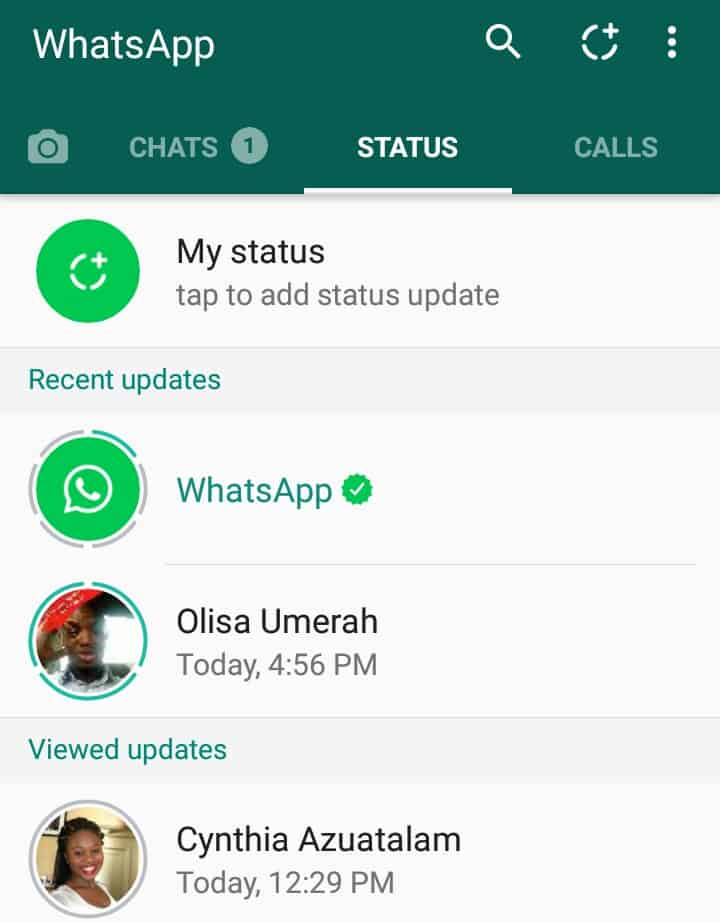
In WhatsApp, you can save photos manually or by setting up autosave. On iPhone and Android, you can enable downloading for all media objects in the gallery and separately for each group and contact.
Saving photos from WhatsApp to the Android gallery is usually done automatically. By default, autosave is enabled in the messenger settings, thanks to which all received media files are immediately downloaded to the internal memory of the phone.
If objects do not appear in the gallery after setting autoload, media visibility may be disabled. To fix this, you need to go to "Settings", "Chats" and put the "Media Visibility" toggle switch into working condition.
To configure the display of photos received from a specific person, you need to go to the contact settings. In the "Media" item, select "Default" (if saving is enabled in the general settings) or click "Yes".
If the user receives a large number of media files from his contacts, it is better to disable auto-download. The memory will quickly fill up and you will have to delete objects manually. From WhatsApp, you can save photos on Android yourself in this way:
It will be displayed in the gallery:
If for some reason you cannot save a photo from WhatsApp to your phone, you can use the following method:
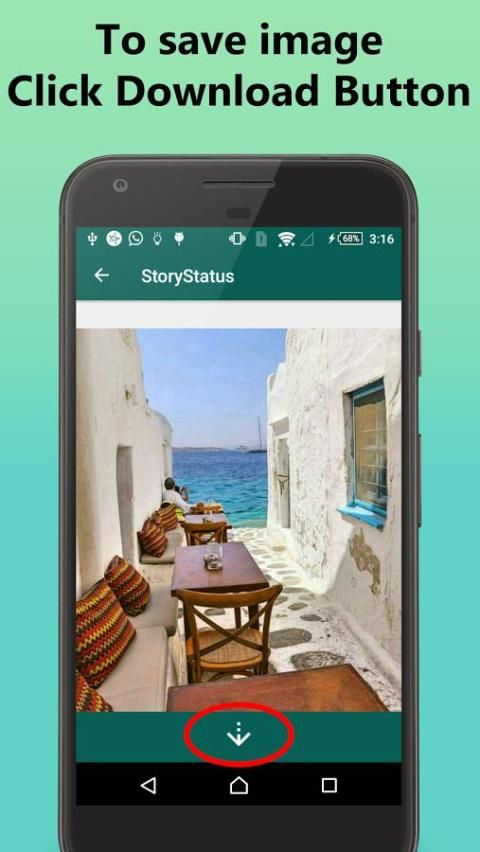
Here we will tell you how to change the picture on the profile picture.
Transfer photos from WhatsApp to the phone gallery, if they are not displayed, you can do this:
Why are photos from WhatsApp saved in the gallery on iPhone? This happens because autosave and autoload are enabled in the messenger settings.
It is not necessary to turn on auto-upload, since you can save photos from WhatsApp to your phone separately for each chat. For example, if in one correspondence they fill up with unnecessary videos and pictures, and in another they throw off useful information, then you can enable the download of media files only for the second chat. So the iPhone will be free from unnecessary information. We also advise you to pay attention to the material "how to download photos from WhatsApp to a computer".
How to save a photo to the gallery from WhatsApp (from a specific chat):