Did you accidentally send a message to the wrong person? A while back, I was using Viber to chat with my friends and accidentally sent the wrong message to someone. This got me into panic mode as I wanted to delete that message right away.
Thankfully, after some quick research, I was able to learn how to delete Viber messages pretty easily. Let’s face it – there are times when we all encounter a similar situation and want to delete group or individual messages. Well, to help you do the same, I have come up with this ultimate guide on how to delete Viber messages in a jiffy.
Apart from individual chats, Viber also lets us create groups as well. Therefore, before I teach you how to delete Viber messages on a personal chat, I will cover the same for groups. Ideally, there are two ways to do this. You can either just delete a message sent by you to a group or leave and delete the group as well.
Step 1. Launch Viber on your smartphone and open any group where you have earlier sent the message.
Step 2. Tap and hold the messages that you wish to get rid of and select the “Delete” option. You can also select multiple messages and tap on the Delete option.
Step 3. This will give you an option if you wish to delete a message for yourself or everyone. Just tap on the option of your choice and delete the message for just you or everyone in the group.
Step 1. Simply launch Viber on your phone and tap and hold the group icon from its home that you wish to leave.
Step 2. This will display various options for the group. Just tap on the “Delete Chat” and subsequently select the option to “Leave and Delete” the group.
Step 3.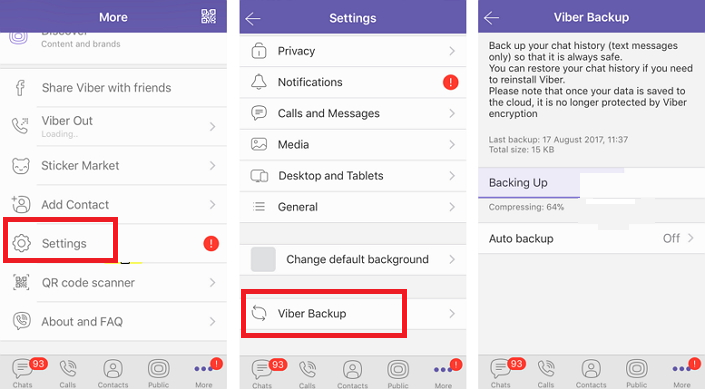 If you want, you can open the group chat as well and slide from the right panel to get its more options. Scroll all the way down, tap on the “Leave and Delete” option, and confirm your choice.
Besides group chats, we can also delete Viber messages on individual conversations as well. You can delete certain messages, clear an entire chat, or delete the entire Viber message history as well.
Step 1. Launch Viber and open any chat on which you have the messages that you wish to delete.
Step 2. Long press and hold a message to get various options. You can just select multiple messages as well.
Step 3. From here, choose to delete the message and it will be disappeared from the thread.
Step 1. If you have an iPhone, then just launch Viber and slide the chat that you wish to get rid of. Tap on the Delete option from here and confirm your choice.
Step 2. Android users can just launch Viber and hold the chat that they wish to delete. As several options would appear on a pop-up, tap on “Delete” and confirm to get rid of the conversation.
Step 1. Launch Viber and go to its menu from the side. Now, browse to its Settings > Calls and Messages.
Step 2. Tap on the “Clear Message History” option and confirm your choice to delete the entire message history on Viber.
If you have accidentally sent a message to someone on Viber, then you can delete the message entirely from the conversation. Once you have removed the message, the actual content would be deleted and the app will display a prompt that the message has been deleted. To learn how to delete Viber messages that you didn’t want to send, follow these steps:
Step 1.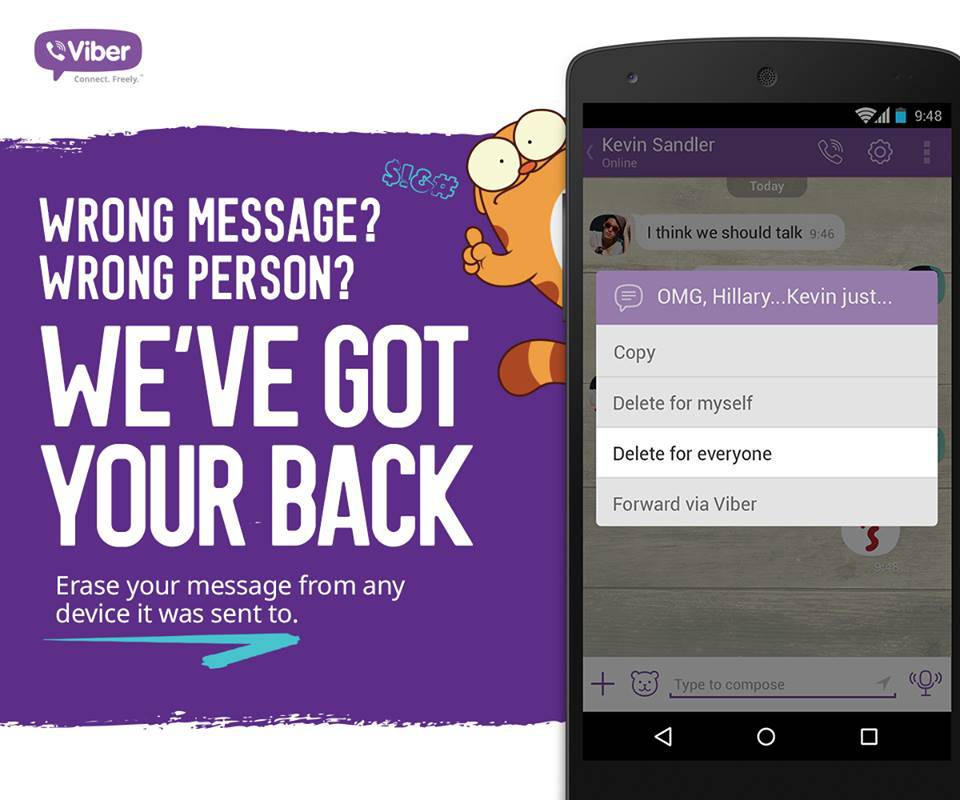 Firstly, just launch Viber and go to the conversation or group where you have sent a message by mistake.
Step 2. Tap and hold the message that you wish to delete to get more options. You can also tap and select multiple messages to delete.
Step 3. From the available options, tap on “Delete for everyone” so that the message would be erased from the chat.
Step 4. The selected message would be removed and a prompt stating that the message has been deleted will be displayed instead.
You may also be interested in How to Find/Delete/Restore Viber Backup in Google Drive?
If you use Viber to chat with your friends or for your work, then it is important to maintain its backup. To backup your Viber messages, contacts, attachments, etc. with a single click, simply take the assistance of MobileTrans - WhatsApp Transfer. It can backup your Viber data from your iOS device to the computer and you can later restore the backup to the same or any other iOS device. Here’s how you can backup and restore Viber chats using MobileTrans with a single click.
Free DownloadFree Download
safe & secure
Step 1: Connect your phone to the system
Using a working cable, connect your phone to the computer and launch MobileTrans on it. Now, go to its WhatsApp Transfer module and select Viber from the sidebar.
Step 2: Backup your Viber Chats
From here, click on the “Backup” button and just wait for a while as the application would take a complete backup of your Viber chats.
Step 3: Restore Viber Chats
To restore an existing backup, connect your iPhone to the system and launch the MobileTrans application. Go to its WhatsApp Transfer > Viber > Restore option and just select the backup file that you want to get back.
After selecting the backup file, click on the “Start” button and wait as your Viber chats would be restored to your phone. Once the backup is restored, you will be notified so that you can remove your iPhone.
There you go! Now when you know how to delete Viber messages, you can easily get rid of unwanted personal conversations or group chats. For your convenience, I have also listed a solution to delete the messages that you didn’t intend to send to someone. Also, if you don’t want to lose your Viber chats, then take its backup using MobileTrans and restore your chats to your iPhone to avoid any unwanted loss of data.
Free DownloadFree Download
safe & secure
You may also be interested in How to Transfer Viber Messages to New Phone?
New Trendings
Have you ever sent an awkward message by accident? You likely have, and you know that horrible feeling of shock and shame. The worst part? Waiting for the recipient to reply after you’ve explained what happened.
Many popular messaging services have started introducing the option to delete the messages. This was available on most services before but would delete the message only for you. Most platforms now allow you to delete a message for everyone, and Viber is no exception.
Viber is an app that is available cross-platform. This means that iOS and Android devices each have a dedicated Viber app. The apps for each of the two operative systems are identical, so here’s an in-depth guide on deleting messages on iOS and Android.
If you’ve accidentally sent a message to the wrong person, you can easily delete it. This section will show you how to delete a single message for yourself and everyone.
Note: These instructions vary slightly for iOS and Android users.

Keep in mind that a generic “user has deleted the message” text will be displayed to everyone, so everybody in your chat will know that you’ve deleted it. However, the message itself won’t be accessible.
Perhaps it’s time to clean up your Viber app. Follow these instructions to delete your chat history.
Select Clear to confirm history deletion.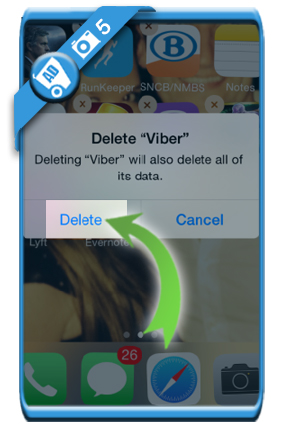 This will delete all messages in every single one of your conversations. Keep in mind that deleting the message history won’t delete the message history for conversation participants, but only for you. Tap Cancel to go back.
When you send a message on Viber, a checkmark will immediately appear in it. This checkmark means that the message is still sending. Two checkmarks indicate that the message has been delivered, meaning that the recipient has been notified. When the two checkmarks turn purple, this means that the person you’ve sent the message to has seen the message.
This is important to know when considering whether to delete a message. Sometimes, in these instances, you’re much better off explaining why you’ve accidentally sent the message than blatantly deleting it, leaving the recipient confused. If the person you’ve accidentally sent a message to has not yet seen the message, you’ll probably want to delete it.
If you send an irrelevant emoji by accident (as emojis play a huge role on Viber), you may feel compelled to remove this message. Like any other messages on Viber, emojis can be removed the same way you’d delete a message. Keep in mind, though, that this will also leave the deletion notice that the recipient(s) will be able to see. To avoid unpleasant situations and having to explain that the message was an irrelevant emoji, consider just telling them that you’ve sent the emoji by accident.
Keep reading for more answers to your most frequently asked questions about deleting Viber chats.
Yes. If you delete a message a notification will appear that you have deleted something. But fortunately, the recipient will not be able to see the content of that message.
Yes. All you need to do is long-press the message and tap ‘Delete’ just as we did above. Group chats also give you the option to delete the message for everyone.
To avoid the unpleasant situation of having to delete a message and taking a risk that you won’t do it quickly enough, make sure to think carefully when sending Viber messages. Although Viber offers the option to delete a message for everyone in the conversation, the notice that you’ve deleted the message will be there and make things potentially awkward.
The awkward content doesn’t have to be in the text format only. Even worse, you may end up sending an inappropriate picture you’ve intended for your friends to your boss. Your boss will be in your Chats list if they use Viber, so the risk is definitely there.
Whether you own an iPhone, an iPad, an Android phone, or an Android tablet, permanently deleting Viber messages for everyone is possible. It is very simple to do and intuitive, but keep in mind that everyone in your chat will know that you’ve deleted a message, whatever its type.
Have you ever had to delete a Viber chat message? Was it awkward? Tell us about your experiences in the comments below.
 ua talks about ways to clear the cache and memory of the viber application. Learn about different ways to delete Viber conversations, chat messages, photos, videos, files and other documents. In addition, we will tell you how to disable automatic saving of media files to the phone's gallery.
 Viber is very popular among Ukrainians, because it is a convenient application for free correspondence, calls, sending photos, files and videos. Given the active use of the messenger, it is necessary to remember the need for regular cleaning of the viber. After all, the correct and fast operation of the application largely depends on the amount of free memory. Moreover, thanks to the timely cleaning of viber, your phone will run faster.
If you want to delete a message, you need:
 To delete other people's messages, you can only select "Delete for me".
Second way to delete a message (multiple messages can be deleted at once)
You can also delete the entire history of correspondence with a specific subscriber or group. To do this, follow these steps:
Please note that when you delete messages in this way, you only delete them on your phone.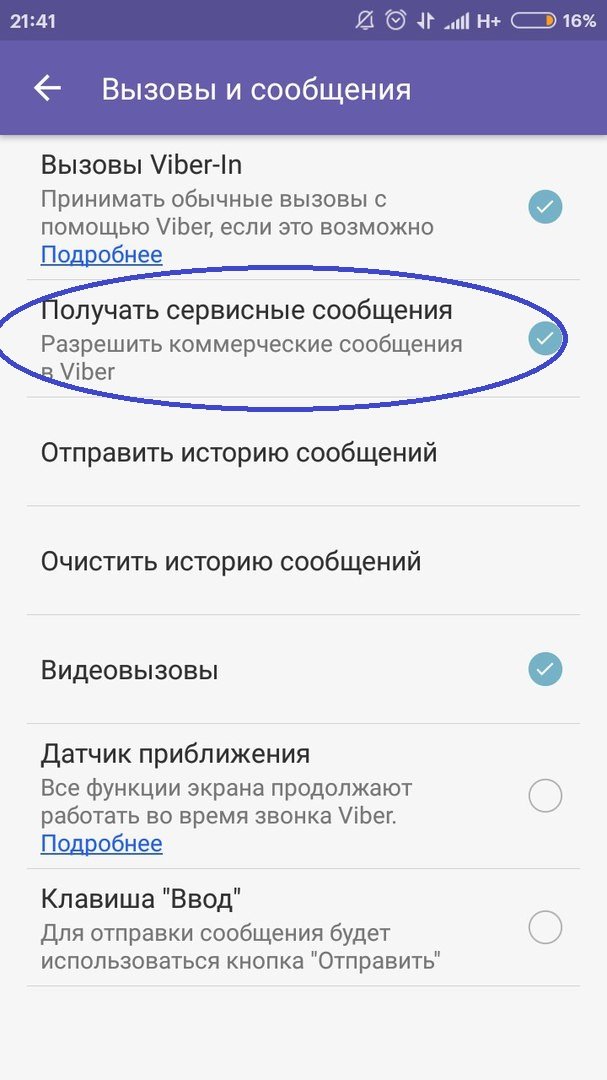 To delete a message in an interlocutor, you must delete messages individually, and not the entire correspondence.
In addition to the above methods, it is possible to immediately delete all chats, all viber messages. For this you need:
Media files that you send or send take up the most space in the application. Moreover, if you have the autosave function configured, the sent files will be saved additionally in the smartphone gallery.
To delete media files from your phone, you need to go to Gallery - Albums - Viber and delete unnecessary files or the entire folder.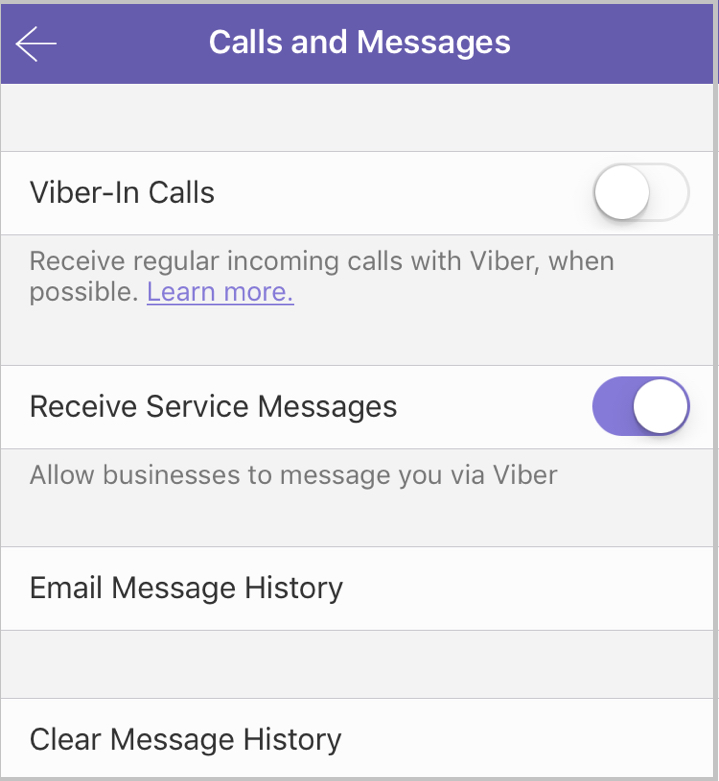
In order to disable automatic saving of multimedia content to the phone's gallery, you must:
Recommended reading:
It happens more than once that after an ugly quarrel on the Internet, we angrily delete all messages with a person in order to erase everything from memory. And then there are conversations, the contents of which should remain a secret to everyone except the participants. We will tell you how to delete the history of correspondence in Telegram and other mobile messengers, and as a bonus at the end of the article - how to make the correspondence self-deleting.
You absolutely don't want anyone to know what you were arguing with your ex? Or are you ashamed to reread an unpleasant quarrel with a former friend? In such cases, you can clear the chat with the interlocutor without deleting it.
Here's how to clear the history of messages with a specific person in different messengers:

Let's say you overdo it and write to your friend a lot of nonsense. Well, or they made a mistake in the chat and sent a declaration of love to the head of the department. In an awkward situation, you can always get rid of deleting a separate message for the interlocutor.
Here's how it's done:
 Select Remove from all . In WhatsApp, there are several restrictions on deleting messages from an interlocutor. Firstly, you can only wash your own, and secondly, only within 68 minutes after sending. And thirdly, the message will be deleted only from the interlocutor who uses the latest version of WhatsApp, in the old versions of the deletion function, the interlocutor simply does not have.
 Telegram and Viber have a secret chat feature. In such chats, messages are self-destructed after a certain time, for example, one minute after being read. If you want to chat with someone about something super secret and very dangerous, this feature is for you.
To create a secret chat in Telegram, swipe from left to right on the application menu and press New Secret Chat .
Select the contact you want to talk to. In the upper right corner of the chat, click on the button with three dots and select Enable timed deletion . Choose a period of time after which messages should be deleted, and you can start a conversation. To create a secret chat in Viber, open a chat with any contact and in the upper right corner, click on the button with three dots, select Go to secret chat . You can start secreting - by default, all messages in a secret chat will be automatically deleted after a minute. The period can be increased by clicking on the timer icon in the corner of the text input field and selecting the desired time interval.
This is a unique feature of Viber.