WhatsApp is the most popular messaging app in the world. But it's pretty strict about only letting you use it on one phone at a time — and if you ever switch phones, you're at risk of losing all your messages.
Luckily, WhatsApp does let you keep your messages and groups even when changing phones. It just takes a bit of extra work.
Important: To transfer your WhatsApp messages, you need to go through these steps as you're setting up your new phone. If you've already set up your new phone, you can't transfer your messages without factory resetting the device.
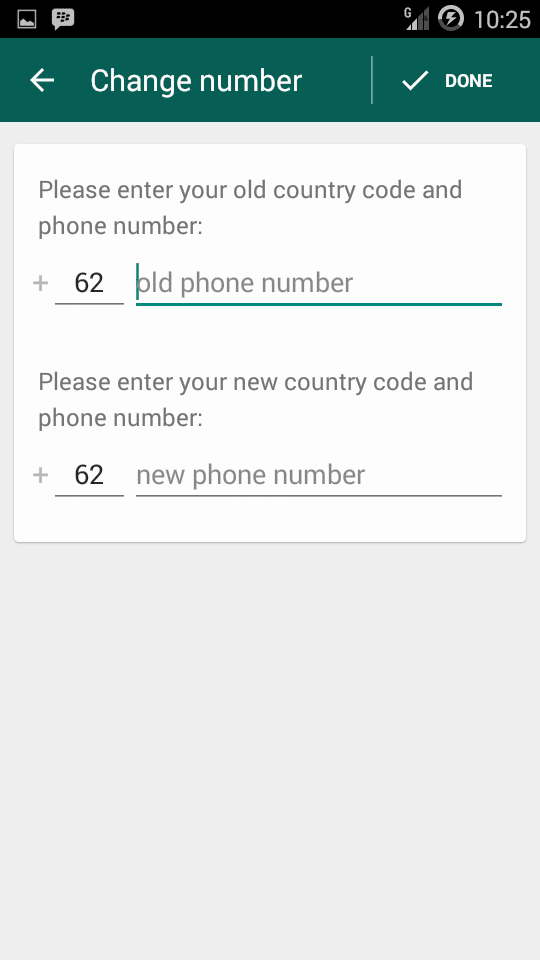
These steps also assume that you're keeping your phone number. If you're changing your phone number too, you'll also need to use WhatsApp's "Change Number" tool.
How to change from iPhone to Android without losing WhatsAppTo move WhatsApp messages from an iPhone to an Android, you'll need to connect both devices with a Lightning-to-USB-C cable. And the exact steps also differ depending on what kind of Android phone you have.
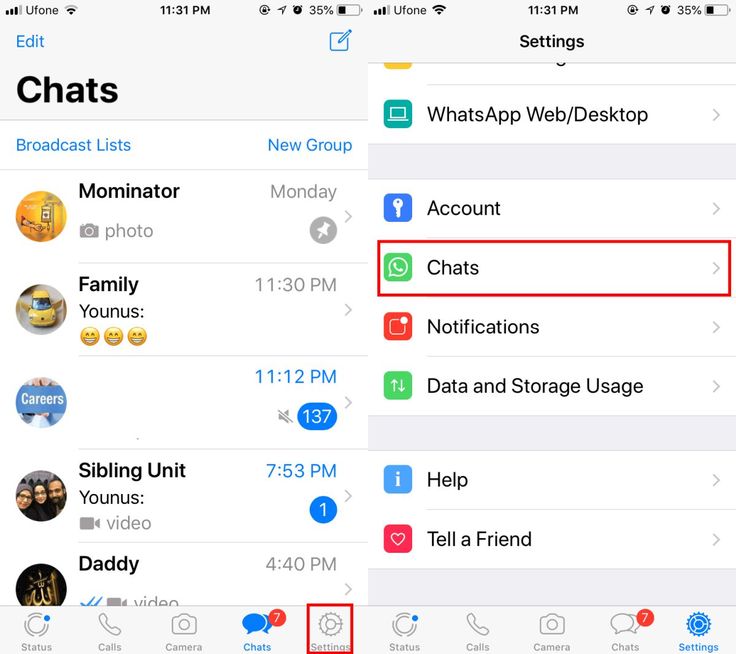
If you have a Google Pixel1. Open WhatsApp on your iPhone and tap Settings in the bottom-right corner.
2. Tap Chats, and then Move Chats to Android.
Go through the “Move Chats to Android” process. WhatsApp; William Antonelli/Insider3. Tap Start and let the app save all of your chats. If you have a lot of messages or a slow internet connection, it could take a few minutes.
4. Start setting up your Pixel phone. When you're asked if you want to copy over your apps and settings, select Copy and then connect the two devices using your cable. You'll need to tap Trust on the iPhone too.
5. Keep going through the Pixel setup to connect all your accounts. Let everything copy over, and when you're asked what you want to keep, make sure that Apps is selected.
6. At some point in the process, a QR code titled Transfer WhatsApp chats should appear. Scan it with your iPhone and tap Start when WhatsApp opens.
Scan the QR code with your iPhone.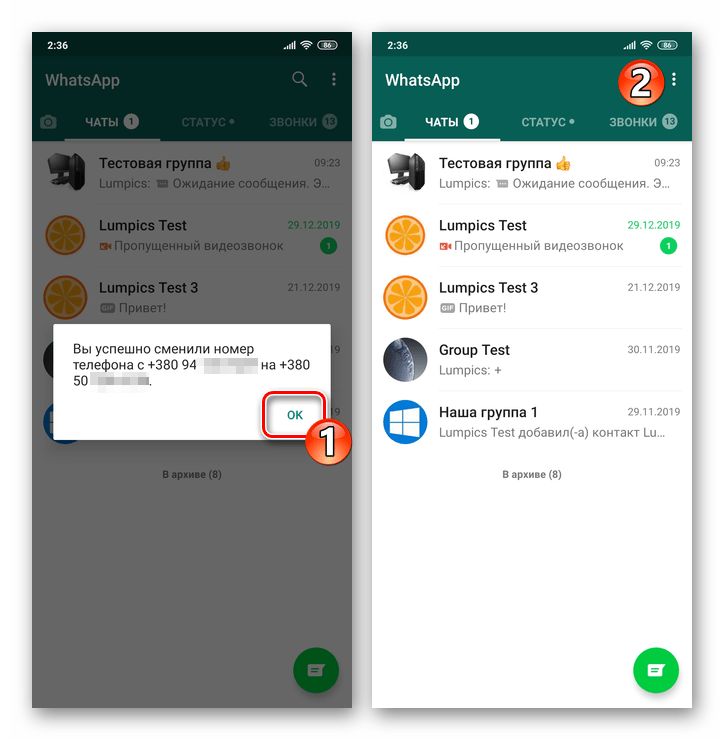 Google
 7. When prompted, disconnect the cable.
8. Log into WhatsApp on the Android device using the same phone number you had before.
If you have a Samsung phone1. Open WhatsApp on your iPhone and tap Settings in the bottom-right corner.
2. Tap Chats, and then Move Chats to Android.
3. Tap Start and let the app save all of your chats. If you have a lot of messages or a slow internet connection, it could take a few minutes.
4. Turn on your Samsung phone and start setting it up. When the Smart-Switch app asks if you want to transfer your data from an iPhone, confirm that you do and connect the phones using your cable.
5. Select all the apps and data you want to transfer over. Make sure that WhatsApp is selected.
6. At a certain point, a QR code titled Transfer WhatsApp chats should appear. Scan it with your iPhone and tap Start.
7. Once everything is transferred, finish setting up the Samsung phone and then log into WhatsApp using the same phone number you had on the iPhone.
8. When prompted, tap Import.
You should now have all your WhatsApp messages on the new Android phone.
If you have an Android phone that's not a Samsung or Pixel, there's no way to transfer iPhone WhatsApp messages.
How to change from Android to iPhone without losing WhatsAppFor a long time, you could only go from iPhone to Android — not the other way around. But a recent update makes moving your WhatsApp messages from an Android to iPhone possible.
1. Make sure that you've backed up your WhatsApp messages to your Android.
2. Download the Move to iOS app on your Android from the Play Store, and then open it.
3. On your new iPhone, go through setup until you reach a page titled Apps & Data. On this page, tap Move Data from Android.
4. A code will appear on your iPhone's screen. Enter it into the Move to iOS app and let the two phones sync up.
Quick tip: Your iPhone and Android need to be connected to the same Wi-Fi network for this to work.
5. On the Transfer Data screen, make sure that WhatsApp is selected.
Check off WhatsApp. Apple
Apple 6. Go through the prompts to let WhatsApp's data transfer over to the iPhone. It'll tell you when the transfer is complete.
7. Finish setting up your iPhone, and then download WhatsApp from the App Store.
8. Open WhatsApp on your iPhone and log into the same phone number that you were using before. Tap Start when prompted.
How to move WhatsApp messages from iPhone to iPhone, or Android to AndroidChanging from one phone to another of the same type (iPhone or Android) is a simpler process.
1. Open WhatsApp on your original device and tap Settings, then Chat, and then Chat backup.
2. Save a backup of all your WhatsApp messages. If you're using an iPhone, they'll be saved to your iCloud account; if you're using an Android, they'll save to your Google account.
Save your chats to iCloud or Google. WhatsApp; William Antonelli/Insider3. Set up your new device and log into the same iCloud or Google account that you saved WhatsApp to.
4. Download WhatsApp again and log into the same phone number you were using before. When asked, choose to restore your messages from the backup.
Save your chats to iCloud or Google. WhatsApp; William Antonelli/Insider
 William Antonelli
Tech Reporter for Insider Reviews
William Antonelli (he/she/they) is a writer, editor, and organizer based in New York City. As a founding member of the Reference team, he helped grow Tech Reference (now part of Insider Reviews) from humble beginnings into a juggernaut that attracts over 20 million visits a month. Outside of Insider, his writing has appeared in publications like Polygon, The Outline, Kotaku, and more. He's also a go-to source for tech analysis on channels like Newsy, Cheddar, and NewsNation. You can find him on Twitter @DubsRewatcher, or reach him by email at [email protected].
Read moreRead less
Change to a new phone recently? Transferring WhatsApp to a new phone can be trouble especially when you transfer to a different mobile phone system like Android to iOS. Here, we will introduce a complete guide to help you transfer Whatsapp chat history, videos, photos, and attachments to your new phone.
If you're changing from Android to iPhone or iPhone to Android, MobileTrans - WhatsApp Transfer comes as no less than a boon. This program aims to manage your WhatsApp in the best possible way. Whether it is transfer, backup, or restore, the tool does it all in no minutes. Using this program, you can easily transfer WhatsApp to a new iPhone or Android.
MobileTrans - WhatsApp TransferTransfer WhatsApp to a new phone With Clicks!
Free download Free download
4,085,556 people have downloaded it
1. Download, install and launch the program on your computer. Now, tap on “WhatsApp Transfer” from the main screen.
2. Click on the “WhatsApp Transfer” tab given on the left panel. There are different data that can be transferred.
3. Take the source and the target device, no matter Android or iOS; the tool works with both. Get the respective cables and connect your device to the computer. You will see a screen as below. Click on the "Flip" button if the positions of your device are wrong.
4. Click on the “Start” button now and you will receive a pop-up. Hit on “Yes” to move further. The transfer process will begin now. Wait until you see the transfer completed notification on your screen.
Check our video tutorial below:
Try it FreeTry it Free
safe & secure
If you do not want to transfer WhatsApp through the computer. You can try to use the app - Wutsapper. Wutsapper can transfer WhatsApp from Android to iPhone and vice versa, you don't have to factory reset your phone first. You only need to prepare two mobile phones and an OTG data cable or USB-C to Lightning data cable so that borrowers can download!
Step 1: Choose the transfer function to transfer your WhatsApp data.
Step 2: Log in your WhatsApp account and then click "Next".
Step 3: Choose one method to connect your Android device with iPhone, and authorize it.
Step 4: Follow the instructions on the screen and start to transfer WhatsApp from Android to iPhone.
When it comes to transferring WhatsApp to a new phone and both (old and the new) phones are Android, you need to take the help of Google Drive backup. In recent versions of WhatsApp, the app automatically creates a backup of the chats in Google Drive at 2 A.M. This helps in the easy transfer of WhatsApp messages to the newest phone. When you install WhatsApp on the new phone with the same number, you will get the chat history on your phone when this automatic backup is enabled on your device.
1. Open WhatsApp on your source Android device and tap the “three dots” on the corner. Tap “Settings” and choose “Chats”.
2. Now, tap on “Chat backup”. You can now manually backup by clicking on “BACKUP” or set the frequency to backup daily, weekly, etc. as per your choice.
3. Now, on your new device, install WhatsApp from the “Play Store” and log in with the phone number that you were using on the previous phone.
4. While you do it, you will be prompted to restore the backup. Follow the prompts and in minutes, your chats will be on your new device.
This is how to transfer WhatsApp messages to the new phone when the two phones are Android.
To transfer WhatsApp messages from an iOS to the other, we are going to jot down a method that includes the iCloud backup feature in WhatsApp. However, please note that this method can overwrite the existing data in your device. So, ensure to follow this way if you are completely agreed with the consequences. Here are the steps to be followed to transfer WhatsApp messages between iPhones.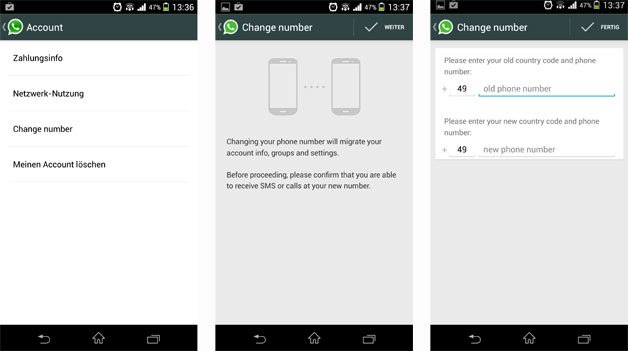
To wrap it up, whether you need to transfer WhatsApp from Android to a new phone or from iPhone to a new phone, you can find all solutions here. However, to make things easier and faster, MobileTrans - WhatsApp Transfer would be the best solution among them. Simply download it and have a try!
Free DownloadFree Download
safe & secure
Article reading time 4 minutes.
The information is up to date! The material was checked on 03/30/2022.
How to change the WhatsApp number from a smartphone and is it possible to do it from a computer? Below is a step by step guide for Android and iPhone devices.
Before you change your phone number in WhatsApp, you should make sure that the following points are completed:
 In the first case, you will have to transfer it to a new device manually, in the second and third, you must first connect your Google or Apple account. nine0017
 Useful: how to send a voice message.
The number can be changed for various reasons, for example:
You can switch WhatsApp to another number on Android and iPhone. The user can change the SIM card without changing or with changing the gadget, with and without saving the data of the current account. On devices that support KaiOS, you can only re-register.
You can change your phone number in WhatsApp on Android in this way:
Optional: how to delete a business account if it is no longer needed.
Changing the WhatsApp number on the iPhone is as follows:
 Go to the "Account", "Change ..." section, click "Next".
An account on Android and iPhone can be registered to another number without saving data. If correspondence and media are not needed, then you can simply delete the messenger, change the SIM card, reinstall the application and register. When using this method, none of the contacts will know about the change of the SIM card. nine0004
If you need to change the gadget, you must first create a backup data. After that, download WhatsApp to a new device, register and restore a copy. We will tell you how to send a photo from a computer here.
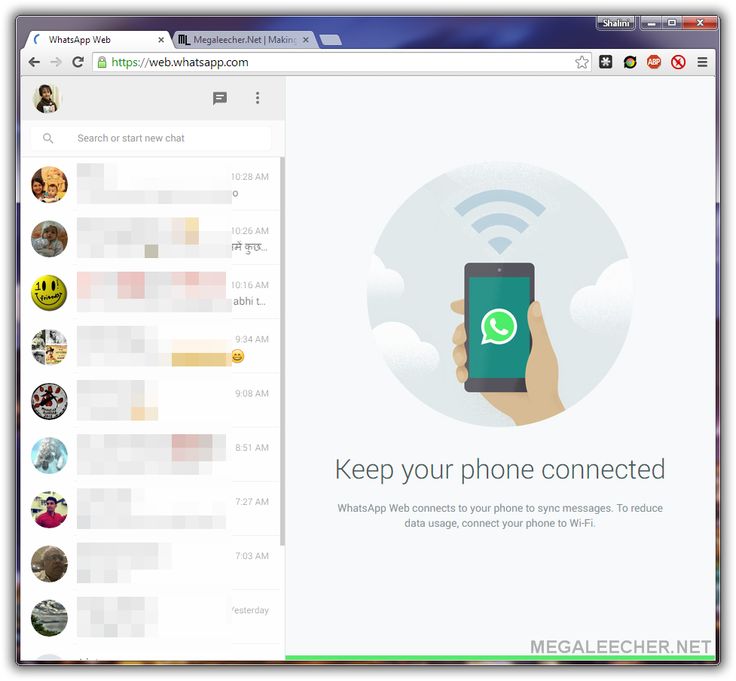
Web and desktop versions of WhatsApp are additions to the main (mobile) application.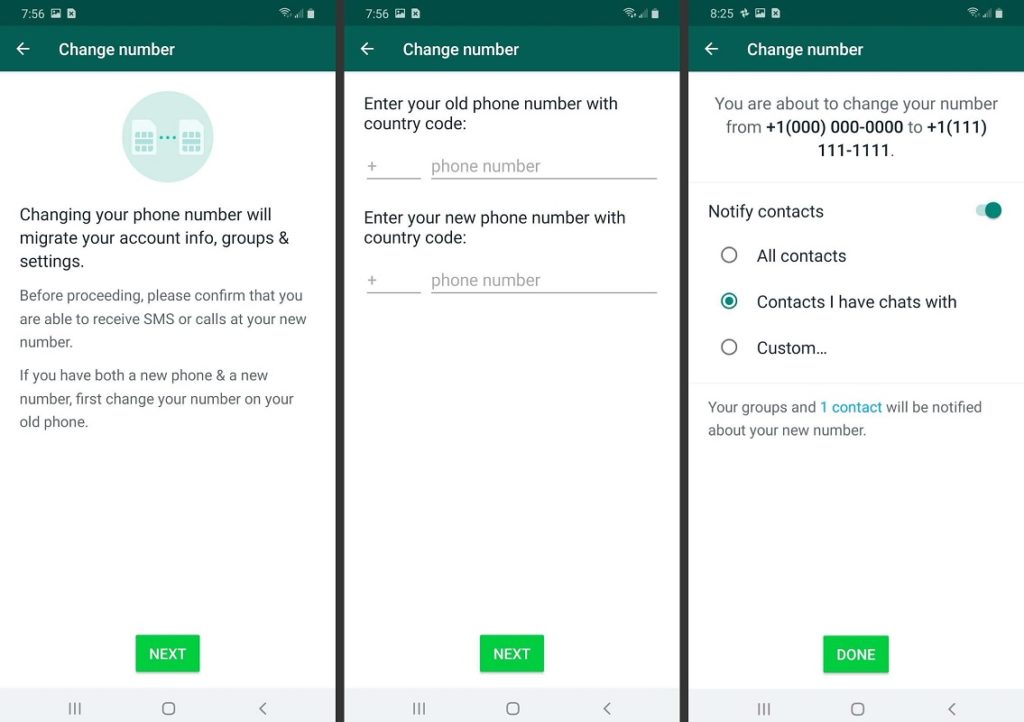 All functions of the messenger are available in them, and in the settings the account owner can manage notifications, the theme, chat wallpaper and blocked users. You can transfer WhatsApp to another number only from your phone. nine0004
There are several options for changing your phone number in WhatsApp. This can be done with and without changing the device, with and without uninstalling and reinstalling the messenger. You cannot change data on a computer.
The application has the ability to notify other contacts that you have changed your number. This is necessary so that you do not lose contact with old users and do not lose data. Let's figure out how to enable this notification. nine0004
After you enter the number to which you want to replace the previous one, you will see the "Notify contacts" column. Move the toggle switch to the active position and you're done! Now all contacts will receive this information.
Postcard catalog
Profile pictures
Statuses for all occasions
Fun for you
Are you changing your mobile phone number? You should know this you can save all your WhatsApp chats and groups and it will automatically notify all your contacts when your phone number changes. We explain how to do it in this video and article.
Our WhatsApp account is linked to our mobile number, but if we change the number at any time, we have nothing to worry about because we can save all our WhatsApp conversations and groups, all its multimedia content, as well as we don't have to worry about informing all our contacts about the number change because whatsapp will notify you automatically. How can you do it? Well, this is the option that the app itself offers us, and we explain step by step how it's done, in great detail.
Index
The first thing we need to do is to replace the SIM card of our iPhone with a new one. Don't worry, nothing will happen to your WhatsApp even if you haven't changed your number yet. nine0136 Remove the old SIM card, insert a new SIM card with a new phone number , and check that it is active, that you have coverage with your operator, and that SMS activation was successful. Once this is done, you can move on to the next step.
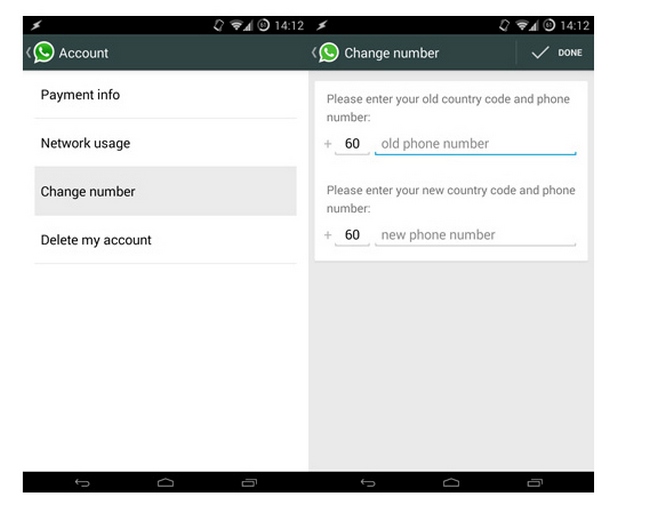
Now we can log in to WhatsApp and access the menu "Settings> Account" and from there enter the option "Change number". Whatsapp is responsible for reminding us that we have to prepare the new sim to receive the SMS and in the next step we will have to enter the old number and the new number. Click "Next" and now we will be able to notify our contacts about the change of number. It's optional, if you don't want it you don't need to activate it, but if you activate it you can notify all your contacts, only the ones you have in the chat, or set up notifications. Who will always receive notifications are the groups you are included in.
Once this is done, the procedure is almost complete and we can only confirm that the number we added is correct, which is fundamental because We will receive an SMS with a code that will be needed to complete the change of mobile phone number in our WhatsApp account. . After that, we will have our chats and groups with all their contacts and content as before the number change, and also (if we have activated this option) our contacts will be notified of the new number we have.
Subscribe to our Youtube channel
The content of the article complies with our principles of editorial ethics.