How to Make Slow-Motion Video Slow-Motion Video Maker Slow-Motion Video Instagram
Whether it's a glamorous shot of someone's hair blowing in the wind as they whip their head around, or an action movie showing the heroes marching into battle, slow-motion video has certainly made its mark.
It's a fun effect that can add some visual appeal to your Instagram posts. If you're wondering how to get slow-motion video on Instagram, you've come to the right place. This post will break down how to accomplish the effect and have you wowing your followers in no time.
Effects filters are a common part of any video or photo-sharing site these days. Instagram has their own set of video effects called Boomerang. Although using these effects once required a separate app, they've now been rolled into the core Instagram app. When creating your Instagram story, a slow-motion video can be a fun effect to add, and Boomerang makes it easy. Sometimes, though, you may want more control than the basic filter provided by Instagram allows for. For those times, we'll cover the basics of adding slow-motion in a video editor.
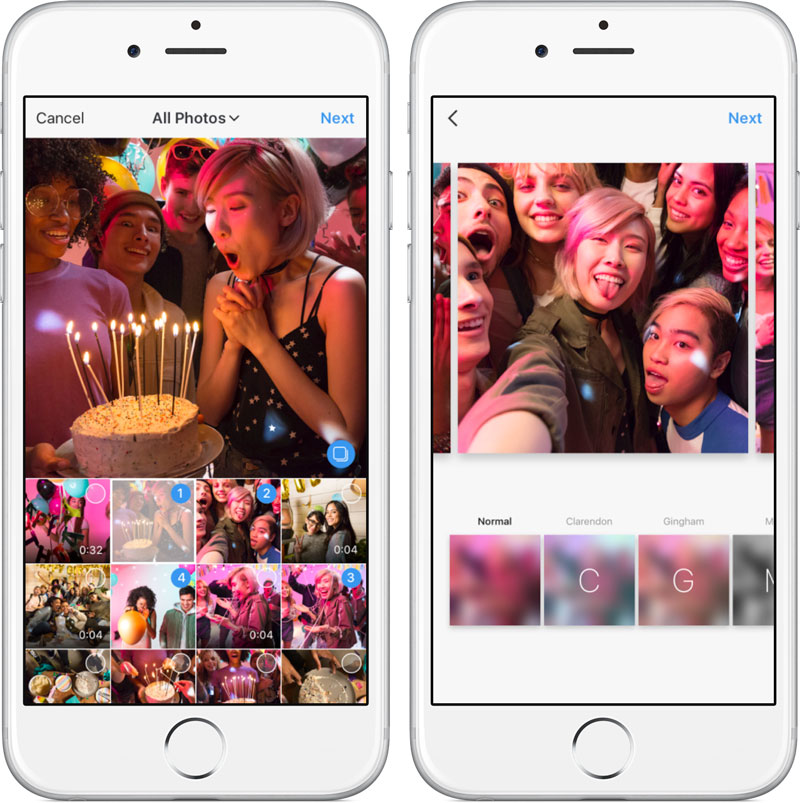
Using the Boomerang effects on your Instagram story couldn't be easier. From the Stories camera, swipe right to enter Boomerang mode. Once there, tap on the icon with the infinity symbol to reveal the effects. You will see several different effects available to you as well as the option to trim the video. For our slow-motion effect, we are interested in the effect called Slowmo. When you apply this effect to your video, the Instagram app will slow your video down to half its normal speed. If you'd like to adjust the speed by a different amount, you'll need to use a video editor outside of Instagram, covered next.
After you've applied the slow-motion to your video with the Slowmo effect, you'll be presented with two options. You can publish your freshly slowed video to your story right away, or you can choose to save it to your camera roll. Once in your camera roll, you can apply additional effects to it in external software or upload it to another video sharing site.
The exact process for slowing down the video will depend on the video editor that you are using. We will give a brief overview of how to perform the effect in Video Studio. For a more detailed explanation of the process, you can check out this post on the subject.
Time control effects in VideoStudio are called Time Remapping. You can find that dialog by right-clicking on the clip in the timeline you want to slow down. After activating time remapping, you'll need to select the portion of the clip you want to edit using the Mark In and Mark Out buttons in the interface. From there, you simply select the speed that you want to change it to.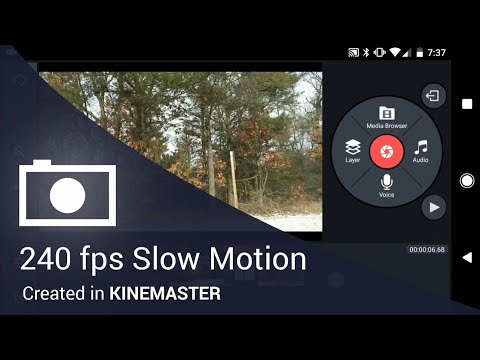 Note that time remapping in VideoStudio Pro can both slow down and speed up your video.
The best part about slow-motion video is that it doesn't take a lot of planning because you can add it to any video in your phone or on your computer. Sure, you can plan out the perfect slow-motion shot, but you can also quickly and easily play with the effect on every video you shot. Of course, you don't want to overdo the effect on the videos you post. If everything you post is a slow-motion video, Instagram followers may begin to think you live your life in slow-motion. Still, the occasional slow-motion video on Instagram makes for interesting viewing for your followers. Why not see how your videos look in slow-motion right now?
Summary
If you're wondering how to do slow motion on Instagram stories or record Slow-motion videos on Instagram Reels, you've come to the right place. This guide will show you how to make slow motion videos for Instagram stories and Reels, also share a third-party video editor to slow down the existing videos for Instargam.
Slow-motion is a fun effect that can add some visual appeal to your posts, and slow motion videos have been trending on social media platforms, like Instagram.
Have you ever wondered if you could make a slow motion video directly on Instagram Story or Reels? Or try to slow down an existing video for Instagram? This post will show you how to make a slow motion video for Instagram,including how to take a slow motion video on Instagram and slow down an existing video for Instagram.
Part 1: How to Slow Down Videos for Instagram Story & Reels
Part 2: How to Make a Slow Motion Video on Instagram Story
Part 3: How to Record a Slow Motion Video on Instagram Reels
Preview
New Arrival Reels End Screen
Use This Template
Preview
Summer Fashion Instagram Reels
Use This Template
Preview
Photo Blog
Use This Template
Also Read: How to Make Instagram Reels with Multiple Photos >
You've taken a funny but regular-speed clip and wish to make it slow motion for Instagram? However, Instagram doesn't allow you to slow down or speed up an existing video you've recording. For this case, a third-party video editor is needed.
We'll show you how to slow down videos for your Instagram stories or reels online for free with a powerful video maker, FlexClip. It works best to edit a video into slow motion for your Instagram stories or reels.
Now, click on the Get Started Now button and follow the simple steps below to make a slow motion video for Instagram.
Get Started Now View Templates
Step 1
Go to the Media option to upload your own video clips and apply them to the Timeline. Here, remember to pick the proper ratio od 9:16 for your Instagram video.
Make Slow Motion Videos for Instagram Online for Free - Add Media
Step 2
Next, go to the Speed icon on the top menu to change the speed of your video and slow down the clip.
Make Slow Motion Videos for Instagram Online for Free - Slow Down
Step 3
(Optional) You can make other edits to level up your video, like add filters, transitions, animated texts, BGM, voice-over, or watermark, to level up the video at your wish.
Make Slow Motion Videos for Instagram Online for Free - More Edits
Step 4
When you're done the editing, you can view your slow motion video with the Preview button. If you are satisfied, download it to your computer and share it on Instagram.
① How to Fix "Instagram Story Video Blurry" Problem
② How to Fix "Instagram Music Not Working" Issue
③ How to Fix "Instagram Story Lagging" Problem
To help you do the slow motion on your stories, Instagram has its own set of video effects called Boomerang. Using the Boomerang effects on your Instagram story to make a slow motion video couldn't be easier.
Step 1
Open the Stories camera inside the Instagram app and then swipe the bottom of the screen until you are on Boomerang mode (an infinity symbol).
Make Slow Motion Video in Instagram: Step 1
Step 2
Start recording the boomerang, and once done, click on the infinity sign in the top right corner.
Make Slow Motion Video in Instagram: Step 2
Step 3
Then, the different effects will pop up, choose the SlowMo effect, the second one from left to right, to slow down the video.
Make Slow Motion Video in Instagram: Step 3
Step 4
You can add text, gifs, or drawings the same way you would to any Instagram Story.
Step 5
Once down, you can post your new, slow motion video the way you usually would, by clicking on the "Your Story" button at the bottom left of the screen.
When you apply the SlowMo effect to your video, the Instagram app will slow your video down to half its normal speed. If you want to adjust the speed by a different amount, you can turn to another slow motion video editor, like FlexClip, we shared above.
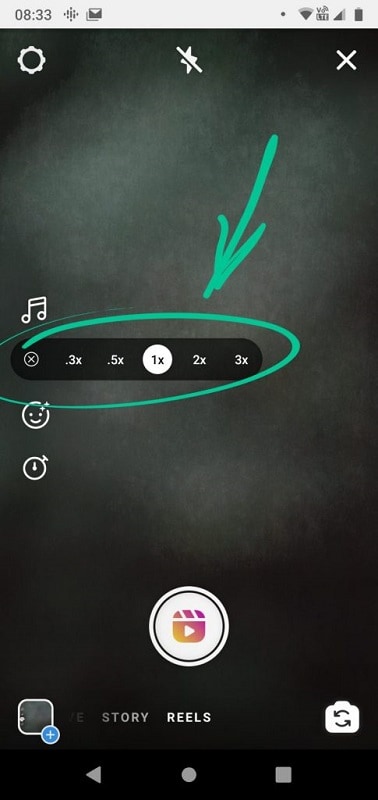
Instagram Reels also allows you to create reels with lots of unique features, including the slow motion effects. Making a slow motion video has become very easy on Instagram reels. What you need to do is change the speed of the video while recording.
Step 1
Start the Instagram App and tap on the Camera icon to enter the Reels video mode by tapping the Reels at the bottom.
Step 2
Now, you can see some options, including the Audio, Speed, Effects, and Timer. To create slow-motion videos, focus on the Speed and choose 0.3x or 0.5x slower speed to record your video.
Make Slow Motion Video in Instagram Reels
Step 3
You can also choose different filters or effects and create videos with popular songs, just do as you would to any reel.
Step 4
When you're ready to record a new video, tap the record button to start recording your video.
Final Words
That's all for how to make a slow motion video for Instagram. Whether you are going to make a slow motion video for your Instagram Story or Reels, you can always find a convenient way to slow down a video easily. Find this post helpful? Please share it with others so that more people can benefit from it.
Sandy /
Has 4-year of professional photographing experience. Very much into recording every detail of life. She is passionate about all things related to video production, and loves to exploring tips and tricks about it.
Menu
Contents
Users usually slow down videos where they are actively doing something. For example, running, circling or playing sports. The advantages of slow-mo clips on Instagram are as follows:

And if you want to make your video in the form of slow motion - read the article. In it, we will analyze in detail how to make such a video and gain an audience and likes on Instagram.
Slowmo is done through Instagram stories - in the content processing section for posts there is no function to slow down the video.
Therefore, you will have to work through stories. But after that you can download this video to your phone and add it to your feed. Let's take a closer look:

To make a clip interesting, you first need to figure out what track you will add to it. Only then can you record a slowmo clip for Instagram. The melody affects the perception - without it, the video will turn out to be dry and unemotional. Therefore, you will get fewer views. You can find music for such a video among these options:

If you want to make a long video, but don't want to do double work and glue fragments from stories into a full clip, you can shoot a slow motion right in the editor. To do this, select one of the applications:
Each editor helps you edit not only the final video, but also during shooting. That is, you can shoot a clip on your camera and add it to the editor. Then apply a slowmo effect and save the clip to your phone or immediately post it to Instagram through the app.
If you can't use your phone, you can slow down the clip using your PC or laptop. The following programs will help:
 After downloading the application, add a video to it. Then click on the mini version of the video on the screen in the lower right corner and change the playback speed. To do this, click on the inscription "Speed" and reduce it to make a slow motion video for Instagram.
 On Instagram, not only the plot is important, but also the beauty and aesthetics of the video. Therefore, you need to think over your idea and work on the quality of the video for Instagram - there are many editors for this, as well as effects on the social network itself.
If you just want to show the beauty of nature or your movements in a clip without meaning, then shoot with a professional camera or iPhone. This will highlight the details in the video - these gadgets have a high resolution during shooting.
Share with friends:
Twin
Share
share
Send
Grade
ADBLOCK
DETECTOR
Pluses of the hardened video consisted what can you show with it the smallest details, and more vividly and accurately convey exciting moments from your life.
Slow motion video is great for those who who spends a lot of time in class sports or travel.
To slow down Instagram videos Initially, you need to shoot a slow-motion video.
Instagram itself does not have a feature that allows to remake a normal video in slow motion.
However, you can create a slow motion video using iPhone 5S or with a professional camera, which has this option.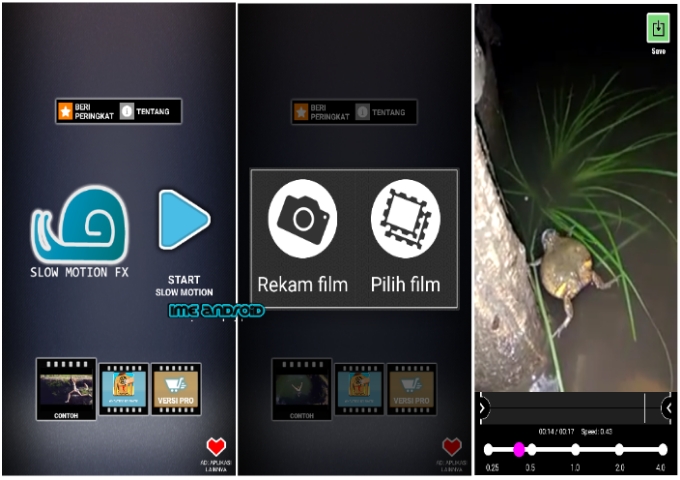
The iPhone has a special mode, which allows you to make a slow motion from a regular video or from the very beginning start shooting video in mode reduced speed.
If you don't have a fifth iPhone and a professional camera, then a special Movavi program will come to the rescue. This is a fairly simple video editor that installed on your computer and helps slow down any regular video.
To start editing your video, install this program on your computer, then.
To download your creations on Instagram first of all you need to transfer him to the phone. Arrange video forwarding on the phone is possible using iTunes directly from the computer.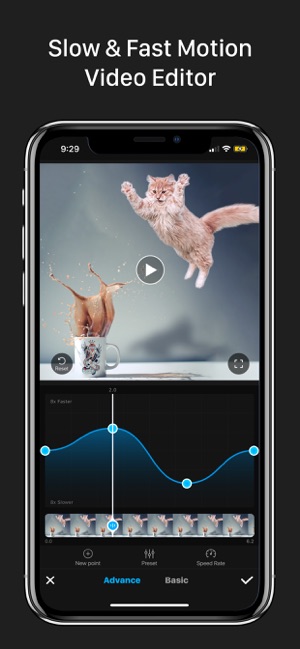 Or send it by mail, and then save it to the gallery. The main thing is that the video should be in your main gallery, otherwise you won't be able to add it.
You can post slow motion video on Instagram in the following way.
Now you can reply to comments under your masterpiece.