The iPhone version of WhatsApp has one major limitation over its counterparts on other platforms: It doesn’t let you share songs from the music library. But why this limitation? Does it mean that WhatsApp for iPhone doesn’t support audio files?
No, the limitation in question here might be a consequence of Apple’s strict App Store Review Guidelines. According to one of its clauses, third party apps are not allowed to facilitate file sharing or include the ability to save media from sources like, iOS Music Library (Apple Music), without explicit authorization. And, this might be the reason for WhatsApp to not include the music sharing option in its iPhone version.
Continue reading below
Well, we have good news for you! Here, we have mentioned a few workarounds to share music files via WhatsApp on iPhone. And the best part, these workarounds do not require you to jailbreak your device.
Page Contents
For this to work, you need an app that allows you to select a song from the iPhone Music Library and then share it via WhatsApp using the Share Menu (Open In). This is the trickiest part, as you wouldn’t easily come across an app on the App Store that directly provides such features.
Fortunately, though, there’s one way to get the job done. The Shortcuts (previously Workflow) app lets you create custom workflows & automation based on basic & complex iOS operations, including “Select Music” action (which allows you to pick a song from the iPhone Music Library), “Encode Media” (which converts a media file into the desired format) and “Send Media on WhatsApp” (which allows you to share photos & other media files on WhatsApp). Create a custom shortcut/workflow with these three actions, and you’ve got just the feature you’ve been looking for.
To save you some time, we have already created the custom workflow for you. All you need to do is to add it to your Shortcuts app and then invoke it whenever you need. The below steps will guide you on how to use the particular workflow in order to share an MP3 via WhatsApp on iPhone.
Continue reading below
The song will be shared with the selected WhatsApp contact or group.
Ideally, you can launch this workflow from “My Shortcuts” section of the app. But you can also add it as a widget, or create a shortcut on the Home Screen as an independent app, for faster access. To add a workflow to the Home Screen, do the following:
The workflow should now get added as a shortcut on your iPhone Home Screen.
Workflow was initially launched as a paid app. But ever since its recent acquisition by Apple, the app is now available for free on the App Store.
Note: This method will only work with DRM-free music files. Sharing DRM-protected files, such as those downloaded from Apple Music, is not supported. Also, the song you’re trying to share on WhatsApp should be available offline on your iPhone.
You might also be interested in the following how-to’s for WhatsApp on iPhone;
Continue reading below
We often download MP3 audio from the Internet, which we might want to share with our WhatsApp contacts. In that case, we need a download manager app that allows us to download MP3 files from the Internet, and export them to WhatsApp (using the Open In feature).
The below steps will guide you to share an MP3 file on WhatsApp from third party download managers and file management apps. In this demonstration, we’ve used Documents app, you may use any other file management app that supports Open In feature.

The audio file will be shared with the particular WhatsApp contact or group.
You might also like:
Disclaimer: We do not encourage music piracy in any way. The only purpose of this article is to provide knowledge to the readers. 7labs does not take responsibility for any misuse of this information. If you love music, you should also support the artists by purchasing their creations.
#featured#General Tips#iPhone
All posts on 7labs, including this one, are compliant with our Content Disclosure policy.
Have you ever wondered whether it will be possible to send music from your iPhone to someone else through WhatsApp?
Unlike Android devices whose operating system (OS) allows you to send music from your phone to another through WhatsApp, iOS doesn’t permit that. Thus, sending music from your iPhone through WhatsApp is a little bit tricky.
One of the reasons why Apple does not allow you to send music directly is due to its copyright laws and also, its close-source operating system (iOS). This is also one of the reasons why you are not permitted to download apps that are not on the Apple App Store.
Enough of the plenty talk and let’s jump right into the reason why I wrote this article.
In this Article:
The sending of music from your iPhone through WhatsApp is a little bit difficult than that of Android devices. Therefore, before you can be able to do this, you need to download third-party applications from the Apple App Store.
All the apps that I am going to show you have been tried and tested and does not cause any harm or damage to either you or the person you are sending the music to.
The iZip – Zip Unzip Unrar Tool is an application that is available for free download on the Apple App Store. This app can be used to zip, unzip, and unrar files and at the same time function as a File Manager.
To send music from your iPhone through WhatsApp using iZip, follow the steps below:
To use this method, you need to have a download manager that allows you to download music from the internet. Therefore, even if you choose not to use the Documents app, you can use any download manager and file management app that has the Open In feature.
Gabriel Agbobli
Gabriel is a young writer and researcher who is on a mission to help everyone get at least the basic idea of technology. He has fair Design Thinking background and applies innovative ways in writing his articles. He is currently studying at the University of Ghana and you can reach him on +233(0) 579184625. You can hit hm up if you would like to join a tech community at the Universiy of Ghana.
While it must be admitted that since Facebook bought WhatsApp, the app has been updated more frequently and includes a lot of exciting news, you can always ask for a lot more from the most popular messaging app on the planet. For example, since it allows us to send documents, it won't hurt to share music from iPhone via WhatsApp . But if you can't officially, we can always find a little trick to skip a certain restriction.
It's no secret that iOS is not as open a system as Android, which sometimes makes us take more steps to complete the same task, but send music Using WhatsApp from our iPhone is not a difficult and expensive task since we can share songs using free apps like Documents 5. Here we offer several ways to send songs from iPhone via WhatsApp.
Postcode
How I already mentioned in the previous paragraph, one of the applications that will allow us to send music via WhatsApp and completely free of charge is Required documents 5 , a viewer for all kinds of documents that also allows us to share them. While the process seems simple once we know it, I must admit that it may not be as intuitive as other methods. To avoid confusion, below I detail the steps to follow to send songs via WhatsApp using Documents 5: download).

Subscribe to our Youtube channel
Good. We have already talked about the free way to send songs via WhatsApp. Now it's the turn of the payment method that I usually use. It's about doing this with Workflow , a very powerful application that we can describe as Automator for iOS. At the time of this writing, Workflow had a price of 2.99 € , but it's worth every penny they ask us. Actually I paid 4.99 euros and it still seems cheap. Here are the steps you need to follow to send songs via WhatsApp using Workflow.
 Some time ago I created a simple but effective program that you can find HERE. You must open it with Workflow.
In truth, the Apple Music app is one of the few that doesn't allow you to share music directly from the app.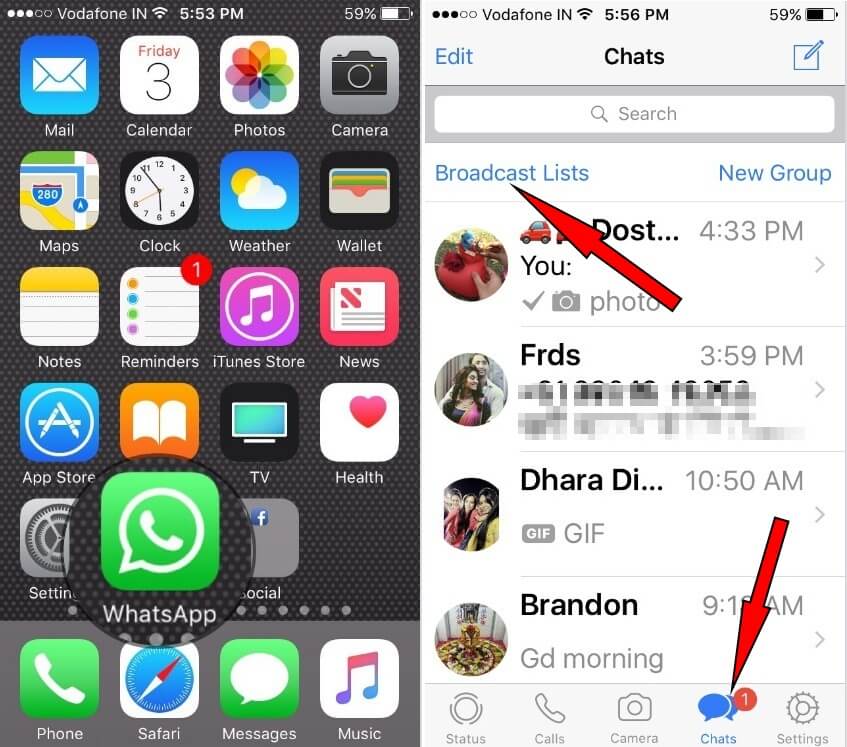 What does it mean? It's good that if we have a song saved in another application , such as VLC or Ace Player, we can touch the share button to bring up applications where we can send them, among which will be WhatsApp.
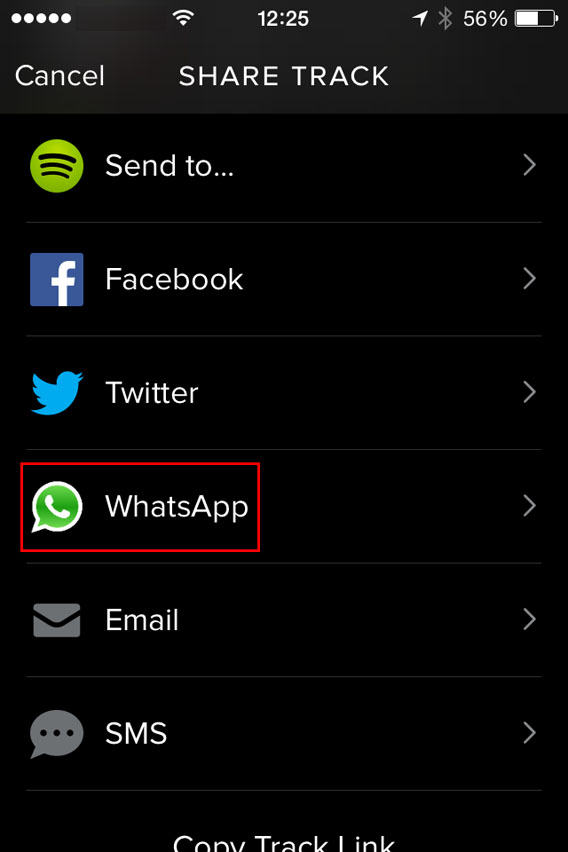
The way to send songs from third-party applications may differ, but they all have one thing in common: we must find the share icon and click on it and then select WhatsApp as the destination. For example, in VLC, we need to touch Edit first, then mark the file, and finally touch the Share icon.
Save the songs What they sent us via WhatsApp is not a difficult task, but we will also need to go to the App Store to get it. I'll explain how to save them using VLC (free media player) as an example, but it can be saved to any other compatible app or cloud. We will have to follow the following steps:
 If you have an iPhone with 3D Touch, be careful with how hard you press; if we go too far, it won't understand what we want, and since there is no corresponding 3D Touch gesture, it won't do anything. You have to touch with the same force we vibrate apps to move/remove them from the home screen.
 Do you have any questions or already know how to send/save songs using WhatsApp from iPhone? If you know another way to transfer music to iPhone from WhatsApp or to send mp3 using this messaging client, please leave us a comment with the method you are using.
The content of the article complies with our principles of editorial ethics. To report a bug, click here.
Since yesterday, we can send and receive documents using WhatsApp without the need for them to be in PDF format or to convert them to this format. Thanks to this new feature, we can send Word, Excel, PowerPoint or plain text documents. Not only that, we can also send songs, which at least I, who always use the Native Music app, never did. Do you want to know how send and download songs received in whatsapp ? Well, keep reading.
First of all, I would like to say that I did a little research and found that songs can be sent via WhatsApp for a long time, but using other applications and more expensive methods. We'll also teach you how to send them using third party apps here, but things are a lot easier now. We will also show you how save them to your iPhone so that you can play them even if you delete the chat in which you received them. You have all the information below.
Index
SENDING songs in .mp3 or m4a format (other formats have not yet tried) is very simple. The first thing we need is to host the songs on a site that allows us to share this type of content, such as the free VLC app. But there is an application that allows you to do everything, and I will always recommend your purchase. This is a workflow from which we can also restore the songs that we have in our own music application. The process for sending songs via WhatsApp using Workflow is as follows:

Subscribe to our Youtube channel
As easy as the previous one, but which might be better because it's free, is to send songs using the Documents 5 app. This method is very simple and we only need to do next:

If we have a song in VLC or other multimedia application, we can provide you directly share and select whatsapp . But I find it more interesting to be able to send the ones we have on our iPhone. If the Share action (
) is available in the media app that has the song, but it doesn't allow us to send it via WhatsApp, we can use THIS WORKFLOW. It is the easiest of all since it is similar to Mac Preview, a viewer for all kinds of documents, but with it we have a much more powerful sharing option that will allow us to send songs via WhatsApp.
The downside of watching songs on WhatsApp is that you can't download them. Not? A little. There is a trick that will help us save audio to WhatsApp . The next way isn't the prettiest and I assume there won't be so much work around in the future, but it works. We will do this by doing the following: