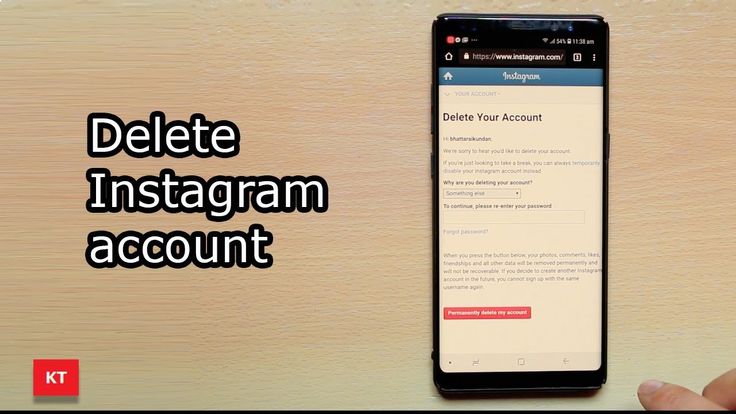
Die Anleitung zeigt, wie du Fotos und Videos von deinem PC aus auf Instagram posten kannst, und du findest Tipps zur optimalen Nutzung von Unternehmensprofilen auf Instagram.
Wir sind heutzutage alle sehr vertraut damit, wie man Bilder auf Instagram postet. Du lädst deine Bilder entweder aus einem Fotoalbum von deinem Smartphone hoch oder machst deine Fotos direkt in der App. Es gibt jedoch Fälle, in denen du von deinem Computer aus posten musst. Zum Beispiel, wenn du im Büro bist oder gerade dein Smartphone nicht zur Hand hast.
Instagram hat kürzlich die Möglichkeit hinzugefügt, Fotos und Videos direkt von deinem PC aus zu erstellen und zu posten. Viele Leute greifen von ihren Computern aus auf Instagram zu, insbesondere mit geschäftlichen Instagram-Accounts. Daher ist es sehr hilfreich, von deinem Computer aus Bilder posten zu können. In diesem Leitfaden findest du einen Überblick und eine Schritt-für-Schritt-Anleitung, wie du Bilder und Videos von einem PC aus auf Instagram posten kannst.
Um mehr darüber zu erfahren, wie du von einem PC aus einen Beitrag auf Instagram erstellst, lies diesen Artikel weiter.
Wenn du jemals in der Situation bist, dass du etwas auf Instagram posten möchtest, aber dein Smartphone gerade nicht dabei hast, ist es hilfreich zu wissen, wie du Bilder von einem PC aus auf Instagram posten kannst. Befolge dafür einfach die folgende Schritt-für-Schritt-Anleitung.
Das Wichtigste zuerst: Um von deinem Computer aus auf Instagram posten zu können, musst du zunächst Instagram.com aufrufen und dich bei deinem Account anmelden.
Sobald du dich auf deinem Computer bei deinem Instagram-Account angemeldet hast und bereit bist zu posten, klicke auf das Plus-Symbol in der oberen rechten Ecke. Das Plus-Symbol findest du zwischen den Meldungen und den Kompasssymbolen.
Nachdem du auf das Plus-Symbol geklickt hast, öffnet sich ein neuer Bildschirm.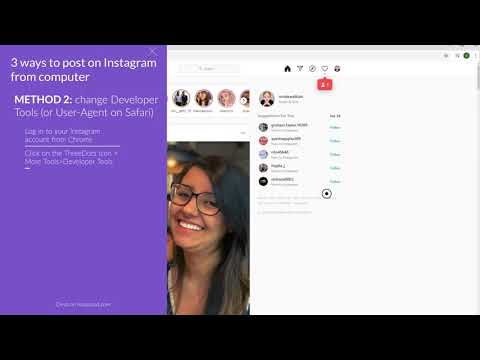 Nun klickst du auf die Schaltfläche “Von Computer auswählen”, wo du dann Fotos vom Desktop deines Computers, Dokumente oder Downloads auswählen können.
Sobald du ein Foto von deinem Computer ausgewählt hast, das du posten möchtest, kannst du das Foto bearbeiten. Du kannst verschiedene Filter hinzufügen und dein Bild zuschneiden. Du kannst es aber auch unbearbeitet lassen.
Nachdem du das Foto bearbeitet hast, kannst du eine Bildunterschrift oder einen Standort für das Foto hinzufügen und/oder Personen im Beitrag markieren.
Du kannst die Einstellungen für deinen Beitrag nach Bedarf aktualisieren. Du kannst beispielsweise entscheiden, wo es geteilt wird, Kommentarfunktionen anpassen und vieles mehr. Ebenso kannst du die Beschriftung oder den Ort ändern und weitere Tags hinzufügen.
Sobald das Foto erfolgreich hochgeladen und bearbeitet wurde und du mit den Ergebnissen zufrieden bist, kannst du den Beitrag für alle deine Follower freigeben.
Wenn du fertig bist, kannst du mit deinem Smartphone jederzeit überprüfen, wie deine über den PC geposteten Bilder auf Mobilgeräten aussehen.
Nachdem du nun weißt, wie du von einem PC aus Bilder auf Instagram posten kannst, sehen wir uns an, wie von einem PC aus Videos auf Instagram postest. Das Posten von Videos auf Instagram von einem Computer aus ist dem Posten von Bildern ziemlich ähnlich. Aber hier ist die genaue Schritt-für-Schritt-Anleitungen, die du dafür befolgen solltest:
Um Videos von deinem PC auf Instagram zu posten, musst du auf deinem Computer zunächst die Instagram-Website aufrufen und dich bei deinem Kunden-Account anmelden.
Sobald du dich auf deinem Computer bei deinem Instagram-Account angemeldet hast und bereit bist, dein Video zu posten, klicke auf das Plus-Symbol in der oberen rechten Ecke. Das Plus-Symbol befindet sich zwischen den Meldungen und den Kompasssymbolen.
Nachdem du auf das Plus-Symbol geklickt hast, sollte eine neue Seite mit der Schaltfläche “Vom Computer auswählen” angezeigt werden. Klicke auf diese Schaltfläche und du kannst auf die Videos auf deinem Computer zugreifen und eines davon zum Posten auswählen.
Sobald du ein Video zum Posten auf Instagram ausgewählt hast, kannst du das Video vorbereiten. Du kannst das Video kürzen, einen Filter hinzufügen oder andere Bearbeitungen vornehmen, wenn du dies für erforderlich hältst.
Um dein Video ansprechender zu gestalten, kannst du aus der auf Instagram verfügbaren Auswahl Musik über Spotify hinzufügen. Du kannst auch ein Titelbild auswählen. Dies kann dazu beitragen, die Ästhetik deines Feeds zu erhalten, und ermöglicht es dir, einen informativen Titel oder eine Zusammenfassung hinzuzufügen. So werden deine Videos von zukünftigen Besuchern deines Profils mit größerer Wahrscheinlichkeit mehr Klicks erhalten.
Nachdem du das Video nach deinen Wünschen vorbereitet und bearbeitet hast, kannst du eine Bildunterschrift und einen Standort hinzufügen und Personen im Beitrag markieren. Wenn du möchtest, kannst du die Kommentarfunktion auch deaktivieren.
Du kannst alle anderen Einstellungen nach Bedarf aktualisieren und Änderungen am Beitrag vornehmen. Du kannst die Beschriftung oder den Ort ändern und weitere Tags hinzufügen.
Sobald du das Video vorbereitet und bearbeitet hast, musst du nur noch auf Teilen klicken und fertig! Das ist alles, was du dafür benötigst, um von deinem Computer erfolgreich ein Video auf Instagram zu posten.
Eine andere Möglichkeit, von einem Computer aus auf Instagram zu posten, ist die Verwendung der entsprechenden Chrome-Erweiterung. Hier erfährst du, wie das geht:
 Lade die entsprechende Chrome-Erweiterung herunter
Zunächst musst du die Chrome-Erweiterung für Instagram auf deinen Laptop oder PC herunterladen. Öffne den Chrome Web Store, suche nach der “Erweiterung für Instagram” und klicke dann auf “Zu Chrome hinzufügen”. Mit dieser Erweiterung kannst du Fotos hochladen sowie Fotos und Videos herunterladen.
Sobald die Chrome-Erweiterung für Instagram auf deinen Computer heruntergeladen wurde, klicke auf die Erweiterung in der Leiste oben in deinem Browser und melde dich bei deinem Instagram-Account an.
Nachdem du dich bei deinem Instagram-Account angemeldet hast, klicke auf das Plus-Symbol in der oberen rechten Ecke der Seite. Das Plus-Symbol befindet sich zwischen den Meldungen und den Kompasssymbolen. Du kannst dann das Bild auswählen, das du von deinem Computer hochladen möchtest.
Sobald du ein Foto von deinem Computer ausgewählt hast, das du posten möchtest, kannst du das Foto bearbeiten. Du kannst dem Beitrag auch eine Bildunterschrift und einen Standort hinzufügen und Personen markieren. In den erweiterten Einstellungen kannst du die Kommentarfunktion auch deaktivieren.
Nachdem du dein Foto bearbeitet und eine Bildunterschrift erstellt hast, kannst du deinen Beitrag in deinem Instagram-Feed teilen.
Du kannst Instagram-Fotos und -Videos von einem PC aus posten, aber du kannst keine Instagram-Storys, Instagram-Anzeigen, IGTV-Posts oder Reels von einem Computer aus teilen. Du kannst auch kein Live-Video von einem PC aus starten. In der Desktop-Version von Instagram bist du daher auf das Posten von Fotos und Videos beschränkt. Damit kannst du jedoch viele der Instagram-Aufgaben deines Unternehmens problemlos von deinem Schreibtisch aus erledigen.
Keiner weiß aktuell, wie wir von einem PC aus eine Instagram-Story posten können, aber man weiß nie, was die Zukunft bringt.
Neben dem Posten auf Instagram über einen Webbrowser oder die Verwendung der Chrome-Erweiterung gibt es noch einige andere Möglichkeiten, wie du von einem PC auf Instagram posten kannst, wie z. B. die Verwendung einer Planungssoftware. Du kannst eine Planungssoftware wie Mailchimp verwenden, um deine Instagram-Posts im Voraus zu planen. Eine Planungssoftware kann sehr hilfreich sein, wenn es darum geht, deine Inhalte für die sozialen Netzwerke zu verwalten und sicherzustellen, dass deine Beiträge immer zur richtigen Zeit hochgeladen werden.
Wenn du ein Unternehmen besitzt, ist es wichtig, in den sozialen Medien präsent zu sein. Aber nur in den sozialen Medien präsent zu sein reicht nicht aus. Du musst darüber hinaus auch regelmäßig auf den von dir ausgewählten Socia-Media-Plattformen posten und mit deinen Followern interagieren.
Wir verstehen, dass dies für Geschäftsinhaber mit begrenzter Zeit und begrenzten Ressourcen eine Herausforderung sein kann. Hier kann die Verwendung einer Terminplanungssoftware von großem Vorteil sein. Eine Planungssoftware kann dir bei allem helfen – von der Erstellung organischer Social-Media-Beiträge bis hin zu zielgerichteten Anzeigen, sodass du alle deine Kanäle in den sozialen Medien an einem Ort verwalten kannst.
Egal, ob du ein etabliertes Unternehmen oder ein Startup hast: es ist immer sehr hilfreich zu wissen, wie man von einem PC aus auf Instagram postet. Das Posten auf Instagram von einem Computer aus ist einfach, sobald die dafür notwendigen Schritte kennst und dich mit den Unterschieden zwischen PC und Mobilgeräten vertraut gemacht hast.
Wenn du dich von all den Verwaltungsaufgaben für deine Social-Media-Beiträge überfordert fühlst, ziehe die Verwendung von Mailchimp in Betracht. Du kannst Mailchimp für dein Social-Media-Marketing nutzen sowie als Planungstool für das automatische Hochladen von Social-Media-Beiträgen zu bestimmten Zeiten.
Außerdem kannst du mit der Planungssoftware von Mailchimp einen Einblick in deine Daten gewinnen, sodass du herausfinden kannst, was auf jedem deiner Kanäle funktioniert und was nicht. Du hast Zugriff auf eine Vielzahl hilfreicher Tools, mit denen du Social-Media-Kampagnen erstellen, Anzeigen entwerfen und Inhalte für alle deine sozialen Plattformen erstellen kannst. Fang noch heute damit an und überzeuge dich selbst, welchen Unterschied die Verwendung von Mailchimp machen kann.
Tired of posting on Instagram from your phone? Wondering how to post on Instagram from your PC or Mac instead?
You’ve come to the right place. Posting on Instagram from your desktop can save you time and offer more flexibility in what you can upload (such as edited videos and images).
And you can do it without having to upload them onto your phone first.
Below we’ve outlined three different ways to post on Instagram from your computer.
How to post on Instagram from your computer
Method 1: How to post on Instagram from your computer using Hootsuite
Method 2: How to post on Instagram from a PC or Mac
Method 3: How to post on Instagram from your computer using Creator Studio
How to post an Instagram Story from desktop
How to post an Instagram carousel post from desktop
How to edit an Instagram post from desktop
Bonus: Download a free checklist that reveals the exact steps a fitness influencer used to grow from 0 to 600,000+ followers on Instagram with no budget and no expensive gear.
Below, you’ll find ways to post on Instagram from your PC or Mac. We’ll also show you how to post via Hootsuite which works on either operating system.
If you’re more of a visual learner, watch this video from our pals at Hootsuite Labs to see how easy it can be:
You can schedule feed posts, Stories, carousel posts, and Instagram ads with Hootsuite.
The instructions below will walk you through the process of posting to your Instagram feed. We cover Instagram Stories and carousels a little further down in this article.
To post on Instagram from a PC or Mac using Hootsuite, follow these steps:
 Alternatively, you can also Schedule for later if you want it to post at a different time.
 For a quick summary of how to post on Instagram from Hootsuite, watch this video:
Voila! Posting photos and videos to Instagram from PC or Mac is that easy.
Method 2: How to post on Instagram from a PC or MacAs of October 2021, all Instagram users can create and publish feed posts from the browser version of the app.
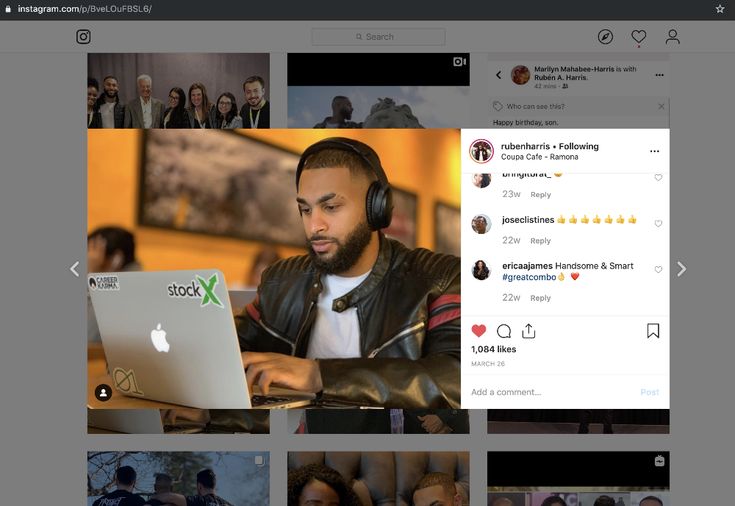
To post on Instagram from your desktop computer (PC or Mac), follow these simple steps:
 A Create new post window will pop up.
And that’s it!
At the moment, only feed posts can be created and published directly from Instagram on desktop. Keep reading to find out how to post Instagram Stories from a PC or Mac computer.
If Instagram is your social network of choice and you don’t mind not having all your social networks in one dashboard, Creator Studio could be a good option for you.
Note that when using Creator Studio, you can post and schedule all types of posts other than Instagram Stories.
How to post on Instagram using Creator Studio:
You can post an Instagram Story from your computer using a third-party social media management tool like Hootsuite. Just follow the steps outlined in this short video:
Or, read our step-by-step article on how to post an Instagram Story from your computer.
If you don’t have Hootsuite, you can post an Instagram Story from your PC or Mac through the following steps:
You’re done! It’s practically the same steps as if you were using the Instagram app on a mobile device.
#1 Social Media Tool
Create. Schedule. Publish. Engage. Measure. Win.
Start free 30-day trial
With Hootsuite, you can also create and easily publish carousel posts (with up to 10 images or videos) directly to Instagram. Here’s how.
1. Go to Planner and tap New post to launch Compose.
2. Select the Instagram account you want to publish to.
3. Include your caption in the Text box.
4. Go to Media and tap Select files to upload. Select all the images you want to include in your carousel. All selected images should appear under Media.
5. Use the yellow Schedule button to select a date and time to publish your post.
6. Tap Schedule. The post will show up in your Planner at the time you have scheduled it for.
That’s it! Your post will go live on the date and time you selected.
How to edit an Instagram post from desktopHootsuite Compose allows you to edit any image directly on your dashboard before you post it. Unfortunately, you won’t be able to edit the image once it’s posted.
Follow these steps to edit:
 This brings up Hootsuite Composer’s edit tool. It allows you to customize the aspect ratio of your image to fit practically any social media platform’s image metrics. From the sidebar, you also have the ability to add filters, adjust lighting and focus, add text and stickers, and use the brush too.
Voila! You just edited your image from your desktop.
Post to Instagram from your PC or Mac using Hootsuite. Save time, grow your audience, and measure your performance alongside all your other social channels. Try it free today.
Get Started
Easily publish and schedule Instagram posts from your computer with Hootsuite. Save time and get results.
Try it for Free
June 12, 2020 Likbez Technologies
Social network desktop site does not allow posting. But there are workarounds.
You can open the mobile version of the Instagram* website on your computer and create stories and posts there, just like in the official app. How to do this - we show on the example of Chrome, but in most other browsers the steps will be similar. nine0003
Go to the Instagram* website and log in to your account.
Open developer tools. To do this, press Shift + Ctrl + I or right-click on the page and select View Code (or a line with a similar name).
On the toolbar that opens, find the icon with a schematic representation of multiple monitors or mobile devices and click on it. If you can't find it, press Shift + Ctrl + M. One way or another, the browser should launch the site in mobile mode. nine0003
Customize the size of the Instagram* interface that is convenient for you using the buttons above the site window.
Refresh the page. After that, a publish button will appear and you can use the social network on a PC in the same way as on a smartphone.
Last year, Facebook* launched a dedicated Creator Studio section. It allows you to publish and even schedule posts on Instagram*. You can't create stories yet. nine0003
To work with Creator Studio, you need to switch your Instagram* account to a professional one (creator profile or business account). To do this, go to the settings of the Instagram* mobile app, select "Account" → "Switch to a professional account" and follow the prompts. The procedure will take you a couple of minutes. If you don’t like something, you can return to the usual account type at any time.
In addition, you must link your profile to a Facebook page*. To do this, click the Edit (iOS) or Edit Profile (Android) button on your account page in the Instagram* app. Select "Page" and connect your new Facebook* page using system prompts. nine0003
Now open Creator Studio on your computer browser, select the Instagram* icon at the top and log in with your account.
To make a post, on the left panel, click the Create a post button and select Instagram* Feed. Add a photo or video using the Add Content button.
Click the arrow next to Publish and select the appropriate option: Publish Now (publish now) or Plan (schedule). In the second case, you can specify the time at which the service will publish the post automatically. nine0003
Emulators are special programs that allow you to run any Android application directly on your computer. By launching the official Instagram* mobile client this way, you can easily publish Stories and posts. You don't need an Android device for this.
Install any free emulator from Lifehacker's selection for Windows, Linux and macOS. In the screenshot example, you can see a window with the NoxPlayer interface. nine0003
Launch the emulator and enter the Google Play app store through it by clicking on the corresponding icon. Connect your old or create a new Google account to be able to download Android apps.
Download Instagram* from Google Play directly in the emulator and log into your profile. After that, you can publish videos and pictures from your computer as if you were using the social network on your smartphone.
See also
*Meta Platforms Inc. activity. and its social networks Facebook and Instagram are prohibited in the territory of the Russian Federation.
Continuation of the story from
Stories
Stories
Veronica Elkina
Ex-Story Editor nine0003
Polina Todorova
The Instagram social network has always focused primarily on mobile applications.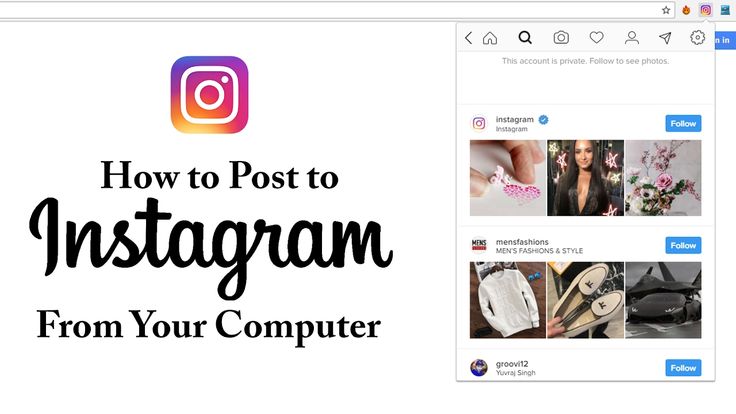 Yes, you can view your feed from a PC or Mac, but your options there are limited. You can like photos, follow people, but you can't upload your own pictures and videos.
There are several ways to post photos to Instagram from your computer, from dedicated apps to plug-ins for Adobe Lightroom. But now it can be done much easier. nine0003
Polina Todorova
Instagram added the ability to publish photos to the mobile version of the site (this version is seen by the user if he enters the social network through a browser, and not through the application itself). The new feature is just one part of the big changes coming to the mobile version of the site. All of them will be made to facilitate access to Instagram in countries with severe restrictions on Internet bandwidth. nine0003
Related Content:
38 Instagram Tricks Not Everyone Knows About
Instagram Stories: How to start thinking about content and make it work for you?
How to run a commercial Instagram: instructions with examples from an SMM specialist
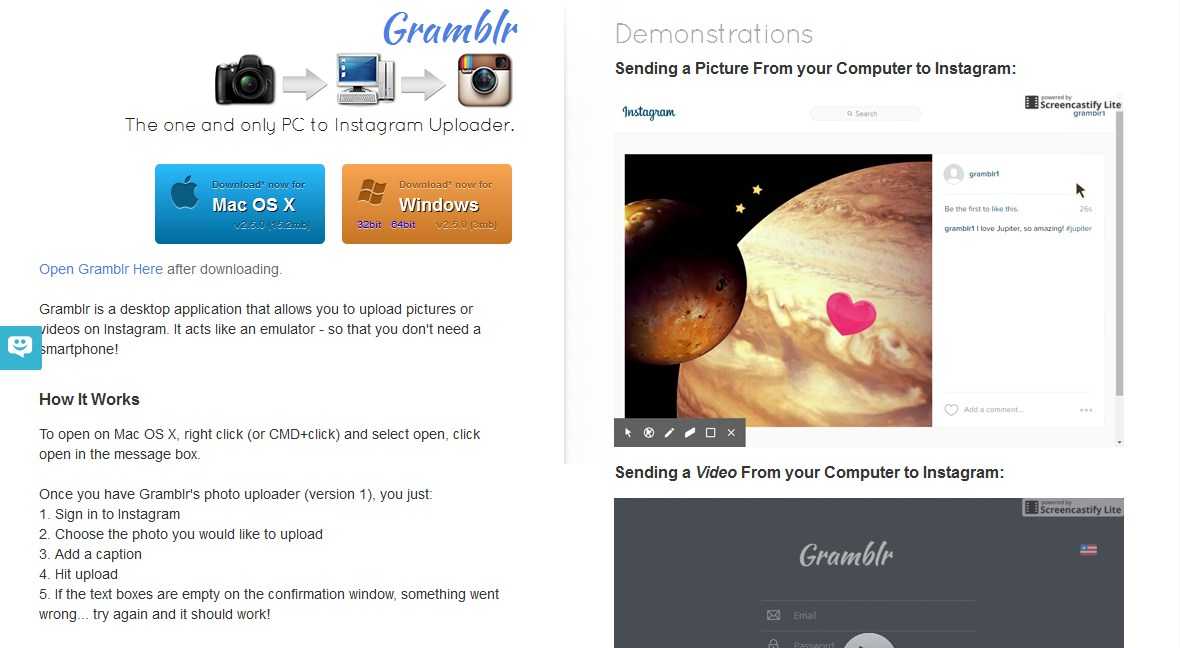
To post photos to Instagram from a computer, you need to install a Chrome extension that will allow you to open the mobile version of the social network on a PC or Mac.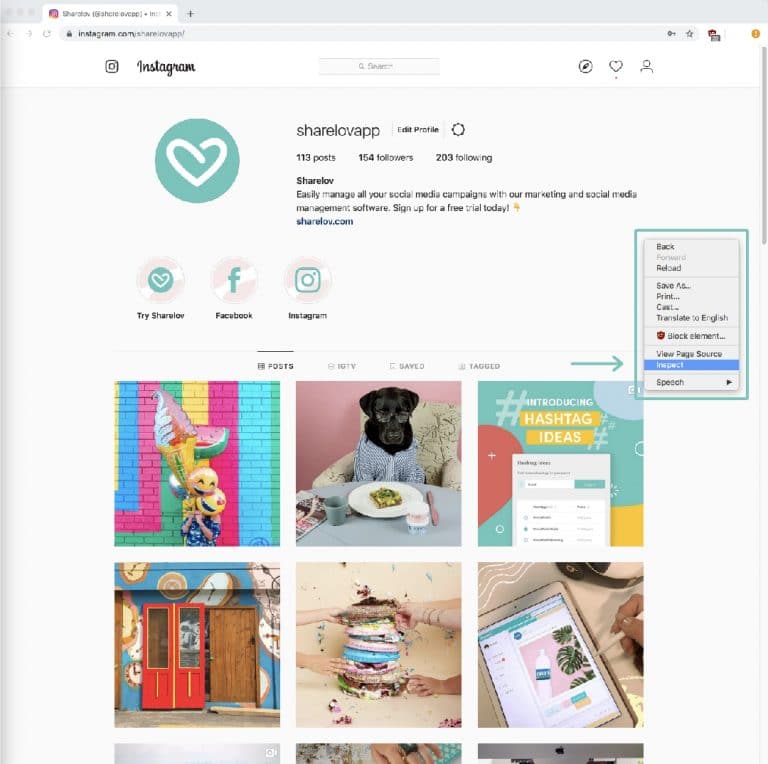 Install the extension, select your device type (iOS or Android) from the menu, and go to Instagram.com. You will see a mobile version of the site with a button to upload photos. nine0003
This is what it will look like:
However, the functionality of the mobile version of the site is somewhat limited compared to the application. So far, videos cannot be uploaded through the site, and filters, photo editing mode, geolocation tracking do not work here, and it is impossible to publish a series of photos in one post.
But still this method works. If you suddenly need to urgently post a photo on Instagram from your computer, it will be easier to use this technique than to first transfer the picture to your phone and then publish it from it. nine0003
The extension modifies the user-agent string. This line is a kind of calling card used by browsers. It tells the site information about which device the browser is running on, and the browser, in turn, adapts to this device. The extension makes the site think that you have opened Instagram from a mobile device and not from a computer.
Source.
Related materials:
How to save photos from Instagram without using a screenshot
How to get followers on Instagram
Instagram allows you to save live broadcasts to your phone memory
How to make money from celebrity animals on Instagram
How to get a loyal audience on Instagram: success stories of three brands
Found a typo? Select the text and press Ctrl + Enter nine0003
 How the mobile app industry has evolved in 2021
 December 30, 2022 nine0003
Softlanding Program
December 31, 2022
TMK-Premium Service
December 31, 2022
Accelerator ITMO
All possibilities nine0003
Speakers
Stories
Archive rb.